1
Step 4
Turn On the Camera
Press the power switch to turn on the camera.
• The power-on lamp (green) will light, and then the
monitor will turn on (the power-on lamp turns off when
the monitor turns on).
C Power Saving Function (Auto Off)
If no operations are performed for a while, the monitor will turn off, the camera will enter
standby mode, and the power-on lamp will blink. If no operations are performed for another
three minutes, the camera will turn off automatically.
When the power-on lamp is blinking, the following operations will turn the monitor back on.
- Pressing the power switch, shutter-release button, c button, or b (movie-record) button
- Rotating the mode dial
Step 5
Choose a Language and Set the Camera Clock
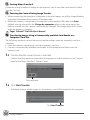
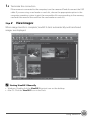
When the first time the camera is turned on, the language-selection screen and the
date and time setting screen for the camera clock are displayed.
Use the rotary multi selector to make the settings.
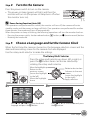
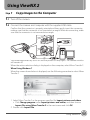
The Rotary Multi Selector
Press the rotary multi selector up, down, left, or right, or
press the k button. Items can also be selected by
rotating the rotary multi selector.
Move the highlight up
Return to the
previous screen
(move the highlight
to the left)
Move the highlight
down
5.1
5.2
Rotate to select an item
Advance to the next
screen
(move the highlight
to the right)
Apply selection
Date
Set time and date?
Yes
No
Cancel
Press H, I, J, or K to choose the desired
language and press the k button.
Press H or I to choose Yes and press
the k button.
First Steps
7