1
SVHeat Tutorial Manual
·
22
of
32
Define the Main region
1.
Specify Ground as the region by selecting Model > Geometry > Regions from
the menu and clicking on 'Ground'.
2.
Press OK to close the dialog.
3.
Select Draw > Model Geometry > Polygon Region from the menu.
4.
The cursor will now be changed to cross hairs.
5.
Move the cursor near (0,0) in the drawing space. You can view the coordinates
of the current position the mouse is at in the status bar just below the
workspace.
6.
To select the point as part of the shape left click on the Point.
7.
Now move the cursor near (12,0). Right-click to snap the cursor to the exact
point and then left click on the Point. A line is now drawn from (0,0) to (12,0).
8.
Repeat this process for the remaining points. Refer to the previous section of
this manual for the geometry points for each region.
9.
For the last point (0,10), right-click to snap the cursor to the point. Double-click
on the point to finish the shape. A line is now drawn from (0,20) to 0,10) and
the shape is automatically finished by SVHEAT by drawing a line from (0,10)
back to the start point, (0,0).
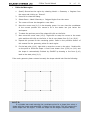
If the main geometry been entered correctly the shape should look like the following:
NOTE:
If a mistake was made entering the coordinate points for a shape then select a
shape with the mouse and select Edit > Delete from the menu. This will remove the
entire shape from the region. To edit the shape use the Region Properties dialog.