Download LogTag Analyser User guide
Transcript
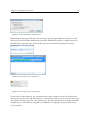
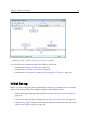
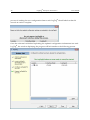
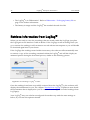
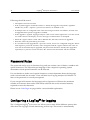
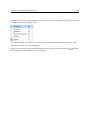
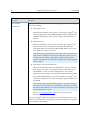
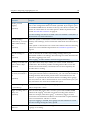
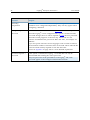
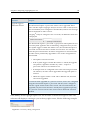
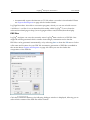
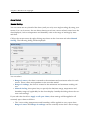
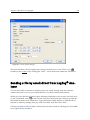
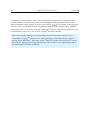
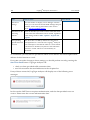
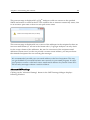
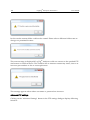
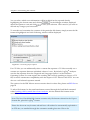
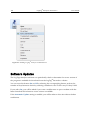
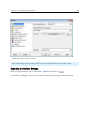
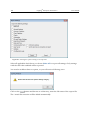
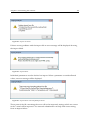
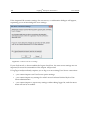
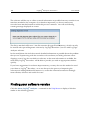
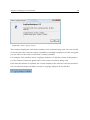
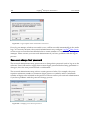
Chapter 2: Installing the software l 19 automatically, if you have enabled "Automatic Updates" see Software Updates on page 170 By default, this option is turned on. We recommend leaving it turned on, so you will automatically be notified when an update is available. You will see the following window, letting you choose to whether or not you wish to update at this stage: l ... through the Help menu by selecting "Check Internet for update..." When you select this option, LogTag® Analyzer will check the LogTag® Recorders website for a newer version of the software Neither of these two options will transmit any information about you or your system to LogTag® Recorders , so you can rest assured your privacy is maintained. l ... by downloading an upgraded installer file from the LogTag® Recorders website. This requires you do check yourself if the version currently offered for download is more recent that the one installed on your PC. You can find the version number of the software installed on your PC in the Help menu. LogTag® Recorders recommend that you always use the latest version of the software. If a newer version is available, you can download the updated version of the installer file to your PC and then proceed with the installation process. The older version of the software will be replaced with the new version. Installing a newer version will update all the relevant program files. It will not affect any of your LogTag data files or your custom settings of the software. You may however need to check any shortcuts to the program you made, as the location of the program files can change. If you are upgrading from version 1.7r10 or earlier, the installed unsigned USB drivers will not be replaced automatically. To replace the USB drivers you will need to go to Windows® Update and select the FTDI