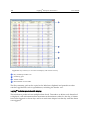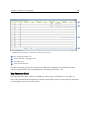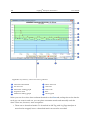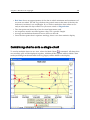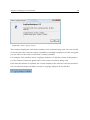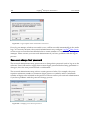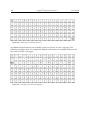
1
LogTag® Analyzer User Guide Software Revision: 2.5, Document Revision: 1.0 Published 5/12/2014 ii LogTag® Analyzer Version 2.5 User Guide Copyright The information contained within this User Guide regarding use of LogTag® Analyzer software is intended as a guide and does not constitute a declaration of performance. The information contained in this document is subject to change without notice. Unless otherwise noted, the example companies, organisations, email addresses and people depicted herein are fictitious, and no association with any real company, organization, email address or person is intended or should be inferred. Complying with all applicable copyright laws is the responsibility of the user. No representation or warranty is given and no liability is assumed by LogTag® Recorders with respect to the accuracy or use of such information or infringement of patents or other intellectual property rights arising from such use or otherwise. Copyright © 2004-2014 LogTag® Recorders . All rights reserved. http://www.logtagrecorders.com iii Table of Contents Introduction 13 Installing the software 15 System requirements Getting a copy of the software The installation process Upgrading LogTag® Analyzer Starting the software Quick Start Guide Connecting the Interface Using the LogTag® with the Interface The Workspace Initial Set-up Configuring a LogTag® for recording Using the LogTag® Access Wizard Using the LogTag® Menu Welcome Screen Locate LogTag®(s), download and save relevant data Configure LogTag®(s) for next use Prepare LogTag®(s) for next use Starting and using the LogTag® LogTag® light patterns Retrieve information from LogTag® Preparing LogTag®(s) for use Getting a LogTag® ready for use Restricting Access Protecting Recorded Data Password Rules Configuring a LogTag® for logging Alert Processing Advanced Alert Settings Display Recorder Alarms Advanced USB Recorder Options Verify Access Password 16 16 18 18 20 22 23 24 25 26 27 27 28 29 30 32 32 34 35 37 38 39 39 40 41 41 49 53 55 58 61 LogTag® Analyzer Version 2.5 iv User Guide Pre-start data collection Continuous operation Working with batches of LogTag®s Getting the best from your LogTag® Configuration Profiles 61 62 63 63 64 Profiles Grid Profile Control Buttons Profile Storage File Name and Path Profile File Controls Profile Dialogue Controls 66 66 67 68 68 Quickly re-configuring LogTag®s Automatic Re-Configuration after Download Hibernation - Prolonging battery life Results from LogTag® Getting results from LogTag®s Saving LogTag® Data Saving LogTag® Data files Saving a Multi Chart file Selected LogTag® Data files (*.sltd) Saving a file for use in spreadsheets PDF files 70 71 72 74 75 76 76 77 78 81 83 Analyzing the results 85 Chart Display Report Display Data Display Summary Display Day Summary Display Day Summary Chart 87 96 100 102 104 106 Combining charts onto a single chart Changing Chart Colours Shifting chart start times Aligning Charts Special Chart Tabs Behind The Scenes Automatically calculated statistics Average Reading Standard Deviation Mean Kinetic Temperature Degree Minutes Displaying statistics Printing the results Sending a file by email direct from LogTag® Analyzer Calling up previous results 108 109 110 111 111 113 114 115 116 118 120 121 121 122 123 v Digital signatures How secure is my data Viewing file properties 124 126 127 Customising the software 129 General Settings Show temperatures in Use Font Default display time interval Language Summary Statistics Chart Statistics Charts Automation Enable automatic download of readings from LogTag® Reconfigure with same settings after automatic download Display readings after successful download Only show the latest set of readings after download Automatically save data files to default folder if source is read only Automatic emailing and uploading to FTP sites File and Folder Settings Display X items in my most recently used list Display File Name Folder Name Uniqueness Exports and Reports Date and Time Format Time zones Communication Ports User Server Software Updates Configuration Reports Importing and Exporting Option Settings Exporting the Options Settings Importing the Option Settings 131 131 131 132 132 133 134 135 138 139 139 140 140 140 140 155 156 156 156 159 161 162 164 166 166 169 170 171 172 173 175 Menus and Toolbars 179 Menu commands 179 LogTag® Analyzer Version 2.5 vi File Menu Edit Menu LogTag® Menu Window Menu Help Menu Toolbar commands Print preview toolbar Standard Window commands Getting more information Getting more help Finding your software version Appendix User Guide 180 183 184 185 186 187 190 191 193 193 194 196 Connecting to LogTag® User Server 196 How users log on How users change their password 196 197 Troubleshooting Code Pages Index 198 198 203 vii List of Figures Figure 1: Downloading using Internet Explorer 16 Figure 2: Download Window - Mozilla Firefox 17 Figure 3: Download progress using Firefox 17 Figure 4: Download progress using Chrome 17 Figure 5: Windows® Start Menu 21 Figure 6: Rear of PC with one serial port (RS232) 23 Figure 7: Rear of PC with 4 USB ports 23 Figure 8: Standard interface cradle with LogTag® 24 Figure 9: TICT/TIC20 interface cradle 24 Figure 10: TICT in interface with adapter 25 Figure 11: LogTag® Analyzer Workspace, showing areas of interest 26 Figure 12: LogTag Access Wizard from toolbar 27 Figure 13: LogTag Access Wizard from menu 28 Figure 14: Configure LogTag® from menu 28 Figure 15: Wizard Screen 32 Figure 16: Downloading a LogTag® recorder 37 Figure 17: Configuration screen for a HAXO-8 43 Figure 18: Low battery during configuration 48 Figure 19: Advanced Alert Settings 53 Figure 20: Advanced alert options for display recorder 56 Figure 21: Advanced Option Dialogue 59 Figure 22: Verifying a new password 61 Figure 23: LogTag® features 64 Figure 24: Profiles in the profile grid 66 Figure 25: New profile window 67 Figure 26: Hibernation successful 73 Figure 27: Confirm Multi Chart file copy 77 Figure 28: Saving a file as a *.sltd file 79 Figure 29: Zoomed chart display 80 Figure 30: Chart display 87 Figure 31: Chart display while zooming with the mouse 88 Figure 32: Chart context menu 93 Figure 33: Chart with annotations 93 Figure 34: Chart title context menu 94 Figure 35: Chart with subtitle 94 viii LogTag® Analyzer Version 2.5 User Guide Figure 36: Report Tab 96 Figure 37: Report context menu 96 Figure 38: Report tab in landscape format 98 Figure 39: Report tab for TIC20 and TICT products 99 Figure 40: Chart display in Report tab for iS0°Tag indicators 100 Figure 41: Data tab 101 Figure 42: Statistics tab 103 Figure 43: Statistics tab when inspection marks are included 104 Figure 44: Day summary for recorders with display and statistics memory 105 Figure 45: Day summary for indicators with statistics memory 106 Figure 46: Day Summary Chart tab for iS0°Tag indicators 107 Figure 47: Two charts combined into a multi chart 109 Figure 48: Multi chart with different time axes 110 Figure 49: Multichart data - as recorded 113 Figure 50: Multichart data - normalised 113 Figure 51: Multichart data - normalised min/max/average curves 113 Figure 52: Formula for average reading 115 Figure 53: Sample based standard deviation 116 Figure 54: Population based standard deviation 116 Figure 55: Formula for mean kinetic temperature 118 Figure 56: Custom printer dialogue 122 Figure 57: File Open dialogue window 123 Figure 58: File not compatible with current version of LogTag® Analyzer 124 Figure 59: File with digital signature attached 125 Figure 60: Adding a digital signature 126 Figure 61: File properties 128 Figure 62: File properties for indicator product 128 Figure 63: Edit Options Menu 129 Figure 64: General settings 131 Figure 65: Statistics Options dialogue 133 Figure 66: Chart Statistics Options dialogue 134 Figure 67: Chart options 135 Figure 68: Automation Options dialogue 139 Figure 69: Basic SMTP settings for automatic emailing 144 Figure 70: Advanced SMTP settings 148 Figure 71: Basic FTP settings screen 150 Figure 72: Advanced FTP settings screen 153 Figure 73: File and folder settings Option dialogue 156 ix Figure 74: Available file name elements 157 Figure 75: Export Options 162 Figure 76: Customising Export Options 163 Figure 77: All COM ports disabled, USB enabled 167 Figure 78: Communication ports USB, COM1 and COM2 enabled 168 Figure 79: Communication port COM4 detected and enabled after scan 168 Figure 80: User Server options 169 Figure 81: Running LogTag® Analyzer as administrator 170 Figure 82: Software update options 171 Figure 83: Configuration logging options 171 Figure 84: Import and Export Buttons 173 Figure 85: Selecting the options settings to be exported 174 Figure 86: Selecting the export file name and location 175 Figure 87: Import options dialogue 176 Figure 88: Import successful 177 Figure 89: Import failure 177 Figure 90: Import failure with misspelled parameter 177 Figure 91: Confirm User Server settings 178 Figure 92: Menu and toolbar 179 Figure 93: File menu 180 Figure 94: LogTag® Analyzer Edit menu 183 Figure 95: LogTag Menu 184 Figure 96: Window menu 185 Figure 97: Help menu 186 Figure 98: LogTag® Analyzer toolbar 187 Figure 99: Print preview 190 Figure 100: Application window commands 191 Figure 101: File window commands 192 Figure 102: About LogTag® Analyzer 195 Figure 103: Logon request when connected to User Server 197 Figure 104: Changing a User Server password 197 Figure 105: ASCII Table of printable characters 199 Figure 106: Code page 1252, Western languages 199 Figure 107: Code page 847, Thai language 200 Figure 108: Accessing charmap.exe on Windows XP and Windows 7 200 Figure 109: Code page 932, Japanese language 201 Figure 110: Code page 932, Japanese language, subset 91 202 LogTag® Analyzer Version 2.5 x User Guide List of tables Table 1: LogTag® light patterns 35 Table 2: Logging configuration parameters and start options 44 Table 3: Alert configuration parameters 49 Table 4: Alert examples 52 Table 5: Advanced alert settings 53 Table 6: Advanced alert examples 55 Table 7: Display recorder alarms 57 Table 8: Advanced Option Settings - General 59 Table 9: Advanced Option Settings - PDF 60 Table 10: Profile error messages 69 Table 11: Tab summary 86 Table 12: Available Settings in the chart options 135 Table 13: Advanced SMTP settings 148 Table 14: Recording your basic FTP settings 150 Table 15: Recording your advanced FTP settings 154 Table 16: Description of available file name elements and their placeholder text 157 Table 17: Description of available elements and their placeholder text for the storage folder 160 Table 18: Date options 164 Table 19: Time options 165 Table 20: Time zones for data display 166 Table 21: File menu - available commands 181 Table 22: Edit menu - available commands 183 Table 23: LogTag menu - available commands 184 Table 24: Window menu - available commands 185 Table 25: Help menu - available commands 186 Table 26: Toolbar icons and their function 187 Table 27: Commands available in the print preview toolbar 190 xi Software License To use the software you must agree to the license terms set out below. LOGTAG RECORDERS LTD END-USER LICENSE AGREEMENT YOU SHOULD CAREFULLY READ THE FOLLOWING TERMS AND CONDITIONS BEFORE USING THIS PRODUCT. IT CONTAINS SOFTWARE, THE USE OF WHICH IS LICENSED BY LOGTAG RECORDERS LTD, TO ITS CUSTOMERS FOR THEIR USE ONLY AS SET FORTH BELOW. IF YOU DO NOT AGREE TO THE TERMS AND CONDITIONS OF THIS AGREEMENT, DO NOT USE THE SOFTWARE. USING ANY PART OF THE SOFTWARE INDICATES THAT YOU ACCEPT THESE TERMS. LICENSE: LogTag Recorders LTD grants you a personal, limited, non-exclusive license to use the accompanying software program(s) (the "Software") subject to the terms and restrictions set forth in this License Agreement. You are not permitted to lease or rent (except under separate mutually agreeable terms set forth in writing), distribute or sublicense the Software or to use the Software in a time-sharing arrangement or in any other unauthorized manner. Further, no license is granted to you in the human readable code of the Software (source code). Except as provided below, this License Agreement does not grant you any rights to patents, copyrights, trade secrets, trademarks, or any other rights in respect to the Software. The Software is licensed to be used on any computing device. You may reproduce and provide one (1) copy of such Software for each computing device on which such Software is used as permitted hereunder. Otherwise, the Software and supporting documentation may be copied only as essential for backup or archive purposes in support of your use of the Software as permitted hereunder. You must reproduce and include all copyright notices and any other proprietary rights notices appearing on the Software on any copies that you make. NO ASSIGNMENT; NO REVERSE ENGINEERING: You may transfer the Software and this License Agreement to another party if the other party agrees in writing to accept the terms and conditions of this License Agreement. If you transfer the Software, you must at the same time either transfer all copies of the Software as well as the supporting documentation to the same party or destroy any such materials not transferred. Except as set forth above, you may not transfer or assign the Software or your rights under this License Agreement. Modification, reverse engineering, reverse compiling, or disassembly of the Software is expressly prohibited. Analyzing the input to and output from the Software is expressly prohibited except when this is done solely to evaluate the subjective quality of the Software's visual and data analysis processes. You may not otherwise modify, alter, adapt, port, or merge the Software except as specified in this License Agreement. EXPORT RESTRICTIONS: You agree that you will not export or re-export the Software or accompanying documentation (or any copies thereof) or any products utilizing the Software or such documentation in violation of any applicable laws or regulations of the United States or the country in which you obtained them. TRADE SECRETS; TITLE: You acknowledge and agree that the structure, sequence and organization of the Software are the valuable trade secrets of LogTag Recorders LTD and its suppliers. You agree to hold such trade secrets in confidence. You further acknowledge and agree that ownership of, and title to, the Software and all subsequent copies thereof regardless of the form or media are held by LogTag Recorders LTD and its suppliers. TRADEMARKS AND COPYRIGHTS: "LogTag" is a registered trademark (R) of LogTag Recorders LTD. You may not remove, alter, deface, overprint, or otherwise obscure any LogTag Recorders LTD trademark, service mark, or copyright notices included with this Software. INTELLECTUAL PROPERTY: All intellectual property rights in and to this Software are and shall remain in LogTag Recorders LTD. TERM AND TERMINATION: This License Agreement is effective until terminated. You may terminate it at any time by destroying the Software and documentation together with all copies and merged portions in any form. It will also terminate immediately if you fail to comply with any term or condition of this License Agreement. Upon such termination you agree to destroy the Software and documentation, together with all copies and merged portions in any form. GOVERNING LAW: This License Agreement shall be governed by the laws of the State of California and by the laws of the United States, excluding their conflicts of law principles. The United Nations Convention on Contracts for the International Sale of Goods (1980) is hereby excluded in its entirety from application to this License Agreement. xii LogTag® Analyzer Version 2.5 User Guide LIMITED WARRANTY; LIMITATION OF LIABILITY: EXCEPT AS EXPRESSLY PROVIDED OTHERWISE IN A WRITTEN AGREEMENT BETWEEN LOGTAG RECORDERS LTD AND YOU, THE SOFTWARE IS NOW PROVIDED "AS IS" WITHOUT WARRANTY OF ANY KIND, EITHER EXPRESS OR IMPLIED, INCLUDING, BUT NOT LIMITED TO, THE IMPLIED WARRANTIES OF MERCHANTABILITY OR FITNESS FOR A PARTICULAR PURPOSE, OR THE WARRANTY OF NON-INFRINGEMENT. WITHOUT LIMITING THE FOREGOING, LOGTAG RECORDERS LTD MAKES NO WARRANTY THAT (I) THE SOFTWARE WILL MEET YOUR REQUIREMENTS, (II) THE USE OF THE SOFTWARE WILL BE UNINTERRUPTED, TIMELY, SECURE, OR ERROR-FREE, (III) THE RESULTS THAT MAY BE OBTAINED FROM THE USE OF THE SOFTWARE WILL BE ACCURATE OR RELIABLE, (IV) THE QUALITY OF THE SOFTWARE WILL MEET YOUR EXPECTATIONS, (V) ANY ERRORS IN THE SOFTWARE WILL BE CORRECTED, AND/OR (VI) YOU MAY USE, PRACTICE, EXECUTE, OR ACCESS THE SOFTWARE WITHOUT VIOLATING THE INTELLECTUAL PROPERTY RIGHTS OF OTHERS. SOME STATES OR JURISDICTIONS DO NOT ALLOW THE EXCLUSION OF IMPLIED WARRANTIES OR LIMITATIONS ON HOW LONG AN IMPLIED WARRANTY MAY LAST, SO THE ABOVE LIMITATIONS MAY NOT APPLY TO YOU. IF TEXAS LAW IS NOT HELD TO APPLY TO THIS AGREEMENT FOR ANY REASON, THEN IN JURISDICTIONS WHERE WARRANTIES, GUARANTEES, REPRESENTATIONS, AND/OR CONDITIONS OF ANY TYPE MAY NOT BE DISCLAIMED, ANY SUCH WARRANTY, GUARANTEE, REPRESENTATION AND/OR WARRANTY IS: (1) HEREBY LIMITED TO THE PERIOD OF EITHER (A) THIRTY (30) DAYS FROM THE DATE OF OPENING THE PACKAGE CONTAINING THE SOFTWARE OR (B) THE SHORTEST PERIOD ALLOWED BY LAW IN THE APPLICABLE JURISDICTION IF A THIRTY (30) DAY LIMITATION WOULD BE UNENFORCEABLE; AND (2) THE SOLE LIABILITY OF LOGTAG RECORDERS LTD. FOR ANY BREACH OF ANY SUCH WARRANTY, GUARANTEE, REPRESENTATION, AND/OR CONDITION SHALL BE TO PROVIDE YOU WITH A NEW COPY OF THE SOFTWARE. IN NO EVENT SHALL LOGTAG RECORDERS LTD OR ITS SUPPLIERS BE LIABLE TO YOU OR ANY THIRD PARTY FOR ANY SPECIAL, INCIDENTAL, INDIRECT OR CONSEQUENTIAL DAMAGES OF ANY KIND, OR ANY DAMAGES WHATSOEVER, INCLUDING, WITHOUT LIMITATION, THOSE RESULTING FROM LOSS OF USE, DATA OR PROFITS, WHETHER OR NOT LOGTAG RECORDERS LTD HAD BEEN ADVISED OF THE POSSIBILITY OF SUCH DAMAGES, AND ON ANY THEORY OF LIABILITY, ARISING OUT OF OR IN CONNECTION WITH THE USE OF THE SOFTWARE. SOME JURISDICTIONS PROHIBIT THE EXCLUSION OR LIMITATION OF LIABILITY FOR CONSEQUENTIAL OR INCIDENTAL DAMAGES, SO THE ABOVE LIMITATIONS MAY NOT APPLY TO YOU. THESE LIMITATIONS SHALL APPLY NOTWITHSTANDING ANY FAILURE OF ESSENTIAL PURPOSE OF ANY LIMITED REMEDY. SEVERABILITY: In the event any provision of this License Agreement is found to be invalid, illegal or unenforceable, the validity, legality and enforceability of any of the remaining provisions shall not in any way be affected or impaired and a valid, legal and enforceable provision of similar intent and economic impact shall be substituted therefore. ENTIRE AGREEMENT: This License Agreement sets forth the entire understanding and agreement between you and LOGTAG RECORDERS LTD, supersedes all prior agreements, whether written or oral, with respect to the Software, and may be amended only in a writing signed by both parties. The software menus and texts as well as this agreement have been created in English and any other language versions have been translated from the English version. In the event of a dispute, reference should be made to the English language version, which is conclusive. For further information about licensing please email [email protected]. Chapter 1 Introduction This guide will take you through the relevant steps to successfully use the LogTag® products. You will learn how to l install the software, l configure LogTag® products for recording, l retrieve the recorded readings, l display and analyse the data and l configure the available options in the software so you can make best use of its features. The chapters in this guide are placed accordingly. Experienced users of the software may choose to skip chapters 1 and 2, however if you are about to use a newer version of a LogTag® or Interface Cradle we recommend you at least skim the installation chapter for any relevant changes. This guide covers version 2.5 of the LogTag® Analyzer software. If you are unsure which version you are currently using, please read Finding your software version included later in this guide. If you find a feature described in this guide that does not appear in your software, we recommend you update it as explained in the section about "Upgrading LogTag® Analyzer". You can always get the most up to date version of LogTag® Analyzer from the LogTag® Recorders website at http://www.logtagrecorders.com. This guide includes all the relevant information to install and use the product range supplied by LogTag® Recorders , however occasionally the reader is expected to be familiar with using a computer and the Windows® operating system. Chapter 2 Installing the software To use your LogTag® products you will first need to install LogTag® Analyzer on your computer. This will allow preparing your LogTag® for recording, retrieving the readings from memory at the end of a trip and analysing the data. This chapter will take you through the steps necessary to successfully install the software on to your computer This should be very familiar to users that have previously installed other software, which is why experienced users may choose to skip this chapter. If you are new to using a computer or unsure about installing the software, we recommend you read the remainder of this chapter. In this chapter: System requirements Getting a copy of the software The installation process Upgrading LogTag® Analyzer Starting the software 16 16 18 18 20 LogTag® Analyzer Version 2.5 16 User Guide System requirements To ensure that the software will work on your computer following minimum specifications are required: l l l l l l PC capable of running Windows® XP SP2 or later, or Windows® 2003 Server or later 60MB free disk space Internet Explorer 5.0 or later 1 available serial port and/or 1 available USB port, depending on purchased interface 1024 x 768, or higher, screen resolution. 256 screen colours The recommended specifications are: l l l l Processor equivalent to Pentium IV or later 512MB of available RAM Internet Explorer 6.0 or later 65535 (16bit), or more, screen colours. If you are unsure of your computer's specifications, please refer to your operating system's documentation or help function. Getting a copy of the software The software is available for download from the LogTag® Recorders website, http://www.logtagrecorders.com. LogTag® Recorders does not charge for the download and use of this software, or for updates. You are welcome to distribute copies of the LogTag® Analyzer software provided it is distributed unaltered, in the packaged format as originally downloaded from the LogTag® Analyzer website. To obtain the software, visit the LogTag® Recorders website and navigate to the software download page. Complete and submit the download request form. Click on the software download link and confirm whether you wish to open the downloaded file or to save it to a folder on your PC. Figure 1: Downloading using Internet Explorer Chapter 2: Installing the software 17 Figure 2: Download Window - Mozilla Firefox Depending on the type of browser and its version you may get different windows to start and process the download. Modern browsers like Windows® Explorer, Google Chrome or Mozilla Firefox typically have a special directory into which all downloads are copied. Figure 3: Download progress using Firefox Figure 4: Download progress using Chrome If you have an older browser, we recommend you select a folder on your PC that you can easily access (such as the "My Documents" or "Download" folder), but you are free to choose any folder for which you have write permissions. The downloaded file is a single executable installer file; no other files are required for installation of LogTag® Analyzer software on your computer. 18 LogTag® Analyzer Version 2.5 User Guide Once the installation process has completed the installer file is no longer required and can safely be deleted. The installation process To install the LogTag® Analyzer software, locate the installation file downloaded in the previous step and execute it (typically by double clicking or selecting the file in Windows® Explorer and pressing Ent er). Follow the on-screen instructions. Select the installer language and change the program's storage location if desired. We recommend you leave all options at their default setting, especially if you are unsure of what option to select or what effects changing the option would have. button. If you want To proceed through each step of the installation process, click the to change a previous step you can click the button. When all required data have been entered, click the button to complete the installation process. If you want to stop installing the software, click the button. The drivers required to operate your USB interface are installed as part of the main installation process. From time to time updated drivers may be released by LogTag® Recorders . These drivers will be available through the Microsoft Windows® Update feature, as an optional hardware update, or as part of an upgraded installer file (See "Upgrading LogTag® Analyzer" below) Upgrading LogTag® Analyzer LogTag® Recorders will publish updates to LogTag® Analyzer to introduce new or enhanced features, or to support new LogTag® models. You can get these updates... Chapter 2: Installing the software l 19 automatically, if you have enabled "Automatic Updates" see Software Updates on page 170 By default, this option is turned on. We recommend leaving it turned on, so you will automatically be notified when an update is available. You will see the following window, letting you choose to whether or not you wish to update at this stage: l ... through the Help menu by selecting "Check Internet for update..." When you select this option, LogTag® Analyzer will check the LogTag® Recorders website for a newer version of the software Neither of these two options will transmit any information about you or your system to LogTag® Recorders , so you can rest assured your privacy is maintained. l ... by downloading an upgraded installer file from the LogTag® Recorders website. This requires you do check yourself if the version currently offered for download is more recent that the one installed on your PC. You can find the version number of the software installed on your PC in the Help menu. LogTag® Recorders recommend that you always use the latest version of the software. If a newer version is available, you can download the updated version of the installer file to your PC and then proceed with the installation process. The older version of the software will be replaced with the new version. Installing a newer version will update all the relevant program files. It will not affect any of your LogTag data files or your custom settings of the software. You may however need to check any shortcuts to the program you made, as the location of the program files can change. If you are upgrading from version 1.7r10 or earlier, the installed unsigned USB drivers will not be replaced automatically. To replace the USB drivers you will need to go to Windows® Update and select the FTDI LogTag® Analyzer Version 2.5 20 User Guide - USB Interface update from the "Other hardware" section. Please refer to your Operating System manual or help on how to access this feature. You can also update your driver from the Control Panel device manager. Please see documentation or help file of your operating system. Starting the software At the conclusion of the installation process click to close the installer window. At any time you can start the software ... l ... by double clicking the "Shortcut" on the desktop l ... by navigating to the "Shortcut" in the "Start" menu system. Click on the "All Programs" item to locate the "LogTag® Analyzer" shortcut, similar to Chapter 2: Installing the software 21 the following picture: Figure 5: Windows® Start Menu l ... by selecting the LogTag® Analyzer tile from the Start screen Please refer to your operating system documentation for further assistance about program locations and how to execute programs. Chapter 3 Quick Start Guide This chapter will cover how you prepare your LogTag® recorders for use, how to start them and how to retrieve and analyse the recorded information. Subsequent chapters will explain this in more detail, and also show you how you can customise LogTag® Analyzer's settings to make your work easier. In this chapter: Connecting the Interface Using the LogTag® with the Interface The Workspace Initial Set-up Configuring a LogTag® for recording Starting and using the LogTag® LogTag® light patterns Retrieve information from LogTag® 23 24 25 26 27 34 35 37 LogTag® Analyzer Version 2.5 23 User Guide Connecting the Interface The interface cradles available from LogTag® Recorders connect to either a serial (RS232) port or a USB (Universal Serial Bus) port, depending on the model you purchased. The ports for serial (RS232) communication devices are typically located at the rear of the computer as shown here: Figure 6: Rear of PC with one serial port (RS232) Insert the plug into the port with the correct orientation. We recommend you tighten the securing screws when the connector is plugged in so that it does not accidentally pull out during use. The ports for USB devices are typically also located at the rear of the computer, but you may find other ports at the front or sides of your computer. If you are using a USB hub we recommend it has its own power supply. Figure 7: Rear of PC with 4 USB ports Connectors for USB devices will often display a USB logo such as this one so you can identify them easier: Chapter 3: Quick Start Guide 24 LogTag® Analyzer can communicate with multiple interface cradles at the same time; you may connect as many serial and USB interface cradles as the computer supports, although we find that connecting more than 4 interfaces becomes impractical. If you install LogTag® Analyzer on a computer with no internet connection you must ensure USB interface cradles are not connected until the installation is completed, since the required drivers are installed as part of LogTag® Analyzer. If the software cannot identify a connected USB interface cradle there may have been a problem during the installation of the driver software. Please refer to the FAQ on the LogTag® Recorders website for further information. LogTag®'s range of USB recorders do not require an interface to communicate with LogTag® Analyzer. Using the LogTag® with the Interface Depending on the product you want to download you will need one of two different interface cradle types. Figure 8: Standard interface cradle with LogTag ® Figure 9: TICT/TIC20 interface cradle Most products use the standard interface cradle, where the LogTag® is inserted into the slot from the top as shown to enable communication. You will be able to see the contact pins inside the slot that meet with the matching contact pads on the LogTag®. When inserting a LogTag® Analyzer Version 2.5 25 User Guide LogTag® into the slot you feel a slight resistance as the contacts engage. Removing the LogTag® will cause a slight clicking noise as the contacts snap back into their unloaded position. The indicator products TIC20 and TICT use a special cradle in which the contact pins are exposed at the top. To enable communication locate the indicator's lug on the interface's boss and firmly press it down, so the contact pins pierce through the rear label. When using the TICT, please remove the adapter from the bottom of the interface and place it as shown; this helps correctly locating the contact pins . Figure 10: TICT in interface with adapter You can connect both interface types to your computer at the same time, provided you use different ports. LogTag® Analyzer will automatically download and display any readings or statistics stored inside the LogTag®. USB recorder products do not require a special interface, but communicate directly with LogTag® Analyzer. The download process will only take a few seconds, but you can stop it if needed by clicking on the button or pressing the ESC key. The Workspace Once you have started LogTag® Analyzer, the main window will open. From here you have access to menu commands, option settings and many other controls. Chapter 3: Quick Start Guide Figure 11: LogTag® Analyzer Workspace, showing areas of interest You can find more information about the different areas here: l l l Information for Menu commands on page 179 Information for Toolbar commands on page 187 Information for Automatic emailing and uploading to FTP sites on page 140 Initial Set-up Before you start configuring and downloading recorders we recommend you customize some of the settings which are available though the Edit-Options menu. l l l Define the display language and temperature units used (see General Settings on page 131) Choose how time and date are displayed (see Date and Time Format on page 164) Select how LogTag® Analyzer names downloaded files and where these are stored (see File and Folder Settings on page 155) 26 LogTag® Analyzer Version 2.5 27 l User Guide Decide which communication ports LogTag® Analyzer uses (see Communication Ports on page 166) Sometimes your network administrator will ask you to import settings from a configuration file. You can read how to do this in the section about Importing and Exporting Option Settings on page 172. Configuring a LogTag® for recording Some of the LogTag® products are delivered to you ready to start. Others will need to be configured before they can record data. During the configuration process of a recorder you define settings such as: l l l l how and when to start recording, how many readings to record and at which interval (see Configuring a LogTag® for logging on page 41) whether to stop recording after a defined number of readings or to record continuously (see Continuous operation on page 62) what alerts to process and at which temperature limits (see Alert Processing on page 49) if password protection is required for setting up or downloading a recorder (see Restricting Access on page 39). You can use a Wizard to assist in the configuration process (see Using the LogTag® Access Wizard below) or select LogTag-Configure from the menu (see Using the LogTag® Menu on the facing page). Using the LogTag® Access Wizard You can use the LogTagAccess Wizard by either clicking on the toolbar icon ( ) or by selecting Wizard from the LogTag menu. Figure 12: LogTag Access Wizard from toolbar Chapter 3: Quick Start Guide 28 Figure 13: LogTag Access Wizard from menu The LogTag® Access Wizard performs following tasks: 1. The Welcome screen is displayed, giving you information about the process that follows. If you enable the "Do not show me this information again" check box, the screen will not be shown again next time you run the wizard. 2. All connected interface cradles are checked for inserted LogTag® products. If any of them contain previously recorded data these are downloaded and saved. 3. A configuration window is displayed where you can enter details about the next recording trip, such as interval and duration. 4. The configuration data entered are uploaded to connected LogTag® recorders. Using the LogTag® Menu You do not need to use the LogTag® Access Wizard to prepare recorders. You can perform the configuration by clicking on Configure from the LogTag menu or by pressing the F3 key. Figure 14: Configure LogTag® from menu In this case downloading and saving data from a previous trip is skipped. As soon as a recorder is configured, previous data can no longer be downloaded. Please ensure you have downloaded the readings before configuring to avoid data loss. 1. LogTag® Analyzer finds all communication ports (USB or Serial) with interface cradles attached. 2. It checks all connected interface cradles for inserted LogTag® products. LogTag® Analyzer Version 2.5 29 User Guide 3. It displays a configuration window where you can enter details about the next recording trip, such as interval and duration. 4. It uploads the configuration data entered into any connected LogTag® recorders. You can also use pre-configured profiles, or quickly re-configure a LogTag® with the same settings as used for the previous recording. For more details on these options please see Configuration Profiles on page 64 and Quickly re-configuring LogTag®s on page 70 Welcome Screen First the Wizard has a welcome screen (this is "1" on the Action List). This asks you to make sure you the LogTag® is placed firmly in the Interface Cradle. Chapter 3: Quick Start Guide 30 The Wizard is responsible for certain "Action Steps" and these are clearly listed at the left in the wizard window. To get to the next screen, click on and the next wizard screen will appear. The green arrow will indicate you have moved to Step 2. Locate LogTag®(s), download and save relevant data In this screen you will see one of the following pictures next to each of the items in the list: l l (no picture) indicates the software is still trying to access this communications port. Data was successfully retrieved from the LogTag® and stored/saved to disk. LogTag® Analyzer Version 2.5 31 l l l User Guide Data was successfully retrieved from the LogTag® but there was no need to save the information to disk. The software was unable to detect an Interface Cradle connected to the communications port or was unable to detect a LogTag® in the Interface Cradle. The LogTag® is a single use recorder and cannot be prepared for use again. It should be returned to the supplying distributor or agent or disposed of in accordance with local regulations.You will still be able to continue to retrieve information stored within the LogTag®. The LogTag® should be almost instantly recognized by serial number and the number of readings. It is possible to have and use more than one communication port at a time and if so, the wizard will find all the LogTag®s. The communication ports that are not in use (the ones that initially are reported with the mark) can be removed from view by selecting an option. You don't have to do that now, but you can do it later to clean up the "wizard window" appearance. To get to the next screen, click on and the third wizard step screen will appear. The software will automatically proceed to the next wizard step, as if the user clicked on , ® if each of the Interface Cradles detected have a LogTag detected in them and the information within the LogTag® was successfully retrieved. Chapter 3: Quick Start Guide 32 Configure LogTag®(s) for next use Figure 15: Wizard Screen The options are available so you have appropriate control over the way the LogTag®s will behave and store data for the upcoming period of recording. These options are explained in more detail in the chapter "Preparing LogTag for use". Click to record the configuration data and you will see the final confirmation screen. Prepare LogTag®(s) for next use The last Wizard screen involves sending the new configuration data to each LogTag® to prepare them for their next use. While the software is sending the new configuration data to each LogTag® the top of the window will look similar to the following picture. The 33 LogTag® Analyzer Version 2.5 User Guide process of sending the new configuration data to each LogTag® should take less than 20 seconds in total to complete. Once the software has finished uploading the updated configuration information into each LogTag®, the window displaying the progress will look similar to the following picture. Chapter 3: Quick Start Guide 34 In this screen you will see one of the following pictures next to each of the items in the list: l l l l (no picture) indicates the LogTag® is still in the process of being prepared for its next use. The LogTag® was successfully prepared for its next use. The LogTag® failed to be prepared for next use. Press to try again. The battery within the LogTag® is low and is unlikely to have enough capacity to record all the data you want during its next use. In this situation the LogTag® should no longer be used. When all LogTag®s have finished receiving their new configuration data, click close the wizard. Your LogTag®(s) are now ready to be started and used. to Please note that the automatic download feature is disabled in this screen. If you use the button to configure a different LogTag®, you may update the configuration of a LogTag® with unsaved data. Starting and using the LogTag® Once a LogTag® has been successfully configured for use it is ready to be started. There are two discrete methods available to start a LogTag® recording, which are selected during configuration. These start methods are explained in more detail in the chapter "Preparing LogTag for use". 1. By pressing and holding the START MARK button on the LogTag® until both the OK and Alert lights alternately flash on and off. 2. By waiting until the date/time defined during configuration is reached, at which time recording will automatically commence. Pressing the START MARK button will have no effect until recording has commenced. You can also have the LogTag® record an "inspection" mark at any time while it is recording, simply by pressing and holding the START MARK button on the LogTag® until both the OK and Alert lights flash on and off at the same time. You may have the LogTag® record as many inspection marks as you want while it is recording, however only one inspection mark can be recorded per reading. In other words, if your LogTag® is configured to take readings at 15 minute intervals, inspection marks can be recorded at intervals of 15 minutes or more. If the LogTag® has finished recording then pressing the START MARK button will have no effect until after the LogTag® has been prepared for next use. LogTag® Analyzer Version 2.5 35 User Guide Once the LogTag® has started recording (either via Start button or date/time start) the Alert and OK indicator lights operate as detailed in the section about LogTag light patterns. LogTag® light patterns LogTag®'s without a display signal a number of different events or status information by using their LED's. The table below contains a summary of the light patterns you may come across during use. Table 1: LogTag® light patterns Signal Sequence LogTag® wake-up signal Sequence of four alternate flashes of green-red LED's Occurrence n n displayed after configuration has been successfully applied to the LogTag®. when a LogTag® is woken up from hibernation state. Not to be mixed up with... LogTag® start-up signal Sequence of sixteen alternate flashes of green-red LED's n displayed when the LogTag® starts its recording cycle. Chapter 3: Quick Start Guide 36 Signal Sequence Mark signal Sequence of five simultaneous flashes of green and red LED's n displayed when pressing start/mark button while recording to indicate an inspection mark in the software. n displayed directly after the start-up signal following a push button start where a recording delay has been configured. In this instance the start-up signal is repeated when the actual recording begins. Single flash of green LED every 4 seconds (approx.) n Single flash of green LED every 8 seconds (approx.) n Logging active, no alert present Logging finished, no alert present Occurrence indicates LogTag® is recording. This is not displayed when pre-start is active and the main logging cycle has not yet started. It is also not displayed when the green LED has been turned off in the configuration screen. indicates LogTag® has finished recording. This is not displayed when the green LED has been turned off in the configuration screen. Will also be displayed when unit has been woken up from hibernation. Alert condition present Single flash of red LED every 4 seconds n displayed when the LogTag® has detected an alert condition and the Alert LED has been activated. If an alert is present you cannot determine if the unit is still logging or has finished its log cycle. The Alert LED will flash every 4 seconds to ensure an alarm condition is not overlooked. Communication The green LED will flash occasionally n during communication with the interface the green LED will flash occasionally; no information is conveyed in this. Start button press red LED glows faintly n This is by design but conveys no information. It is also possible you see no LED lights at all. This could represent one of a number of conditions: l The LogTag® is ready to start, but has not been started yet. l The LogTag® has been configured so the LED flashing is turned off. LogTag® Analyzer Version 2.5 37 l l User Guide The LogTag® is in "Hibernation". Refer to Hibernation - Prolonging battery life on page 72 for further information. The battery is empty and the LogTag® has reached the end of its life. Retrieve information from LogTag® When you are ready to view the recordings that are stored within the LogTag®, just place the LogTag® into the Interface Cradle as before. If the LogTag® is still recording when you go to retrieve the readings it will continue to record without interruption so you will be able to download again later if you choose. If the LogTag® has readings stored within its memory, the software will automatically start to retrieve a copy of the recording contained within the LogTag® and will also display an animated picture during the download process, similar to the following picture. Figure 16: Downloading a LogTag ® recorder Once the readings have been successfully retrieved from the LogTag®(s), the software will display the information for you. The chapter "Results from LogTag" explains in more detail the information that is displayed to you as a result of retrieving the recorded readings from LogTag®(s). Your LogTag® may now also be reconfigured for another trip with the same settings as before, if you have this option activated. Chapter 4 Preparing LogTag®(s) for use Before you can use a LogTag® to record temperature and humidity data you must first configure it. The process of configuration allows you to define a number of parameters, including: l How long it should record data for, l The frequency used to sample the data, l the limits, which -if exceeded- cause an alert to be displayed. This chapter explains how to prepare a LogTag® for use and what each of the options mean. In this chapter: Getting a LogTag® ready for use Restricting Access Protecting Recorded Data Password Rules Configuring a LogTag® for logging Alert Processing Advanced Alert Settings Display Recorder Alarms Advanced USB Recorder Options Verify Access Password Pre-start data collection Continuous operation Working with batches of LogTag®s Getting the best from your LogTag® Configuration Profiles Quickly re-configuring LogTag®s Automatic Re-Configuration after Download Hibernation - Prolonging battery life 39 39 40 41 41 49 53 55 58 61 61 62 63 63 64 70 71 72 LogTag® Analyzer Version 2.5 39 User Guide Getting a LogTag® ready for use There are two ways to prepare a LogTag® for use, both of which will achieve the same result. Once a LogTag® has been through the configuration process to get it ready for next use, any readings previously recorded will no longer be available for retrieval. l Click the LogTag® icon ( ) on the toolbar or the "Wizard..." menu item located in the LogTag® menu. This is the safest option, as it will retrieve any readings that are stored within the LogTag® and save them to disk before getting the LogTag® ready for next use. This option is useful when you are unsure whether or not the readings stored within the LogTag® have been previously retrieved and saved to disk. l Click the "Configure..." menu item located in the LogTag® menu. This is the quickest option, as it does not involve the step that retrieves any readings that are stored within the LogTag®. This option is useful when you know you have previously retrieved the readings or you no longer need a record of the readings that are currently stored within the LogTag®. The wizard will appear once you have selected the option of your choice to guide you through the necessary steps to prepare a LogTag® for next use. While the wizard is visible the "Automatic download" feature will be disabled. Restricting Access Users can enable a password protection feature. Once enabled, a user will need to provide the correct password when next setting up the LogTag® for recording. Chapter 4: Preparing LogTag®(s) for use 40 A confirmation of this password is required. Tip: Very often users tick the password required boxes, but don't enter a password. Such a "blank" password is valid, hence the password request dialogue will appear will advance to the when re-configuring such a unit. In this case simply selecting next screen. A warning message will inform you when you are using a blank password. Protecting Recorded Data You can configure most models so they require a password before you can access recorded data. This function can be enabled in the main configuration screen by selecting the check box next to "Download requires password". The same password is used to protect configuration and download. Some models do not have this feature enabled, but can be upgraded. In this case a further check box appears on the configuration screen: The check box "Download requires a password" is greyed out if the update has not previously been applied to the recorder being configured. Once you select the "Update logger to enable this feature" box, the "Download requires a password" box becomes available for activation. You can then select the password functions for either configuration or download. The recorder will be permanently upgraded as soon as the configuration is applied. LogTag® Analyzer Version 2.5 41 User Guide Following should be noted: l l l l The update cannot be reversed. If the "Update logger to enable this feature" is ticked, the upgrade will perform, regardless whether any of the "...requires a password" tick boxes are enabled or not. If multiple units are configured at the same time using more than one interface, all units will be upgraded if the option to upgrade is enabled. If this upgrade is applied, LogTag® Analyzer 1.8r9 or later will be required to access the recorders. Older versions will display an error message if communication is attempted. l When the "Again" button is used with a different unit, that unit will also be upgraded. l Data files cannot be protected by passwords. l If a recorder has been upgraded in a previous session, and is now configured using the "Download requires a password" function, units configured with the "Again" button in the same session will not automatically be upgraded; only those units that have already been upgraded separately in a previous session will have the "Password on download" function enabled. Password Rules The password can be up to 6 characters long and can contain a mix of letters, numbers and special characters. The selected input language of the computer's operating system determines which special characters can be selected. If a user decides to make use of special characters, extra information about the language used is stored inside the recorder. Users will then need LogTag Analyzer 2.3 Release 7 or later so the password is correctly interpreted. If you use special characters for languages such as Japanese or Chinese the maximum number of characters that can be used will be reduced due to the increased memory required to store the characters. Please see see Code Pages on page 198 for a more detailed explanation. Configuring a LogTag® for logging The "Configure LogTag®(s) for next use" allows you to enter all the different options that affect how the LogTag® records data during its next trip. This screen is automatically Chapter 4: Preparing LogTag®(s) for use 42 presented when you use the wizard, however, you can also configure LogTag®s by selecting Configure from the LogTag® menu. The values initially presented to you reflect the configuration parameters that were used when this recorder was last configured. When you have entered the details and adjusted the settings as desired, click the configuration information to the LogTag®(s). to send 43 LogTag® Analyzer Version 2.5 User Guide Figure 17: Configuration screen for a HAXO-8 The following table describes each configurable option; please note, however, that not every option may be present for each of the LogTag® models. Chapter 4: Preparing LogTag®(s) for use 44 Table 2: Logging configuration parameters and start options Function Purpose User ID This can be used for identification of the load in transit to be monitored, or simply an identifier that describes the purpose of the monitoring. Bill of Loading information, Shipper, commodity, contact name and other relevant information can be placed here. (optional) The User ID can be up to 38 characters long (36 for recorders with a display) and can contain a mix of letters, numbers and special characters. The selected input language of the computer's operating system determines which special characters can be selected. If a user decides to make use of special characters, extra information about the language used is stored inside the recorder. Users will then need LogTag® Analyzer 2.3 Release 7 or later so the User ID is correctly displayed. If you use the special character sets for languages such as Greek or Chinese the maximum number of characters that can be used will be reduced due to the increased memory required to store the characters. Please see Appendix on page 196 for a more detailed explanation. LogTag® Analyzer Version 2.5 45 User Guide Function Purpose Start method This is used to determine how/when the LogTag® will start recording its next set of readings. (mandatory) n Push button start When the 'Push button start' option is selected, the LogTag® will start recording when the START MARK button has been pressed and held until both the OK and Alert lights alternately flash on and off. n Date/Time start When the 'Date/Time start' option is selected, the LogTag® will automatically start recording at the date/time defined in the subsequent field. Pressing the START MARK button prior to the start date/time will have no effect. Note: When using the Date/Time start option, the start time must be at least two minutes into the future. This delay allows you to complete the remaining configuration options and gives the software enough time to upload the configuration to the LogTag® before it starts. n Push button start from hibernation When the 'Push button start from hibernation' option is selected, the LogTag® will start as if programmed for 'Push button start'. The difference is that once the configuration is successfully uploaded to the LogTag® it will be placed into hibernation. When the START MARK button is pressed and held, the LogTag® will wake from hibernation and start recording with the parameters as configured. Note: The real time clock inside the logger is not active with this start option. It is therefore necessary that the computer on which the unit is downloaded is set to the correct time, so the time on the downloaded data is correct.. Please see Prolonging battery life for more information on Hibernation. Not every LogTag® model can support every start mechanism. If a start option is not listed when configuring a particular LogTag®, this option is not available for this model. Chapter 4: Preparing LogTag®(s) for use 46 Function Purpose Enable pre-start logging When you enable Pre-start logging, the recorder starts taking readings as soon as the configuration data have been uploaded. If you forget to press the START MARK button, the data for the trip will still be available. This insures no critical data are lost. This option is further explained in the section Pre-start data collection on page 61. (optional) Pre-start readings will not be recorded if the start method is 'Date/time' or 'Push button start from hibernation'. Record readings continuously, overwrite oldest when memory full (optional) Record readings so that: (optional) When this option is selected, the recorder initially fills the complete memory with readings, and overwrites the oldest data when the memory is full. If this option is selected, the user cannot select either of the two following options. For a more detailed explanation see Continuous operation on page 62 If this is selected, the recorder stops taking readings after a predetermined number of recordings. The following two fields determine the time these recordings will cover. Some LogTag® recorder models cannot be stopped manually. Readings recorded will span at least X days (optional) Number of readings to record X (maximum is Y) (optional) If you know how many days of data you want to record, enter this number here. The shortest possible recording interval that covers this period will be automatically calculated, based on how frequently the recorder takes a reading. This data box will display the calculated number of readings if you select a time period and an interval. Alternatively, you can select the number of readings desired, and the time period will be calculated based on the interval. "Y" represents the maximum number of readings the LogTag® can store, however with a selected interval and a selected time span, you may not need to use all of the available data space. Record a reading every X (mandatory) This determines how frequently the LogTag® records and stores humidity and/or temperature values. Begin recording after a delay of X Enter the time that passes after a user has pressed the START MARK button on the LogTag® until the start of the recording. This feature is useful for example, when the LogTag® could falsely trigger an alert because the environmental conditions to be monitored are quite different to the environment in which it is started. (optional) If pre-start logging is enabled, the LogTag® will still continue to record pre-start readings during this delay period. Enable the OK (Green) indicator This determines whether or not the green LED should blink while the LogTag® is recording. LogTag® Analyzer Version 2.5 47 User Guide Function Purpose Humidity / Temperature These tab controls will allow the humidity and temperature alert conditions to be configured independently. They will only appear when configuring a HAXO-8. Configure requires a password This feature allows the user to define a password that must be provided when the LogTag® is next configured. If this option is enabled and the password changes, the user will be required to verify the new password when the wizard progresses to the next step. Passwords are case sensitive and therefore the passwords "Bob" and "bob", for example, are different. If you use special character sets for languages such as Greek or Chinese, the maximum number of characters that can be used will be reduced due to the increased memory required to store the characters. Please see Appendix on page 196 for a more detailed explanation. Download requires a password If this option is enabled, the LogTag®'s recorded data can only be downloaded after entering the correct password. Only one password can be provided for each LogTag®. The same password applies to the Configure and Download actions. Chapter 4: Preparing LogTag®(s) for use 48 Function Purpose Upgrade logger to enable this feature TRIX-8, TREX-8, TREL-8 and HAXO-8 recorders which do not yet have the "Download requires a password" feature can be upgraded. These units will then require LogTag® Analyzer revision 1.8r9 or later (2.4r4 or later for HAXO-8) to be configured or downloaded, and an error message will be displayed in older versions. If LogTag® Analyzer configures such a recorder, an additional check box is displayed: The "Download requires a password" is grayed out if the update has not previously been applied to the recorder being configured. Once you tick the "Update logger to enable this feature" box, the "Download requires a password" check box becomes available for activation. You can then select the password functions for either configuration or download. The recorder will be permanently upgraded as soon as the configuration is downloaded. l l l l The update cannot be reversed. If the "Update logger to enable this feature" is ticked, the upgrade will perform, regardless whether any of the "...requires a password" tick boxes are enabled or not. If multiple units are configured at the same time using more than one interface, all units will be upgraded if the Upgrade option is selected. When the "Again" button is used with a different unit, that unit will also be upgraded. If a unit has been upgraded in a previous session, and is now configured using the "Download requires a password" function, units configured with the "Again" button in the same session will not automatically be upgraded; only those units that have already been upgraded separately in a previous session will have the "Password on download" function enabled. If the battery in the LogTag® reports 'low' the recorder is should no longer be used. The software will display a warning to you in the top right corner, like the following example. Figure 18: Low battery during configuration LogTag® Analyzer Version 2.5 49 User Guide Some LogTag® models display the remaining percentage in this screen once it falls below half capacity. Some models cannot be configured any longer once their battery capacity falls below a pre-determined threshold. Alert Processing The LogTag® can display a visual alert if one or more of the configured alert conditions have been met. An alert condition can be a single alert reading (a reading outside of or including the upper and lower threshold values), a combination of consecutive alert readings or a total of alert readings encountered during the trip. The threshold parameters are identified in LogTag® Analyzer when the LogTag®'s readings are downloaded and displayed. Please note that matching these to known conditions of interest in your monitoring program may require some information about the effects of exposure to different durations of out-of-range humidity or temperatures. As with the other logging parameters these are adjusted in the "Configure LogTag®s for use" screen. The following table describes each configurable option. Table 3: Alert configuration parameters Function Purpose Enable the Alert (Red) indicator when This defines whether or not the red light should activate when an alert condition has been detected. An alert occurs when one or more of the conditions described below have been met. When an alert condition has occurred, this indicator will flash at a regular interval. Chapter 4: Preparing LogTag®(s) for use 50 Function Purpose Readings below X or above Y (inclusive) You can set the upper threshold limit and lower threshold limit by entering the appropriate information in the boxes. If readings stay inside the range specified by X and Y the alert indicator will not activate. If a reading of X and below, or Y and above is recorded, the alert indicator may light up, depending on the alert conditions. Charts will display alert readings according the settings made in the Charts section of the 'Options' Screen. The values entered in these boxes are included in the alert range. In the above example 7 consecutive readings of 45°C will trigger an alert, whereas 7 consecutive readings of 44.9°C will not trigger an alert. Please set your alert values with this in mind. Some recorders models allow you to enable upper and lower alerts independent of each other; this is useful in situations where one of the alert thresholds is irrelevant to your recordings and, if left activated, may falsely activate the alert LED. In this case there will be one check box for each alert, similar to this image: After X consecutive alert readings (W minutes) Tick this box, and enter a number into the adjacent field if you want to trigger an alert condition once X number of consecutive alert readings are recorded. Note that the number of minutes shown will depend on the number of alert readings you enter into the box AND the recording interval already specified. For example, if X is 3 and two readings are above the upper threshold limit but the subsequent reading is below the upper threshold limit and still above the lower threshold limit then the alert indicator will not activate. Maximum value is 256, minimum is 2. After X alert readings have occurred (W minutes) Tick this box, and enter a number into the adjacent field if you want to trigger an alert condition once a total number of alert readings have been recorded, regardless of whether they are consecutive or not. Maximum value is 256, minimum is 2. You can increase or decrease the values with the arrows next to the fields. Please note these are linked and certain combinations may not be allowed. LogTag® Analyzer Version 2.5 51 User Guide Function Purpose Leave alert indicator enabled even if readings return within alert range If this option is enabled then the alert indicator will remain active, even if the current reading does not meet the alert conditions specified by the previous controls. If this option is disabled then the alert indicator will remain active only if the current reading meets the alert conditions specified by the previous controls. Please note, however, that this setting is only applicable if an immediate alert is configured; if consecutive or accumulative alert settings are configured this box has no effect, and the alert indicator will always remain visible once an alert has occurred. Clear and reset alert when START MARK button pressed If this feature is enabled, any user can turn off an active alert by pressing the LogTag®'s START MARK button. It will also reset the internal alert counters as if no alert condition had occurred at all while the LogTag® was recording. Should the LogTag® subsequently detect a further alert condition, the alert will activate again. Once theLogTag® has finished recording, pressing the START MARK button will not clear and reset any active alert. If the LogTag® being configured does not support this feature, it will be disabled and its setting cannot be changed. Example: You wish to configure a LogTag® so alert conditions are indicated if 5 continuous readings are out-of-range or 7 total readings are out-of-range. Alert parameters should be set as follows: This table shows how different conditions would result in the Alert Indicator flashing or not: Chapter 4: Preparing LogTag®(s) for use 52 Table 4: Alert examples What the LogTag® recorded What the LogTag® indicated 2 readings out-of-range, return to normal, 2 readings out-ofrange, return to normal, 2 readings out-of-range, return to normal Neither alert condition is met. The maximum number of consecutive out-of-spec readings is only 2 (5 required.) The total out-of-range events equals 2 + 2 + 2 = 6. The alert condition is 7 total, so the alert does not go off. No Flashing Red Alert Indicator 4 readings out-of-range, return to normal, 4 readings out-ofrange The first alert condition is not met, as the the maximum number of consecutive alert condition readings is only 4 (5 required.) The second alert condition however IS met since the total alert condition readings equals 4 + 4 = 8. The alert condition is 7 total. so the alert DOES go off. Flashing Red Alert Indicator 4 readings out-of-range, return to normal, 2 readings out-ofrange Neither alert condition is met. The maximum number of consecutive alert condition readings is only 4 (5 required.) The total number of alert condition readings equals 4 + 2 = 6. The alert condition is 7 total, so the alert does not go off. No Flashing Red Alert Indicator 6 readings out-of-range, return to normal The second alert condition is not met, as the total out-of-range events equals 6 (7 required.) The maximum number of consecutive alert condition readings however is 6, the alert condition is 5 consecutive readings, so the alert DOES go off. Flashing Red Alert Indicator Alert examples Please note following special conditions: 1. If you wish an alert to be indicated on the first reading that is recorded out-of-spec, place a tick in the box next to "Enable the Alert (Red) indicator when" and remove the ticks in both boxes next to the "After X consecutive alert readings" and "After X alert readings have occurred". 2. You can not enter a number into the "After X consecutive alert readings" field which is larger than the number in "After X alert readings have occurred", since the latter alert condition would always be met first. LogTag® Analyzer Version 2.5 53 User Guide 3. Similarly, you can not enter a number into the "After X alert readings have occurred" field which is smaller than the number in "After X consecutive alert readings". The software will adjust field values as appropriate. Advanced Alert Settings Some LogTag®s support more detailed alert settings than described before. If LogTag® button is visible in the Analyzer encounters one of these recorders, an additional bottom left of the configuration screen. When this button is pressed, the alert configuration screen changes and displays additional settings: Figure 19: Advanced Alert Settings The red alert indicator can now be configured independently for upper and lower alert values. Table 5: Advanced alert settings Function Purpose Readings above X Readings below Y In addition to entering the threshold levels, tick the boxes next to "Readings above" or "Readings below" to enable the alert conditions for only the upper or only the lower threshold settings, or for both. If both boxes are ticked, the behaviour is the same as for the standard alert settings. The charts will display alert readings according to the settings made in the Charts section of the 'Options' Screen. (inclusive) Chapter 4: Preparing LogTag®(s) for use Function Purpose After X consecutive alert readings (W minutes) Readings above Readings below Tick the boxes next to "Readings above" or "Readings below" to establish whether only readings above and including the upper threshold or only readings below and including the lower threshold should count towards the consecutive alert readings. If both boxes are ticked, the behaviour is the same as for the standard alert settings. If the Alert Indicator is disabled for either the upper or the lower alert, the respective box for the consecutive alert is grayed out and cannot be ticked. After X alert readings have occurred (W minutes) Readings above Readings below Tick the boxes next to "Readings above" or "Readings below" to establish whether only readings above and including the upper threshold or only readings below and including the lower threshold should count towards the total number of alert readings. If both boxes are ticked, the behaviour is the same as for the standard alert settings. If the Alert Indicator is disabled for either the upper or the lower alert, the respective box for the alert total is grayed out and cannot be ticked. 54 The advanced settings are displayed automatically without the need to press if an advanced configuration is already found in the recorder to be configured. If you do not wish to use the advanced settings, press , and the standard Alert Processing configuration screen is displayed. Example: You wish to configure a LogTag® so an alert is displayed if 5 continuous readings are outof-range or 7 total readings are out-of-range, but only if the temperature goes to 20°C and above. You wish to see in LogTag® Analyzer if the product has gone to 0°C and below, but you do not wish to trigger an alert for this condition. Alert parameters should be set as follows: This table shows how different conditions would result in the Alert Indicator flashing or not: 55 LogTag® Analyzer Version 2.5 User Guide Table 6: Advanced alert examples What the LogTag® recorded What the LogTag® indicated 2 readings of 20°C or above, return to normal, 8 readings at 0°C or below, return to normal, 4 readings of 20°C or above, return to normal Neither alert condition is met. The maximum number of consecutive out-of-spec readings is only 2 (5 required, the 8 readings below 0°C do not count towards alert readings). The total out-of-range events equals 2 + 4 = 6. The alert condition is 7 total, so the alert does not go off, as again the 8 readings below 0°C do not count towards alert readings. No Flashing Red Alert Indicator 4 readings of 20°C or above, return to normal, 4 readings of 20°C or above The first alert condition is not met, as the the maximum number of consecutive out-of-spec readings is only 4 (5 required.) The second alert condition however IS met since the total out-ofrange events equals 4 + 4 = 8. The alert condition is 7 total. so the alert DOES go off. Flashing Red Alert Indicator Separate alert conditions are useful if you expect the monitored product to encounter temperatures lower than the lowest possible alert temperature. In this case a flashing alert indicator may not necessarily indicate an unfavourable condition was encountered. In programs where such conditions are monitored the lower alert should be turned off. Display Recorder Alarms TRID30-7 and TRED30-7 recorders have a different settings screen. Chapter 4: Preparing LogTag®(s) for use 56 The settings are similar to the Advanced Alert Settings, hence they are not explained again here. There is however one notable exception; for each range (above or below) you can only select either accumulative or consecutive readings, but not a combination of both. This does however give you the option to select a different number of cumulative readings for above and below ranges. In this screen you can also see an button. When clicking this button, following configuration screen is displayed, allowing you to enter parameters specific to TRID30-7 and TRED30-7 recorders. Figure 20: Advanced alert options for display recorder LogTag® Analyzer Version 2.5 57 User Guide Table 7: Display recorder alarms Function Purpose Clear and reset alarm when STOP/CLEAR button pressed If this option is enabled, any user can turn off an active alarm directly on the LogTag® by pressing the STOP/CLEAR button. This will turn off the alarm symbol and reset the internal counters as if no alarm had occurred while the LogTag® was recording. When the LogTag® subsequently registers a further alarm condition, the alarm will activate again. Once the LogTag® has finished recording, pressing the STOP/CLEAR button will not clear and reset any active alarm. An alarm will always be registered in the day summary and cannot be cleared, regardless of whether the alarm symbol was cleared or not. Alarm remains on even if readings return to non-violation range If this option is enabled then the alarm symbol will stay on, even if the current reading does not meet the alarm conditions specified by the previous controls. If this option is disabled then the alarm symbol will stay on only if the current reading meets the alarm conditions specified by the previous controls. Please note: Unlike for units without a display these settings also apply if consecutive or accumulative alert settings are configured. If the Alarm conditions are no longer met, all counters are re-set and an alarm is triggered when the alarm condition is met again. In any case, an alarm will be registered in the day summary, regardless whether conditions reset or not. Pause alarm/statistics processing for X readings If this option is enabled, pressing either button on the LogTag® while recording excludes the next reading from the alarm and statistics calculations; PAUSED will now be shown on the display. This allows the user to review the statistics or clear an alarm without causing an invalid reading, alarm or statistic. Switch off display after 30 seconds If this option is enabled, the display will turn off after 30 seconds to save battery power. Allow logging stop with STOP button If this option is enabled, the LogTag® can be stopped by pressing the STOP button. The recorder will no longer take any readings, however you can still review the day statistics and download the logged results to a PC with LogTag® Analyzer. Chapter 4: Preparing LogTag®(s) for use Function Purpose Allow reset of logger with START button If this option is enabled, TRID30-7 and TRED30-7 recorders can be reactivated and used again for a new trip by pressing the START button. 58 When re-activating the recorder, all previously recorded readings and statistics will be erased! When this option is enabled, a warning box will be displayed to remind you this is enabled and can result in loss of data. Show total summary days collected If this option is enabled, the LogTag® shows the number of days for which statistics have already been collected on the display. Please refer to the LogTag® product specification & guide documents for TRID30-7 and TRED30-7 recorders on the LogTag® Recorders website at http://www.logtagrecorders.com for a detailed description of the functionality of these products. Note: When referring to TRID30-7 andTRED30-7 products, versions with both the fixed (F-suffix) and replaceable (R-suffix) battery are included. Advanced USB Recorder Options USB recorders allow you to set additional options, which decide the type of files generated at the end of the trip, whether or not the recorder can be stopped using the STOP button and also determine the appearance of the generated file. LogTag® Analyzer Version 2.5 59 User Guide Figure 21: Advanced Option Dialogue Following options are available: Table 8: Advanced Option Settings - General Function Purpose Generate PDF Select either check box if you want the USRIC-8 to automatically create the corresponding file type every time it is plugged into a USB port. The files are then accessible on a read-only drive or mounted device via your file system. Generate ltd Generate csv The files created by the USRIC-8 are not automatically copied to a permanent storage volume on your computer. If you wish to retain the files you need to manually copy them to a location such as your Documents folder. If you clear all check boxes, no files will be generated and you will need to access the data with LogTag® Analyzer. Allow stopping with STOP button Selecting this check box allows the user to stop the USRIC-8 by following the stop procedure. Following options influence the appearance of the PDF file. Chapter 4: Preparing LogTag®(s) for use 60 The appearance of the PDF file can only be defined during configuration of the recorder. It is not possible to alter the appearance of the report once the unit has completed its trip. Table 9: Advanced Option Settings - PDF Function Purpose Generate Data List The PDF file always contains a one page overview report. Please refer to the USRIC-8 Product guide for information about the report and how to use this recorder. Select this check box to show additional data list pages with a single row for each reading, along with the with date, time and temperature values, plus any special events that were recorded against this reading. When you clear this box only the report summary page will be created. PDF Temperature units Select the temperature units used on the PDF report and in the CSV file from the drop down list. Time format Select the radio button that corresponds to the time format you wish to use for the PDF report. You can choose between 24 hour and 12 hour (am/pm) formats. Date format Select the radio button that corresponds to the date format you wish to use for the PDF report. You can choose between DD/MM/YY and MM/DD/YY formats. Y-axis scaling Select the radio button that corresponds to the scaling you wish to use for the chart with the recorded readings. l l l Range of readings: this scales the chart so the maximum and minimum temperature displayed is just above/below the highest/lowest temperature reading recorded by the USRIC-8. If you choose this option the maximum screen area is used to display all recorded readings. Range of sensor: this scales the chart to show the full temperature measurement range of the recorder. Custom range: When you select this option, the entry fields for the two temperature values become active. Enter the values you wish to use as maximum and minimum values for the chart's y-axis. If readings outside your selected custom range are recorded during the trip, the scaling is adjusted so the chart always displays all recorded readings. LogTag® Analyzer Version 2.5 61 User Guide Function Purpose Show Y-axis grid lines Select either check box to display the corresponding grid line on the PDF. Clear the box if you don't wish to see the grid line. Show X-axis grid lines The position of the grid lines is automatically determined; it depends on the Y-axis settings and the time covered by the readings. Show upper alarm line Show lower alarm line Select either check box to display the corresponding alarm line on the PDF. Clear the box if you don't wish to see the alarm line. An alarm line will not be shown if it falls outside the selected Y-axis scale. Verify Access Password If the Configure requires a password option was enabled or the password was changed during the configuration process the user is required to verify the password before it will be stored in the LogTag®. A window similar to this will appear: Figure 22: Verifying a new password Once a password has been stored in the LogTag®, further access to it can only be achieved by providing the correct password. Therefore, if a password is forgotten further access to the LogTag® will not be possible. Passwords are case sensitive and therefore the passwords "Bob" and "bob", for example, are different. Pre-start data collection LogTag® products support a feature called pre-start logging, which can be selected during configuration. Chapter 4: Preparing LogTag®(s) for use 62 When pre-start logging is enabled, the LogTag® will automatically start logging as soon as configuration is completed. It will record at the same sampling interval as defined in the configuration and will continue to record until the user starts the LogTag® by pressing the START/MARK button. Once the LogTag® has been started, it will record as per the configuration settings. While the LogTag® is recording pre-start readings the Alert LED will not activate, even if an alert condition is present. Pre-start logging is useful as a fail-safe recording setting so if the LogTag® is not started at the appropriate time, the readings will still be available to view later. When the readings are retrieved from the LogTag®, any pre-start readings will be separately displayed, so the user can quickly identify the readings recorded before and after the LogTag® was started. All LogTag®s have a finite amount of memory to store the readings they records. Therefore, while the LogTag® is recording pre-start readings the LogTag® will operate in its 'continuous operation' mode, which is explained further in the sectionContinuous operation below. Once the memory within the LogTag® is full, the oldest pre-start reading will be overwritten with the latest pre-start reading, or the latest reading if the recorder has been started. If a LogTag® has been configured to start recording at a certain date/time, or for push button start from hibernation, no pre-start readings will be recorded. Continuous operation All LogTag® products have a finite amount of memory to store the readings they record. When recording readings continuously, the LogTag® will not stop once the memory is full; instead it will replace the oldest reading stored with the latest reading so that only the most recent readings are maintained in the LogTag®'s memory. Not every model supports continuous operation. If the LogTag® being configured does not support this feature, you will not be able to select this setting." 63 LogTag® Analyzer Version 2.5 User Guide Working with batches of LogTag®s At some stage you may need to perform a similar task on multiple LogTag®s, whether it is retrieving readings or preparing them for a new trip. The LogTag® Analyzer software has been designed to make working with multiple LogTag®s easy. To retrieve a copy of the recorded readings from multiple LogTag®s, simply insert each LogTag® into the Interface cradle. The software will automatically retrieve the recorded data from the LogTag®, save it to disk and then display the information for you (see Automation on page 138). You can repeat this for each LogTag® without needing to interact with the software. To prepare multiple LogTag®s for logging you can use the "Wizard..." or the "Configure..." from the "LogTag®" menu, depending on whether or not you want to retrieve and save a copy of the previous readings. Simply prepare the first LogTag®(s) as per usual and at the conclusion of the last step replace it with the next LogTag® and click . Therefore, you ® will be able to prepare multiple LogTag s for use with minimal interaction with the software and/or computer. You can also use a pre-configured Profile (see Configuration Profiles on the facing page) or the Quick Reconfigure feature (see Quickly re-configuring LogTag®s on page 70). Getting the best from your LogTag® Many users of humidity and/or temperature recorders are used to attaching the recorder to a hook or tie-wrapping them to a monitored object. A wide variety of attachment methods can be used with the hole on upper right hand corner of the LogTag®, such as bolting the LogTag® in position, attaching it to a packaging strap, using a car-seal for security or other means. The hole is quite strong, so most means of attachment will not compromise the structural integrity of the LogTag®. We do, however, recommend that the dead weight stress on the hole itself not exceed 5 pounds (2 Kg). The sensor for the LogTag® is also very responsive, so we recommend you position the LogTag® in a location, where it will not be susceptible to changes in temperature due to operational activities. For example, it is not recommended you place a LogTag® beside a Chapter 4: Preparing LogTag®(s) for use 64 door way, as every time someone passes through the door, the LogTag® will register the change of environmental temperature due to the breeze that will be generated by the person, which does not necessarily reflect the overall temperature of the environment been monitored. Figure 23: LogTag® features Configuration Profiles Starting with version 2.2 LogTag® Analyzer makes the task of configuring multiple recorders with the same parameters a lot simpler. Configuration profiles can be stored for each recorder model and applied later. These configuration profiles hold information such as alert limits, logging interval, number of readings to record and most of the other parameters you would typically enter during configuration. Configuring a recorder with a pre-defined profile requires only three steps: 65 LogTag® Analyzer Version 2.5 User Guide 1. Select Profiles from the LogTag® menu: 2. The window now displayed gives you an overview of the profiles already installed. You can also add new profiles or edit and delete existing ones. Select the profile you wish to use in the Configuration Profiles main window: Chapter 4: Preparing LogTag®(s) for use A Profile grid B Profile control buttons C Profile storage file path and name D Profile file controls E Dialogue controls 66 3. Click on configure Profiles Grid When you first select this feature the profiles grid will be empty (just like above). You will fill the grid by adding profiles or importing profiles. Figure 24: Profiles in the profile grid Profiles from the grid can then be used to configure recorders. A single click on the column title will sort the profile using this column. Double-clicking on a profile will configure all recorders currently in connected interfaces using the parameters stored in the configuration profile. You can select multiple profiles for export or deletion when you hold down the CTRL key while clicking, but you cannot edit or apply more than one profile at the same time. Profile Control Buttons Selecting the "Configure loggers" button will configure all recorders currently in connected interfaces using the parameters stored in the configuration profile highlighted in the grid (this is the same as double clicking on the profile name). Use the control buttons to add new profiles, and to edit or delete existing profiles. LogTag® Analyzer Version 2.5 67 Clicking the User Guide button will bring up the "Edit Profile" window. A Profile name B Recorder model C Configuration parameters Figure 25: New profile window This window contains all the controls you can find in the configuration window, plus one entry field at the top where you need to enter the new name of the profile, and a drop down box where you need to select the model type of the recorder. The same window will be displayed when you press the button. Every entry field is now populated with the saved value for this profile. Any entry field can be edited, with the exception of the model type. You can click to save the profile, the help screen for this window by selecting to discard any changes, and also bring up . Profile Storage File Name and Path The collection of profiles displayed in the profiles grid is saved in a single file on your PC, which is called the profile file. This file is typically stored in a folder called "LogTag Chapter 4: Preparing LogTag®(s) for use 68 Configuration Profiles" inside the "My LogTag Data" folder. Every time you open LogTag® Analyzer this profile file is activated. You can select alternative collections by opening different files. This can be useful if for example you want to keep different profiles for different customers, or you prefer to separate and organise your profile collections. button and select a different profile file. If you have unsaved You can click on the changes you will be asked to confirm if you want to first save these changes. An explorer window will then open, where you can select a new profile file. Note: To create a new profile file, export one or more profiles to a new profile file. You can then open the new profile file and add, edit or delete profiles as usual. Alternatively, you can download an empty profile file template from http://www.logtagrecorders.com/files/support/Blank_Profile.ltp. Profile File Controls If you have stored your profiles in different profile files, you can transfer data between different files with the import and export buttons. When you click on the button, an explorer style window will open. Select the profile file from which profiles will be imported and confirm your selection by clicking on . All profiles from the selected profile file will be imported into the currently active profile. If a profile is imported that has the same name as an already active profile, you need to confirm whether you wish to skip the import of this profile or overwrite the active profile with the imported profile. You can export selected profiles to a new file by highlighting a profile and clicking the button. An explorer style window will open, where you can enter a new profile file name (the file will be created when you press ), or overwrite an existing profile. If a profile is exported, and a profile file already exists, you need to confirm whether you wish to cancel the export of this profile or overwrite the profile file. You can export more than one file at the same time by selecting the desired files while holding down the CTRL key. You cannot amend a profile file by exporting a profile to it. Exporting a profile will always overwrite the target profile file. Profile Dialogue Controls Clicking will store the profile in the location entered above. Clicking on will discard any changes and return you to the main window. Please note there are some restrictions when you work with configuration profiles: LogTag® Analyzer Version 2.5 69 l l l l l l User Guide Configuration profiles cannot use the date/time start mechanism. If a defined start time were to be applied to a profile, this time would most likely have passed by the time the profile is applied. If you need to configure a number of recorders and you want them all to start at the same time you should use the standard configuration screen and the button. You cannot configure one type of recorder model with a profile written for another model. You cannot have multiple profiles with the same name. If you have exported a profile to a profile file, cancelling the main edit window will not undo the changes. If you try to apply a profile to a recorder with a password protected configuration, this same password must be provided in the profile. There is no separate password confirmation dialogue. Recorders that can be upgraded to use a download password will automatically be upgraded when a profile is applied using this feature. Sometimes a recorder cannot be configured using a particular profile. In this case one of the following errors will be displayed: Table 10: Profile error messages "Logger does not You have selected a profile which has separate support advanced alert upper and lower alert settings, but the recorder settings" you wish to configure does not support this. You will need to use a different profile, or use a different recorder if this feature is important for this trip. "Logger cannot record more than X readings" You have selected a profile that requires the recorder to take more readings than fit into its memory. You will need to use a different profile, or use a different recorderif this feature is important for this trip. Chapter 4: Preparing LogTag®(s) for use "Password in profile does not match logger password" 70 You have selected a profile with a password, and the password currently stored in the recorder is different. You will need to use the normal configuration process to remove the password; after that you can use the profile function to configure the recorder with the new password. If the recorder does not allow the password to be changed, you will need to use a different profile. "A password cannot be You have selected a profile with a password, but applied to this logger" the recorder is factory configured so the user cannot change or enter a password. You will need to use a different profile that doesn't have a password protection, or use a different recorder if this feature is important for this trip. "Logger only supports latched master alarm" Recorders typically can have a setting applied that allows an alarm to reset if conditions go back to within specification. Some older TRID30-7 recorders do not support this feature, and if you attempt to configure such a recorder with a profile using this setting you will see this error. You will need to use a different profile or use a later model TRID30-7 if this feature is important for this trip. "Profile logger type does not match" You are trying to configure a unit with a profile that was created for another model. A profile is specific to a recorder model, so you will need to use a different profile. "Lease expired. The max. number of starts has been reached." You are trying to configure a unit which has no more trips left. You will need to use a different recorder. Quickly re-configuring LogTag®s You can now configure a LogTag® recorder without first displaying the configuration screen. To do this, you can use the "Quick Re-Configure" function from the LogTag® menu, and you will see the "Upload configuration" screen where a recorder will simply be reconfigured with the settings used for the previous trip. LogTag® Analyzer Version 2.5 71 User Guide You can also use the "F6" function key. There are certain rules when using this function: l l l l You can use multiple interfaces. Each LogTag® detected in an interface is re-configured with the same data used for its previous trip. Recorders do not have to be of the same model, and can each have different configuration settings. Re-configuration is only possible for recorders which used the "Push button" or the "Push button from hibernation" start method for their previous trip. If the recorder's previous trip was started by the date/time start method the quick re-configure option will result in an error message being displayed. If a recorder requires a password for configuration you will be requested to provide this password. If you enter an incorrect password, the configuration process will be aborted. If the LogTag® is still logging when you reconfigure it, you will be asked to confirm whether or not you wish to stop the current trip. Automatic Re-Configuration after Download To process recorders even faster you can now set-up an option to re-configure a recorder with the same settings after it has been downloaded using the automatic download option. This feature is set up in the Automation section of the general options by enabling the check box "Re-configure with same settings after automatic download". Once enabled, a LogTag® is automatically downloaded once inserted in the interface cradle, and immediately re-configured with the same settings as the trip just completed. You will receive the following feedback once the configuration is complete: Chapter 4: Preparing LogTag®(s) for use 72 Please note this option only works when a LogTag® is automatically downloaded when inserted into the interface, i.e. the "Enable automatic download of readings from LogTags" option must be enabled, and the download triggered by inserting the recorder into the interface. This does not apply when the LogTag® is downloaded through the menu of by pressing F4. A word of caution: If the LogTag® you have downloaded does not have a configuration password and has also finished logging, the only visual feedback on the PC will be after the recorder has already been re-configured for a new trip. You will only be able to access the data from the trip just downloaded on the PC, but not within the recorder. Therefore it is important you make sure the file location for storing data is always accessible to avoid loss of data. Hibernation - Prolonging battery life If your LogTag® is not going to be used for extended periods of time you should set it to "Hibernation". While in "Hibernation" the LogTag® will consume minimal power, which will extend the battery life when compared with leaving an idle LogTag® operating. While a LogTag® is in "Hibernation" it will: l l l Not record and store any new readings. Not activate the Alert and OK lights. Not respond to the START MARK button being pressed. The only exception is when the LogTag® has been configured for 'Push button start from hibernation' in the configuration screen. In this case pressing the START MARK button will 'wake' the product and commence logging according to the configured settings. Not every model supports this feature. To 'wake' a LogTag® from "Hibernation" to normal operation go through the usual process of Configuring a LogTag® for logging (see page 41). To set a LogTag® to "Hibernation", select Hibernate... from the LogTag menu. LogTag® Analyzer Version 2.5 73 User Guide You can also use the F5 function key. You will see this screen when hibernating a recorder. Figure 26: Hibernation successful You will see one of the following pictures next to each of the items in the list: l l l (no picture) indicates the LogTag® is still in the process of being hibernated. The LogTag® was successfully set to hibernation. The software was unable to set the LogTag® to hibernation. Once a LogTag® has been successfully set to "Hibernation" it should be removed from the Interface Cradle before pressing any other button. As soon as the software communicates with a LogTag® in "Hibernation", (for example through automatic download it will be returned to normal operation. The extent to which the Hibernation will prolong the battery life of a LogTag® may vary between different models and versions of LogTag® products. Some LogTag® models may not support Hibernation. Chapter 5 Results from LogTag® For most LogTag®s you will want to view the recorded information once a trip has been completed. For this, you can use the LogTag® Analyzer software and an interface cradle to transfer the information from the LogTag® to a PC. The software will automatically save any downloaded trip information retrieved from a LogTag® to your disk drive so that you can view the information and archive it. This chapter explains how you can retrieve the recorded information and have the software display it on screen in a meaningful way. In this chapter: Getting results from LogTag®s Saving LogTag® Data Analyzing the results Combining charts onto a single chart Automatically calculated statistics Displaying statistics Printing the results Sending a file by email direct from LogTag® Analyzer Calling up previous results Digital signatures How secure is my data Viewing file properties 75 76 85 108 114 121 121 122 123 124 126 127 LogTag® Analyzer Version 2.5 75 User Guide Getting results from LogTag®s LogTag® products store all readings in non-volatile memory. You can retrieve the recordings as many times as you require, as long as the recorder is not re-configured or hibernated. The process of retrieving data stored in a LogTag® does not in itself erase the data from the LogTag®'s memory, however if you have turned on the "Automatically reconfigure..." option you will no longer be able to access the data in the recorder once this process has started; rather you must rely on the stored file to access such data. If the LogTag® is currently recording while you retrieve the information, it will continue to record without interruption. If the recorder is in the process of taking a log you may see a slightly longer download time as communication pauses to allow the log to be taken. There are three ways to retrieve the recorded results from a LogTag®: l Slot the LogTag® into the interface cradle while the LogTag® Analyzer software is running (this can be in the background, or even minimized). If the automatic download feature is enabled, the software will automatically retrieve the recorded readings, save the information to your disk drive and display the information to you. While the software is automatically retrieving the readings you will see an animation, similar to the following picture. You can also enable the option to automatically re-configure the LogTag® with its current settings (see see Automatic Re-Configuration after Download on page 71). l Click Download... from the LogTag menu. Chapter 5: Results from LogTag® 76 You can also press the F4 function key. l Click the LogTag® icon ( ) on the toolbar or click on Wizard... from the LogTag menu. The wizard will guide you through the necessary steps to retrieve the readings stored in the LogTag® and then offer to prepare the LogTag® for its next use. If you do not need to configure the LogTag® at this time you can cancel the process, however if you do not intend to configure units directly after downloading you may find it quicker to use the previous option. Note: While the wizard is visible the "Automatic download" feature will be temporarily disabled. You will not be able to access any of the Wizards while an "Automatic download" is in progress. Saving LogTag® Data This section shows the different ways data can be saved and presented to you. Saving LogTag® Data files Every time you download a LogTag® Recorder to your computer the data are automatically saved to a file with a *.ltd file extension (LogTag® Data). This type of file is unique to LogTag® data recorders and can only be read by LogTag® Analyzer software. You can customise the conditions for which the file is generated in the Edit - Options window: l l You can determine the file's name by specifying the key details about the recorder it was downloaded from (see File Name on page 156) You can decide if existing files with older data should be overwritten or kept (see Uniqueness on page 161) LogTag® Analyzer Version 2.5 77 l l User Guide You can automatically have files sent to email recipients and FTP sites (see Automation on page 138) You can decide which additional other file formats are created (see Exports and Reports on page 162) You can also save all or part of the data in other files to make them accessible to other users (for example as Selected LogTag® files and PDF files). Please refer to the respective sections in this user guide for more information. Saving a Multi Chart file If the main LogTag® Analyzer window currently displays a Multi Chart as explained in Combining charts onto a single chart, you can save the current configuration by clicking on the toolbar icon or selecting Save from the file menu. Select a file name and location for your Multi Chart file. The file extension for Multi Chart files is "*.multi". A Multi Chart file does not contain any recorded data. Instead, it contains a collection of information that describes which data files need to be opened, and in which relation to each other the data inside these files should be displayed, such as chart colors and time offset when Shifting chart start times. Therefore, if any of the data files referenced in a Multi Chart file are renamed, deleted, or moved to a different folder, this Multi Chart file will display error messages. A Multi Chart file must be saved in the same folder as the individual data files. It is not sensible to store relative path information inside the file, as it would make it difficult to email a Multi Chart file if the recipient would have to re-create the exact folder structure as the sender for the file to be displayed. From version 2.4 onwards you can select any folder for storing your Multi Chart file. If this file references *.ltd files not stored in this folder, a dialogue box will appear requesting you to confirm that all files will be copied to the chosen folder. Figure 27: Confirm Multi Chart file copy Chapter 5: Results from LogTag® 78 Any annotations added to the Multi Chart display are saved in a separate annotation file with the file extension ".anno". This file must be located in the same folder as the Multi Chart file to be included in the Multi Chart display. To open a previously saved Multi Chart configuration file, click on the toolbar icon or select Open... from the File menu, then select the "*.multi" file to be opened. To save a Multi Chart file under a different name, select the Save As... command from theFile menu and enter a new file name. Note: You can save a Multi Chart file as a PDF, but not as any of the other export file types. LogTag® indicator products such as the TICT or TIC20 do not have date/time related readings and therefore do not appear on the multichart. Selected LogTag® Data files (*.sltd) Users can save a file, which when opened again, will only display a selected time window of the recorded data. The time window of this "Selected LogTag® Data" file is defined through the zoom settings of the currently active tab, or can be entered in the dialog box displayed when the "Save as..." command from the File menu is chosen with 'Selected LogTag® Data (*.sltd)' as the file type. LogTag® Analyzer Version 2.5 79 User Guide Figure 28: Saving a file as a *.sltd file Select a file name and location for your file. The chart of this file, which contains pre-start readings, has been zoomed to show only a small proportion of the readings: Chapter 5: Results from LogTag® Figure 29: Zoomed chart display The window slider shows there are still readings earlier and later than the displayed data. When saved as a *.sltd file, it will be automatically re-opened and now only displays the previously zoomed readings. You will note that the pre-start readings are no longer displayed and you cannot zoom out or display any readings before and after the selected time frame. 80 LogTag® Analyzer Version 2.5 81 User Guide Note: Those readings which are no longer displayed are still present in the file. Any *.sltd file can be saved as a *.ltd file, and when re-opened, all readings taken by the recorder during this trip will become available for viewing. This can also be achieved by simply re-naming the file from *.sltd to *.ltd. Files with a *.sltd extension cannot be read by versions of LogTag® Analyzer earlier than 2.0, they can however be read once renamed to *.ltd. *.sltd files can also be opened directly from email attachments or by double clicking the file in Windows Explorer, as the installer forLogTag® Analyzer registers this file extension and associates it with LogTag® Analyzer. For TRID30-7F and TRED30-7 the *.sltd files no longer show the summary tab. Saving a file for use in spreadsheets Occasionally you may wish to export a LogTag® data file so you can analyse it in more detail using a spreadsheet program such as Microsoft™ Excel. You can choose between a few different options to achieve this: l You can use the File - Save as command from the menu, and select the *.csv option. You can include pre-start data by ticking the box. Chapter 5: Results from LogTag® 82 CSV files can be read by most spreadsheet programs. Please note that files created by LogTag® Analyzer may not always be true CSV files (Comma Separated Values), as they use the list separator from the Windows operating system. It does however mean the file can be opened with MS Excel without going through the data import facility. To create a true CSV file select "Use custom list separator" and enter a comma in the adjacent field. You can also use the custom list separator to generate files for applications which require other list separator characters. l Select the Data tab and press CTRL-C or choose Edit - Copy from the menu. Open an empty worksheet in your spreadsheet program and select CTRL-V or choose Edit - Paste from the menu. The data will be pasted in the cells and you can save the file in the format of your spreadsheet program. LogTag® Analyzer Version 2.5 83 l User Guide Automatically export the data into a CSV file when a recorder is downloaded. Please see Exports and Reports on page 162 for further details. LogTag® Recorders also offer a conversion program, which you can use to bulk convert *.ltd files to *.csv files. You can download this utility called LogTag® Convert from the software download page at http://www.logtagrecorders.com/software/download.php. PDF files LogTag® Analyzer can save the currently active LogTag®data window to a PDF file. One single file will be generated which contains chart images, summaries and a data list. PDF files can be generated automatically, or by selecting Save as from the File menu. Select a file name and location for your PDF file. Automatic generation of PDF files is enabled in the section about Exports and Reports on page 162. Here you can also define the composition of the PDF file. Click the button; the following dialogue window is displayed, allowing you to select which content of the PDF file will be created. Chapter 5: Results from LogTag® Note: Only one single Data listing will be created. Depending on which sections are enabled, pre-start only, chart only or all readings will be included. Note: The report page is always included in the PDF. For display recorders, the day summary will also be always included. Each section can be identified by its heading. If a chart is zoomed, the PDF file will also contain a zoomed setting. 84 85 LogTag® Analyzer Version 2.5 User Guide Analyzing the results Data are analysed in file windows, which appear inside the main LogTag® Analyzer window. Each file window displays the data of a single recorder and has a series of tabs along the bottom. Clicking on a tab changes the way the information is displayed; different windows can display different tabs. Chapter 5: Results from LogTag® 86 You can activate Multi Chart display, and all open file windows are combined into a single window. You can find more information about this feature in Combining charts onto a single chart on page 108. These are the different ways to display the information in the file windows. Table 11: Tab summary Tab selected Information displayed Report Tab A summary display of the downloaded data, including a summary of the important trip information and an overview graph. Chart (or Log Chart) A display of the data in a humidity and/or temperature versus time chart. Data A listing (spreadsheet style) of the time versus humidity and/or temperature data. Summary A summary of the data, including averages, ranges, alert results, LogTag® identification data, and other information. Day Summary A summary of the day statistics for display recorders. Day Summary Chart A display of the minimum/maximum data in a temperature versus time chart; for the iS0°Tag indicator only. Pre-Start Chart Same as the "Chart", but limited to only show pre-start readings. Pre-Start Data Same as the "Data", but limited to only show pre-start readings. Pre-Start Summary Same as the "Summary", but limited to only show pre-start readings. All Chart Same as the "Chart", but showing both regular and pre-start readings. All Data Same as the "Data", but showing both regular and pre-start readings. All Summary Same as the "Summary", but showing both regular and pre-start readings. The most used tabs will typically be the report tab or the chart tab, as the information displayed in either of them gives an instant overview of the data, whether just recorded and downloaded from a LogTag® or retrieved from previously stored data files. In some cases not all tabs previously described will be displayed. You may for example see only Report, Chart, Data and Summary, if the LogTag® has been configured not to record any pre-start data. Note: Indicator products such as the TICT or TIC20 only display the Report and Day summary tabs. The iS0°Tag indicator displays Report, Log Chart, Data, Day Summary and Day Summary Chart tabs. LogTag® Analyzer Version 2.5 87 User Guide The following sections describe each type of information display (Report, Chart, Data, Summary, Day Summary and Day Summary Chart) in more detail. Chart Display Clicking on the Chart tab presents the information in the file window as a 2-D line chart with markers. When you first start LogTag® Analyzer, this tab is activated by default, but you can change this in the Options. Note: for iS0°Tag indicators this tab is called Log Chart, so it can be distinguished from the Day Summary Chart (). Figure 30: Chart display A Chart title F Time line B Above alert area G Time zone C No alert area H Chart Statistics D Graph line I Tabs E Below alert area J Chart legend You can see how humidity and/or temperature changed over time. If you want to see parts of the graph in more detail, you can zoom in and display a smaller section of the data. Move the cursor to the upper left corner of the area you wish to magnify, hold down the left mouse button and move the cursor so it covers the area you wish to see: Chapter 5: Results from LogTag® 88 Figure 31: Chart display while zooming with the mouse When you release the left mouse button, the area highlighted now fills the window: A Chart sub-title D Marker B Mouse cursor on data point E Download mark C Tooltip F Inspection mark Depending on the zoom level not every data point may have a marker displayed. LogTag® Analyzer intelligently adjusts the display of markers so the graph line is still visible. These markers can also be turned off, and their appearance can be altered. You can learn more about this in the Charts Section. You can also see a number of other marks. Inspection marks are recorded in the LogTag®'s memory each time its START MARK button is pressed. Download marks are recorded in the LogTag®'s memory each time it is downloaded to a PC. When the mouse pointer is moved over the chart, a tooltip is displayed near the mouse pointer (as shown in the example). It displays the reading closest to the mouse pointer position. If the readings are very close together, you may want to zoom in further and then inspect individual readings with the help of tooltips. LogTag® Analyzer Version 2.5 89 User Guide The tooltip will always show date and time of the recording, even when elapsed time is chosen for the x-axis display. This will allow you to get the date and time information quickly without having to change the setting in the options for Charts. You can add annotations (Chart annotations) and a subtitle (Chart subtitle) to the chart. The chart area displayed in the window can now be copied to the clipboard by either selecting a picture of the highlighted area can be placed on the clipboard. This picture can then be pasted into any Microsoft Windows® application. For example, if you are writing a letter and want to illustrate a point based on chart data from a LogTag®, you can paste the picture of the chart directly into the letter. You can change the appearance of all charts permanently by changing the options in Charts. If you wish to temporarily change the appearance of only a single chart in the file window you can use the context menu, which is accessed by right clicking while the mouse cursor is in the graph area. A Appearance controls B Shade controls C Zoom controls D Annotations The appearance controls influence general items on the chart, such as turning on and off marks and grid lines; these can be useful for finding information on the chart easier. Clicking on an enabled item will disable it and vice versa. The shade controls can be used to highlight the alert and non alert areas of the chart for easier identification. You can use the zoom controls to define which part of the data is displayed on screen (see Zoom Control) and the Annotation menu to display text on the chart (see Chart annotations). Chapter 5: Results from LogTag® 90 Zoom Control Manual Scaling You can zoom into any detail of the chart (until you only see a single reading) by using your mouse. You can, however, also use direct data input to have a more refined control over the data displayed, such as temperature and humidity scale or the range of readings by time and date. Call up the context menu by right clicking anywhere on the chart area and select Manual Scaling. The following dialog will be displayed: You can select: l l l Range of sensor; the chart is zoomed to the minimum and maximum values for each sensor. These values are dependent on the recorder model. Range of readings; the chart is zoomed to the minimum and maximum reading values. Manual Scaling; this option lets you specify the date/time range, temperature and humidity ranges (if applicable) for the chart display. Initially the dialog shows the current zoom settings. If you select the check box Apply to all open charts, these settings will be applied to all currently open charts as follows: l The Y-axis scaling (temperature and humidity) will be applied to every open chart. Range of sensor and Range of readings use the currently active chart's sensor range LogTag® Analyzer Version 2.5 91 User Guide or reading range for all charts. If you want each chart to display its own sensor or reading range, please select the corresponding option in Default Zoom in the chart options. l l The X-axis scaling (time) will be applied to every chart with readings inside the selected time frame, including pre-start readings. - If a chart's readings fall completely inside the specified range, the X-axis will not be scaled. - If a chart's readings fall partially inside the specified range, the X-axis will be scaled so only those readings inside the range will be displayed. - A chart will always display the readings at the time they were recorded. As a result the first and last readings may not always align perfectly with the selected time frame, particularly with long log intervals. No scaling will be applied to files where the active tab is the summary tab, day summary tab or one of the data list tabs. The zoom range is also not applied to TIC20 and TICT indicator products. If you clear the check box Apply to all open charts, the chosen settings will only be applied to the currently active chart. Click to apply your selected settings. To return to the previous zoom level, use the Zoom Out ( ) command in the Edit menu, on the toolbar or by right clicking anywhere on the graph area and selecting Zoom out in the context menu. You can do this individually for each chart. Inspection and download mark zoom You can also zoom directly to certain parts of the chart by using the inspection mark zoom icons on the toolbar and in the context menu. Zoom out Zooms out one level of the chart in the currently active window. If you are displaying a chart and this function is not available, then all available data are already being displayed and you cannot zoom out any further. Zoom to inspection marks This zooms the chart so readings are shown between the oldest reading recorded and the first inspection mark that exists in the data. If this function is not available then there are no inspection marks in the data currently being displayed. The next two commands will not be available until this command is activated. Chapter 5: Results from LogTag® 92 Previous inspection mark group This zooms the chart so readings are shown which were recorded between the first inspection mark currently being displayed and the previous inspection mark. This function is disabled when either the oldest reading is already being displayed, or the "Zoom to inspection marks" function has not been activated. Next inspection mark group This zooms the chart so readings are shown which were recorded between the last inspection mark currently being displayed and the next inspection mark. This function is disabled when either the newest reading is already being displayed, or the "Zoom to inspection marks" function has not been activated. In addition to zooming out and manually scaling the chart the context menu gives you some additional functions not available through the toolbar. From first reading to first inspection/download mark This zooms the chart so readings are shown between the oldest reading recorded and the first inspection mark or download mark that exists in the data. This is different from the "Zoom to inspection marks" feature as it also evaluates download marks. You can use this function to look at the first set of data where a recorder is downloaded more than once during a trip, for example in a cold chain transport where goods are transferred from a cargo ship to a distribution truck and you are only interested in the shipping portion of the trip. From last inspection/download mark to last reading This zooms the chart so readings are shown between the last inspection mark or download mark and the newest reading in the data. This is different from the "Zoom to inspection marks" feature as it also evaluates download marks. You can use this function to look at the last set of data where a recorder is downloaded more than once during a trip, for example on a distribution truck which has multiple drop off points and you are only interested in the last portion of the trip. If either of the two menu points are greyed out you are either already looking at this part of the data, or there are no inspection or download marks present. In the General section of the Options you have the opportunity to define either of these two settings as the default when files are opened or recorders are downloaded. Chart annotations To include additional information in your chart you can add chart annotations. These will be displayed and printed with your chart. Click the right mouse button at the location LogTag® Analyzer Version 2.5 93 User Guide where you want to add the annotation. The context menu will open, allowing you to select Annotations. Figure 32: Chart context menu . The annotation will be displayed in Select Add, enter the annotation text and click the chart. When you zoom the chart display, the annotation will stay on screen as long as the point to which the annotation was attached is also displayed. To edit an annotation, click the right mouse button while the cursor is at the annotation's location and select Edit from the annotations menu. Edit the text and click to display the edited annotation. To delete an annotation, click the right mouse button while the cursor is at the annotation's location and select "Delete" from the annotations menu. The annotation will be deleted. To delete all annotations, select Delete All. Figure 33: Chart with annotations Selecting the "Show" command from the Annotations popup context menu will show or hide all of the annotations on the chart. To save the annotations, click the toolbar button or select the Save command from the File menu. The annotations will be saved in a file with the same name as the data file and the file extension ".anno". Chapter 5: Results from LogTag® When saving annotations in Multi Chart mode, the software will ask you to specify a file name for the Multi Chart configuration, if you are saving this configuration for the first time. Note: The contents of the original file are not changed. If the ".anno" file is accidentally deleted, the annotations will no longer be displayed, but the recorded data will still be intact. Chart subtitle The chart subtitle is displayed and printed underneath the chart title. To edit the subtitle, right-click on the area above the chart and select Edit Chart Subtitle from the popup context menu. Figure 34: Chart title context menu Enter or modify the text, then click to display the edited subtitle. To remove the subtitle, delete the text in the Edit Chart Subtitle dialog and click . Figure 35: Chart with subtitle 94 95 LogTag® Analyzer Version 2.5 To save the chart subtitle click on the File menu. User Guide toolbar icon or select the Save command from the If the LogTag® Analyzer application is in Single Chart mode, the subtitle (and annotations) for the currently active chart will be saved in a file with the chart file name and the file extension .anno. In Multi Chart mode, the subtitle is saved in the Multi Chart configuration file (file extension .multi). If you are saving the configuration for the first time, you will be asked to specify a file name for the Multi Chart configuration. Chapter 5: Results from LogTag® 96 Report Display The Report display provides a convenient and quick way of seeing all important information for a trip in one single screen. Figure 36: Report Tab A Download and time zone information G Low Alarm information B General information H Receiver notes C Alarm pass/fail I Graph area D Configuration information J Event information E Trip information F High Alarm information The graph area shows a smaller version of what you see in the chart tab. The zoom controls are linked to those in the chart tab; if you zoom in to a particular area on the report's chart area, the same area will be displayed in the chart tab and vice versa. You can use the same zoom controls as in the chart, with some exceptions to the context menu controls. Figure 37: Report context menu LogTag® Analyzer Version 2.5 97 A Grid control B Zoom control C Receiver notes D Annotations User Guide The grid and zoom controls as well as the annotation function work the same as they do in the chart tab. Annotations added in the chart tab will be displayed in the report chart and vice versa. When you select Receiver notes an entry dialogue box will open where you can add text, which is displayed in the report's Receiver Notes section every time the file is opened. These notes are stored in the "*.anno" file together with the chart annotations. This file must be present in the same directory as the "*.ltd" file. The Events Info section lists all events that have taken place during the trip. You will see if a recorder has been downloaded previously, when an inspection mark was placed, when readings were paused or when the clock was manually changed on a recorder with a display. For each block of paused readings in a USB recorders only the first and last reading are shown. If you enlarge the width of the window sufficiently, the report will be displayed in landscape format. Chapter 5: Results from LogTag® Figure 38: Report tab in landscape format Indicator products The report will have a different look for TIC20 and TICT products, since they do not store continuous temperature data: 98 99 LogTag® Analyzer Version 2.5 Figure 39: Report tab for TIC20 and TICT products User Guide Chapter 5: Results from LogTag® A Download and time zone information B General information C Alarm pass/fail D Alarm Configuration information E Trip information F Alarm information G Receiver notes H Alarm trigger events I Temperature bars J Graph area with alert shading 100 The iS0°Tag indicators feature two charts instead of the temperature bars. Figure 40: Chart display in Report tab for iS0°Tag indicators A Log Chart B Day Summary Chart Data Display When you click on the data tab the readings are displayed in a list in chronological order from top to bottom, also showing index, date & time and elapsed time. On the list you can also identify any special marks attached to the reading, such as download marks (identified through purple background) and inspection marks (identified through red background). The colour of the text identifies if a reading has been above the upper alert value (red), below the lower alert value (blue) or within specification (black). You can scroll through the 101 LogTag® Analyzer Version 2.5 User Guide readings with the arrow, page up/down, home and end keys, or use the mouse to move the readings with the scroll bar. Figure 41: Data tab Chapter 5: Results from LogTag® A List header row B Reading with download mark C Reading below lower alert value D Reading with inspection mark E In spec readings F Reading above upper alert value G Scroll bar 102 The data tab will only display those readings shown on the corresponding chart. If the chart is zoomed in, the data tab gives access to only the zoomed readings. You cannot use the scroll bar or arrow keys to display readings before or after the currently zoomed readings. The list grid can be copied to the Windows clipboard and pasted into other windows applications such as spreadsheets, including the list header row. When the corresponding chart is zoomed in, only those values will be copied. The zoom controls available for the chart tab are inactive in the data tab. Summary Display The summary tab offers a brief statistics overview of some of the important trip data. You can customise the statistical data you wish to include in this tab in the Options dialogue for the Summary Statistics on page 133. The first section shows the data for the complete trip, regardless of whether or not the chart is zoomed in. The second section is only displayed if the chart is zoomed in, and displays the statistics for only the zoomed readings. LogTag® Analyzer Version 2.5 103 User Guide Figure 42: Statistics tab A Statistics summary for entire trip B Statistics for zoomed readings If there are readings beyond the limits of the sensor within the time interval displayed, the statistics for this interval will show "**". The zoom controls available for the chart tab are inactive in the summary tab. If inspection marks are present in the data, statistics summaries for each of the inspection mark groups in the data can be seen amended to the end. Chapter 5: Results from LogTag® 104 Figure 43: Statistics tab when inspection marks are included A Statistics summary for first inspection mark group B Statistics summary for second inspection mark group C Statistics summary for third inspection mark group The list grid can be copied to the Windows clipboard and pasted into other windows applications such as spreadsheets, including the list header row. Day Summary Display The day summary tab is displayed for LogTag®s with an integrated statistics memory. LogTag® recorder products with display For these recorder models the day summary display shows the history of up to 30 days, arranged into 24 hour periods, with information about maximum and minimum values for the day, and if alarms have been triggered on those days. LogTag® Analyzer Version 2.5 105 User Guide Figure 44: Day summary for recorders with display and statistics memory A Day summary header row B Summary grid C Alarm marker D BelowAlarm level marker The Day summary grid can be copied to the Windows clipboard and pasted into other windows applications such as spreadsheets, including the header. row. LogTag® indicator products with display These indicator products have multiple alarm levels. Time above or below each alarm level is displayed, with information about maximum and minimum values for the day, if alarms have been triggered on those days and how much time elapsed on that day until the alarm was triggered. Chapter 5: Results from LogTag® 106 Figure 45: Day summary for indicators with statistics memory A Day summary header row B Alarm duration and trigger time C Summary grid D Total time monitored The Day summary grid can be copied to the Windows clipboard and pasted into other windows applications such as spreadsheets, including the header. row. Day Summary Chart iS0°Tag indicators show a tab not available for other types of indicators or recorders. It shows the minimum and maximum recorded temperature values for each day the indicator was running in form of a 2D line chart. LogTag® Analyzer Version 2.5 107 User Guide Figure 46: Day Summary Chart tab for iS0°Tag indicators A Chart title and subtitle F Below alert area B No alert area G Time line C Maximum reading graph H Time zone D Inspection mark I Tabs E Minimum reading graph J Chart legend What you can do on this chart is almost identical to the Chart tab; tooltips show the data for each you can zoom in and out, you can place annotation marks and manually scale the chart. There are, however, some exceptions: l There are no download marks. To download an iS0°Tag with LogTag® Analyzer it must first be stopped, hence a download mark can never be recorded. Chapter 5: Results from LogTag® l l l l l 108 Real time shows an approximation of the date in which minimum and maximum values were recorded. The iS0°Tag's 24 hour day period starts at the time of the day the indicator is activated, not at midnight. If you wish to make this chart reflect accurately at what time the days rolled over you must switch to Elapsed time. The data points are linked by a line for visual appearance only. An inspection mark is recorded against a day, not a specific sample. Average and multichart buttons have no effect on this tab. Since the data points don't represent readings, there is no chart statistics display Combining charts onto a single chart To overlay multiple charts in one view, select the Multi Chart ( ) command. All charts that are currently open will be displayed together. Additional files opened while in Multi Chart mode (including data downloaded from LogTag®s) will be added to the display. LogTag® Analyzer Version 2.5 109 User Guide Figure 47: Two charts combined into a multi chart Each of the individual charts will be displayed with a letter symbol to allow you to tell them apart. The legend contains an entry for each chart showing the chart name and the corresponding letter. You can change the background color for the Multi Chart display through the Charts section in the Options Window (see Charts on page 135. To remove charts from the Multi Chart display, use the Single Chart ( ) command to switch to Single Chart mode, then close the files you don't want to display. Select the Multi Chart ( ) command to switch back to Multi Chart mode. You will notice that the Data and Summary tabs are not available in the Multi Chart display. If you require additional information about the chart data, activate the display of the desired statistics on in the Chart Statistics section in the Options Window (see Chart Statistics on page 134). The chosen values will be displayed separately for each chart. You can also view Min, Max and Average Charts, and select other options. Changing Chart Colours By default, all charts in the Multi Chart display are displayed in the colors specified in the Charts section within the Options Window (see Charts on page 135). To change the display color of individual charts/sensors, move the mouse pointer over a chart until the tooltip is displayed. Right-click, then select Change Chart Color from the popup context menu. Select the desired colors for the chart readings and markers in the color selector boxes. To restore the default color as specified in the Options window select the Restore Defaults command. Chapter 5: Results from LogTag® 110 Shifting chart start times For easier data comparison, chart start times can be shifted in Multi Chart display. There are two ways to shift a chart along the time axis: 1. Move the mouse pointer over the chart until the appropriate tooltip is displayed. Right-click, then select the "Shift Chart" command from the popup context menu. This will cause the following dialog to be displayed, where the new start time and date can be entered, or the chart can be revert to its original date/time by selecting the "Original start time" button. Click the OK button to display the change. 2. Press and hold the CTRL key, left-click on the chart you would like to move, and drag the chart to new the position. An additional time axis is displayed for each shifted chart indicating the corresponding time in relation to the original start time. Note: Shifting a chart will not change any of the original recorded data, only the location the data is displayed in relation to other charts within the Multi Chart display will change. Figure 48: Multi chart with different time axes 111 LogTag® Analyzer Version 2.5 User Guide Aligning Charts Select Align Charts from the popup context menu to automatically align all charts in the current Multi Chart window. The charts are aligned to the earliest start time: - Chart tab: All start times are aligned. - Pre-start Chart tab: All charts with Pre-start readings are aligned to the earliest Pre-start reading. - All Chart tab: Charts are aligned to the earliest reading (Pre-start reading if any Pre-start readings have been recorded for the chart). Every chart is assigned a different color and a time axis is displayed to illustrate the original start time. You can display the elapsed time instead of the date/time by selecting the Elapsed Time option in the Chart Options dialog (see Charts on page 135) or clicking on the elapsed time toolbar icon ( ). Aligning charts in one tab will also influence how these charts are represented in the other tabs. If for example you select Align Charts in the Chart tab, and switch to the All Chart tab, you will notice that the charts are now aligned at a new origin, with all pre-start readings to the left and all readings to the right of this origin. The charts in the Pre-start tab are aligned with the last pre-start reading to the right. To revert to the original start times for all charts, select in the toolbar to switch to Single Chart mode, then switch back to Multi Chart mode with . Special Chart Tabs When you select the average tab command in the toolbar, up to three additional chart tabs will be shown, with the Chart Average tab highlighted: These chart tabs display graphs calculated from the Chart, Pre-Start Chart, and All chart tabs and show minimum, maximum and average value graphs. Changes in either of the three original data displays, such as adding a new file and aligning or shifting charts, result in a re-display of the corresponding Min/Max/Average tab, e.g. if one of the charts in the Pre-Start Chart is shifted, the Pre-Start Min/Max/Average chart would redraw showing graphs based on the updated values. Chapter 5: Results from LogTag® 112 You can annotate these special chart tabs in the same way as other chart tabs; such annotations will be visible in the other chart tabs and are stored with the multi chart when saved. Please note that following behaviour applies to these special chart tabs: l l l l Zoom settings will not be transferred to the Average tabs. Download marks and inspection marks will not be displayed in the "Average" tabs. Non-validated readings and re-calibrated readings will not be displayed with the special attributes, even if set in the options. If you have chosen to show non-validated readings, they are included in the minimum/maximum/average calculations, otherwise not. To avoid memory overflows there are some restrictions regarding the maximum allowed time span of the charts in a multi-chart. These restrictions vary with logging interval, should you try to add a chart outside the allowed range following dialogue box will appear: In this case the multi chart will disassemble, so you can close the window whose chart you no longer want to display, and re-assemble the multi-chart by clicking on l l . If one or more of the charts have sections with readings outside the LogTag®'s sensor range, LogTag® Analyzer is unable to calculate the minimum, maximum and average values, and those sections of the graph will not be displayed. This will likely result in a "broken" graph line, regardless of whether show readings beyond specifications in the Charts section in the Options Window is enabled or not (see Charts on page 135). Due to the large number of calculations performed in this feature, specifically when opening large numbers of charts spanning long periods, having the average tabs displayed can occupy large amounts of memory and run slow. Therefore we recommend only turning the feature on when required. Clicking on the highlighted average tab Selecting the single charts command will turn the average tabs off. command in the toolbar while the average charts are active will disassemble the multi chart, and when switching back to multi chart the average tabs will be displayed again until turned off. 113 LogTag® Analyzer Version 2.5 User Guide Behind The Scenes To create some meaningful results, LogTag® Analyzer uses a special trend line process to calculate the minimum, maximum and average values across multiple charts, rather than a histogram. It is important you understand this mechanism, so you can interpret the displayed readings correctly. This is an example of two LogTag®s, one with a 5 minute log interval (A) and the other (B) logging every 2 minutes. Figure 49: Multichart data - as recorded Before the data are displayed in an average tab, LogTag® Analyzer normalizes every chart's readings so they fall in line with the logging interval of the LogTag® with the shortest log interval, in this case unit (B). It does not shift any charts, but rather calculates a theoretical value for those reading times by linear interpolation. Interpolation determines probable environmental conditions, i.e. what the LogTag® would have recorded if taking a reading at that time. Figure 50: Multichart data - normalised Without this method, it would not be possible to compare LogTag®s with different log intervals, or units that have the same log interval, but were started at different times. Figure 51: Multichart data - normalised min/max/average curves Chapter 5: Results from LogTag® 114 As a result of this process, absolute values for minimum and maximum may not always be shown if they do not fall on normalized times, as seen in the example at 10:35 - despite 21ºC being the maximum it will not be displayed as it is not a normalized value. Note: The charts in above example are based on LogTag®s started at the same time. If unit (A) had been started earlier, depending on the start time unit (B) may also have its readings interpolated. To ensure the chart with the shortest log interval always has its real values shown, please use the Aligning Charts function from the context menu. Automatically calculated statistics When a file is displayed either from downloading or from calling up a stored data file, the software will automatically calculate and display some statistics of the recorded data. These statistics are shown on the corresponding Summary tab and are also calculated for each sequence of data points between the inspection marks. If any readings within the time interval are beyond the limits of the sensor, the values for Average Reading, Standard Deviation, and Mean Kinetic Temperature will not displayed for the relevant time interval. LogTag® Analyzer Version 2.5 115 User Guide Average Reading The Average Reading is the arithmetic mean of the sequence of data points. It is calculated by adding all the data point values together and then dividing the total by the number of data points. Mathematically this formula can be expressed as illustrated in the following picture: n ∑ ti av = i =1 n Figure 52: Formula for average reading Where: av is the calculated arithmetic mean n is the number of data points to include in the calculation ti are the sequence of data points to include in the calculation For example, if there were 5 data points to calculate the arithmetic mean of and they were, 12.3, 15.9, 16.2, 14.7, 14.9, then the arithmetic mean would be 14.8. The number of decimal places displayed can be set to 1, 2 or 3 by clicking Options from the Edit Menu, then navigating to the Summary or Chart Statistic section, highlighting Average Reading and clicking on the button. Confirming this dialogue with OK will set the number of decimal places to the number selected in the drop down box. Chapter 5: Results from LogTag® 116 Standard Deviation The standard deviation is a useful measure for determining how spread out the readings are from the arithmetic mean (Average Reading). Most controlled environments typically try to keep the environmental conditions at a stable and consistent humidity and/or temperature. The standard deviation can be used to help indicate how stable the environmental conditions were maintained. One standard deviation (sometimes expressed as "one sigma") away from the mean, positive or negative represents approximately 68 percent of all the readings. Two standard deviations, or two sigmas, away from the mean represents approximately 95 percent of the readings. Three standard deviations represent about 99 percent of the readings. For example, if the arithmetic mean of the readings was 50.6°C and the standard deviation was 2.3°C, then approximately 68% of the readings were between 48.3°C and 52.9°C, 95% of all the readings were between 46.0°C and 55.2°C and 99% of the readings were between 43.7°C and 57.5°C. Further more, if all the readings were recorded over a span of 1 day (24 hours) then the temperature was between 48.3°C and 52.9°C for approximately 16 hours and 19 minutes during the recorded period of time. LogTag® Analyzer allows the calculation of sample or population based standard deviation. s= ∑ ni =1(t i − av)2 n−1 Figure 53: Sample based standard deviation sN = ∑ ni =1(t i − av)2 n Figure 54: Population based standard deviation Where: s the calculated sample based standard deviation sN the calculated population based standard deviation n the number of readings to include in the calculation av the calculated arithmetic mean ti a reading to include in the calculation The number of decimal places displayed can be set to 1, 2 or 3 by clicking Options from the Edit Menu, then navigating to the Summary or Chart Statistic section, highlighting Standard Deviation and clicking on the button. 117 LogTag® Analyzer Version 2.5 User Guide Here you can also set whether the standard deviation should be sample based or population based. Confirming this dialogue with OK will set the number of decimal places to the number selected in the drop down box and the calculation method. For a more detailed explanation of the various ways to calculate standard deviation please consult the relevant literature related to statistical and probability calculations. Chapter 5: Results from LogTag® 118 Mean Kinetic Temperature Some products and materials have accelerated rates of degradation at higher temperatures. For example, perishable food items, pharmaceutical products and many forms of bacteria can grow/degrade exponentially as the environmental temperature increases. Mean kinetic temperature is a calculation that accommodates the non-linear thermal effect temperature can have on products. Mean kinetic temperature is represented as the equivalent temperature the product was thermally subjected to during the period of time the various temperature reading were recorded. Mathematically the formula for calculating the mean kinetic temperature can be expressed as illustrated in the following picture: mkt= ΔH R − ΔH ∑ ni =1 exp R × (t i + 273.15) − ln n − 273.15 Figure 55: Formula for mean kinetic temperature Where: mkt is the mean kinetic temperature, in degrees Celsius ΔH is the activation energy. R is the the universal gas constant, which is 0.0083144 KJ/mol K n is the number of data points to include in the calculation t represents the data points to include in the calculation, in degrees Celsius i For example, if there were 5 data points to calculate the mean kinetic temperature of and they were, 12.3, 15.9, 16.2, 14.7 and 14.9 degrees Celsius, then the mean kinetic temperature would be 14.9 degrees Celsius using the default ΔH. By default LogTag® Analyzer uses an activation energy value of 83.144 KJ/mol for the calculation. 119 LogTag® Analyzer Version 2.5 User Guide You can select a custom value for ΔH by clicking the button in the Summary Statistics or Chart Statistics option screen and entering the desired value. Charts and the Statistics page display the ∆H parameter if it is different to the default value: Chapter 5: Results from LogTag® 120 Degree Minutes There are some products and materials that exist which can change their characteristics and/or degrade if they experience temperatures which are not within ideal conditions for long enough. For example, some products may experience freezer burn if they experience an extremely cold condition or experience a colder than ideal temperature for a long enough period of time. Other products for example, ice cream, change their characteristics if they experience temperatures which allow it to melt. The LogTag® Analyzer will automatically display the results of two separate Degree Minutes calculations. The result of the first Degree Minutes calculation displayed will be based on the readings that were recorded below the ideal conditions and the result of the second Degree Minutes calculation displayed will be based on the readings that were recorded above the ideal conditions. The ideal conditions used in the calculation of the Degree Minutes formula are based on the upper and lower alert values that where configured when the LogTag® was originally prepared for use. Mathematically the formula for calculating the degree minutes above alert can be expressed as illustrated in the following picture: n deg min = ∑ abs(ti − a ) × s i =1 Where: deg min Total Degree Minutes spent above/below the alert threshold. ti The temperature that was above/below the alert threshold. a The alert temperature threshold. s The duration of time, in minutes, the temperature was sustained. For example, if there were 5 data points to calculate the degree minutes of and they were, 12.3, 15.9, 16.2, 14.7 and 14.9 degrees, each of these temperatures were recorded at 2 minute intervals and the high alert temperature threshold was 12.6 degrees, then the degree minutes temperature above the upper alert threshold would be 22.6 degree-minutes. 121 LogTag® Analyzer Version 2.5 User Guide Displaying statistics The statistics displayed on the Summary tab can be configured in the Options dialog. Refer to the topic on Summary Statistics on page 133. By default, all statistics are displayed on the Summary tab. Statistics can also be displayed on the chart, underneath the legend. Refer to the topic on Chart Statistics on page 134 for more information about configuring the chart statistics. If there are readings beyond the limits of the sensor within the time interval being displayed, the statistics for the relevant interval will be displayed as "**". Printing the results Printing from LogTag® Analyzer is slightly different to printing from other common Windows software, as the printer functions in terms of range of information to print rather than range of pages. This technique allows you to focus on what you want printed rather than the pages showing the information. You can choose to print all of the information, select a range of dates and times to print from or select a range of "inspection" marks. This could be a very important for transit monitoring since post trip and pre-event data are not significant to a discussion or dispute centering on a humidity or temperature maintenance issue. Chapter 5: Results from LogTag® 122 Figure 56: Custom printer dialogue The print window can be brought up by simply clicking once on the "Print" icon ( ) located on the toolbar or by clicking the "Print..." menu item from within the File menu. Sending a file by email direct from LogTag® Analyzer You can send files of interest to another person, by email, directly from the software without the need to exit to your email software or to deal with file attachments. While you have the file of interest open and being displayed on the screen, just click once on the "Send Mail" icon ( ) located on the and your email software will pop up with the file already inserted as an attachment. Type the desired email address to send the file of interest to, add any message that you wish to include, and then click "Send". Clicking on Send in the File menu will achieve the same results as clicking the "Send Mail" icon as previously described. 123 LogTag® Analyzer Version 2.5 User Guide Note, the recipient of the file will also need to have a copy of the LogTag® Analyzer software to open and view the file that you sent. LogTag® Analyzer software is free and can be downloaded from http://www.logtagrecorders.com/software/download.php. If you want to attach your data files in file formats other than the LogTag® Analyzer format, specify the desired file formats in the Exports and Reports section in the Options Window (see Exports and Reports on page 162). The data files will automatically be attached to your emails in the desired formats. To send a Multi Chart configuration, the configuration must first be saved to disk (see Saving a Multi Chart file on page 77). The "Send Mail" command will automatically attach the multi chart configuration file, the annotation file (if annotations have been added) and the relevant individual data files to your email. Note: You can automatically send emails and upload files to ftp sites using LogTag® Analyzer's automated SMTP and FTP functionality. Please see Automatic emailing and uploading to FTP sites on page 140 for further details. Calling up previous results The files that have most recently opened and displayed are listed at the bottom of the "File" menu. To open other files, click the "Open" icon ( ) located on the toolbar, which will display the "Open" file dialog similar to the following picture and allows the user to locate and open one or more files of interest. Figure 57: File Open dialogue window Chapter 5: Results from LogTag® 124 You can open files from all locations accessible by the Windows® Operating System, including network and ftp locations. Please refer to your operating system's help for more information. Clicking the "Open..." menu item within the File menu will achieve the same results as clicking the "Open" icon as previously described. After the software has been installed for the first time, there are two recently opened files listed in the "File" menu, even though no files have been opened yet. These are sample files, which were installed along with the software so that users can see an example of information that can be retrieved from LogTag®s. These files are not required for the correct operation of the software and therefore may be deleted at any time. You can also open files directly from within Windows® Explorer or from within your email software by double clicking on the file or right clicking and selecting "open" from the context menu. When opening files from email programs that store attachments in temporary folders such as MS Outlook, you may be asked to store the file in a new location when performing further actions such as selecting multi-charts or uploading to FTP sites. If the software is unable to open the file, it will display an error similar to the following will start the process of checking the Internet for an picture. Clicking on updated copy of the software. Figure 58: File not compatible with current version of LogTag ® Analyzer Digital signatures Support for digital signatures is primarily provided for compliance with the US FDA 21 CFR Part 11 regulation - Electronic records and electronic signatures. Various industries 125 LogTag® Analyzer Version 2.5 User Guide however, may find inclusion of digital signatures beneficial towards their quality control and assurance systems. Digital signatures allow users to include their digital signature within a LogTag® Analyzer file along with a meaning/reason for the inclusion of the digital signature. To add digital signatures to LogTag® Analyzer files, the copy of the LogTag® Analyzer software being used must be connected to the LogTag® User Server software. For more information about how to get the software to connect to the LogTag® User Server software see User Server on page 169 or contact your local network administrator. While the file that the digital signature is to be added to is open and currently selected, add a digital signature by clicking on the "Digital Signatures" icon ( ) located on the , which will display the "File Properties" dialog with the "Digital Signatures" tab already activated, similar to the following picture. Figure 59: File with digital signature attached Then click to begin the process of adding a digital signature to the file. If is disabled, moving the mouse pointer over and leaving it still for a short time will reveal the reason why the button is disabled. Chapter 5: Results from LogTag® 126 Once the "Add Digital Signature" dialog is visible, enter your LogTag® Analyzer user password and select the meaning for the digital signature that is being added. Figure 60: Adding a digital signature Click to permanently add the digital signature to the file or to not add the digital signature. Multiple digital signatures from the same and/or different users to LogTag® Analyzerfiles may be added to a single file. How secure is my data All LogTag® files are encrypted and contain checks to detect if the file has been tampered with since it was originally created. If the software detects that a file has been tampered with, even by only one character or has become corrupted and therefore the data within does not represent the data originally retrieved from the LogTag®, the software will not open the file and display the information within. An additional validation and security feature of the LogTag® is that it will automatically insert error detection codes periodically during recordings, which are used to detect corruption or manipulation of data. Whenever these detection codes for a block of recordings fails its integrity validation test, the relevant readings become marked as non validated readings. Non validated readings are displayed differently to validated readings to indicate that they have failed their integrity test. Non validated recordings typically occur in the scenarios following scenarios: LogTag® Analyzer Version 2.5 127 User Guide 1. One or more readings within the non validated block of readings is not the genuine recorded value. 2. The LogTag® has been configured to perform continuous recordings and once the memory within the LogTag® has been fully used, will cause older recordings to be overwritten, which will thereby invalidate the error detection code and integrity check for the block of readings the older recordings been overwritten exist within. In this scenario, it is not a problem that these recordings are non validated, rather it means that the particular block of recordings has only the validation and integrity protection offered by the communications between the LogTag® and the computer system, which is typically the same, if not better than the level of protection offered by every other brand of recorder available in the global market, that LogTag® Recorders know of. 3. A communications or hardware failure has occurred during the transfer of the data from the LogTag® to the computer. In this scenario the problem is typically resolved by trying to retrieve the recordings from the LogTag® again, while ensuring the contacts on the back of the LogTag® are clean, that the contacts within the Interface Cradle are clean and that the contacts within the Interface Cradle are returning evenly to their normal position when the LogTag® is removed. Since the software does not modify any of the recorded data within a LogTag® file at any time, if the software can open the file, regardless of how long ago it was created, the contents of the file will still represent the original recorded information retrieved from the LogTag®. Therefore, the files created by the LogTag® Analyzer software meet all criteria for data integrity and data security as set forth in the US FDA 21 CFR Part 11 regulations. The firmware code that is embedded in the processor chip of each LogTag® cannot be extracted or reverse-assembled. Accordingly, data sets that are recorded on the memory within the LogTag® cannot be downloaded or modified except by being transferred to a LogTag® file. There is no way to interfere with the process of the transfer of information between the LogTag® and the software in such a way that data integrity would be compromised. Viewing file properties The file properties window provides users with a summary of the key properties of the data included in the file, such as model ID and serial number, alarm bands, alert range and range Chapter 5: Results from LogTag® 128 of readings, start time end time and total number of readings as well as the battery status. If the LogTag® has a limited number of trips left, this is also indicated here. The file properties window is accessed by clicking on Properties in the File Menu and/or through the toolbar command. Figure 61: File properties Figure 62: File properties for indicator product Chapter 6 Customising the software Many of the features offered by the software can be customized to suit your specific requirements. The customization is performed in the Options dialogue windows, which can be opened by clicking on the icon in the toolbar or by selecting Options from the Edit menu. This will open the options window. Figure 63: Edit Options Menu In this chapter: General Settings Summary Statistics Chart Statistics Charts Automation File and Folder Settings Exports and Reports Date and Time Format Time zones Communication Ports User Server Software Updates Configuration Reports Importing and Exporting Option Settings 131 133 134 135 138 155 162 164 166 166 169 170 171 172 130 LogTag® Analyzer Version 2.5 User Guide To change any of the options, select the corresponding category in the left pane of the options window. You will the see what can be changed in the right pane. Most of the options available will be applied as soon as you click on . For example, if the language selection and/or the date format are changed, all windows that are open will be updated without the need to restart the software. Please note, however, that these settings will only be permanently stored once you exit the LogTag® Analyzer software. Some of the display settings, such as decimal point and date/time formats, are not controlled by LogTag® Analyzer's user settings dialogues, but rather by the regional settings of the Windows™ operating system. These can usually be found in the Control Panel under "Regional and Language Options". Please refer to your Operating System's documentation for further assistance. Chapter 6: Customising the software 131 General Settings The General Settings options allow you to change various preferences that will effect the overall appearance of the information shown by LogTag® Analyzer. Figure 64: General settings Show temperatures in This will set the unit used for temperatured displayed in the software's dialogues, lists, charts and reports. The options include: l l l Fahrenheit (°F) Celsius (°C) Kelvin (K) recorders with a display and PDF recorders have a separate setting for the temperature unit used on the display or in the PDF. It is set in the corresponding Advanced Options dialogue during configuration. No other recorder model stores the temperature unit inside its memory. Use Font The font currently used to display and print is shown in this field. Click the to open a font selection dialogue where you can adjust settings as desired. button LogTag® Analyzer Version 2.5 132 User Guide Default display time interval This drop down box allows you to set the default time zoom level. You can set this to: l l l All readings From first reading to first inspection/download mark From last inspection/download mark to last reading The setting you select here will apply to all currently open windows as well as to newly opened windows, where a file is opened or a recorder is downloaded. The section about Inspection and download mark zoom on page 91 explains how this feature works. Language This instructs the software which language for the software to use for all the information it displays and prints. Supported languages are: l l l l l l l l l l l l l l l l l l l l English US English (UK) Chinese (Simplified) Chinese (Traditional) Czech Danish Dutch French German Greek Italian Norwegian Polish Portuguese (Brazil) Portuguese Romanian Russian Spanish Swedish Turkish Chapter 6: Customising the software 133 Summary Statistics This option allows you to specify which statistics are displayed in the Summary tab. The statistics can be enabled or disabled by clicking the tick box for the relevant item in the list. Figure 65: Statistics Options dialogue Following Statistics settings can be further customised. You can find out more about the parameters that can be customised in each of the chapters. l l l Average Reading (see page 115) Standard Deviation (see page 116) Mean Kinetic Temperature (see page 118) When you highlight any of these entries, the button becomes available. The customised settings are shared with the Chart_Statistics. If you change them here, they will be automatically changed for the chart statistics, too. LogTag® Analyzer Version 2.5 134 User Guide Chart Statistics This option allows you to specify which statistics are displayed on the charts. The statistics can be enabled or disabled by clicking the tick box for the relevant item in the list. Figure 66: Chart Statistics Options dialogue Following Statistics settings can be further customised. You can find out more about the parameters that can be customised in each of the chapters. l l l Average Reading (see page 115) Standard Deviation (see page 116) Mean Kinetic Temperature (see page 118) When you highlight any of these entries, the button becomes available. The customised settings are shared with the Summary_Statistics. If you change them here, they will be automatically changed for the summary statistics, too. Chapter 6: Customising the software 135 Charts In the charts options dialogue various settings can be customized that influence how charts are being displayed in the chart tab. Figure 67: Chart options The various Chart Options settings can be enabled or disabled by clicking the check box for the relevant item in the list. If ticked, an item is enabled. When you highlight an item, the color selector and other relevant controls below the list will become active. Some experimentation with these settings will show very quickly how they work. Select a color in the color panel, click and go to the Data screen to see the resulting change. Table 12: Available Settings in the chart options Function Purpose Heading You can combine a number of different variables and your own text to create a chart title. The controls work the same as described in the section about the File Name on page 156. LogTag® Analyzer Version 2.5 136 User Guide Function Purpose Temperature Readings You can select colour and style of the lines used to display the readings. Note you cannot disable the display of readings. Humidity Readings Temperature Markers You can select colour and style of the marker display. You can also enable or disable displaying the markers. Humidity Markers Download Marks You can select colour and style of the download and inspection marker display. You can also enable or disable displaying these markers. Inspection Marks Above Alert Region Within Alert Region Below Alert Region You can set the chart background so different background colours are used for the regions "at or above high alert limit", "between high alert limit and low alert limit" and "at or below low alert limit". This allows out-of-range and in-range data to be spotted easily on the listed or charted data. This can be activated independently for each region by enabling the corresponding check box and selecting a colour from the colour selection drop down box. By default these settings are enabled, with red for "above alert", blue for "below alert range" and green for the non-alert range. By selecting a line style for the "above high alert limit" and "below low alert limit" regions you can improve the readability of the charts on black and white printouts. The report chart does not show these shaded backgrounds. Multi Chart Shade Enabling this check box shows the multi chart tab with the background selected in the colour selection drop down box. Disabling the check box shows the colour selected for "Window" in the Windows Appearance settings. X-Axis grids Enabling either tick box displays vertical (x-axis) or horizontal (y-axis) lines which help you identify readings relative to each other. By default the y-axis grid is enabled, while the x-axis grid is disabled. Y-Axis grids Chapter 6: Customising the software 137 Function Purpose NonValidated Readings You can choose to include or exclude non-validated data from the chart display by checking or un-checking the "Non-validated readings" check box in the list. If nonvalidated data is to be displayed, it can either appear just like validated data, or you can define a different colour and marker style to be used. Check the check box "Display non-validated readings differently:" to display non-validated data in the selected colour/style. Please refer to section How secure is my data on page 126 for a detailed explanation of non-validated data. Show Sometimes the LogTag® can record readings beyond the specified measurement readings range. In this case beyond the Chart and report tabs will not show the out of range values and the chart curve specifications will appear with broken lines. the Data tab will include "<" or ">" for each reading that is beyond the specification range. the Statistics display will include "**" for each statistic that includes readings that are beyond the specification range. If the option "Show readings beyond specification" is enabled, all recorded reading values will be displayed, even if they are beyond the operating range of the LogTag®. For example, the TRIX-8 has a published minimum temperature of -40°C. Temperatures down to -41.5°C may be displayed if the Show readings beyond specification is enabled, however the accuracy of recordings between -40 and -41.5 is unknown. -41.5 will be displayed even if the temperature falls to a much lower actual value. LogTag® Recorders provides no guarantee of temperature reading reliability or accuracy beyond the published range for a given product; enabling this option for general use is not recommended. Show annotations Enable this check box to show annotations on the chart. Disable it to hide the annotations. Elapsed time The "Elapsed Time" option switches the x-Axis display between real date&time and elapsed time since the beginning of the display period. You can temporarily override this selection with the Toolbar commands on page 187. Y-Axis alert shade Here you can define if the alert shading uses the temperature or the humidity values when displaying the chart for HAXO-8 recorders. LogTag® Analyzer Version 2.5 138 User Guide Function Purpose Default Zoom You can define the minimum and maximum y-axis values initially displayed when opening the chart. l l l Range of readings: this scales the chart so the maximum and minimum temperature displayed is just above/below the highest/lowest temperature reading recorded by the LogTag®. If you choose this option the maximum screen area is used to display all recorded readings. Range of sensor: this scales the chart to show the full temperature measurement range of the recorder. Custom range: When you select this option, an additional dialogue appears. Here you can enter two temperature values and two humidity values, which are used as maximum and minimum values for the chart's y-axis, regardless of the value of the recorded readings. These settings are stored when the software is closed. Regardless of these settings, you can always zoom in or out using the various zoom settings (see Zoom Control on page 90. When using the context menu in the chart tab you can also temporarily override the manual settings with new ones. Automation The Automation options determine what the software does automatically when it detects a LogTag® in the Interface Cradle. Chapter 6: Customising the software 139 Figure 68: Automation Options dialogue Enable automatic download of readings from LogTag® Instructs the software to automatically retrieve recordings from a LogTag® when it is placed in an Interface Cradle that is connected to the computer. While the software is automatically retrieving recordings from a LogTag® an animated picture will appear on the screen to let the user know this action is being performed. With this function enabled, it is not necessary to go through the download wizard procedure. This function is very useful when working with multiple LogTag®s. This function can be temporarily disabled by holding down the "Ctrl" key on the keyboard while a LogTag® is placed in the Interface Cradle. Reconfigure with same settings after automatic download When this check box is selected a LogTag® will be automatically re-configured with the same settings that were used for the previous trip, once the data have been downloaded. 140 LogTag® Analyzer Version 2.5 User Guide This option is greyed out if the Enable automatic download of readings from LogTag® option is disabled. Display readings after successful download Instructs the software to display the recordings after downloading them from the LogTag®. The default display format is determined by the "Display" setting in the "File Settings" option. This option will affect readings downloaded through the automatic download feature and when downloading through the Wizard approach. Only show the latest set of readings after download Instructs the software to only display the most recently downloaded readings on the screen. If multiple windows are being displayed, they will be automatically closed and only the most recently downloaded readings will be displayed. Automatically save data files to default folder if source is read only Select this check box if you want LogTag Analyzer to create a permanent copy of any *.ltd file you open from a read-only source. This copy will be stored in the folder specified in File and Folder Settings on page 155. This is useful if for example you open a file directly from the mass storage device of a USRIC-8 or an email you received. In this case you do not have to explicitly create a copy of the file yourself to retain a local copy, and you will be able to make and save annotations. Clear the check box if you do not wish to create these copies. In this case you will need to copy a file manually from a read-only folder to a read/write folder if you wish to make annotations. Tip: If you open a *.ltd file from a USRIC-8 mass storage device directly you will not be able to save the file after the USRIC-8 is unplugged. Therefore we recommend turning this option on, particularly if you do not use the automatic download option. Automatic emailing and uploading to FTP sites In the same way that LogTag® Analyzer files are saved to a local hard drive, they can be automatically uploaded to an FTP site and automatically be emailed every time data from a LogTag® are downloaded. FTP (File Transfer Protocol) is a standard which describes how files are transferred between different computers and networks. SMTP (Simple Mail Transfer Protocol) is used for email and describes how electronic mail is distributed across networks. Detailed explanations of how both FTP and SMTP work are beyond the scope of this manual, however if you wish to learn more about FTP, SMTP, email and networking please refer to one of the many good Chapter 6: Customising the software 141 articles available on the Internet, such as the ones on Wikipedia or the various FTP and SMTP client providers. In the Automation dialogue you can select for both FTP and email whether you wish to make the process automatic, on request, or both. If you activate manual uploading/emailing, but not automatic uploading/emailing, you need to press a button on the toolbar to upload or send the file in the currently active window. This button is in the form of a globe symbol, which also indicates which setting is currently active. If the globe is active, and a small "F" is depicted in the lower right corner, automatic FTP uploading is activated. If the globe is active, and a small "e" is depicted in the upper right corner, automatic emailing is activated. If the globe is active, and both the "F" and the "e" are depicted, both automatic FTP uploading and emailing are activated. If the globe is active, but no letter is displayed, neither automatic FTP uploading nor automatic emailing are activated. Manual FTP or email functions may still both be active. If the globe is grayed out, neither automatic nor manual FTP or email functions are available. When neither box for emailing has a tick, no emailing will be possible. Similarly, when neither box for FTP upload has a tick, no uploading via FTP will be possible, however in both cases the settings data will still remain stored. Clicking on the FTP or E-mail settings buttons brings up the dialogue windows for the Basic FTP settings or the Basic SMTP and email settings. Usually this information will be provided by your network administrator. If your company has specific IT policies you may not be allowed to configure the settings yourself. In this case, or if your network administrator has already created a company wide access for multiple users, you may be provided with a settings file called UploadSettingsU.dat. Your network administrator will detail instructions how to import these settings into LogTag® Analyzer. 142 LogTag® Analyzer Version 2.5 User Guide Changing FTP or email settings while files are being uploaded will display following dialogue box when clicking OK to close the Options window. Click Yes to cancel the current upload, and No to continue uploading to the new location. When uploading or emailing files a status window is displayed at the bottom of the LogTag® Analyzer window. This window shows status messages related to the FTP and emailing functions. The window can be hidden by right clicking anywhere in it and de-selecting the Upload/Send Status box. It can be re-displayed by right clicking anywhere on the menu or toolbar and selecting the Upload/Send Status box. The manual email function described here is different from the "send mail" button on the toolbar. The Send mail button invokes your standard email program, attaches the data file, requires you to fill in an email address and press the send button. The manual email function via SMTP does not use your standard email program, but the configured SMTP settings and requires no further action once the globe button on the toolbar is pressed. Note: Automatic upload via FTP and automatic emailing only work if a file is created by downloading data from a LogTag® in the interface. If the uniqueness settings in the File Chapter 6: Customising the software 143 and Folder Settings are set so that certain conditions do not result in creation of a new file, no file is uploaded or emailed either. Files with formats other than the native LogTag® Analyzer format will only be emailed or uploaded automatically if specifically selected in the FTP or SMTP basic settings. This may be different from the settings in the Exports and Reports option dialogue. Note: If you upload a file via the manual or automatic FTP function, any file that already exists on the server with the same name will be overwritten. It is up to you to make sure files are created with unique file names. Basic SMTP and email settings Disclaimer The distribution of unsolicited emails provides huge inconvenience to anyone with an email account. LogTag® Analyzer's email function allows the automated emailing of files to a large number of recipients simultaneously without user interaction. Some countries consider this as spam and will prosecute offenders. It is therefore of the utmost importance that you as the sender obtain permission from the recipients to send these files. LogTag® Recorders provides this functionality as a feature assisting in the distribution of information between various users within an organization and will not assume responsibility for any misuse of its software. Setting up automated emailing requires two main pieces of information: l l The name of the SMTP server which you wish to use to send the emails and A valid user name and password for the SMTP server. Once you click on the SMTP Settings button a dialogue window will appear, allowing you to enter the configuration data for the SMTP email function. A lot of these settings will be familiar to you from your standard email program. LogTag® Analyzer Version 2.5 144 User Guide Figure 69: Basic SMTP settings for automatic emailing If you have been supplied with access data by your network administrator we suggest you print the following table, enter the data into the fields provided and keep it in a safe place. Field What to enter SMTP Server Enter the name of the SMTP server you were given by your network administrator SSL SSL stands for Secure Sockets Layer. You may be required to tick this box if your SMTP server requires a secure connection. Typically this setting is not required, and your network administrator will set this up if required. Your details Chapter 6: Customising the software Field What to enter Use name and password Some SMTP servers require an authentication method, especially if the SMTP server you are using is not provided by your ISP, e.g. if you are using email accounts from a hosted site. In this case you need to tick this box and provide login data for this SMTP server. Quite often, though, you will not be required to use Authentication. User Name Enter the user name you have been allocated by your network administrator required for Authentication. Please note that for authentication this often needs to include a full email address rather than just the SMTP login. Password Enter the password you have been given by your network administrator required for Authentication. Name Enter the name as it should appear in the recipients email program. This can be your name or someone else's name. email address Enter the email address that the recipient can reply to by pressing the reply button of his email program. This can be your email address, or someone else's address. Recipients Enter the email addresses of the intended recipients. Pressing the "add" button will bring up a new entry window where you can enter a recipient's name and email address. You can also highlight a recipient's name and edit the data or remove it from the list. Subject Line Text entered in this line will be displayed in the subject line of the email when displayed on the recipients' email programs. Clicking on the button will allow you to specify some file related information which will be entered into the subject line at the time of sending. You can enter your own text with the file related information. 145 Your details LogTag® Analyzer Version 2.5 146 Field What to enter Advanced settings Press this button to display a new dialogue window where you can enter advanced SMTP settings like port numbers, retries and log files. Refer to the section about Advanced SMTP settings. Attach file in the following formats Select all files that you wish to attach when the email is sent. Each file ticked here will be created, regardless of the settings made in Edit - Options - Exports and Reports. User Guide Your details Store pending This check box is ticked by default. If a file send is uploads between interrupted due to a network error LogTag® Analyzer sessions will re-attempt to send the file when it is next started. If the feature is disabled, any files not sent when the software is closed will have to be manually resubmitted. As a minimum you only need to provide an SMTP server address and one recipient email address for this function to work. Every time you make changes to these settings you should perform a test by pressing the Send Test email button. LogTag® Analyzer will l l check you have provided valid connection data, send a test email to the email addresses in the recipient list. If any of these actions fail, LogTag® Analyzer will display one of the following error messages: In this case the SMTP server requires authentication, and the data provided were not correct. Please enter the correct authentication data. Chapter 6: Customising the software 147 This error message is displayed if LogTag® Analyzer could not connect to the specified SMTP site because it could not find it. This could be due to internet connectivity issues, due to an incorrect port name or due to a mis-spelt server name. This error message is displayed if one or more of the addresses in the recipient list have an incorrect mail format (i.e. are not in the format [email protected]). LogTag® Analyzer can only check for the correct format of the addresses, but not for correctness of the recipients email addresses. Please note if you do not provide a correct return address, you may not know that intended recipients are not receiving the messages. We recommended you add your own email address to the list of recipients. This way you get feedback if your email has been sent correctly in your email program. It is also good practice to enter a valid and correct email return address for yourself. Some ISP's will not relay messages without a sender's address. Advanced SMTP settings Clicking on the "Advanced Settings" button in the SMTP settings dialogue displays following Window: LogTag® Analyzer Version 2.5 148 User Guide Figure 70: Advanced SMTP settings This will allow experienced users to change additional settings normally associated with FTP transfers. Table 13: Advanced SMTP settings Field What to enter Port Number The default port for providing SMTP connections is 25. Some network administrators change the port number on their SMTP servers to increase security and stop hacking attacks. If your network administrator has advised a different port for connection, please enter it here. In this case you may also need to change the settings of you firewall. If you wish to learn more about this topic please see any of the published articles on networking and TCP/IP available on the Internet. Your values Chapter 6: Customising the software Field What to enter Retry If a connection cannot be established, LogTag® Analyzer will retry to email the file again after the number of minutes entered here. This helps eliminate email errors due to intermittent Internet connection errors. Maximum Retries Enter the number of times LogTag® Analyzer should try to email the file if previous attempts have not been successful. Automatic Disconnect if idle LogTag® Analyzer will keep the connection to the SMTP server active, even if currently no files are being emailed. This avoids having to exchange password and login information every time a file is uploaded therefore providing faster uploads, especially if only a slow Internet connection is available. After a certain amount of inactivity the connection is dropped to save resources. Enter the time after which you wish LogTag® Analyzer to automatically disconnect from the SMTP server. Log uploads If a tick is placed in the box next to "Log uploads" the message exchange between the SMTP server and LogTag® Analyzer is recorded into a file. These files are automatically named "YYYY_M_D_LogTag Analyzer_SMTP.log", you can specify a location where the files are created, or click to browse to a location of 149 Your values your choice. Log Connection errors Tick this box if you wish connection errors to be logged. This is recommended if you frequently experience upload errors and you wish to discuss this issue with your network administrator. Click OK to store the settings or cancel to abort. Basic FTP settings You will require two main pieces of information to upload data to an FTP site: l l The name of the FTP site and a directory on the site in which the files will be stored once uploaded and A valid user name and password allowing you access to this directory. LogTag® Analyzer Version 2.5 150 User Guide Once you have clicked the "FTP Settings" button a dialogue window will appear, allowing you to enter the configuration data for the FTP site access. Figure 71: Basic FTP settings screen If you have been supplied with access data by your network administrator we suggest you print this page, enter the data into the fields provided and keep it in a safe place. Table 14: Recording your basic FTP settings Field What to enter FTP Server Enter the name of the FTP site you were given by your network administrator User Name Enter the user name you have been allocated by your network administrator Password Enter the password you have been given by your network administrator Your details Chapter 6: Customising the software Field What to enter Remote folder Enter the folder in which the data files should be uploaded. Please note that not all FTP servers allow creation of files or folders in the root directory. Please discuss any of your requirements with your network administrator. Create Folder Tick this box if the remote folder is not yet present on the FTP site and you wish to create it. Upload file in the following formats Select all files that you wish to have uploaded to the FTP site. Each file ticked here will be created, regardless of the settings made in "EDIT - OPTIONS EXPORTS AND REPORTS". Advanced settings Press this button to display a new dialogue window where you can enter advanced FTP settings like port numbers, retries and log files. Refer to the section about Advanced FTP settings. 151 Your details Store pending This check box is ticked by default. If a file uploads between upload is interrupted due to a network sessions error or because the FTP site is temporarily unavailable, LogTag® Analyzer will reattempt to upload the file when it is next started. If the feature is disabled, any files not uploaded when the software is closed will have to be manually re-submitted. All of the above settings are required to make a successful connection to an FTP server. Every time you make changes to these settings you should perform a test by pressing the "Test connection" button. LogTag® Analyzer will l check you have provided valid connection data, l if necessary create the folder you have specified and l put a small test file in the selected location. If any of these actions fail, LogTag® Analyzer will display one of the following error messages: 152 LogTag® Analyzer Version 2.5 User Guide In this case the remote folder could not be created. Please select a different folder name or change to a permitted location. This error message is displayed if LogTag® Analyzer could not connect to the specified FTP site because it could not find it. This could be due to internet connectivity issues, due to an incorrect port number or due to a mis-spelt name. This message appears when either user name or password are incorrect. Advanced FTP settings Clicking on the "Advanced Settings" button in the FTP settings dialogue displays following Window: Chapter 6: Customising the software Figure 72: Advanced FTP settings screen This will allow experienced users to change additional settings normally associated with FTP transfers. 153 LogTag® Analyzer Version 2.5 154 Table 15: Recording your advanced FTP settings Field What to enter Port Number The default port for providing FTP connections is 21. Some network administrators change the port number on their FTP servers to increase security and stop hacking attacks. If your network administrator has advised a different port for connection, please enter it here. In this case you may also need to change the settings of you firewall. If you wish to learn more about this topic please see any of the published articles on networking and TCP/IP available on the Internet. Security Protocol Choose between none, SSL or TSL 1.0 Firewall/Proxy Settings Use the settings from the registry or choose your own settings. Please discuss these settings with your network or IT administrator. Retry If a connection cannot be established, LogTag® Analyzer will retry the file upload after the number of minutes entered here. This helps eliminate upload errors due to intermittent Internet connection errors. Maximum Retries Enter the number of times LogTag® Analyzer should try to upload the file if previous attempts have not been successful. Automatic Disconnect if idle LogTag® Analyzer will keep the connection to the FTP server active, even if currently no files are being uploaded. This avoids having to exchange password and login information every time a file is uploaded therefore providing faster uploads, especially if only a slow Internet connection is available. After a certain amount of inactivity the connection is dropped to save resources. Enter the time after which you wish LogTag® Analyzer to automatically disconnect from the FTP server. Your settings User Guide Chapter 6: Customising the software Field What to enter Log uploads If a tick is placed in the box next to "Log uploads" the message exchange between the FTP server and LogTag® Analyzer is recorded into a file. These files are automatically named "YYYY_M_D_LogTag Analyzer_FTP.log", you can specify a location where the files are created, or click to browse to a location of your choice.. Log Connection errors Tick this box if you wish connection errors to be logged. This is recommended if you frequently experience upload errors and you wish to discuss this issue with your network administrator. 155 Your settings Click OK to store the settings or cancel to abort. You can restore default settings by clicking on "Restore defaults". File and Folder Settings The File and Folder Settings options help you manage the LogTag® data files. LogTag® Analyzer Version 2.5 156 User Guide Figure 73: File and folder settings Option dialogue Display X items in my most recently used list This determines how many of the most recently accessed files are listed in the File menu for quick access to be opened and viewed again. Once this number of files has been reached, the reference to the oldest file opened will be removed and the most recently opened file will be added to position 1. Only the file reference is removed from this list, the actual file is not deleted. Changing this setting will take effect the next time LogTag® Analyzer is started. Display This determines how the information retrieved from a file and/or LogTag® will be first displayed. All other ways of displaying information will still be available regardless of which is selected here. l l l l Chart; this will display the data in a time versus humidity and/or temperature chart. Data; this will display a list grid (spreadsheet style) of the time versus humidity and/or temperature data. Report; this will display a condensed overview of the data including averages, ranges, alert results, LogTag® identification data, and a small chart. Summary; this will display a summary of the data, including averages, ranges, alert results, LogTag® identification data, and other information. File Name Whenever information is downloaded from a LogTag® it is always automatically saved to disk. This field defines how the name for the resulting file is derived. You can enter text and also include pre-defined placeholder elements in this definition field. When a new file is created, the elements are then replaced with the corresponding information from the recorder data or your computer environment. Use the button at the end of the edit control ( ) to display a list with available elements. Selecting an element will insert placeholder text representing this element at the cursor location; alternatively you can enter this text directly. Chapter 6: Customising the software 157 Figure 74: Available file name elements You may use one or more of the available elements in any order. If you type additional text into the definition field, you must not add it inside an element's placeholder text. If you manually enter placeholder text, the letters must be in uppercase as shown in the following table (for example, "%ID" not "%id") and include the % marker. Table 16: Description of available file name elements and their placeholder text Element Placeholder Text File name shows... LogTag ID %ID The unique LogTag® identification value. LogTag® Analyzer Version 2.5 158 User Guide Element Placeholder Text Date LogTag Finished %FINISH-DATE The date of the last reading recorded after being started. If the LogTag® was not started then this information will be blank. Date File Created %DATE The date when the LogTag® information was originally retrieved. Date LogLogTag Started %START-DATE The date the LogTag®g was started to record information. If the LogTag® was not actually started and only pre-start information was recorded then this information will be blank. Date of first reading %FIRST-DATE The date of when the LogTag® began recording information, even if it was under pre-start conditions. Date of last reading %LAST-DATE The date of the last reading recorded, even if there are only pre-start recordings. Date/Time LogTag Finished %FINISH The date and time of the last reading recorded after being started. If the LogTag® was not started then this information will be blank. Date/Time LogTag Star- %START ted The date and time the LogTag® was started to record information. If the LogTag® was not actually started and only pre-start information was recorded then this information will be blank. Date/Time File Created %DATE-TIME The date and time when the LogTag® information was originally retrieved. Date/Time of first reading %FIRST The date and time of when the LogTag® began recording information, even if it was under pre-start conditions. Date/Time of last reading %LAST The date and time of the last reading recorded, even if there are only pre-start recordings. Model ID %PRODUCTID The product identifier (part number) for the LogTag® used to record the data. Month File Created %MONTH The month in which the file was created, using a two digit number with a leading zero where required. Number of Times Started %STARTCOUNT The number of times the LogTag® has been started since manufacture. Serial Number %SERIALNUM The unique serial number of the LogTag®. File name shows... Chapter 6: Customising the software 159 Element Placeholder Text Time LogTag Finished %FINISH-TIME The time of the last reading recorded after being started. If the LogTag® was not started then this information will be blank. Time LogTag Started %START-TIME The time the LogTag® was started to record information. If the LogTag® was not actually started and only pre-start information was recorded then this information will be blank. Time File Created %TIME The time when the LogTag® information was originally retrieved. Time of first reading %FIRST-TIME The time of when the LogTag® began recording information, even if it was under pre-start conditions. Time of last reading %LAST-TIME The time of the last reading recorded, even if there are only pre-start recordings. User ID %USERID The user defined identifier for the set of information recorded by the LogTag®. Week File Created %WEEK The week in which the file was created, using a two digit number with a leading zero where required. Year File Created %YEAR The year in which the file was created, using a four digit number. File name shows... You may use the \ character to specify that a file name definition includes a sub folder name. This is useful if you want to group/sort files automatically together and it cannot be done using the folder name controls (for example if you want sort the files by User Id). Characters not supported by the operating system such as : * ? < > | are not permitted. If you do include one of these elements they will be replaced with the _ character. Any date or time element will use the formatting settings defined in the Date and Time options. Folder Name This determines the directory where the files are automatically stored. The location defined here can specify a local drive path or a network drive path. UNC folder names are supported. You can: l Browse the directory structure with the l Enter the path manually. button and select the desired directory. LogTag® Analyzer Version 2.5 160 User Guide You can enter text and also include pre-defined placeholder elements in this field. When a new file is stored, the elements are then replaced in the path name with the corresponding information from the recorder data or your computer environment. Use the button at the end of the edit control ( ) to display a list with available elements. Selecting an element will insert placeholder text representing this element at the cursor location; alternatively you can enter this text directly. You can insert following variables, provided the final resulting name is a valid UNC folder name: Table 17: Description of available elements and their placeholder text for the storage folder Element Placeholder text Path name shows... Computer name %COMPUTERNAME The name of the computer as entered in the system description. Month File Created %MONTH The month in which the file was created, using a two digit number with a leading zero where required. User domain %USERDOMAIN The domain name of the network the user is connected to. User home drive %HOMEDRIVE The drive letter on which the User 's documents directory is stored. User home path %HOMEPATH The path (excluding the drive letter) of the user's home directory. User name %USERNAME The user' user name as required for logon. Week File Created %WEEK The week in which the file was created, using a two digit number with a leading zero where required. Chapter 6: Customising the software 161 Element Placeholder text Path name shows... Year File Created %YEAR The year in which the file was created, using a four digit number. A valid storage directory would be %HOMEDRIVE\%HOMEPATH\Documents\My LogTag Data. You do not need to enclose the string with quotes. You need to make sure you have write access to the resulting directory. If LogTag® Analyzer is unable to write to or create a directory, a warning message will appear when you next download a recorder and you will then need to select a different directory. Note: Some Network Attached Storage Devices (NAS Drives) use versions of SAMBA (Server Message Block) file servers which do not correctly report back whether a file exists or not. Consequently, LogTag® will overwrite without warning an already existing file with the same name, regardless of the settings made in the Automation options. Uniqueness This determines what the software will do when a LogTag® is downloaded, but the file name settings would result in duplicate file names in the storage location. The options available include: 1. Always create a unique copy of files (recommended) The software will automatically append " Copy n" to the end of the file name, where "n" will be a unique sequential number. 2. Overwrite file if the file already exists The existing file is replaced with a file that contains the information just downloaded. The old file will no longer be accessible. 3. Prompt if an existing file already exists. A message will appear asking you whether or not you want to replace the existing file. - If you answer Yes the existing file is replaced as in option 2. - If you answer No the software will append " Copy n" to the end of the file name as in option 1. 162 LogTag® Analyzer Version 2.5 User Guide Exports and Reports In addition to the native *.ltd file you can automatically create files in other formats every time a LogTag® is downloaded. You would use this for example if you wanted to perform further analysis of the downloaded data in MS Excel, or email a PDF file to someone who does not have LogTag® Analyzer installed on their computer. Figure 75: Export Options To automatically create an additional file of a different type, place a check mark in the tick box next to the file type in the list. You can select more than one additional file type. The additional files will be automatically saved when downloading a LogTag® using the file name and folder location defined in File and Folder Settings on page 155. If during the download no new file is created (for example when downloading a unit that has previously been downloaded), no export data are generated either. These file formats cannot be imported back into LogTag® Analyzer. It is also not possible to detect any manipulation to these files since they can be edited with third party software. Chapter 6: Customising the software 163 You can select which extra information will be included in the exported data by . In the dialogue window displayed highlighting the format name and clicking adjust the options to suit and click to save your selection. Click cancel if you wish to discard any changes you have made. To override and customize the contents of the particular file format, simply ensure the file format is highlighted and click Following window will be displayed: Figure 76: Customising Export Options For CSV files you can additionally select a custom list separator. CSV files normally use a comma as a separator between individual values of a row. By default, LogTag® Analyzer uses the list separator from the "Regional and Language Options" in the Windows Operating System. For some regions the resulting file is strictly speaking no longer a CSV file, however it maintains compatibility with the import of CSV files into MS Excel. You can also use a self selected separator instead. The options for the PDF files are more extensive than for other files, please seePDF files on page 83 To select file formats for the email attachment created through the Send Mail command when Sending a file by email direct from Analyzer, tick the desired file formats in the second list. Note: The list of Send Mail file formats contains only file formats selected in the Export formats list, plus the LogTag® format. Please also be aware any formats selected here will neither be automatically uploaded to an FTP site, nor emailed through the automatic emailing function. Files to be LogTag® Analyzer Version 2.5 164 User Guide automatically sent or uploaded are enabled in the Basic FTP settings and the Basic SMTP and email settings dialogues. Customisation, however, is only performed in this section about Exports and Reports. Date and Time Format Here you can set how dates and times are displayed in all tabs, reports and exports. Short Date, Long Date and Default time use the settings from the Regional and Language settings of the Windows operating system, accessible through the Windows Control Panel. To customize how the date information is displayed, select Custom Date and combine some of the following elements to create the desired display. You can use spaces to separate elements; these spaces will appear in the same location in the date displayed. The letters must be in uppercase or lowercase as shown in the following table (for example, "MM" not "mm" as you would use for time value). Characters that are enclosed in single quotation marks will appear in the same location and unchanged in the date displayed. Table 18: Date options Element Meaning d Day of month as digits with no leading zero for single-digit days. dd Day of month as digits with leading zero for single-digit days. ddd Day of week as a three-letter abbreviation. dddd Day of week as its full name. M Month as digits with no leading zero for single-digit months. Chapter 6: Customising the software 165 Element Meaning MM Month as digits with leading zero for single-digit months. MMM Month as a three-letter abbreviation. MMMM Month as its full name. y Year as last two digits, but with no leading zero for years less than 10. yy Year as last two digits, but with leading zero for years less than 10. yyyy Year represented by full four digits. To customize how the time information is displayed, select Custom Time and combine some of the following elements to create the desired display. If spaces are used to separate the elements, these spaces will appear in the same location in the time displayed. The letters must be in uppercase or lowercase as shown in the following table (for example, "ss", not "SS"). Characters that are enclosed in single quotation marks will appear in the same location and unchanged in the time displayed. Table 19: Time options Element Meaning h Hours with no leading zero for single-digit hours; 12-hour clock. hh Hours with leading zero for single-digit hours; 12-hour clock. H Hours with no leading zero for single-digit hours; 24-hour clock. HH Hours with leading zero for single-digit hours; 24-hour clock. m Minutes with no leading zero for single-digit minutes. mm Minutes with leading zero for single-digit minutes. s Seconds with no leading zero for single-digit seconds. ss Seconds with leading zero for single-digit seconds. t One character time-marker string, such as A or P. tt Multi character time-marker string, such as AM or PM. For example, if the date was 2 January 2012 and the date format was defined as yy-M',' dd the date would be displayed as 12-1, 02. A sample of the chosen date and time format is displayed in the sample box. This setting does not affect how the date and time information is stored in a *.ltd file, only how the information is shown. LogTag® Analyzer Version 2.5 166 User Guide Time zones Each LogTag® stores the time zone of the computer used for configuration in its memory. In some cases, this configuration time zone will be different from the time zone at the download location. Display Time Zone allows you to select which time zone LogTag® Analyzer will use to display dates and times. This option does not affect the recorded data inside the recorder's memory. Table 20: Time zones for data display Time zone What is displayed Download Time Zone All reading times are displayed in the time zone of the computer used for downloading/displaying the data. This is the default setting. Configuration Time Zone All reading times are displayed in the time zone of the computer used for configuring the LogTag®. UTC/GMT Time Zone All times are displayed in Universal Time Coordinates, or Greenwich Mean Time representation. Logger Display Clock / Configuration Time Zone All times are displayed relative to the clock that is showing on the display. If the unit has no display, the recorder's Configuration time zone is used. Logger Display clock/ Download Date All times are displayed relative to the clock that is showing on the display and use the date of the download computer. This is the setting always applied to Vaxtag® (TRID30-7FW ) units Communication Ports LogTag® Analyzer supports communication with multiple ports simultaneously, so it is possible to connect and use more than one interface cradle at the same time. Each time you use LogTag® Analyzer to configure, download or hibernate a recorder it needs to check each enabled port to see if an interface with a recorder is attached to that port. In this dialogue you can define, which communication ports should be checked for connected Chapter 6: Customising the software 167 interface cradles. The more ports you leave enabled, the longer it will take LogTag® Analyzer to establish which ports have interfaces connected, and which don't. You should therefore only enable ports you plan on connecting an interface to. Ports not used for communication with LogTag® products should be excluded, which speeds up communication. When you first install LogTag® Analyzer, all COM ports are disabled by default, as the most common method of communicating is via USB interfaces. Figure 77: All COM ports disabled, USB enabled This is especially useful if you have Bluetooth devices connected to your computer, which generate a large number of virtual COM ports. It can take LogTag® Analyzer a long time during download or configuration to detect if these virtual ports have an interface connected, so disabling the ports significantly improves communication time. Any new COM port established after you disable all serial ports will also be automatically disabled. If you wish to use an RS232 serial interface, you can clear the check box Disable all serial ports. There are two methods which you can now use to define the COM ports that will be used for communication: l automatically LogTag® Analyzer Version 2.5 168 User Guide Figure 78: Communication ports USB, COM1 and COM2 enabled When you select automatically, all COM ports will be listed that can support a connected interface. This includes virtual COM ports that you might use with an RS232 to USB adapter. You can then choose which of these ports you want to enable for communication by selecting the check box next to the COM port. Any COM ports created after you confirm this setting will automatically be added to the list of available ports and will automatically be enabled for communication. l manually Figure 79: Communication port COM4 detected and enabled after scan When you select manually, all COM ports are removed from the list. You can click . LogTag® Analyzer checks each COM port for the presence of an interface cradle, and only lists those ports which have an interface connected at the time. Any COM ports created after you confirm this setting will not be added to the list of available ports. If you plug your interface into a different COM port (or your virtual COM port gets a different number assigned) you will need call up this setting again and select to re-detect the interface. Any interfaces found will automatically be selected for communication. Note: USB ports cannot be disabled; if you do not wish the software to communicate with USB ports you must unplug any interface currently connected. Chapter 6: Customising the software 169 User Server The User Server options define if and how LogTag® Analyzer should connect to the LogTag® User Server software. If you do not have LogTag® User Server software installed on your computer and/or available on your local area network, you will not need to changes these settings. Connection to the LogTag® User Server software is typically only used in a multiple user environment or if your organization requires compliance with the US FDA 21 CFR Part 11 regulations for use of digital signatures that are controlled by a central administrator. Figure 80: User Server options The settings required in these fields will be provided by your network administrator. Once a valid connection to the LogTag® User Server software has been established, you will be required to provide a valid user name and password (see How users log on on page 196 to continue using LogTag® Analyzer. Note: If the LogTag® User Server software runs on a different computer you need to be connected to that computer via a LAN or WAN to use LogTag® Analyzer software or make any changes to these settings. To enter or change these settings LogTag® Analyzer must be started from a user account with local administrator privileges. If you normally start it from a standard user account, please close LogTag® Analyzer, right click its shortcut and click Run as administrator from the context menu. Make the changes after you have provided Administrator credentials, then close LogTag® Analyzer and start as usual. 170 LogTag® Analyzer Version 2.5 User Guide Figure 81: Running LogTag ® Analyzer as administrator Software Updates The LogTag® Analyzer software can periodically check to determine if a newer version of the program is available for download from the LogTag® Recorders website. You can turn this feature On or Off by selecting the corresponding button, and set the number of days between checks by entering a number in the "Check every XX days" field. If you select On, you will be asked if you want a web browser to open a website with the latest download link whenever a new version is available. If the Automatic Update setting is enabled, you will be taken to this site without further notification. Chapter 6: Customising the software 171 Figure 82: Software update options Configuration Reports It can sometimes be useful to keep a record of the configuration data of a LogTag® Recorder. LogTag® allows a number of selected configuration data to be stored in a text file. These settings are made in the Configuration Reports window. Figure 83: Configuration logging options 172 LogTag® Analyzer Version 2.5 User Guide When the Log configuration data option is ticked, the selected parameters are written into a text file, which is named "LogTag® Analyzer_config_log_WW-YYYY", where WW is the current week number and YYYY is the current year. Each week a new file will be generated. Clicking on the button will allow you to select a folder of your choice where the log files will be stored. For each recorder configured a new line is started in the text file, individual entries in each line are separated by the character specified in the "Field separator" box. You can change the order of the entries in each line by selecting a Field and clicking on the up or down buttons. Clicking the tick box enables all parameters to be included in the log file. Following parameters can be selected: Importing and Exporting Option Settings From version 2.4 onwards LogTag® Analyzer's option settings can be exported and then imported into other installations of LogTag® Analyzer. This is useful if you want to distribute settings to multiple users on the same computer or copy settings from one computer to another. You can also use this if you are upgrading your computer, and want to transfer the settings to the new computer. You can access these functions from the dialogue. and buttons in the Edit - Options Chapter 6: Customising the software 173 Figure 84: Import and Export Buttons Note: Importing and exporting does not work with Windows XP Service pack 2. Exporting the Options Settings With LogTag® Analyzer open, select Edit - Options and click on . You will see a dialogue, where you can select which option settings will be exported. 174 LogTag® Analyzer Version 2.5 User Guide Figure 85: Selecting the options settings to be exported Select all applicable check boxes, or choose Select All to export all settings. Only settings with the check box enabled will be exported. You need to enable at least on option, or you will receive following error: Click on the button and browse to a directory; enter the file name of the export file. The *.asxml file extension will be added automatically. Chapter 6: Customising the software 175 Figure 86: Selecting the export file name and location Once you click on the export file will be written to the folder specified. Importing the Option Settings You can use one of the following methods to import option settings into LogTag® Analyzer. LogTag® Analyzer Version 2.5 176 l User Guide With LogTag® Analyzer open, select Edit - Import Options. Figure 87: Import options dialogue Browse to a previously stored *.asxml file and click on Open. l Double click on a *.asxml file in Windows Explorer, on the Desktop or in an email attachment. l Drag and drop a *.asxml file onto the LogTag® Analyzer icon on the desktop. l Open the file via the File - Open dialogue in .LogTag® Analyzer. Only settings present in the *.asxml file will be imported. If a setting already exists in LogTag® Analyzer, and a different setting is imported, the new setting from the imported file will overwrite the existing setting. Once the import is complete, you will see this dialogue. Chapter 6: Customising the software 177 Figure 88: Import successful If there are any problems with the import file an error message will be displayed showing the import failed. Figure 89: Import failure Individual parameters are also checked on import. When a parameter is outside allowed values, an error message will be displayed: Figure 90: Import failure with misspelled parameter Those parts of the file containing the error will not be imported; settings which are correct in the *.asxml will be imported. You network administrator can help with issues arising from an import failure. LogTag® Analyzer Version 2.5 178 User Guide If the imported file contains settings for user server, a confirmation dialogue will appear, requesting you to acknowledge the new settings. Figure 91: Confirm User Server settings If you click cancel, or do not enable the I agree check box, the user server settings are not imported, however the remainder of the import will proceed. If LogTag® Analyzer already requires you to log-on to an existing User Server connection... l l l ...you cannot import new User Server option settings ...you cannot import any settings for which access has been blocked by the User Server administrator ...you cannot import or export any settings without being logged in, and the menu items will not be accessible. Chapter 7 Menus and Toolbars At the top of the screen below the title bar is LogTag® Analyzer's menu system and toolbar. The toolbar provides quick access to some of the more commonly used functions within the menu system. The menu system contains lists of all the operations and commands that are available to you while using the software. Figure 92: Menu and toolbar In this chapter: Menu commands Toolbar commands Print preview toolbar Standard Window commands 179 187 190 191 Menu commands The menu system has been separated into groups of related commands. Each of these menu groups is explained in more depth in the subsequent sections. The software will only display the menu groups and commands within each menu group that are appropriate depending on what you are currently doing with the software. 180 LogTag® Analyzer Version 2.5 User Guide You may also see that some of the menu commands have a reference after the command name, for example F2 or Ctrl+O. These represent key strokes on the keyboard that instruct the software to perform the appropriate command, without the need to select the menu or toolbar command. When only one key reference is mentioned, for example F2, then pressing that single key on the keyboard will cause the appropriate command to be performed. If there is more than one key reference mentioned, for example Ctrl+O, then to cause the command to be performed you must press and hold down the first key mentioned while pressing the other key once. When letters are used in the key reference, for example Ctrl+O, it does not matter whether or not the caps lock is on or off. File Menu The File menu contains commands that relate to a LogTag® file. When clicking on File, a menu similar to following will appear. You can also access the menu by pressing ALT-F. Figure 93: File menu The following table outlines the commands that appear in the "File" menu and a brief explanation for each command. Some commands do not appear if no file is open. Chapter 7: Menus and Toolbars 181 Table 21: File menu - available commands Command Open... ( Explanation This will display the Open file dialog, which will allow you to open: ) l LogTag® *.ltd and *.sltd files previously saved, or l previously saved Multi Chart configuration files. It will start at the folder defined in Edit - Options - File and Folder Settings. If a Multi Chart file is selected, the LogTag® Analyzer software will automatically switch to Multi Chart mode and all the selected files will be added to the Multi Chart display. Close This command will close all windows that are displaying information about the open file that is currently selected. If no files are currently open this command will not be visible. Multi Chart ( ) This will change the way recordings are displayed such that they are all combined on a single chart window (see Combining charts onto a single chart on page 108). Single Chart ( ) This will change the way recordings are displayed such that each which will contain all the information retrieved from a single LogTag®. ) This will save any changes you have made to the LogTag® file (or Multi Chart configuration) to your disk drive. Save As... This will display the Save As file dialog, which will allow you to save a copy of the file currently being displayed in the same or different folder with the same or different file name. Save ( Upload ( Print... ( ) ) Print Preview This will send an email with the currently active file attached to a list of recipients or upload the file to a pre-determined FTP site. See Automatic emailing and uploading to FTP sites. This will open a window allowing you to print a copy of the LogTag® file to an output device, which will typically be a printer. This command is further explained in the section "Printing the results". This will change the display mode of the software to show you a copy of how a printout of the currently selected file and window would look like. In "Print Preview" mode you will not be able to zoom in or out of a chart. Click to exit the "Print Preview" mode and return to normal display mode. Print Setup... This will open a window allowing you to view and/or adjust one or more of your printer's settings. LogTag® Analyzer Version 2.5 182 User Guide Command Explanation Page Setup... This will open a window allowing you to view and/or adjust one or more of your page settings, like printer margins and page orientation. Send... ( This will help you send, by email, the currently open and selected LogTag® file to another user without the need to exit to your email software or to deal with file attachments. This command is explained in further detail in the section "Sending a file by email direct from Analyzer". ) Properties... ( This will open a window that will display the information about the file that is being displayed and currently selected. This same window and information will be displayed if you view the properties of the file from Microsoft Windows Explorer. ) Digital Signature... ( ) This will open a window to display a list of digital signatures that have been included with the file. It also allows you to add and print this list of digital signatures. This command is explained in further detail in the section "Digital signatures". User logon... ( ) This allows a user to log on to and use the Analyzer software. When the software is connected to the User Server software, users must log on to the software prior to being permitted to use the software. Therefore, this command will only be available if the Analyzer software is connected to the User Server software. If a user is already logged on to the software, then this command is not visible. The section User Server explains in more detail how to get the Analyzersoftware to connect to the User Server software. Logoff user (username) ( This allows the currently logged on user to log off the Analyzer software. The username portion of this command will represent the name of the user currently logged on. If there is no currently logged on user, this command is not visible. ) Change Password... This allows the currently logged on user to modify their password that they use to logon to the Analyzersoftware. This command will only be available if the Analyzersoftware is connected to the User Server software and the User Server administrator has granted the appropriate user permissions. 1, 2, 3, etc This portion of the menu represents a list of the most recent files you have viewed. To re-open one of these files, simply click on the entry (name of the file) to open. The number of files included in this list can be adjusted through Edit - Options - General Settings. Chapter 7: Menus and Toolbars 183 Command Explanation Exit This command will exit and close down the LogTag® Analyzer software. Any files that you currently have open will also be closed automatically for you. If a user is currently logged on to the Analyzer software when the Analyzer closes, the user will be automatically logged off. Edit Menu The Edit menu contains commands that change how the data are presented on screen. Here you can also define default option settings and import and export these settings. When clicking on Edit, a menu similar to following will appear. You can also access the menu by pressing ALT-E. Figure 94: LogTag® Analyzer Edit menu The following table outlines the commands and the explanation of each command that may appear in the Edit menu: Table 22: Edit menu - available commands Command Explanation Copy ( Places a copy of the contents of the currently displayed window onto the clipboard, which can then be pasted into any Windows® application. If you are copying a chart, the chart at its current zoom range is copied to the clipboard. If you are copying from one of the tabular style windows (Data or Summary), then the entire contents of the window is copied to the clipboard, regardless of what part of the data you have scrolled to view. ) Zoom Out ( Real Time( ) ) This will undo the last zoom operation performed allowing you to see more of the data on the chart. If the chart is displaying all the readings recorded by the LogTag®, this command will not be available. Clicking this menu item will make the time axis represent date and time the data were recorded. This is useful when you want to inspected at what date and time a certain event occurred. LogTag® Analyzer Version 2.5 184 User Guide Command Explanation Elapsed Time( Clicking this menu item will make the time axis represents the elapsed time since the recording began. This is useful when you want to inspected how long into a trip a certain event occurred. ) Zoom to Marks ( When this command is enabled, the chart is automatically zoomed to show ) readings recorded between inspection marks. The section "Starting and using the LogTag®" explains in further detail how inspection marks are recorded. Previous group of Marks ( ) Next group of Marks ( ) Options... ( ) This command will show the readings recorded between the first inspection mark shown and the previous inspection mark recorded. This command will only be available if the "Zoom to Marks" command is enabled and the first reading recorded is not currently visible. This command will show the readings recorded between the last inspection mark shown and the next inspection mark recorded. This command will only be available if the "Zoom to Marks" command is enabled and the last reading recorded is not currently visible. This will open a window allowing you to customize the software. This command is further explained in the chapter "Customizing the software". LogTag® Menu The LogTag® menu contains commands that generally relate to the usage and interaction with LogTag® recorder products. Figure 95: LogTag Menu The following table outlines the commands and the explanation of each command that may appear in the "LogTag®" menu when using the LogTag® Analyzer software: Table 23: LogTag menu - available commands Command Explanation Configure... This will display a wizard to help you through the necessary steps to configure LogTag®s for their next use. This command is explained in further detail in the chapter Configuring a LogTag® for logging on page 41. Chapter 7: Menus and Toolbars 185 Command Explanation Download... This will display a wizard to help you through the necessary steps to retrieve a copy of the recorded readings stored inside the LogTag®(s). This command is explained in further detail in the chapter Results from LogTag® on page 74. Hibernate... This will display a wizard to help you through the necessary steps to set LogTag®s to "Hibernation" mode. This command is explained further in the chapter Hibernation - Prolonging battery life on page 72. Quick Re-configure... With this command you can re-configure a recorderwith the same settings as for the previous trip. This command is explained in further detail in the section Quickly re-configuring LogTag®s on page 70 Profiles With this command you can configure a recorder with a configuration profile previously created. This command is explained in further detail in the section about Configuration Profiles on page 64. Wizard... ( ) This will display a wizard to help you through the necessary steps to retrieve a copy of the recorded readings stored inside the LogTag®(s) and then prepare the LogTag®s for their next use. This command is explained in further detail in the Quick Start Guide on page 22. Window Menu The "Window" menu contains commands that relate to the management of each Window open within the LogTag® Analyzer software that displays the contents of a LogTag® file. Figure 96: Window menu Commands available in the Window menu: Table 24: Window menu - available commands Command Explanation New Window Opens a new window that contains a copy of the information of the currently selected window. This command is useful when you need to closely inspect and analyze different sections of the same data set. LogTag® Analyzer Version 2.5 186 User Guide Command Explanation Close Closes the currently selected window within the LogTag® Analyzer software. Close All Closes all the windows within the LogTag® Analyzer software. Cascade Arrange all the windows within the LogTag® Analyzer software in an overlapping style. Title Arrange all the windows within the LogTag® Analyzer software as horizontal nonHorizontally overlapping tiles. Title Vertically Arrange all the windows within the LogTag® Analyzer software as vertical nonoverlapping tiles. Arrange Icons Arrange all the minimized windows within the LogTag® Analyzer software at the bottom of the main window. 1, 2, 3, etc The tick mark beside these entries indicates the window that is currently selected. If you want to change the currently selected window to one of the windows listed, just click/select the appropriate entry on this list. Help Menu The "Help" menu contains commands that relate to providing you with help and assistance with using the LogTag® Analyzer software. Figure 97: Help menu The following table outlines the commands and the explanation of each command that may appear in the "Help" menu when using the LogTag® Analyzer software: Table 25: Help menu - available commands Command Explanation Help Topics ( User Guide ( ) ) Opens a window that contains the online help. Opens the online user guide for viewing. Requires Adobe Acrobat and/or Adobe Acrobat Reader software, version 6 or later, to be installed on the computer. Chapter 7: Menus and Toolbars Command Explanation LogTag® Home Page... This will open your default Internet browser software and display the LogTag® Recorders Internet site, http://www.logtagrecorders.com. This command requires that your computer be currently connected to the Internet to successfully display the LogTag® Recorders Internet site. ( ) Request help... ( ) 187 This will gather non personal information from your system to include in the email to be sent to software support at LogTag® Recorders , so that the support team will be informed of the relevant information about your system in order to provide you with quality and useful assistance. This command is explained in further detail in the section about Getting more help on page 193. Check Internet for update... This is a simple way of checking to see if there is a newer version of this software available for download. This command is explained in further detail in the section about Upgrading LogTag® Analyzer on page 18. About LogTag® Display the version information about the LogTag® Analyzer software that you are using. Analyzer... ( ) Toolbar commands Each icon on the toolbar represents a unique command. Figure 98: LogTag® Analyzer toolbar Table 26: Toolbar icons and their function Access LogTag® This will bring up the LogTag® Wizard, which will take you through the steps to retrieve readings from connected LogTag®(s) and prepare them for their next use. Open This will display the file open window to allow you to locate and open LogTag® files that contain previously retrieved LogTag® readings. LogTag® Analyzer Version 2.5 188 User Guide Save Save a copy of the LogTag® data to a file on your disk drive. Print Opens the window that will allow you to print a copy of the LogTag® data to a printer. File properties Displays file properties about the currently selected open file. File digital signatures Displays information about any digital signatures included in the currently selected open file, which is also allows where new digital signatures can be added to the file and where you can print a copy of the digital signatures. Send mail Creates a new blank email for sending a copy of the currently selected open file as an attachment to a recipient of your choice. Upload Uploads the file in the currently active window to an FTP server, or sends it by email. Please see Automatic emailing and uploading to FTP sites on page 140 Copy Places a copy of the currently displayed information to the Windows clipboard so that you can paste it into another Windows software package. Real Time When this button is active, the time axis represents date and time the data were recorded. This is useful when you want to inspected at what date and time a certain event occurred. Elapsed Time When this button is active, the time axis represents the elapsed time since the recording began. This is useful when you want to inspected how long into a trip a certain event occurred. Zoom out Zooms out one level of the chart in the currently active window. If you are displaying a chart and this function is not available, then all available data are already being displayed and you cannot zoom out any further. Chapter 7: Menus and Toolbars Zoom to inspection marks This zooms the chart so readings are shown between the oldest reading recorded and the first inspection mark that exists in the data. If this function is not available then there are no inspection marks in the data currently being displayed. The next two commands will not be available until this command is activated. Previous inspection mark group This zooms the chart so readings are shown which were recorded between the first inspection mark currently being displayed and the previous inspection mark. This function is disabled when either the oldest reading is already being displayed, or the "Zoom to inspection marks" function has not been activated. Next inspection mark group This zooms the chart so readings are shown which were recorded between the last inspection mark currently being displayed and the next inspection mark. This function is disabled when either the newest reading is already being displayed, or the "Zoom to inspection marks" function has not been activated. Average Combines all open file windows into a single Multi Chart window and activates the average tab. , or if already in multichart, activates or disables the average tabs. It is recommended to deactivate this feature when processing large data sets, as Minimum, Maximum and Average Charts can require considerable memory and processor resources when activated. Multi Chart Switches into Multi Chart mode, which displays all currently open charts together in one window. If additional LogTag®(s) are downloaded or more files opened, their data will be added to the Multi Chart window. Single Chart Switches into Si ngle Chart mode. Each chart that is currently open will be displayed in its own window. Options This will open a window allowing you to customize the software. This command is further explained in the chapter Customising the software on page 129. Logon/Logoff user This will log a user on to the software if no user is currently logged on or log off the currently logged on user. This command will only be available if the software is connected to the LogTag® User Server software. 189 LogTag® Analyzer Version 2.5 190 User Guide Help Click on this icon, then click on an area on the screen, and the help topic for this area will be displayed. Print preview toolbar The print preview feature -available through the File menu- will display a view of the data as it would appear printed out. When the software is displaying a file in print preview mode, an additional toolbar will appear, similar to the following picture: Figure 99: Print preview Table 27: Commands available in the print preview toolbar Command Explanation Print... This will open a window allowing you to print a copy of the LogTag® file to an output device, which will typically be a printer. This command is further explained in the section about Printing the results on page 121. Next Page This will display the next page included in the print out. This button will be disabled if there are no more pages available to be displayed. Prev Page This will display the previous page included in the print out. This button will be disabled if there are no previous pages available to be displayed. One Page Selecting this button will change the display so that only one page is displayed at a time. Once this button is selected it will change to "Two Page". Two Page Selecting this button will change the display so that two consecutive pages are displayed side by side at the same time. This button will be disabled if there is only one page in the print out, like a chart. Once this button is selected it will change to "One Page". Zoom In This will zoom in the display of the print out making it appear larger on the screen. It will not effect what information is included in the print out. Chapter 7: Menus and Toolbars 191 Command Explanation Zoom Out This will zoom out the display of the print out making it appear smaller on the screen. It will not effect what information is included in the print out. Close This will close the print preview mode of display and revert the display of the data back to normal mode, which will allow users to switch between chart display and data listing display, for example. Standard Window commands In the top right corner of each window, one or all of the buttons in the following image will be displayed and will (from left to right) minimize the window, maximize the window or close the window. The following picture illustrates an example of the menu that will appear if a user selects the icon in the top left corner of the LogTag® Analyzer software, usually by clicking the left mouse button on it, or by clicking the right mouse button on the title bar. The commands illustrated in the following picture allow you to change the location and/or size of the window containing the LogTag® Analyzer software. Users can also move the window containing the LogTag® Analyzer software by "dragging" the title bar, which is typically performed by pressing and holding the left mouse button down over the title bar of the software and moving the mouse to the new location for the window. Figure 100: Application window commands The following picture illustrates an example of the menu that will appear if a user selects the icon in the top left corner of a data file window, usually by clicking the left mouse button on it, or by clicking the right mouse button on the title bar of the data window. 192 LogTag® Analyzer Version 2.5 User Guide These menu commands will only effect the window containing the data retrieved from a LogTag® Analyzer rather than the Window that contains the entire LogTag® Analyzer software. Figure 101: File window commands Chapter 8 Getting more information In this chapter: Getting more help Finding your software version 193 194 Getting more help Occasionally this guide may be unable to provide you with the information you require. You can use the Request help... command from the Help Menu to contact the support team at LogTag® Recorders to get further assistance. When you select this command, LogTag® Analyzerwill gather non personal information from your system that assists in diagnosing faults with your installation. LogTag® Analyzer will then start your default email program and attach this information. 194 LogTag® Analyzer Version 2.5 User Guide The software will also try to collect as much information as possible from any recorder in an interface attached to the computer. It is therefore important you do not remove any recorder from attached interfaces while this process continues. You will see following warning message displayed on screen: The file(s) attached will have a *.ltm file extension (Logger Total Memory), which can only be viewed with special diagnostic software by LogTag® Recorders , but not with LogTag® Analyzer software. In the email please also include as much detailed information as possible about the problem that you are experiencing with the recorders or the software, including relevant screen clippings, even if you do not think it is relevant, as the more information is available, the more likely LogTag® Recorders will be able to provide you with an appropriate solution quickly. If you have suggestions for software improvements, you may also use this method to send your ideas to LogTag® Recorders , as we are always in the process of improving the software and adding additional features to it, so that the software becomes increasingly more efficient, effective and useful for users. Finding your software version Click the About LogTag® Analyzer... command in the Help Menu to display a Window similar to the following picture. Chapter 8: Getting more information 195 Figure 102: About LogTag® Analyzer This window displays the full version number of the software being used. You can use this to check if the same software version is installed on multiple computers or if the user guide you use refers to the version of software currently installed. For example, if the window shows "LogTag® Analyzer 2.3" and the version of this guide is 2.3, the contents of this user guide refer to the version of software being used. Each time the software is updated, the version number of the software is always increased. You can also find major and minor version of LogTag® Analyzer in the title bar: Chapter 9 Appendix In this chapter: Connecting to LogTag® User Server Troubleshooting Code Pages 196 198 198 Connecting to LogTag® User Server To use Digital Signatures, LogTag® Analyzer must be connected to the LogTag® User Server software. When connected, all users are required to log on to LogTag® Analyzer before they can use the software. To find out how to connect LogTag® Analyzer to User Server please see User Server on page 169 How users log on For users to successfully log on to the software, they must enter their username and password, which the User Server administrator would have assigned. Usernames are typically not case sensitive, however passwords are, which means that "Bob Smith" is the same username as "BOB SMITH" and "bob smith", however, entering a password of "bob" rather than "Bob", for example, is considered to be different. 197 LogTag® Analyzer Version 2.5 User Guide Figure 103: Logon request when connected to User Server Every log on attempt, whether successful or not, will be recorded automatically in the audit logs. As a security measure, the network administrator may configure LogTag® User Server so that a user account becomes blocked after a certain number of consecutive failed log on attempts. Please contact your network administrator if you have problems with the log-on process. How users change their password The network administrator may permit users to change their password used to log on to the software. Users will need to supply their current logon password before being permitted to change it, then the new password and a confirmation. The network administrator may enforce certain password rules. For example, they may require a minimum number of characters (digits, letters or symbols) and/or a minimum number of digits to be included in the password. Please contact your network administrator if you have problems with the password change process. Figure 104: Changing a User Server password Chapter 9: Appendix 198 Passwords should be chosen so they are difficult for someone else to guess. Following are a few points to remember when changing a password: 1. Do not use something that is personal to the user. Birth dates, license plate numbers, names of family members, types of vehicles owned, favorite foods and address of residence are all examples of passwords that should NOT be used. 2. Do not write your password down. 3. Change your password on a regular basis. If users forget their password, the network administrator will be able to change it. However, network administrators will not be able to see and therefore inform users what their current password is. Troubleshooting For tips on troubleshooting please visit the FAQ on the LogTag® Recorders website at http://www.logtagrecorders.com/support/faq.html. This site is regularly updated and contains the latest information on how to deal with issues that might occur. Code Pages A computer determines which character to display based on a table of values, which is specific to a language. This table is often referred to as the code page. A small number of characters are independent of a computer's input language. These are '19', 'a-z', 'A-Z' and some special characters. 199 LogTag® Analyzer Version 2.5 User Guide Figure 105: ASCII Table of printable characters An additional 128 characters are available, which are specific to each code page. The following examples show for example the differences between the available characters for the Latin and Thai code pages. Figure 106: Code page 1252, Western languages Chapter 9: Appendix 200 Figure 107: Code page 847, Thai language In LogTag® Analyzer password and user ID fields are text entry fields. The code page is used to determine the characters LogTag® Analyzer displays on screen and stores inside a recorder. Which code page is selected depends on which input language you have selected for your computer. When the LogTag® is downloaded in a different country, the user ID is displayed with the characters from the code page who's reference is stored in the recorder. This is possible because all Windows code pages get installed as part of the operating system installation since the introduction of Windows XP, although only one is used at a time to display characters. Passwords are always displayed with the asterisk character, but you will need to type them into a confirmation dialogue (especially if the password on download feature is enabled). You can use the Windows character map to enter characters that are not available in your language. To access the Windows character map, enter charmap.exe in the "Search" or "Run" box of the Start menu, depending on your operating system, and press Enter. Figure 108: Accessing charmap.exe on Windows XP and Windows 7 Some code pages make more than these extra 128 characters available, but this requires more storage in the recorder's memory, which reduces the number of characters available 201 LogTag® Analyzer Version 2.5 User Guide for password and user ID. These languages are Chinese (Traditional), Chinese (Simplified), Korean and Japanese. For every character not in the ASCII character table on page 199 the number of characters that can be stored is reduced by one. This means a password can be as short as 3 characters, and a description as short as 19 characters (or 18 characters for a TRID30-7 or TRED30-7). The sample below shows the extended character overview and a character subset. Figure 109: Code page 932, Japanese language Chapter 9: Appendix 202 Figure 110: Code page 932, Japanese language, subset 91 You can find more information about the history and technical background of code pages via a number of online references. Note: Although you can use the Windows character map to confirm a password on download, you cannot enter characters as a new password or description that are not available in your chosen input language with this method. If you want to use different characters you must switch the input language of your computer. Please refer to the instructions relating to your specific operating system how to do this. 203 A - F Index Communication Ports 166 Configuration Profile 67, 185 Recorders 27-28, 32, 34-35, 38-40, 42, 53, 56, 6061, 64, 67, 69-70, 72, 77, 94-96, 123, 131, 143, 150, 166-167, 171, 181 A Configuration Profiles 64 Configuration Reports 171 Advanced Alert Settings 53, 58 Configure LogTag(s) for next use 32 Advanced FTP settings 151-152 Connecting the Interface 23 Advanced SMTP settings 146-147 Continuous operation 62 Alert Processing 49 Copyright ii Alerts 34, 36, 45, 49, 54, 62, 72, 136 Advanced Settings 56 Processing 54 Customising the software 129 D Aligning Charts 111, 114 Analysing the results 85 Appendix 196 Data Display 100 Dates and Times 164 Automatic e-mailing and uploading to FTP sites 140 Automatic Re-Configuration after Download 71 Day Summary Display 104 Default display time interval 132 Degree Minutes 120 Automatically calculated statistics 114 Digital signatures 124, 182 Automatically save data files to default folder if source is read only 140 Display 55, 137, 140, 156, 166, 187 Automation 71, 138, 141, 161 Display readings after successful download 140 Average Reading 114-116 Display Recorder 55 Display X items in my most recently used list 156 B Displaying statistics 121 Basic FTP settings 141, 149, 164 E Basic SMTP and e-mail settings 143 Edit Menu 115-116, 183 C Calling up previous results 123 Enable automatic download of readings from LogTags 139 Exports and Reports 123, 143, 146, 162 Changing Chart Colours 109 Chart annotations 89, 92 F Chart Display 87 Chart Statistics 87, 109, 134 Chart subtitle 89, 94 Charts 50, 53, 88, 109, 111-112, 119, 135 Code Pages 198 Combining charts onto a single chart 77, 108 Communication Interface 13, 16, 18-19, 23-24, 28-29, 31, 36-37, 41, 48, 63, 66, 71, 73-75, 127, 138-139, 142, 166-167, 194 Ports 27-28, 31 FDA 124, 127, 169 File and Folder Settings 142, 155, 181 File Menu 128, 180 File Name 156 File type *.asxml 174, 176 *.ltd 59, 76-77, 81, 83, 97, 140, 162, 165, 181 *.multi 77, 112, 123-124, 136 *.pdf 59, 78, 83, 131, 162 *.sltd 78, 81, 181 G - S 204 Finding your software version 13, 194 O Folder Name 159 FTP 77, 140, 148-149, 152, 163, 181, 188 Only show the latest set of readings after download 140 G P General Settings 131, 182 Getting a copy of the software 16 Getting a LogTag ready use 39 Page Setup 182 Getting more information 193 Password 27, 39, 47, 61, 69, 71, 126, 143, 149, 154, 169, 182, 196-197, 200 Rules 41 Getting results from LogTag 75 PDF files 77, 83, 163 Getting the best from your LogTag 63 Pre-start data collection 61 Getting more help 193 Prepare LogTag(s) for next use 32 H Preparing LogTag for next use 41 Preparing LogTag(s) for use 38 Help Menu 186 Print preview toolbar 190 Hibernation - Prolonging battery life 72 Printing the results 121, 181 How secure is my data 126 Profile Control Buttons 66 How users change their password 197 Profile File Controls 68 How users log on 196 Profile Storage File Name and Path 67 Profile Window Controls 68 I Profiles Grid 66 Protecting Recorded Data 40 Indicator 106 Q Indicators 25, 35, 46, 49, 53, 78, 86-87, 91, 98, 100, 105-106, 128 Inspection and download mark zoom 91 Quick Start Guide 22 Installing the software 15 Quickly re-configuring LogTags 70 Introduction 13 R L Language 130, 132, 163-164 Reconfigure with same settings after automatic download 139 Locate LogTag(s) download and save relevant data 30 Registry 154 LogTag light patterns 35 Restricting Access 39 LogTag Menu 184 Results from LogTag 37, 74 Report Display 96 Retrieve information from LogTag 37 M Manual Scaling 90 S Mean Kinetic Temperature 118 Saving a file for use in spreadsheets 81 Menu commands 179 Saving a Multi Chart file 77 Menus and Toolbars 179 Saving LogTag Data files 76 Minimum, Maximum and Average Charts 189 Selected LogTag® Data files (*.sltd) 78 Sending a file by e-mail direct from 205 T - Z Analyzer 122 Shifting chart start times 77, 110 Show temperatures in 131 SMTP 123, 140, 143, 147, 164 SSL 144, 154 Software Updates 170 Special Chart Tabs 111 Standard Deviation 116 Standard Window commands 191 Starting and using the LogTag 34 Starting the software 20 Summary Display 102 Summary Statistics 119, 133 System requirements 16 T The installation process 18 Toolbar commands 187 Troubleshooting 198 U Uniqueness 161 Upgrading LogTag Analyzer 18-19 Use Font 131 User Server 125, 169, 178, 182, 189, 196-197 V Verify Access Password 61 Viewing file properties 127 W Welcome 28-29 Window Menu 185 Working with batches of LogTags 63 Z Zoom Control 89-90