1
User’s Manual
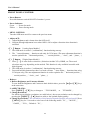
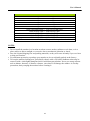
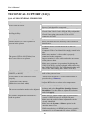
TECHNICAL SUPPORT (FAQ)
Q & A FOR GENERAL PROBLEMS
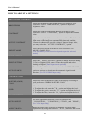
PROBLEM & QUESTION
POSSIBLE SOLUTION
Power LED is not on
*Check if the Power Switch is in the ON position.
*Power Cord should be connected.
No Plug & Play
*Check if the PC system is Plug & Play compatible.
*Check if the Video Card is Plug & Play compatible.
*Check if any plug pins on the VGA or DVI
connector are bent.
The display is too dark or too bright.
Picture bounces or a wave pattern is
present in the picture
*Adjust the Contrast and Brightness Controls.
*Move electrical devices that may cause electrical
interference.
The power LED is ON (Flicker) but
there’s no video or no picture.
*Computer Power Switch should be in the ON
position.
*Computer Video Card should be snugly seated in its
slot.
*Make sure monitor’s video cable is properly
connected to the computer.
*Inspect monitor’s video cable and make sure none
of the pins are bent.
*Make sure computer is operational by hitting the
CAPS LOCK key on the keyboard while observing
the CAPS LOCK LED. The LED should either turn
ON or OFF after hitting the CAPS LOCK key.
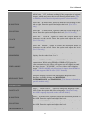
Missing one of the primary colors (RED,
GREEN, or BLUE)
Screen image is not centered or sized
properly.
*Inspect the monitor’s video cable and make sure that
none of the pins are bent.
* Adjust pixel frequency CLOCK and PHASE or
press hot-key ( i Button).
Picture has color defects
(White does not look white)
*Adjust RGB color or select color temperature.
The screen resolution needs to be adjusted
*Use win 2000/ME/XP Right click anywhere on
desktop and select Properties>Settings>Screen
Resolution. Use the silder to adjust the reslution
and click Apply.
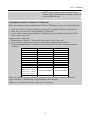
No sound is outputted from monitor’s
built-in speaker
*Make sure PC audio output cable is connected to
screen’s LINE IN port (or AUDIO IN port).
*Make sure the sound volume adjustment can be
clearly identified.
*Make sure the System > Silence option in the
monitor menu is on.
*While transferring via HDMI port but no sound is
outputted, it is recommended to select AUDIO
20