1
 5.4.8.2
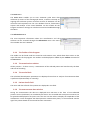
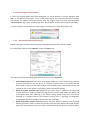
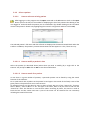
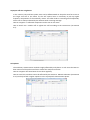
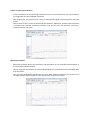
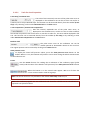
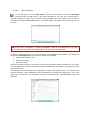
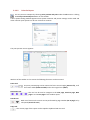
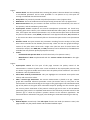
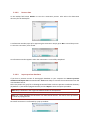
Restore data In the Backup field select Restore to start the restoration process. Also select the destination directory for the backup file. A confirmation window pops up for approving the restoration. Simply press No to cancel the process. To start the restoration, click on Yes. An information window appears when the restoration is successfully completed. 5.4.8.3
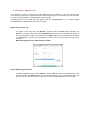
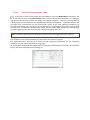
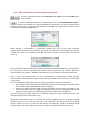
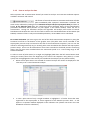
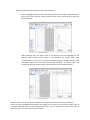
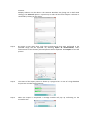
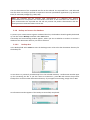
Import previous database If you have a previous version of Arteriograph database on your computer the Convert previous database and import data command under Tools menu helps to convert the measurements into the new database format. Select the patient list (.pat) file in the Regisztratumok folder under the previous installation directory (by default: C:\TensioClinic\Regisztratumok) and click Open to start the import procedure. Note: Only a database in the original installation folder can be imported. Note: For a large database the conversion can take several minutes. The status of the procedure is shown by a progress bar. Successful conversion is confirmed by a pop‐up window.