1
4. If your device is still not being charged and Legion is ON, unplug and replug the jumper to perform a
quick reset.
5. If your device still does not charge after going through Steps 1 – 4 , visit www.plxdevices.com, and contact us to speak to a support technician who can further assist you.
Problem Charging Your Legion
If you are unable to charge Legion:
1. Check to see if the charging cable is working properly by using the same charging cable to charge
another device, using the same power source. If the other device is not charging, the charging cable or
power source may be the problem.
NOTE: Make sure your power source is a 5.0V USB connection. Using an inappropriate charging cable
can be dangerous, and may result in product malfunction and fire.
2. If the other device is charging normally with the same power source, reconnect the charging cable to
Legion. Legion and its display should turn ON.
3. If Legion does not turn ON, or if Legion is ON but is still not charging, unplug and replug the jumper
from the jumper port. This should perform a quick reset and Legion should turn ON.
4. If Legion does not turn ON, or if Legion is ON but is still not charging, perform a Factory Setting Reset.
5. If Legion does not turn ON, or if Legion is ON but still does not charge, there might be a problem with
Legion’s hardware. Contact technical support at www.plxdevices.com for further assistance.
Problem Turning Your Legion On
If you are unable to turn your Legion on:
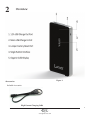
1. Check to make sure the jumper (see Figure 1) is installed. Legion cannot be powered on unless the jumper is installed.
2. Charge your Legion battery. Your Legion may not turn on if the battery power is too low.
12
PLX
devices inc.
www.plxdevices.com