1
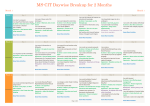
MS-CIT Daywise Breakup for 3 Months
Month 1
Week 1
Month 1
Day 1
I can start a computer
I can log off and hibernate a laptop
Go Green : Shut down and / or logoff
I can connect a headset
Activities Use of Tablets
Ergonomics : Ideal posture while
using computer
Day 2
I can use a Mouse and all its
techniques
Go Green : Hibernate, lock or shut
down?
I can use MS Paint
Day 3
Day 4
I can interact with computer
Ergonomics : Avoid high audio
volumes
Know More Activities
Know More Activities
Know More Activities
Know More Activities
Week 2
Day 7
I can personalize my desktop
Ergonomics : Using mouse
ergonomically!
Activities Netiquettes : If you copy paste, first
know about copyrights
Know More Activities
I can use keyboard to enter data
Go Green : Turn off your monitor
I can use Notepad text editor
Know about QWERTY
Ergonomics : Correct use of
keyboard and posture
Day 13
I can move important mails from
spam folder
Netiquettes : Email etiquettes
I can reset my account password.
Go Green : Did you correctly shutdown your computer?
I can create animations using
Activities Scratch
Ergonomics : Prevent
musculoskeletal disorders
Scratch Introduction
Netiquettes : Importance of strong
passwords
Day 6
Get familiar with Internet Explorer
History of Google Search Engine
I can download images to set as
wallpapers
Go Green : Save fuel, go green
Know More Activities
Know More Activities
Day 8
Day 9
Day 10
I can work with windows effectively
I can organize my files and folders
Go Green : Shun that screensaver
Ergonomics : Some neck exercises
I can work with multiple programs
for stress relief
at a time
Know More Activities
Know More Activities
I can search information on
Wikipedia
Go Green : Use apps to save time
and fuel
I can aware about my surroundings
Types of Computer Systems
Ergonomics : Correct laptop posture
Know More Activities
Week 3
Day 5
I can use the Internet to improve my
educational knowledge
Go Green : Save paper, use the
Notepad app
I can search for information using
Internet
Ergonomics : Eyes vis-a-vis your
computer screen
Day 14
I can create a
Letter/Notice/Recipe/Essay using
Word Processor
Go Green : Tips on green computing
I can operate my PC in my regional
language
Use Internet to type text in your
regional language
Ergonomics : Shoulder exercises for
computer users
Day 15
Day 16
Day 11
Components of a Computer System
Know about Information System
Know about Working of Computer
Netiquettes : Online forms and its
risks
I can search for any location using
Google Maps
Know More Activities
Day 17
Day 12
I can create and operate an Email
account
Go Green : Send e-invites and save
paper
I can send an email with attachment
Ergonomics :Helpful tips: Reading
from your computer screen
Know More Activities
Day 18
I can create Greeting
/Bookmark/Gift Label/Wedding
Card
Go Green : Share online and reduce
paper waste
Ergonomics : Ergonomic keyboards
I can create animated greeting card
using Scratch
Go Green : Save paper, use both
sides of paper
Ergonomics : Don’t keep those legs
dangling
I can create Resume/Project
Report/Brochure/User Manual
Go Green : Use paperless
communication
I can do proofreading of a document
Ergonomics : Adjust the display’s
brightness
I can design a Letter Head / Visiting
Card /Forms
I can create my Bio-data
Go Green : Reduce your digital and
carbon footprints
Ergonomics : Exercises your hands
and fingers
Know More Activities
Know More Activities
Know More Activities
Know More Activities
Know More Activities
Know More Activities
Page 1 of 4
Week 4
Day 19
I can send Invitation/ Invoice/
Envelope/Newsletter
I can include my Digital Signature
into the document.
Go Green : Use shared drive storages
instead of email attachments
Activities
Compare two versions of a
document simultaneously
Ergonomics : Prevent computer
vision syndrome
Know More Activities
Day 20
Day 21
Day 22
I can create
Advertisement/Checklist/Brochure/
Blog Post
Go Green : Analyse your computer's
energy usage
Ergonomics : Flex those fingers
Netiquettes : Be vigilant while using
online classifieds
I can design forms by inserting
ActiveX controls
Fun with Internet
Go Green : Use effective power
management
Ergonomics : Prevent ergonomic
injuries in children
Netiquettes : Online gaming is not
always fun!
I can add websites in favorite folder
Go Green : Create shortcuts, not
copies
I can make a voice chat using Gtalk
I can interact with people using
social media
Netiquettes : Stay safe on social
networking sites
Play games online
Go Green : When multitasking, close
the unused apps
Netiquettes : Protect yourself from
cyber bullying
Google Apps
Go Green : Use Google Calendar to
work effectively
Know More Activities
Day 23
I can create a To-do list/Agenda/
Timetable/Address Book
Go Green : Think before you take a
printout
I can use rupees symbol in my
spreadsheet table
Ergonomics : Ergonomic keyboard
drawer
Day 24
I can backup and recover my files
and folders
Creating Event Expenses/Exam
Record/Budget/Loan Calculator
Go Green : Organize files and
folders: Saves energy
Ergonomics : Rule of 20-20-20”
Know More Activities
Know More Activities
Know More Activities
Know More Activities
Month 2
Week 5
Month 2
Day 25
I can create
Timesheet/Reports/Question
bank/Student Database
Go Green : Avoid unnecessary digital
Activities
storage and email attachments
Ergonomics : Use ergonomic table
Know More Activities
Day 26
Day 27
Day 28
I can configure Microsoft Outlook
I can send newsletter as an
attachment
Go Green : Delete unused files from
the hard drive
I can send newsletter as an
attachment
Ergonomics : Blink your eyes
I can include Signature in my
outgoing mails
Know More Activities
Know More Activities
Day 29
I can use Outlook to manage my
email communications
I can use Outlook to create an
I can manage my
Address Book
Appointments/Meeting
I can use Outlook to organize my
Minutes/Checklist/Donors Database
Mailbox
Go Green : Archive large email
Know More Activities
folders
Day 30
I can schedule meets using Outlook's
Planner
I can use Outlook Calendar to
schedule Appointments
Ergonomics : Soothe your eyes
Netiquettes : What's phishing?
Know More Activities
Know More Activities
Week 6
Day 31
I can use Outlook to track the
progress of items in my Task List
I can create a Greeting
Card/Certificate/Wedding Card/Gift
Voucher
Activities
Go Green : Use energy saving
technology
Ergonomics : Soothe your eyes
Day 32
I can create Company
Profile/Training
Presentation/Business Presentation
I can create a Products and Service
Catalogue
Go Green : Screensavers are not
energy savers, shun them
I can convert and edit image files
Ergonomics : Proper lighting around
computer workstation
Day 33
Day 34
I can create digital photo album
I can create Digital Photo
Album/Slambook/Portfolio/Family
Tree
Go Green : Buy computers that
come with a Star rating
Know More Activities
I can record voice by using Sound
Recorder
I can share photo album on
SlideShare/Picasa
Ergonomics : Avoid eating at your
desk
Netiquettes : Sharing photos online
Know More Activities
Know More Activities
Know More Activities
Day 35
Day 36
I can use Stellarium to view realistic
sky in 3D
I can create a
Go Green : Use soft copies of
Schedule/Stickers/Magazine
textbooks whenever possible
cover/Poster
I can open a net banking account
Go Green : Reduce paper margins to
I can book tickets online
decrease paper consumption
Go Green : Use digital copies over
I can record my presentations using
hard copies
CamStudio
Ergonomics : Some neck exercises
Ergonomics : Exercises for your back
Netiquettes : Encrypt files to protect
data
Know More Activities
Know More Activities
Page 2 of 4
Week 7
Day 37
I can listen to music on my computer
I can listen music, watch videos and
share online
Go Green : Separate your e-waste
and techno trash
Activities
Ergonomics : Ideal neck posture
Netiquettes : Stay safe while
booking tickets online
Day 38
I can shop online with flipkart
Go Green : Reuse ink cartridges
I can join my hobby group online
Netiquettes : Some safe ecommerce tips
Know More Activities
Know More Activities
Week 8
Day 43
I can record and edit audio files
using Audacity
Ergonomics : Some more finger
exercises
Activities
Go Green : Use zip files and PDFs
I can write a CD using Windows 7
Day 39
Day 40
I can build my network for
professional upgradation
About Storage
Go Green : Avoid non-productive
message and mail forwards
I can promote my creative work
using mobile apps
Ergonomics : Some more exercises
for your shoulders
Netiquettes : Rules of net etiquette
I can share my favorite songs with
others
Go Green : Remember to turn-off
the Bluetooth and Wi-Fi
Know More Activities
Day 41
I can take a backup of my mobile
data
Ergonomics : Side effects of AC
workstations
Netiquettes : Safe downloading
I can upload my resume on a job
portal
Go Green : Turn off the peripherals
Know More Activities
Day 42
I can apply for suitable jobs online
Ergonomics : What is an ergonomic
mouse?
Netiquettes : Be safe while posting
your resume online
I can organize Video Workshop
Go Green : Video conference to save
time and resources
Know More Activities
Know More Activities
Day 44
Day 45
Day 46
Day 47
Day 48
I can apply for PAN Card/Passport
/Aadhar Card online
I can scan and store photos on my
computer
Ergonomics : Check the display
settings
Netiquettes : Sharing is caring, but
not on Internet
I can connect my mobile to my
computer
I can scan QR code to view text or
videos
Go Green : Upgrade to a flat panel
LCD monitor
I can transfer data between
computer and other devices
I can transfer data between
computer and other devices
Ergonomics : Time to do some back
stretching
I can zip and unzip files to optimize
the size
Go Green : Adjust the brightness on
your monitor
I can pay electricity bill online
Go Green : Opt for e-bills and e-bank
I can organize my photos and share
statements to save environment
it with others
I can make a simple electrical circuit
Netiquettes : Peer to peer sharing
using Scratch
I can pay electricity bill online
Netiquettes : Unsecure wireless
I can configure and activate internet
connections
connection
Ergonomics : Keep away from the
I can check my internet speed
noise
Know More Activities
Know More Activities
Know More Activities
Know More Activities
Know More Activities
Know More Activities
Month 3
Week 9
Month 3
Day 49
I can connect my computer to a
projector
Go Green : Verify if your computer’s
power supply is 80 plus Certified
I can change the display settings of
the screen
Activities
I can enhance the performance of
my computer
Ergonomics : Optimizing display
settings
Day 50
I can send and receive eFax
Ergonomics : Check the position of
your monitor
Netiquettes : Validate before
sharing online
I can send short messages to mobile
using internet
Know More Activities
Day 51
Day 52
Go Green : Download only the apps
and programs you need
I can save images/ videos/web
pages into my pocket
Ergonomics : Tips to use the
keyboard
I can pay mobile / electricity /
telephone bill
I can buy the best computer by
comparing prices
Go Green : Extend the life of your
computer
I can pay service tax online
I can book gas refill online
I can book movie tickets online
Know More Activities
Know More Activities
Know More Activities
Page 3 of 4
Day 53
Day 54
Netiquettes : Risks associated with
social bookmarking
Ergonomics : Adjust your
workstation for comforted with
social bookmarking
I can accomplish my certification
online
I can attend webinars
Go Green : Use cloud storage to save
resources
I can download eBook
Know More Activities
Know More Activities
Week 10
Day 55
I can find information to complete
my course projects
Ergonomics : Reminder to check
your posture
Activities
Netiquettes : Surf smarter
Know More Activities
Week 11
Day 61
Day 56
I can use JustDial to find an online
tutor
I Understand How Databases Work
Go Green : Opt for digital
newsletters
Know More Activities
Day 62
Day 57
I can plan and design a database
I can enter information in a
database
Ergonomics : Adjust the
temperature
Netiquettes : Risks in Online
registration
Know More Activities
Day 63
Take a Challenges
Know More Activities
Page 4 of 4
Day 60
I can design forms to enter data
easily and effectively
Ergonomics : Being successful!
Know More Activities
Know More Activities
Day 64
I can create queries and produce
reports by applying various criteria
I can maintain confidentiality of my
I can import or export data between
data
Take a Challenges
Activities Access and other applications
Know More Activities
Day 58
Day 59
I can make changes to my database
structure
I can find the data I want and
I can ensure that data is consistent
arrange it in the way I need it
and nothing gets deleted by mistake
Go Green : Use online services
wherever possible
Know More Activities
Day 65
Take a Bigger Challenges
Day 66
Take a Bigger Challenges