1
Getting Started
4
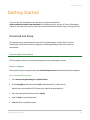
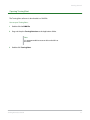
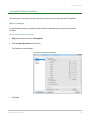
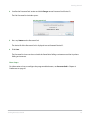
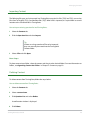
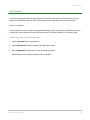
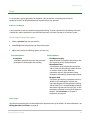
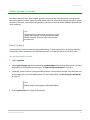
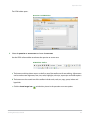
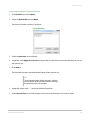
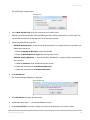
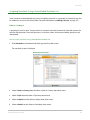
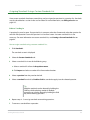
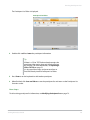
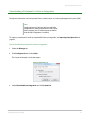
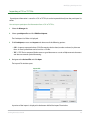
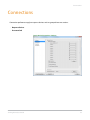
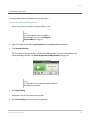
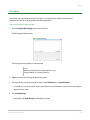
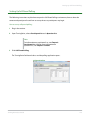
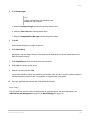
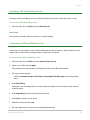
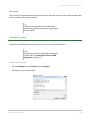
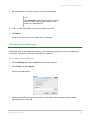
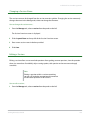
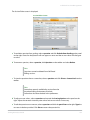
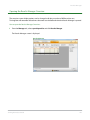
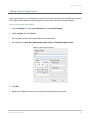
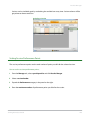
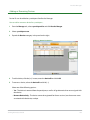
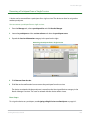
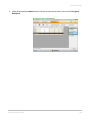
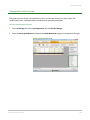
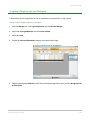
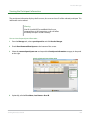
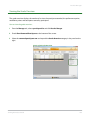
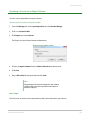
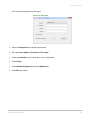
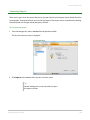
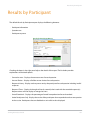
Scroll to the PresenterCard section and click Change next to PresenterCard Device ID.
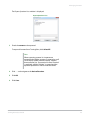
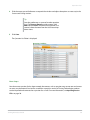
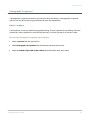
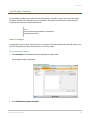
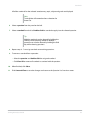
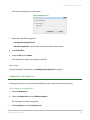
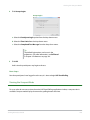
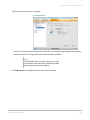
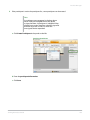
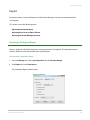
The Pair PresenterCard window opens.
Pair PresenterCard
5
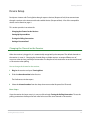
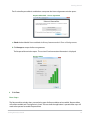
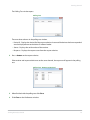
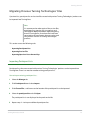
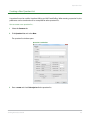
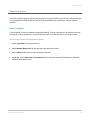
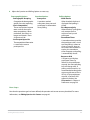
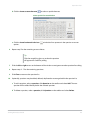
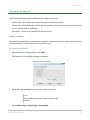
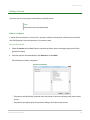
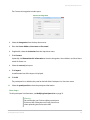
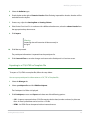
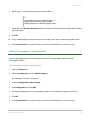
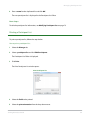
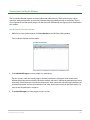
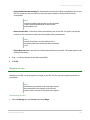
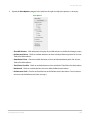
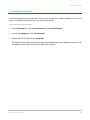
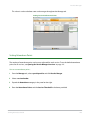
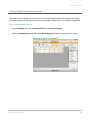
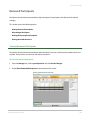
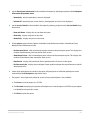
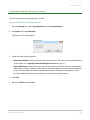
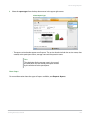
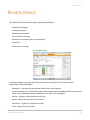
Press any button on the PresenterCard.
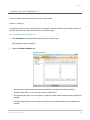
The device ID of the PresenterCard is displayed next to Detected Device ID.
6
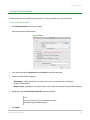
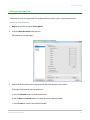
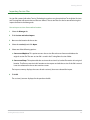
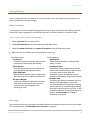
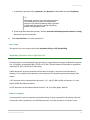
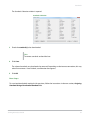
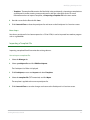
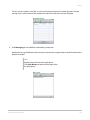
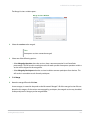
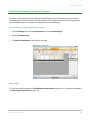
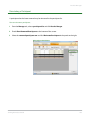
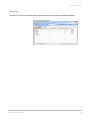
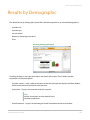
Click Save.
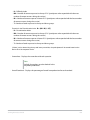
The PresenterCard can now be used with the PowerPoint Polling environment and the Anywhere
Polling environment.
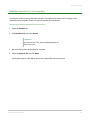
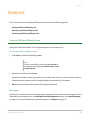
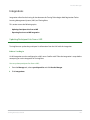
Next Steps
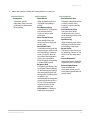
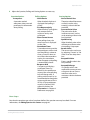
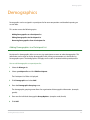
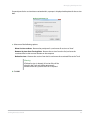
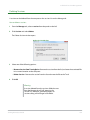
For information on how to configure the programmable buttons, see PresenterCard in Chapter 4:
Preferences on page 95.
TurningPoint User Guide
18