1
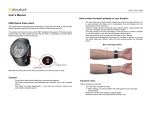
Soleus GPS Fit 1.0 (SG100) watch User Manual Introduction Thank you for purchasing the Soleus GPS Fit 1.0 watch. This GPS watch is packed with personal Training features like speed, trip time, laps, etc. GPS can display your current location in an electronic map. Watch features include but not limited to the following: 12/24H Time format Chronograph World time 5 daily Alarms Run Run Data Set modes. This watch can communicate with a PC to store and review your performance. This watch uses a rechargeable battery that can be charged through USB port of your PC. Caution: Prolonged water submersion may cause electronic shorting in the unit which may cause minor skin burn or irritation. Getting Started Step 1) Know your watch: Push button location: Caring for your GPS watch: Clean your GPS watch with a dampened cloth preferably with mild detergent solution. Wipe dry using a dry cloth. Do not use chemical cleaners and solvents that may damage plastic components. Do not store your GPS watch to prolonged exposure to extreme temperatures as this may result to permanent damage to your unit. About GPS: Global Positioning System (GPS) is a satellite- based navigation system made up of a network of 24 or more satellites. GPS works best in clear weather condition, anywhere in the world, 24 hours a day. Tall buildings may interfere with GPS accuracy. When 3 satellite signals are received, the watch will have 2D GPS fixed (Latitude and Longitude). When 4 or more satellite signals are received, the watch will have 3D GPS Fixed. Water immersion: This GPS watch is designed to be water resistant up to 3 ATM. It can resist water pressure up to 30 meters. After submersion to water, please make sure to wipe dry and air dry the unit before using or charging. Push button Main function: S1 – Start / Stop / + S5 – View / Lap S7 – Mode / Exit S11 – Light / Set / Save / - CG12 Step 2) Charging the Battery: Charge the unit for at least 4 hours before first use. The length of time for a fully charged battery will last depending on the actual usage. It is recommended to regularly re-charge your battery every 1-2 months even if it is not used to maintain good battery condition. 2.1) Plug your USB cable to your PC 2.2) Align the charging clip with the 4 contact pins on the back of the watch. 2.3) Connect the charging clip securely to the watch. The watch will display CHARGE and the percentage charge level of the battery. There is also a scrolling line at the middle. IF the watch will start to communicate with the PC using the PC LINK software, the watch will display PC LINK. Note: In order to accurately navigate the GPS, you need to have a good line of sight to the satellites. 4.2) Stand still and do not begin moving while locating the Satellite until the signals are already received. When the battery is low, it is time to charge the GPS watch. Once the battery is full, it will display “ 100% FULL CHARGE”. 4.3) How to Turn ON the GPS: Following are 3 the ways to turn on the GPS. 4.3.1) Press and hold S1 for 2-3 seconds in TIME mode. The watch will start searching for the GPS signal and go to RUN mode. 4.3.2) Press S7 to enter RUN or CHRONO mode. o The watch will display GPS/ INDOOR. o Press S1/S11 to select GPS o Press S5 to enter. The watch will start to search for GPS signal and go to GPS GO screen. o If you select INDOOR, your exercise will have no GPS data 4.3.3) Press and hold S7 for 2 seconds from any mode while GPS is initially OFF. o The GPS will be turned ON. o The watch will display GPS ON and then search for GPS signal. Battery low condition: 4.4) How to turn OFF the GPS: Note: Please thoroughly dry the charging contacts and surrounding area to ensure proper electrical contact and prevent corrosion. You cannot turn ON the GPS when the battery is low. The watch will display LOW BATT. You need to recharge the battery in order to use the GPS again. When the battery is almost low and you still perform your exercise, your data may not be saved. Please make sure the battery have enough battery power before doing your exercise in order not to lose your data. When the battery level becomes very low, the watch will automatically turn OFF the display (blank-screen). Step 3) Configure your watch: 3.1) Before using your GPS watch, please go to SET mode to set the following parameters: AUTO LAP, TIME, UNIT, USER details, NIGHT, CONTRAST, CHIME and ALARM. 3.2) TIME, NIGHT, CONTRAST, & CHIME can also be set in TIME SET mode. 3.3) AUTO LAP, UNIT, & USER can also be set in RUN SET mode 3.4) ALARM can also be set in ALARM SET mode. Step 4) Acquire Satellite signals: To get the correct time of day and begin using your GPS watch, you have to acquire GPS signals. It may take few minutes to acquire the satellite signals. 4.4.1) o o 4.4.2) Press and hold S7 for 2 seconds from any mode while GPS is initially ON. The watch will display GPS OFF. The watch will then go to INDOOR screen or TIME mode. When the chronograph is stopped and reset in any mode, the GPS will auto turn OFF after 15 minutes and go back to TIME mode. Caution: While CHRONO is running or stopped, User can opt to turn ON/OFF the GPS. However, if CHRONO is running and then you turn OFF the GPS, the CHRONO will not stop and will continue running • You will hear a beep sound when the watch received a GPS signal or when the GPS signal has been lost. LOST GPS SIGNAL will also be displayed in the screen. • If no Satellite signal is received within 15 minutes, the watch will auto return to Time mode. • When CHRONO is stopped or reset, if no key operation after 15 minutes, it will automatically return to Time mode. GPS will be on standby for the next 5 hours, GPS ring icon blinks during this time. After 5 hours, the GPS will be turned OFF and the GPS ring icon is also OFF. 4.1) Go outside to an open area away from tall buildings and trees. Orient the GPS antenna towards the sky for best reception. The antenna is located at the 6 o’clock position of the watch. CG12 GPS signals and its meaning: o Calorie / Ave Pace / Max Pace o Calorie / Ave Speed / Max Speed 5.1.9) Press and hold S1 or press S11 to save your data. Note: When the chronograph is stopped or reset, after 15 minutes if no key operation, the GPS will automatically turn OFF and return to time mode. RUN setting mode: You can set the AUTO LAP/ UNIT/ and USER in RUN mode. You can also do this setting in SET mode. Press and hold S11 until AUTO LAP blinks. Press S1/S11 to toggle through between AUTO LAP, UNIT, and USER. • • Step 5) Go for a Run: o 5.1) Using Run mode: 5.1.1) Press S7 or S1 from Time mode to go to RUN mode. The watch will display GPS/INDOOR. 5.1.2) Press S1/S11 to select between GPS and INDOOR. 5.1.3) Press S5 to confirm selection. If you select INDOOR, you will have your exercise without GPS data. If you select GPS, the watch will start searching for GPS signal; display the battery level, remaining Memory, and the GPS GO screen. 5.1.4) Press S5 to change the views in ROW 1. Following are the views as you press S5: o Chrono / GPS GO o Pace / Distance / Chrono o Speed / Distance / Chrono o Calorie / Distance / Chrono o Clock / Distance / Chrono o Chrono / Distance / Chrono o Distance / Distance / Chrono 5.1.5) Press and hold S5 to change the views in ROW 2. Following are the views as you press & hold S5: o Pace / Distance / Chrono o Pace / Pace / Chrono o Pace / Speed / Chrono o Pace / Calorie / Chrono o Pace / Clock / Chrono o Pace / Chrono / Chrono 5.1.6) Press S1 to start. If auto lap function is set, the watch will take lap automatically based on auto lap setting and there is a beep sound during taking of auto lap if the ALERT is ON in AUTO LAP setting. 5.1.7) Press S1 to stop after completing your run. 5.1.8) While the chronograph is stopped, press S5 to view your current data before saving. Following are the views as you press S5: o Stop / Chrono / Distance AUTO LAP setting in RUN mode: Press S5 while AUTO LAP is blinking. Auto lap 1 will start to blink. Press S1/S11 to change the setting. Auto lap preset settings are: 0.4, 1, 2, 3, 4, and 5 KM. Press S5 to confirm and set ALERT ON or OFF. Press S1/S11 to change the setting. There is a beep sound and EL on for 10 sec every auto lap taking when ALERT is set to ON. Press S5 to confirm setting and go back to Auto lap setting screen. o UNIT setting in RUN mode: Press S5 while UNIT is blinking. KM will start to blink. Press S1/S11 to change the unit. Press S5/S7 to confirm setting and go back to UNIT setting screen. o USER setting in RUN mode: Press S5 while USER is blinking. MALE will start to blink. Press S1/S11 to change the gender. Press S5 to confirm and set the AGE. Age digits will start to blink. Press S1/S11 to change the age digits. Press S5 to confirm and set the WEIGHT. Weight digits will start to blink. Press S1/S11 to change the weight digits. Press S5 to confirm and set the HEIGHT. Height digits will start to blink. Press S1/S11 to change the height digits. Press S5 to confirm and go back to USER setting screen. Press S7 to exit CG12 5.2) Using Chronograph mode: RUN mode and CHRONOGRAPH mode has the same timer counter. When the chronograph is started or stopped in RUN mode, the same thing happens in Chronograph mode. They just differ in the views. This mode is dedicated to chronograph, lap time, and distance travelled. 5.2.1) Press S7 from RUN mode to go to CHRO mode. The watch will momentarily display CHRO and then GPS/INDOOR. 5.2.2) Press S1/S11 to select between GPS and INDOOR. 5.2.3) Press S5 to confirm selection. If you select INDOOR, you will have your exercise without GPS data. If you select GPS, the watch will start searching for GPS signal; display the battery level, remaining Memory, and the GPS GO screen. 5.2.4) Press S1 to Start or Stop. 5.2.5) Press S5 to take manual LAP. If AUTO LAP is set, the watch will take LAP automatically based on the setting and there is a beep sound during taking of the auto lap if ALERT is ON in the AUTO LAP setting. 5.2.6) Press S1 to Stop. 5.2.7) While the chronograph is stopped, press S5 to view your current data before saving. Following are the views as you press S5: o Stop / Chrono / Distance o Calorie / Ave Pace / Max Pace o Calorie / Ave Speed / Max Speed 5.2.8) Press and hold S1 or press S11 to save the exercise. The watch will display SAVE FILE ## and will then go back to GPS GO screen. Watch reset: The user can reset the watch by pressing and holding S1, S5, S7 and S11 together. All segments will be ON, then EL backlight ON. The software code will be displayed and go to Time mode. Note: When the chronograph is stopped or reset, after 15 minutes if no key operation the GPS will automatically turn OFF and return to time mode. Step 6) Download your data to PC: The watch comes with PC software to make communication between your watch and PC easy and enjoyable. Please install the PC software to your PC using the installer provided. The watch is using a USB PC link cable to connect the watch to PC. Run the GPS PC software on your PC. Plug the USB cable with the watch clamped in the other end of the cable. PC software will then prompt you to download the data. Click the download button to begin downloading. The PC software will prompt to delete the data in the watch. User has the option to delete the data in the watch or not. The PC software installation and instruction guide can be found at the end of this manual. Please take time to read the guide. General Operations The watch has the following main modes: Time, Run, Chronograph, Run Data, Alarm and Set modes. Press S7 to scroll through these modes. EL backlight: This watch has a Night mode function. Following are the options in SET mode and their functions: 10 SECONDS – Press S11 will turn ON the Light for 10 seconds. 20 SECONDS – Press S11 will turn ON the Light for 20 seconds. NIGHT ON – Light will continuously ON when GPS is ON and CHRONO is running from 5:00 pm to 7:00 am by default. However, Start (ON) time and END (OFF) Time for the NIGHT function can be changed in Set mode. TIME mode • • • • • Press S7 from SET mode to TIME mode. The watch will momentarily display TIME and then display Time 1. Press S5 to momentarily view Time 2 from Time 1. Press and hold S5 to change the view from Time 1 to Time 2. Time 1 will not display T1 or the city code even if the time is set to GPS Only Time 2 will display T2 if time is set manually or the City code if the time is set by GPS. CG12 o o Press S1/S11 to change the setting. Press S5 to confirm and go back to TIME setting screen. MANUAL setting: o While MANUAL is blinking, Press S5 to enter. o Set the HOUR by pressing S1 or S11 and then press S5 to enter. o Set the Minute by pressing S1 or S11 and then press S5 to enter. o Set the SECOND by pressing S1 or S11 and then press S5 to enter. o Set the YEAR by pressing S1 or S11 and then press S5 to enter. o Set the MONTH by pressing S1 or S11 and then press S5 to enter. o Set the DATE by pressing S1 or S11 and then press S5 to enter. o Set the 12/24H by pressing S1 or S11 and then press S5 to enter. o Press S5 to confirm and set M-D or D-M format setting. o Press S1/S11 to change the setting. o Press S5 to enter and go back to TIME setting screen. Night setting in TIME mode: • • • • TIME/NIGHT/CONTRAST/CHIME setting in Time mode: Press and hold S11 until the “TIME” blinks. Press S1 or S11 to select any of the sub views: TIME, NIGHT, CONTRAST and CHIME setting. Press S5 to enter selected sub-views. Press S1 or S11 to change the value. Press S5 again to confirm. Press S7 to exit setting. TIME 1/ TIME 2 setting in TIME mode: • • • • Press S5 while TIME is blinking. The watch will display T1 or T2. Press S1/S11 to choose between T1 or T2 to set. Press S5 to set the selected time (T1 or T2). The watch will display GPS or MANUAL. Press S1/S11 to select GPS or MANUAL. You have two options in setting the watch, GPS or MANUAL. In manual setting, you can manually set the time. If you select the GPS option, the watch will be automatically set based on the data and time data from GPS satellites. GPS setting: o While GPS is blinking, Press S5 to set the TIME ZONE. o Press S1 or S11 to change the time zone. There are 36 city codes to choose from. o Press S5 to confirm and set DST ON /OFF. o Press S1/S11 to change setting. o Press S5 to confirm and set 12H/ 24H format setting. o Press S1/S11 to change 12H/24H format setting. o Press S5 to confirm and set M-D or D-M format setting. • • • • • • • • • • Press S5 while NIGHT is blinking. The watch will display 10 seconds blinking. Press S1/S5 to change to 20 sec or NIGHT ON. While on 10 SEC or 20 SEC setting, Press S5 to accept the setting and go back to NIGHT setting screen. While on NIGHT ON setting screen Press S5 to accept the ON setting. The watch will display the START TIME. Press S1/S11 to toggle between START TIME and END TIME. Press S5 or 3 seconds auto to set the START TIME. Hour digit will start to blink. Press S1/S11 to change the hour setting. Press S5 to change the MINUTE. Minute digits will start to blink. Press S1/S11 to change the minute setting. Press S5 to go back to START TIME setting screen. Press S1/S11 to set the END TIME. Hour digit will start to blink. Follow the procedure in setting the START TIME. Press S7 to exit to NIGHT ON setting screen. Press S7 to exit to NIGHT setting screen. CONTRAST setting in TIME mode: • • • Press S5 while CONTRAST is blinking. Contrast percentage will start to blink. Press S1/S11 to change to your desired value. LCD Contrast range is from 10 to 100%. Press S5/S7 to exit to CONTRAST setting screen CHIME Setting in TIME mode: • • • Press S5while CHIME is blinking. The watch will display CHIME ON. Press S1/S5 to change to CHIME OFF or OFF. Press S5/S7 to confirm and exit to CHIME setting screen CG12 03 –file number 07 – Month 12 – Day 1 – Time referred to Time 1, 2 if referred to Time 2 02 – File number of the day G – Data with GPS, H for data without GPS DATA mode • • Press S7 from CHRONO mode to enter DATA mode. The watch will momentarily display DATA and then the latest data file. If there is no data available, it will display DATA - - - -. Press S1/S11 to scroll through the various data files. Press S5 to enter the selected data file. The watch will display the Start time/ End Time/ Distance. Press S1/S5 to forward view the details. Press S11 to view the previous detail. Following are the details when you press S1/S5: • o Start Time / End Time / Distance o Chrono /Distance / Calorie o Chrono / Ave Pace / Max Pace o Chrono/ Ace Speed/ Max Speed o Lap 1 / Lap time / Lap Distance o Lap 2 / Lap time / Lap Distance o Up to last Lap time/ Distance o VIEW/ DEL / DELETE ALL sub menus ( press S1/S11 to select) Press S7 to exit • • • Deleting Data/ All Data: • • • • • • • • • Enter data mode. Press S1/S11 to select data to delete. Press S5 to enter VIEW/ DEL / DELETE ALL sub menus will display after the last Lap data Or press and hold S5 for 2 seconds in data views and the watch will display the VIEW/ DEL/ DEL ALL sub menu. Press S1/ S11 to select Press S5 to enter Select DEL to delete selected data. Select DEL ALL to delete all data. Data numbering system/ Legend: Following is the data numbering system. ALARM mode • • • Press S7 from DATA mode to enter ALARM mode. The watch will momentarily display ALRM and then alarm 1. The watch has five alarms that can be set individually. Press S5 to view Alarm 1 to Alarm 5 and Chime. Press S1 to turn ON or OFF the selected alarm or CHIME. Alarm will sound for 20 seconds during alarm time. Pressing any button will stop the sound without the button function. When any 1 alarm is ON, Alarm icon will be displayed in TIME mode. Setting ALARM in ALARM mode: • • • • • • • • • • • • Press and hold S11 and the watch will display HOLD TO SET. AL-1 will start to blink. Press S1/S11 to toggle through Alarm 1 to alarm 5. The watch has 5 alarms which can be set individually Press S5 to set the selected Alarm number. The HOUR digit will start to blink. Press S1/S11 to change the hour digit. Press S5 to confirm and set the MINUTE digit. The minute digit starts to blink. Press S1/S11 to change the minute digit. Press S5 to confirm and set the T1 or T2 setting. T1 or T2 starts to blink. The alarm time will be referred to Time 1 or Time 2. Press S1/S11 to change setting Press S5 to confirm. Alarm ON or OFF will start to blink. Press S1/S11 to change the setting. Press S5 to confirm and go back to ALARM 1 setting screen Press S7 to exit SET mode Press S7 from ALARM mode to SET mode. 1.5 seconds later the watch will display the setting options. The following sequence are as follows; AUTO LAP, TIME, UNIT, USER, NIGHT, CONTRAST, CHIME and ALARM. Press S1/S11 to scroll through these parameters. Press S5 to enter selected option to set. Press S7 to exit setting to Time mode. Setting the Auto Lap: • • Sample data number: D04 03 0712 02 G D04 – Total number of Files • Press S5 while AUTO LAP is blinking. Auto lap 1 will start to blink. Press S1/S11 to change the setting. Auto lap preset settings are: off, 0.4, 1, 2, 3, 4, and 5 KM. Press S5 to confirm and set ALERT ON or OFF. CG12 • • Press S1/S11 to change the setting. There is a beep sound and EL on for 10 sec every auto lap taking when ALERT is set to ON. Press S5 to confirm setting and go back to Auto lap setting screen. Note: Alert sub-mode. When alert is set to ON, there will be a beep sound during taking auto lap. When it is set to OFF, there is no beep sound. SETTING THE TIME: TIME 1/ Time 2 setting: • • • • Press S5 while TIME is blinking. The watch will display T1 or T2. Press S1/S11 to choose between T1 or T2 to set. Press S5 to set the selected time (T1 or T2). The watch will display GPS or MANUAL. Press S1/S11 to select GPS or MANUAL. You have two options in setting the watch, GPS or MANUAL. In manual setting, you can manually set the time. If you select the GPS option, the watch will be automatically set based on the data and time data from GPS satellites. GPS setting: o While GPS is blinking, Press S5 to set the TIME ZONE. o Press S1 or S11 to change the time zone. There are 36 city codes to choose from. o Press S5 to confirm and set DST ON /OFF. o Press S1/S11 to change setting. o Press S5 to confirm and set 12H/ 24H format setting. o Press S1/S11 to change 12H/24H format setting. o Press S5 to confirm and set M-D or D- M format setting o Press S1/ S11 to change setting o Press S5 to enter and go back to TIME setting screen. MANUAL setting: o While MANUAL is blinking, Press S5 to enter. o Set the HOUR by pressing S1 or S11 and then press S5 to enter. o Set the Minute by pressing S1 or S11 and then press S5 to enter. o Set the SECOND by pressing S1 or S11 and then press S5 to enter. o Set the YEAR by pressing S1 or S11 and then press S5 to enter. o Set the MONTH by pressing S1 or S11 and then press S5 to enter. o Set the DATE by pressing S1 or S11 and then press S5 to enter. o Set the 12/24H by pressing S1 or S11 and then press S5 to enter. o Set M-D or D- M format setting by pressing S1/S11 and then press S5 to enter. o Press S5 to enter and go back to TIME setting screen. Setting the UNIT: • • • Press S5 while UNIT is blinking. KM will start to blink. Press S1/S11 to change the unit. Press S5/S7 to confirm setting and go back to UNIT setting screen. Setting the User’s information: • • • • • • • • • • Press S5 while USER is blinking. MALE will start to blink. Press S1/S11 to change the gender. Press S5 to confirm and set the AGE. Age digits will start to blink. Press S1/S11 to change the age digits. Press S5 to confirm and set the WEIGHT. Weight digits will start to blink. Press S1/S11 to change the weight digits. Press S5 to confirm and set the HEIGHT. Height digits will start to blink. Press S1/S11 to change the height digits. Press S5 to confirm and go back to USER setting screen. Press S7 to exit Setting the NIGHT mode: • • • • • • • • • • • • • • Press S5 while NIGHT is blinking. The watch will display 10 seconds blinking. Press S1/S5 to change to 20 sec or NIGHT ON. While on 10 SEC or 20 SEC setting, Press S5 to accept the setting and go back to NIGHT setting screen. While on NIGHT ON setting screen Press S5 to accept the ON setting. The watch will display the START TIME. Press S1/S11 to toggle between START TIME and END TIME. Press S5 or 3 seconds auto to set the START TIME. Hour digit will start to blink. Press S1/S11 to change the hour setting. Press S5 to change the MINUTE. Minute digits will start to blink. Press S1/S11 to change the minute setting. Press S5 to go back to START TIME setting screen. Press S1/S11 to set the END TIME. Hour digit will start to blink. Follow the procedure in setting the START TIME. Press S7 to exit to NIGHT ON setting screen. Press S7 to exit to NIGHT setting screen. Setting the DISPLAY (LCD contrast): • • • Press S5 while CONTRAST is blinking. Contrast percentage will start to blink. Press S1/S11 to change to your desired value. LCD Contrast range is from 10 to 100%. Press S5/S7 to exit to CONTRAST setting screen Setting the Chime: • • • Press S5while CHIME is blinking. The watch will display CHIME ON. Press S1/S5 to change to CHIME OFF or OFF. Press S5/S7 to confirm and exit to CHIME setting screen Note: When Chime is ON, there is an hourly Chime and the Key tone will automatically ON. There is also a confirmation sound every time you press a button. The Chime icon also appears in all modes. If Chime is OFF the Key tone will automatically OFF. CG12 Setting ALARM: • • • • • • • • • • • • Press S5 while ALARM is blinking. AL-1 will start to blink. Press S1/S1 to toggle through Alarm 1 to alarm 5. The watch has 5 alarms which can be set individually Press S5 to set the selected Alarm number. The HOUR digit will start to blink. Press S1/S11 to change the hour digit. Press S5 to confirm and set the MINUTE digit. The minute digit starts to blink. Press S1/S11 to change the minute digit. Press S5 to confirm and set the T1 or T2 setting. T1 or T2 starts to blink. The alarm time will be referred to Time 1 or Time 2. Press S1/S11 to change setting Press S5 to confirm. Alarm ON or OFF will start to blink. Press S1/S11 to change the setting. Press S5 to confirm and go back to ALARM 1 setting screen Press S7 to exit Battery: GPS watch troubleshooting guide: PROBLEM/ QUESTION I cannot get a GPS signal Can I reset the watch? Will my data and personal settings be lost after watch reset? The battery indicator does not seem to be accurate SOLUTION/ ANSWER Take your GPS watch outdoors and away from trees and tall buildings. Remain stationary and try acquiring GPS signal again. Be sure that the antenna is pointing towards the sky for better signal reception. You can reset the watch by pressing S1, S5, S7, and S11 together. The date and time will be reset to default values. You can set it again manually or automatically thru GPS. Your data and personal settings are saved in the flash memory and will not be lost after watch reset. Allow your GPS watch to fully discharge and then fully charge it without interruption. It is recommended to regularly re-charge your battery every 1-2 months even if it is not used to maintain good battery condition. Watch is using a rechargeable Lithium Ion battery that will require approximately 4.0 hours charging time using the USB cable. While battery is charging, the watch cannot be used and all buttons are disabled. User needs to recharge the battery when the watch indicates a “low battery”. Note: Battery Life (fully charge battery); 8 hrs typical continues run with GPS ON and CHRONO ON. CG12 CG12 SOLEUS GPS FIT 1.0 PC software Your GPS watch comes with PC software. This software is compatible with the following operating system: • • • • • Windows 7 Windows XP SP 1, 2, 3 Windows Vista SP 1, 2 Windows 2000 SP 4 Windows 98 You can use the software to view and analyze your data. Follow this quick start guide to download your data to the PC after your exercises. Use SOLEUS GPS FIT 1.0 PC software that comes with your GPS watch. 5) Click on the download button in the SOLEUS GPS FIT 1.0 software. 6) The PC software will prompt you to download the data. Click on the Download button. 7) The PC software will prompt you to delete all data from the GPS watch. Click YES if you want all the data in the GPS watch deleted. Click NO if you do not want to delete all data (Recommended). 8) You click enter to view the downloaded data. How to download your data to PC: Follow the easy steps below. 1) 2) 3) 4) Install the SOLEUS GPS FIT 1.0 PC software to your PC. Follow the prompts of the installation wizard and click finish to finish the installation. You only need to install the PC software once. If the software is already installed on your PC, go directly to step 2. Double click on the SOLEUS GPS FIT 1.0 icon on your desktop to run the application. A Welcome window will open in your desktop. Connect the USB charging clip/ Data cable to the GPS watch. Make sure the four pins in the USB cable is properly aligned to the four metal contacts at the back of the GPS watch. Connect the USB charging clip/ Data cable to the PC. The GPS watch will display CHARGE 90% if there is no communication yet between the PC and the GPS watch. The 90% is the charge level of the battery. It will display PC LINK once the communication has started. CG12 9) The HOME page of the PC software will open displaying various information, Data file, and settings. Click on any of these icons to go directly to the desired data, information or settings. How to SET your GPS Watch: There are two possible ways to SET your GPS watch. 1) Setting the GPS watch manually in SET mode. Press the mode (S7) button repeatedly until the GPS watch will display SET. Press S1/ S11 to select which parameter to set Press S5 to enter the selected parameter Press S1/ S11 to change or SET the value. Press S7 to exit. Refer to the Instruction manual for the detailed setting procedure. 2) Setting the GPS Watch using the SOLEUS GPS FIT 1.0 PC software: The SOLEUS GPS FIT 1.0 PC software can be used to SET the parameters of the GPS watch. This can be done by synchronizing the settings in the PC software to the GPS watch. It can also be used to get the Setting of the GPS watch and copy to the PC software. 10) The PC software will then display the data that you have selected. Various tabs will also be displayed at the top of the screen. You can click on any of these tabs to enter the selected function. 2.1) Synchronizing PC software setting to set the GPS watch: Connect the GPS watch to the PC using the USB Charging clip/ Data cable. Click the USER setting in the HOME page of the PC software. The PC software will display the various parameters to be set. Fill in all the required information. After filling in all the required information, click the Synchronize with your computer button at the bottom right of the screen. 11) Press the HOME button to go back to the home page or just exit the PC software after you are done. CG12 The PC software will prompt you will successful synchronization. Or Try again message if it fails. It will also display errors if there are invalid inputs on required fields. Correct the invalid inputs and try again. 2.2) Getting the GPS watch setting and copy it to SOLEUS GPS FIT 1.0 PC software: Connect the GPS watch to the PC using the USB Charging clip/ Data cable. Click the USER setting in the HOME page of the PC software. The PC software will display the various parameters to be set. Click the GET SETTING button at the bottom center of the screen. All the GPS watch settings are now copied to the PC software. If the data transfer CG12