1
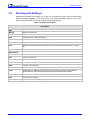
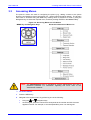
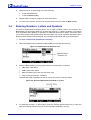
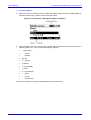
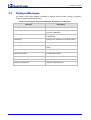
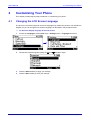
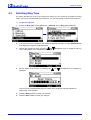
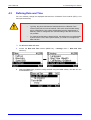
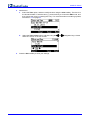
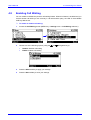
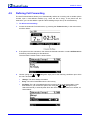
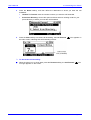
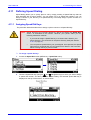
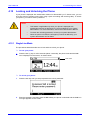
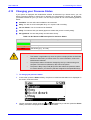
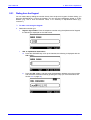
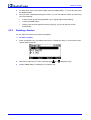
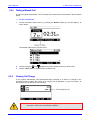
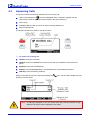
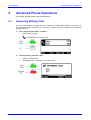
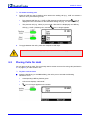
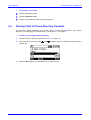
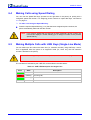
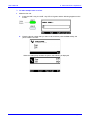
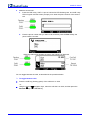
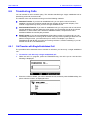
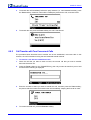
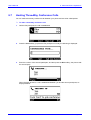
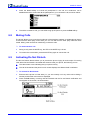
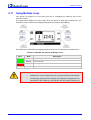
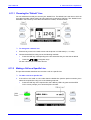
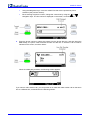
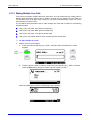
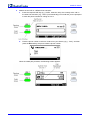
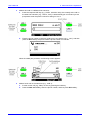
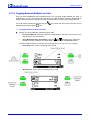
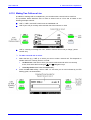
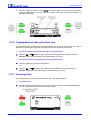
User's Manual 4.13 4. Customizing Your Phone Changing your Presence Status If your phone is deployed with AudioCodes solution for Microsoft Lync Server 2010, you can assign a presence status to control how or whether you want people to contact you. By default, your status is based on your Lync client. You can set your phone to one of the following presence status: Available: You are online and available to be contacted. Busy: You are not to be interrupted. Busy or in a phone call or meeting. Do not disturb: You do not want to be disturbed. Away: You want to hide your status (appear to others that you are currently away). Be right back: You are away briefly and will return shortly. Table 4-2: BLF General LED Description for Presence Status LED Color LED Description Green User is available Orange User is away User is busy (e.g., in a call) Red Notes: • This feature is applicable only when the phone is deployed with AudioCodes solution for Microsoft Lync Server 2010. For more information, refer to the Administrator's Manual. • The presence status can also be changed by the Lync client running on a computer. This status is reflected on the LCD of the phone. • The phone's Busy Lamp Field (BLF) LEDs also reflect the presence status of contacts listed in your directory that are assigned to the Speed Dial keys. To change your presence status: 1. In idle mode, press the Status softkey; the phone is locked and the lock icon is displayed on the screen, as shown below: 2. and Navigation keys, and then press the Select Choose a presence status using the softkey; the status is displayed on the screen in idle mode. Version 1.6.0 51 January 2012