1
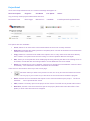
Project Detail Once at the Project Detail screen, the common headings will appear as: Zone Description Engineer Unit Name Fan Speed Action 1500RPM Insert/Duplicate/Copy/Edit/Delete Any previously saved projects will be listed here thus; Downstairs Toilet Mick Jagger IMD135Y 4/1 Five options are then available: Insert; Allows for an extra zone to be inserted above the zone line currently selected. Duplicate; Duplicates the existing selection completely which can then be worked on as an alternative selection for the same zone. Copy; Allows for a selected zone detail to be copied to one or many other zones that have already been created. This option saves the user having to re-enter repetitive data time and again. Edit; Takes you to the particular zone details page showing allowing the data of the existing zones to be viewed, re-selected with new/changed data or a new additional zone to be added. Delete; An individual zone can be deleted. A warning box will appear so that deletion cannot be done accidentally - once deleted the selection information is irretrievable. There are four other buttons at the top of the screen page. This button takes you back to the previous screen, do not try and use the forward and return arrows at the very top of your screen as you will cause an error and need to reload the program. Excel; Creates an Excel worksheet that reports on the zones that make up the project. The Excel workbook can be printed and/or saved. PDF; Creates a summary report of the project in PDF format. The PDF can be printed and/or saved. New Zone; Creates a new zone that forms part of the project. (Refer note below about Zone Templates). A Zone name will need to be assigned.