1
2. Mac OS 8.6
If you are using Mac OS 8.6,the software of Mass Storage Support 1.3.5 must first
be installed. You can download the USB Mass Storage Support 1.3.5 from the Apple
Software Updates website http://www.apple.com/support.
Mac OS9.0 or later
You don’t need to install this software if you have installed Mac OS 9.0 or above.
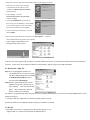
3. When you plug the NexStar 2 into the USB port of your Mac computer, the mass storage volume should appear on the desktop in a few
seconds automatically.
5. USING THE USB2.0 EXTERNAL DRIVE
After the initial installation, you can connect or disconnect the NexStar 2 without power off the computer first. Please follow the steps when
you want to do the above actions:
5.1 Connect the NexStar 2 to computer
Step1 Plug the type B connector of the USB cable into the USB Port of your
NexStar 2.
Step2 Plug the type A connector of the USB cable into the USB port of computer.
Plug the AC power cord to the INLET of your NexStar 2 and
Turn on the power switch on your USB2.0 External Drive.
Step3 The NexStar 2 should be ready for use immediately.
5.2 Disconnect the USB2.0 External Drive from computer
5.2.1 Windows 98SE
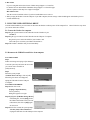
Step1.
Double click the green Unplug or Eject hardware
icon in the system tray and select the device that
you want to remove and click on
[Safely Remove] .
Step2
When the system prompts
‘Confirm device to be stop’, click on [OK] .
When the green Arrow Icon disappears,
unplug the USB cable from the USB port
of computer.
5.2.2 Windows Me/2000/XP:
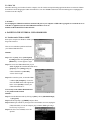
Step1 Double-click on the
[Unplug or Eject Hardware]
icon in system tray.
Dialog box appears as on right.
Step2 Highlight the [USB Mass Storage Device]
in the dialog box, click on [Stop], choose
the USB2.0 External Drive that you want
to disconnect, then click on [Stop] again
on next screen.
Step3 Wait for few seconds, the system prompts
“You may safely remove this device”.
Unplug the USB cable from the USB port of the computer.