1
User Manual
In the main menu or desktop, click
recording. Just click the play button
to enter the recording screen, click the Record button
to start recording. Click the Stop button
to stop
to play the recording. The system automatically prompts or abandon the use of this recording, please manually
select.
Play recordings: With audio player play the tape, choose and click a file from the resource manager,it will play.
3.5 File Manager
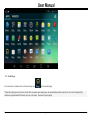
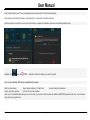
Under the main menu or the desktop, click
into the management interface, click the "SD Card", "Internal Memory" and "USB" to expand the drop-down
folder and related files, can be added, such as copy, paste, delete operation. long press a single folder or file, select the "last", "next", or "top" to find the
corresponding path, click on the "edit" in the pop-up window choose paste to the corresponding path.
3.6 Browser
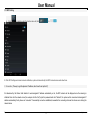
Under normal circumstances WIFI connection, click on the main menu or the desktop IE browser
enter into IE interface, click on the address bar enter
the URL and click Go, enter the corresponding web page, you can view the corresponding website.
Remark: Browser USES the current popular third-party IE browser software, please operate in accordance with the standards of Internet explorer's operational
mode.
3.7 Voice Search
Under the desktop or in the main menu select [
] into the voice search interface: after entering the voice search interface, to the machine standard of what
you need to search the content of the machine to recognize your voice content after automatically searching.
Note: Please operate by following the 3 instruction items displayed on the gravity calibration tool
Bryte
11
www.brytestore.com