1
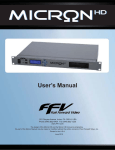
Omega HD STUDIO PRO REPLAY
Compact Replay & Time-Shift System
User’s Manual
Preliminary Version subject to change without prior notice
www.ffv.com
MAINTENANCE
The Studio Pro Replay has been built to meet the demands of a video production environment; however,
the hardware is subject to the same dangers from static as any other electronic device. Use care when
connecting or disconnecting cables.
Important: Take care not to introduce any moisture into the unit. Electronic assemblies are sensitive to
static electricity, due to the electro-statically sensitive devices used within the circuitry. All semiconductors, as
well as some resistors and capacitors, may be damaged or degraded by exposure to static electricity. If you
experience any problems with the unit please visit Fast Forward Video’s technical support section at
www.ffv.com . DO NOT ATTEMPT to repair or modify the unit as this might cause further damage, which could
void your warranty. A technician will decipher whether your problem is caused by a faulty component, and
determine whether you need to return it for evaluation and/or repair.
Cleaning: The unit should only require dusting with a soft cloth. Solvents may harm the painted surface and
leak to the inside causing severe damage.
V 1.0 July 2015 MP
Preliminary Version subject to change without prior notice
1
www.ffv.com
PACKAGE CONTENTS
1 – Studio Pro Replay unit
1 – SATA-USB Adapter Cable
1 – North American EIA 100-240VAC Power Cord
Please retain the original shipping carton. If you need to return the unit for service or upgrade it is strongly
recommended that you use the original packaging, which was specifically designed to protect it from damage
while in transit. If returned in something other than original packaging, a fee will be assessed for the use of new
shipping materials when returned back to you. A protective ATA shipping case is acceptable.
FCC Information to the user
This device complies with part 15 of the FCC rules. Operation is subject to the following two conditions: (1) This device
may not cause harmful interference, and (2).This device must accept any interference received, including interference that
may cause undesired operation. This equipment has been tested and found to comply with the limits for a class “A” digital
device, pursuant to part 15 of the FCC rules. These limits are designed to provide reasonable protection against harmful
interference when the equipment is operated in a commercial environment. This equipment generates, uses, and can
radiate radio frequency energy and, if not installed and used in accordance with the user manual, may cause harmful
interference to radio communications. Operation of this equipment in a residential area is likely to cause harmful
interference, in which case, the user will be required to correct the interference at his/her own expense.
V 1.0 July 2015 MP
Preliminary Version subject to change without prior notice
2
www.ffv.com
OVERVIEW
Thank you for purchasing the Omega HD STUDIO PRO REPLAY a compact Replay & Time-Shift digital video
recorder. Since 1986, Fast Forward Video has been at the forefront of broadcast quality tapeless digital video
recording.
The STUDIO PRO REPLAY is the ideal solution for broadcast delay, Slow-Motion sports replay, and event
time-shift applications. The unit’s professional video & audio connections and familiar VTR-style front panel
controls - including a video confidence monitor - ensure the highest quality digital recording and playback.
FEATURES
•
•
•
•
•
•
•
•
•
Simultaneous Playback and Record (SPR)
User Selectable Time-Shift period
2RU Half Rack Form Factor
Two units fit in a 2RU Rack mount space
Front panel LCD display with menu overlay
Familiar tape deck-like direct control & jog buttons
Clean variable speed playback in any direction
Front panel controls enable/disable function
SMPTE/EBU Longitudinal & Ancillary Time Code
V 1.0 July 2015 MP
•
•
•
•
•
•
•
•
•
Computer friendly & visually lossless J2K.mov files
Record & playback critical ancillary data like CEA-708
8 Channels of embedded audio in HD
Stereo analog audio on XLR3
RS-422 serial machine control remote connection
Audio digital peak meters for Record & Playback channels
Uses standard 2.5” SATA 9.5 mm Solid State drives
HD/SD-SDI input & output
Gen-lockable
Preliminary Version subject to change without prior notice
3
www.ffv.com
QUICK START GUIDE
Figure 1
V 1.0 July 2015 MP
Preliminary Version subject to change without prior notice
4
www.ffv.com
QUICK START GUIDE (continued)
Figure 2
V 1.0 July 2015 MP
Preliminary Version subject to change without prior notice
5
www.ffv.com
QUICK START GUIDE (continued)
If you’d like to skip this section and prefer watching “How to Videos” see FFV’s YouTube channel: FFVvideos or
go to our Facebook page: FFVDVRS where we constantly post new videos and pictures of the STUDIO PRO
REPLAY in action. The Hyperlinks for the YouTube channel & Facebook page are on page 31 of this manual.
A. Install Drive – Slide the chromed latch to the right to open the drive bay door. (#5, Figure 1, page 4). Use an
approved or FFV supplied 2.5”/ 9.5mm SATA solid-state drive (SSD) and insert it into the drive bay (#5, Fig.
1). Close the door and the SSD will be pushed into its connection socket.
B. Apply Power – Plug the power cable into a wall socket and connect to the AC IN located on the back of the
unit (#11, Figure 2, page 5). Turn “ON” the unit by holding the power button located on the top left of the
front panel for one second (#1, Fig. 1).
C. Connect a video and audio source – Connect an SD or HD-SDI video signal to the “IN” BNC input (#5, Fig. 2)
and if needed, an analog audio signal to the input XLR3’s (#1, Fig. 2).
D. Select Menu - Press the menu button (#12, Fig. 1) to enter the Settings menu which allows you to set a
myriad of features and commands. Use the scroll wheel (#14, Fig. 1) to move through the menu options and
press the selection/enter button to change a setting (#13, Fig. 1). See SETTINGS MENU for additional details.
E. Cancel/Escape - At any time press the cancel button (#11, Fig. 1) to exit the current choice or settings
menu and get back to video display of IN & OUT signals.
V 1.0 July 2015 MP
Preliminary Version subject to change without prior notice
6
www.ffv.com
QUICK START GUIDE (continued)
F. Format Disk - Press the menu button (#12, Figure 1, page 4) and scroll to FORMAT DISK using the scroll
wheel and press the selection button – a pop-up menu will be displayed with FORMAT using the scroll wheel
(#14, Fig. 1) and press the selection button (#13, Fig. 1). A second pop-up menu will appear, highlight OK
using the scroll wheel (#14, Fig. 1) and press the selection button (#13, Fig. 1). The formatting drive pop-up
menu will be displayed during the formatting process.
V 1.0 July 2015 MP
Preliminary Version subject to change without prior notice
7
www.ffv.com
QUICK START GUIDE (continued)
G. Record – Press the flashing red RECORD button (#6, Figure 1, page 4) and the lit-up PLAY button (#7 Fig. 1)
together to start recording. Press the RECORD and lit-up STOP buttons (#8, Fig. 3) to stop recording, a new
clip is created at each RECORD start.
H. Playback - After recording has started, press the << button (#9, Fig. 1) to cue the play channel to the
beginning of the recording. You can then press PLAY (#7 Fig. 1) or the scroll wheel (#14, Fig. 1) buttons to
get to the desired frame position.
I.
Turning OFF - Once recording and/or playback is stopped. Proceed to turning OFF the unit by pressing the
POWER button for five seconds (#1, Fig. 1).
V 1.0 July 2015 MP
Preliminary Version subject to change without prior notice
8
www.ffv.com
INSTALLING THE DRIVE
Figure 3
J. Open drive bay door by sliding to the right the chromed latch button (#5 in Figure 3 above).
K. Place the drive with the SATA connector towards the entrance of the drive bay door located on the top
right of the front panel (# 5, Fig. 3).
L. Use an approved or FFV supplied 2.5”/ 9.5mm SATA solid-state drive (SSD) and insert it into the drive bay.
Close the drive bay door and the SSD will be pushed into its socket. (#5, Fig. 3)
M. Turn “ON” the unit by holding down the power button for one second (#1, Fig. 3)
N. Allow some time for the unit to identify the drive and its content. When the drive is ready the drive space
icon on the LCD display will turn white.
V 1.0 July 2015 MP
Preliminary Version subject to change without prior notice
9
www.ffv.com
REAR PANEL CONNECTIONS
V 1.0 July 2015 MP
Preliminary Version subject to change without prior notice
10
www.ffv.com
REAR PANEL CONNECTIONS
Numbers below refer to the red numbers on the rear panel picture from the previous page (10).
1. Audio IN: records two line level analog audio signals – XLR3 stereo jack connector
2. Audio PLAY OUT: outputs two line level analog audio – XLR3 stereo jack connector
3. Time Code IN: Timecode input to Record side (IN)- BNC connector
4. Time Code LOOP OUT: Timecode loop output of Record side (IN)- BNC connector
5. SDI VIDEO IN: SD/HD-SDI Video input w/ 8 tracks of embedded audio. “IN” video on LCD display - BNC connector
6. SDI VIDEO LOOP OUT: Active monitoring-grade video (2 pixel propagation delay) & embedded audio loop allows
for connection of input signal to other devices - BNC connector
7. Time Code PLAY OUT: Timecode output of Replay side (OUT) - BNC connector
8. REF IN: External video Reference, analog 525/625 composite black burst - BNC connector
9. SDI VIDEO PLAY OUT: SDI Video output w/ 8 tracks of embedded audio. Time-shifted signal, “OUT” on LCD
display for monitor or other external device - BNC connector
10. RS-422: Serial Control connection, BWV-75 Protocol - DE-9 connector
11. 100-240VAC: Power Cord EIA socket AC connection.
V 1.0 July 2015 MP
Preliminary Version subject to change without prior notice
11
www.ffv.com
FRONT PANEL CONTROLS
1. Power Button: Press for one second to turn “ON” unit, press and hold for 5 seconds to turn “OFF” the unit.
2. Audio Out: Monitoring output - ¼” analog audio jack.
3. “IN”: Left side of front panel LCD, displays the input signal being recorded to the SSD.
4. “OUT”: Right side of front panel LCD, displays the Time-shifted playback from the SSD.
5. Drive bay door & latch: Slide to the right the chromed latch to open the door. Place the drive with its SATA
connector towards the unit and slide in. Close the door and the SSD will be pushed into its socket.
V 1.0 July 2015 MP
Preliminary Version subject to change without prior notice
12
www.ffv.com
FRONT PANEL CONTROLS (continued)
6. REC Button – Press the flashing RECORD button together with the PLAY button to start recording.
7. PLAY Button – Press the PLAY button to start playback of SSD content.
8. STOP Button – Puts the unit in stop mode and allows you to stop recording of content, to stop recording,
press and hold REC button, then press the STOP button.
9. REW or CUE Button - Takes you to the beginning of the clip and subsequent presses will continue through
the available clips in that direction.
10. FF or End of clip Button – Takes you to the first frame of the next clip. If there are no other clips, then it cues
to the last frame of the last clip.
11. Exit/Cancel button – Brings you back to the previous menu or cancels a command.
12. Menu Button – Press the menu button to access more detailed commands and functions.
13. Selection Button – Selects the highlighted menu, this button will also allow you to scroll through the jog
modes during playback (jog, scrub or turbo).
14. Scroll Wheel - This allows you to scroll through menu selections and during playback; jog, rewind, or fast
forward depending on the rotation direction.
V 1.0 July 2015 MP
Preliminary Version subject to change without prior notice
13
www.ffv.com
FRONT PANEL DISPLAY
Figure 4
V 1.0 July 2015 MP
Preliminary Version subject to change without prior notice
14
www.ffv.com
FRONT PANEL DISPLAY
Numbers below refer to the numbers (1-19) on the front panel picture in figure 4 on the previous page (14).
1.
2.
3.
4.
5.
6.
7.
8.
9.
10.
“IN”: Left side of front panel LCD, displays the input signal being recorded to the SSD.
“OUT”: Right side of front panel LCD, displays the Time-shifted playback from the SSD.
Time Code - This position displays the Time code of the “IN” or record input channel.
Time Code - This position displays the Time code of the “OUT” or playback channel.
Jog, Scrub, or Turbo Mode - This position displays the current shuttle/jog mode during playback toggled
using selection Button (#14 on the same picture)
Recording ON/OFF - This position toggles between an outlined green circle and a filled red circle indicating
the recording or E-E status of the input signal.
Record Audio digital peak meters - This position displays the level of 4 pre-selected audio tracks from the
input: “IN” signal.
This position will display a progression bar that will change from white, to yellow, to red as the disk
approaches its full storage capacity.
PLAY/PAUSE – This position toggles between a green PLAY triangle and white double vertical bars “Pause”
icon indicating the playback or paused status of the time-shifted output.
Playback Audio digital peak meters - This position displays the level of 4 pre-selected audio tracks from the
playback: “OUT” signal.
V 1.0 July 2015 MP
Preliminary Version subject to change without prior notice
15
www.ffv.com
CHASE MODE
-
ON – the playback channel “chases” the record channel with a set time-shifted value defined in the “Chase
Delay” menu. IMPORTANT: For playback to start automatically when the Chase Delay value is reached, you
must first cue the playback channel by pressing the REW button (#17, Figure 4, page 14) and then press the
PLAY button (#13, Fig. 4).
-
OFF - the “Chase” mode is not active and the playback channel obeys front panel controls or remote control
commands sent to the rear panel’s “RS-422” connector (see REAR PANEL CONNECTIONS on page 10).
A. Press the Menu button (#13, Figure 4, page 14).
B. Highlight the “Chase” Option using the scroll wheel (#19, Fig. 4).
C. Press the selection button (#14, Fig. 4) and ON/Off will be displayed.
D. Highlight the desired state using the scroll wheel (#19, Fig. 4).
E. Press the selection button (#14, Fig. 4) to turn “ON” or “OFF” the Chase mode.
Warning! In Chase Mode for playback to be smooth and accurate, the “REF. IN” signal and the SDI source input signal must be gen-locked to the same video master clock.
V 1.0 July 2015 MP
Preliminary Version subject to change without prior notice
16
www.ffv.com
CHASE DELAY
Allows you to set the time value for the “Chase” mode and effectively set a fixed time-shift delay.
A. Press the Menu button (#13, Figure 4, page 14).
B. Highlight Hours - press the selection button (#14, Fig. 4) to initiate change and move the scroll wheel to
increase or decrease your selection (#19, Fig. 4) – press the selection button (#14, Fig. 4) to confirm change.
C. Highlight Minutes - press the selection button (#14, Fig. 4) to initiate change and move the scroll wheel to
increase or decrease your selection (#19, Fig. 4) – press the selection button (#14, Fig. 4) to confirm change.
D. Highlight Seconds - press the selection button (#14, Fig. 4) to initiate change and move the scroll wheel to
increase or decrease your selection (#19, Fig. 4) – press the selection button (#14, Fig. 4) to confirm change.
V 1.0 July 2015 MP
Preliminary Version subject to change without prior notice
17
www.ffv.com
LOOP RECORD
-
-
ON – this will “loop-record” content on the entire drive during the RECORD mode or within the available
space if any clips already exist on the drive. When the end of the free space is reached; the oldest frame will
be replaced by the newest frame.
OFF - the unit will stop recording when the full storage capacity of the drive is reached.
A. Press the Menu button – this will place you in the settings Menu (#13, Figure 4 page 14).
B. Highlight the Loop RECORD Option using the scroll wheel (#19, Fig. 4)
C. Press the selection button and On/Off will be displayed (#14, Fig. 4).
D. Highlight the needed command using the scroll wheel (#19, Fig. 4).
E. Press the selection button to select the loop record mode (#14, Fig. 4).
Note: When “Loop-Record” is enabled, make sure the “Loop-playback” mode is turned “off” as it may create confusing behavior.
V 1.0 July 2015 MP
Preliminary Version subject to change without prior notice
18
www.ffv.com
AUDIO INPUT
-
Embedded – selects embedded audio input from the SDI input stream (#5, Figure 2, page 5)
-
Analog - selects the analog input from the XLR 3 input connectors (#1, Fig. 2 )
A. Press the Menu button – this will place you in the settings Menu (#13, Figure 4, page 14).
B. Highlight the audio Input using the scroll wheel (#19, Fig. 4).
C. Press the selection button (#14, Fig. 4) and available audio inputs will be displayed.
D. Highlight the preferred audio input using the scroll wheel (#19, Fig. 4).
E. Press the selection button to select the desired audio input (#14, Fig. 4).
V 1.0 July 2015 MP
Preliminary Version subject to change without prior notice
19
www.ffv.com
LOOP PLAYBACK
-
ON – this will loop play from the end of the last clip to the start of the first clip during the PLAY mode.
-
OFF - the unit will stop the PLAY mode when the end of the clip is reached.
F. Press the menu button– this will place you in the settings Menu (#13, Figure 4, page 14)
G. Highlight the Loop Playback option using the scroll wheel (#19, Fig. 4).
H. Press the selection button and ON/OFF will be displayed (#14, Fig. 4).
I.
Highlight the needed command using the scroll wheel (#19, Fig. 4).
J.
Press the selection button to select the loop playback mode (#14, Fig. 4).
Note: When “Loop-Playback” is enabled, make sure the “Loop-Record” mode is turned “off” as it may create confusing behavior.
V 1.0 July 2015 MP
Preliminary Version subject to change without prior notice
20
www.ffv.com
FORMAT DISK
All new drives need to be formatted before recording can be initiated.
A. Press the menu button– this will place you in the settings Menu (#13, Figure 4, page 14).
B. Use the scroll wheel (#19, Fig. 4) to highlight “FORMAT DISK”.
C. Press the selection button (#14, Fig. 4) to initiate command.
D. A pop-up menu will appear – use the scroll wheel (#19, Fig. 4) to highlight “FORMAT”.
E.
F.
G.
H.
Press the selection button (#14, Fig. 4) to initiate command.
A second pop-up menu will appear – use the scroll wheel to highlight “FORMAT” (#19, Fig. 4).
Press the selection button (#14, Fig. 4) to select command.
A Formatting Disk menu with progression bar will be displayed as in picture above.
Warning! Formatting the disk erases all recorded programming and content.
V 1.0 July 2015 MP
Preliminary Version subject to change without prior notice
21
www.ffv.com
FILE SYSTEM
-
FAT32 – this will allow viewing of disk content in PC or MAC computer environments (see JPEG2000 CODEC
section on page 28). Use this mode to copy downloaded firmware files to your SSD for update purposes.
-
Native- is a proprietary FFV mode which formats the drive more efficiently; SSD’s formatted in this mode are
not viewable in computer environments. Use this mode if the Studio Pro is used in a standalone setting and
no computer review of clips is ever needed.
A. Press the menu button– this will place you in the settings Menu (#13, Figure 4 on page 14).
B. Highlight the desired option using the scroll wheel (#19, Fig. 4).
C. Press the selection button and the two file system will be displayed (#14, Fig. 4).
D. Highlight the desired file system using the scroll wheel (#19, Fig. 4).
E. Press the selection button to select either the FAT32 or the Native file system (#14, Fig. 4).
V 1.0 July 2015 MP
Preliminary Version subject to change without prior notice
22
www.ffv.com
FILE FORMAT
-
-
Native - this is a proprietary FFV mode, clips will have an “.ffv” file extension and can only be played on the
Studio Pro Replay or any FFV DVR. Use this file format if the Studio Pro is used in a standalone setting and no
computer review of clips is ever needed. This file format is used in conjunction with the Native file system
selection on the previous page.
.mov – this file format will generate clips with a “.mov” file extension to allow viewing of recorded clips in a
PC or MAC computer environment (see JPEG2000 Codec section on page 28). This file format is used in
conjunction with the FAT32 file system selection on the previous page.
A. Press the menu button– this will place you in the settings Menu (#13, Figure 4, page 14).
B. Highlight the desired option using the scroll wheel (#19, Fig. 4).
C. Press the selection button and the two file system will be displayed (#14, Fig. 4).
D. Highlight the desired file system using the scroll wheel (#19, Fig. 4).
E. Press the selection button to select either the “Native” or “.mov” file extension format (#14, Fig. 4).
V 1.0 July 2015 MP
Preliminary Version subject to change without prior notice
23
www.ffv.com
VIDEO INPUT SETTINGS MENU
Video Standard: Allows you to select specific or automatically detected video resolutions and frame rates.
Auto Detect: This selection lets the unit automatically determine the resolution and frame rate of the input signal.
A. Press the menu button– this will place you in the settings Menu (#13, Figure 4, page 14).
B. Highlight the Video Standard Option using the scroll wheel (#19, Fig. 4).
C. Press the selection button and a list of resolutions and frame rates will be displayed.
D. Highlight the desired video standard using the scroll wheel (#19, Fig. 4).
E. Press the selection button to select the chosen video standard (#14, Fig. 4).
Warning! When setting the video standard if the input signal does not match your selection you will not be able to go into Record mode.
Please note that when a video standard is specified only that standard can be played during playback.
V 1.0 July 2015 MP
Preliminary Version subject to change without prior notice
24
www.ffv.com
FRONT PANEL Controls
Allows you to disable or enable all front panel controls and buttons on the Studio Pro Replay.
A. Press the menu button– this will place you in the settings Menu (#13, Figure 4, page 14).
B. Highlight Enabled or Disabled function using the scroll wheel (#19, Fig. 4).
C. Press the selection button to select the desired behavior (#14, Fig. 4).
D. Once controls are disabled the “Front Panel Controls” warning screen will pop up whenever a button is used.
E. To enable front panel controls repeat steps A - C above.
V 1.0 July 2015 MP
Preliminary Version subject to change without prior notice
25
www.ffv.com
FIRMWARE UPDATE
New features for the Studio Pro Replay are posted to our website as they become available. Firmware updates are
available from the Studio Pro Replay product page here: www.ffv.com/products/high-definition/studio-pro-spr/ .
Up to two firmware files may be available from our website. One file is for the video processing boards and will bear
a name similar to; “hd2DvrXXXX.ofw”. The other file is for the front panel controls and menus and will bear a name
similar to: “fpReplayXXXX.ofw”.
Once you have downloaded the files from the website using the supplied USB-SATA adapter cable, copy one file
onto the unit’s FAT32 formatted SSD. Complete one update procedure then format the disk again using your Studio Pro
Replay. This will erase any undesirable files, then copy the second file to the re-formatted SSD and repeat the update
procedure on the next page. It’s important to remember that only one update file can reside on the disk when updating.
The unit will only recognize one update file per update procedure.
V 1.0 July 2015 MP
Preliminary Version subject to change without prior notice
26
www.ffv.com
FIRMWARE UPDATE (continued)
A. Copy the video processing firmware file; “hd2DvrXXXX.ofw” to the SSD
B. Insert the disk into the Studio Pro Replay disk bay door (#5, Figure 3, page 9).
C. Turn on the unit by pressing the power button (#1, Fig. 3), the unit will scan for new update files, when a file is
found a popup screen with the message: “Firmware update found” will be displayed.
D. Using the scroll wheel (#19, Figure 4, page 14) highlight “Update” and press selection button (#14, Fig. 4) to start
updating and follow screen prompts. Once the firmware update is complete a popup screen with the message:
“Update completed Shut power off…” will be displayed.
E. Press selection button (#14, Fig. 4) to confirm power cycling of the unit.
F. Turn “ON” the unit by pressing the power button (#1, Fig. 3).
G. If a front panel update file is available, re-format the disk to remove the “hd2DvrXXXX.ofw” file from your SSD.
H. Copy the front panel firmware file; “fpReplayXXXX.ofw” to the SSD and repeat steps B - F above.
V 1.0 July 2015 MP
Preliminary Version subject to change without prior notice
27
www.ffv.com
JPEG2000 CODEC
If you’ve set your file system to FAT32 and file format extension to “.mov”, you can view recorded clips in a any
computer environment (PC or MAC).
FFV’s proprietary JPEG2000 CODEC is available for FREE online along with instructions on how to load and use on
your computer platform here: http://www.ffv.com/jpeg2000-quicktime-files/
A. Connect SSD drive’s SATA connection using the USB to SATA adapter cable. Please note these connections are
industry standard so any SATA to USB docking station can be used when transferring video files.
B. Once your computer recognizes the drive - open the drive and a list of 2GB clips will be displayed in alphabetic
order. If you have not made changes to the clip names this list will be displayed in the actual record order.
Please note all drives must be formatted in FAT32 file system and with “.mov” file extensions to be usable and viewable in a computer environment.
For the files to be usable in the computer environment the SSD must be formatted on the Studio Pro Replay unit.
V 1.0 July 2015 MP
Preliminary Version subject to change without prior notice
28
www.ffv.com
SPECIFICATIONS
DIGITAL VIDEO INPUT/OUTPUT:
SD/HD-SDI Standards:
SMPTE 274M (1080i), SMPTE 296M (720p),
SMPTE 347M (NTSC & PAL)
Ancillary Data Support:
Rec/Playback & Pause 4 lines of ancillary
data including Closed Caption CEA-608 &
CEA-708. Ancillary TC SMPTE 12M-2-2008
Supports lines 8, 9, 10 & 11 interlaced or
progressive
Supported Resolutions:
1080i/60/59.94/50/24
(1920 x 1080/60/59.94/50/2:1 Interlace)
720p/60/59.94/50
(1280 x 720/60/59.94/50/ 720p/23.98/24.00
Progressive)
NTSC (720 x 486/59.94/2:1 Interlace)
Supports 4:3 or 16:9 aspect ratio
PAL (720 x 576/50/2:1 Interlace)
Genlock Input: 59.94 Hz: Black burst SMPTE
170 M, 50 Hz: ITU-R BT.470 at 75 ohms
Connections: BNC 75 ohms
V 1.0 July 2015 MP
DIGITAL AUDIO INPUT/OUTPUT:
HD-SDI digital audio specs.
8 Channels embedded
Audio Channels:
HD embedded 8 in/8 out
SD embedded 4 in/4 out
Resolution: 24 bits
Sampling Rate: 48 KHz
Analog audio input/output
Analog I/O: Stereo Balanced
Connections: XLR3 Connectors
Analog audio specifications
Resolution: 16 bits
Audio Channels: 2 in 2 out
(Per video channel)
Dynamic Range: 80 dB
Harmonic Distortion: 022%, -73dB
Output Impedance: 600 ohms
Sampling Rate: 48 KHz
Passband: 0.045 FS &
Passband Ripple: +/- 0.1 dB
Preliminary Version subject to change without prior notice
COMMUNICATION INTERFACE:
RS-422 Interface: 38400 baud
Protocols: Sony 9 Pin & Odetics
REMOVABLE STORAGE:
Supported Solid State Drives:
SATA II, 3 Gb/s Interface 2.5” SATA 9.5 mm
TIME CODE:
SMPTE/EBU: Longitudinal (LTC)
Ancillary (ATC) SMPTE 12M-2- 2008
CODEC:
Method: Motion JPEG2000 (J2K)
File Format: QuickTime or Native
Bit Rates: HD: 100Mb/s SD: 50Mb/s
GENERAL
Physical Dimensions:
Half Rack 2RU: 3.5”H x 8.5” W x 15” D
Power: 100-240VAC 50/60Hz
Operating Temperature: 0 °C to 50 °C
Humidity: 90% relative humidity with no
visible condensation
29
www.ffv.com
WARRANTY
12 MONTH LIMITED WARRANTY
FFV Systems LLC., warrants to the original purchaser that the product (Hardware and components) shall be free from
defects in material and workmanship for a period of 1 year from the date of purchase. If a defect covered by this
warranty occurs during this 1 year period, Fast Forward Video, Inc. will repair or replace the defective product or
component, at its option, free of charge.
WARRANTY LIMITATIONS
THIS WARRANTY SHALL NOT APPLY IF THIS PRODUCT: (a) IS DAMAGED BY NEGLIGENCE, ACCIDENT, MISUSE, OR BY
OTHER CAUSES UNRELATED TO DEFECTIVE MATERIALS OR WORKMANSHIP; OR (b) HAS HAD THE SERIAL NUMBER
ALTERED, DEFACED, OR REMOVED.
ANY APPLICABLE IMPLIED WARRANTIES ARE HEREBY LIMITED IN DURATION TO THE WARRANTY PERIOD DESCRIBED
ABOVE. IN NO EVENT SHALL FAST FORWARD VIDEO, INC. BE LIABLE FOR CONSEQUENTIAL OR INCIDENTAL DAMAGES
RESULTING FROM THE BREACH OF ANY IMPLIED OR EXPRESS WARRANTIES. SOME STATES DO NOT ALLOW LIMITATIONS
ON HOW LONG AN IMPLIED WARRANTY LASTS OR EXCLUSION OF CONSEQUENTIAL OR INCIDENTAL DAMAGES, SO THE
ABOVE LIMITATIONS MAY NOT APPLY TO YOU.
This warranty gives you specific legal rights and you may also have other rights which vary from state to state.
V 1.0 July 2015 MP
Preliminary Version subject to change without prior notice
30
www.ffv.com
FFV CONTACTS & RESOURCES
FFV Systems LLC
1901 Carnegie Ave. Unit 1P
Santa Ana, CA 92705
Tel.: 949.852.8404
Sales
Tel.: 949.852.8404 Ext. # 1
[email protected]
Worldwide distributor:
Preco, Inc.
7663 N. San Fernando Road
Burbank, CA 91505
Tel.:818.842.4632
[email protected]
Technical Support
Tel.: 949.852.8404 Ext. # 2
[email protected]
Checkout our YouTube channel: FFVvideos and Facebook page.
YouTube: FFVvideos: www.youtube.com/channel/UCo6uvoPqKRnGIpv_71Mmrpg
Facebook: FFVDVRS: www.facebook.com/FFVDVRS
V 1.0 July 2015 MP
Preliminary Version subject to change without prior notice
31