1
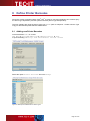
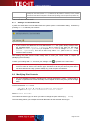
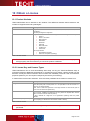
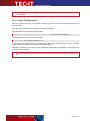
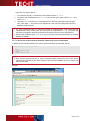
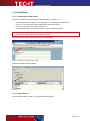
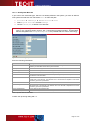
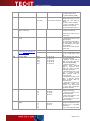
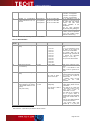
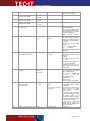
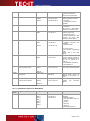
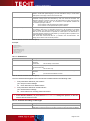
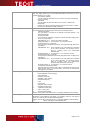
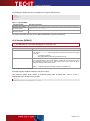
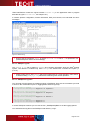
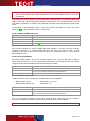
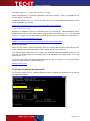
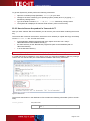
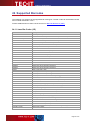
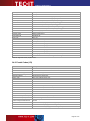
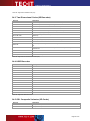
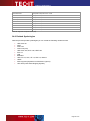
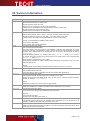
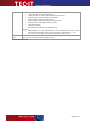
T Bar Cod e/ S APw i n To get this System-ID, please perform the following commands. 1. Open the command prompt (DOS-Box, cmd.exe) on your client 2. Change to the drive containing your operating system (usually drive C:) by typing „C:“ followed by carriage return. 3. Type in the DOS-command „dir *.“ or „dir | more“ followed by carriage return. 4. The System ID is displayed as Volume serial number” (refer to screen-shot). 23.30 How to license the product in “barcode.ini”? After you have ordered TBarCode/SAPwin you will receive your license data containing the license key. The license data consist of several lines, which have to be entered (or copied with Copy and Paste) into the barcode.ini file. This file must reside in the application data/program data path (see chapter 23.2 How can I verify if TBarCode/SAPwin was installed correctly?), the same directory as the “Barcode.dll” program file (refer to the installation path of TBarCode/SAPwin), or in the Windows directory. When using SAPlpd you have to restart SAPlpd (or your system) so the changes can take effect. If a valid license file is installed on your client it turns your restricted installation (which is printing a “Demo” text over the barcode) into a full-featured installation without any restrictions. Figure 37: Barcode.ini The license data section in the BarCode.ini File contains the following information (refer to screenshot): License_Product The product code 2012 1D license for linear bar codes (Code 2 of 5, Code 128, Code 39, EAN, UPC…) Page 81 of 90