1
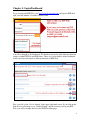
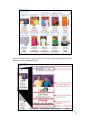
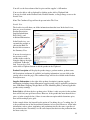
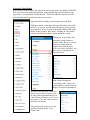
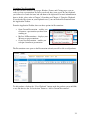
Presentation Toolbar
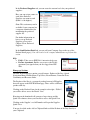
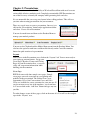
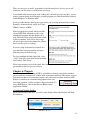
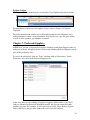
This toolbar enables you to add items to the shopping cart (for ESP Orders users only),
view the clipboard, preview the presentation (as both a PDF and in HTML format), save
the presentation, and send the presentation.
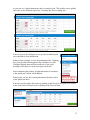
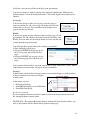
Clipboard
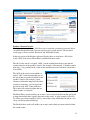
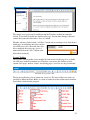
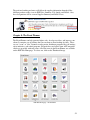
The View Clipboard button gives you access to all the products on the clipboard, as well
as all the functions of the clipboard. For example, if there is an item you would like to
add, you can click on the “View Clipboard” button, mark the product, and add it to the
current presentation. For more information on these functions, please refer to Chapter 4:
Using the Clipboard.
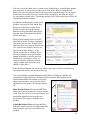
Shopping Cart
The View Shopping Cart button will only be present if you are also a user of ESP Orders.
Items on the Shopping Cart can be moved into a Sales Order or Purchase Order in a just a
few quick clicks.
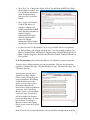
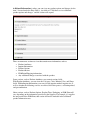
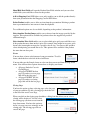
Preview
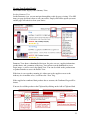
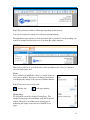
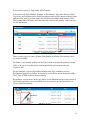
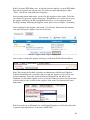
The preview button enables you to preview your presentation in either an HTML (web)
format, or in as a PDF (Adobe) document. Previewing as a PDF will allows you to save
your presentation anywhere on your computer and also gives you the option to print the
presentation. To save the presentation as a PDF document, just click on the Save icon on
the Adobe toolbar.
ESP Web – Preview – View PDF
39