1
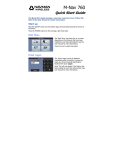
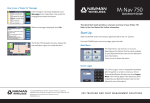
M-Nav 800 Quick Start Guide This Quick Start Guide provides a very basic overview of your M-Nav 800. Refer to the User Manual and Magellan documentation for further information. Start up Press and hold the POWER button for 2 seconds (on the top edge, left of center). Main Menu The ‘Main Menu’ may have between four and seven icons depending on the features that have been enabled by your fleet administrator (see the User Manual for more information). Touch an icon to select that option. Driver log on The ‘Driver Log On’ screen is displayed immediately after the ignition is turned on. Note: This screen will only appear if this feature has been enabled by your fleet administrator (see the User Manual for more information). Enter your Driver PIN (Personal Identification Number) then touch Log On. Driver status options If enabled, your fleet administrator will set up the required driver status options. (A sample list is shown.) Touch the required status to select it. Using Nav Find a destination On the ‘Main Menu’, touch Nav. On the Magellan Menu, touch Address. Start entering the name of a city or suburb. You can: Touch the green tick to accept the displayed option. Touch List to see a list of cities/suburbs that match. If you see a list, touch a city or suburb to select it. Start entering a street name. Touch a street to select it from the list. Enter the street number. Touch the green tick . You can preview the journey by touching the map button in the bottom right . Touch GO to start navigation. Using Messages Read / store a new message When a new message arrives, the ‘New Message’ popup box is displayed and a friendly alert sounds. Touch either: Read to display the message now. Cancel to store the message to read it later. Reply to a message Touch Messages on the ‘Main Menu’. Touch the message you want to reply to. The message is displayed. Touch Reply. Touch either: A canned template message; e.g. Job accepted. Free text to type your own message using the onscreen keys. Touch Send. Create and send a message Touch Messages on the ‘Main Menu’. Touch New. The ‘Canned Templates’ screen is displayed. You can choose to use Free text or a canned message response. Touch the option you want. Touch Send. How to use a “Route To” message If the message is not already displayed: Touch Messages on the ‘Main Menu’. Touch the message that contains the location. When the message is displayed, touch Go. The M-Nav 800 calculates the route and begins navigation. If you press Show, the route overview is shown. You can use the + button to zoom in on the destination for more detail. Using Bluetooth You can pair a compatible Bluetooth-enabled mobile phone with the MNav 800 to make or receive calls using the M-Nav 800 as a hands-free device. Touch Phone on the ‘Main Menu’. Touch the tool button to set up pairing with your phone. The small Bluetooth icon (top right) shows the status. If the icon is: Grey, Bluetooth is OFF. Blue, Bluetooth is ON and paired. You can make and receive calls. Copyright 2012 Navman Wireless. All rights reserved. All other trademarks and registrations are the property of their respective owners. Navman Wireless part no: MAN000019 - Magellan part no: 605-0388-001