1
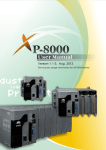
XP-8000 User Manual Version 1.0.9, March 2009 Service and usage information for XP-8000 series XP-8041 XP-8341 XP-8741 Written by Jose Dai Edited by Anna Huang XP-8000 User Manual, version 1.0.9. Last Revised: March 2009 Copyright © 2009 ICP DAS Co., Ltd. All Rights Reserved. E-mail: [email protected] Page: 1 Warranty All products manufactured by ICP DAS are under warranty regarding defective materials for a period of one year, beginning from the date of delivery to the original purchaser. Warning ICP DAS assumes no liability for any damage resulting from the use of this product.ICP DAS reserves the right to change this manual at any time without notice.The information furnished by ICP DAS is believed to be accurate and reliable.However, no responsibility is assumed by ICP DAS for its use, not for any infringements of patents or other rights of third parties resulting from its use. Copyright Copyright @ 2009 by ICP DAS Co., Ltd.All rights are reserved. Trademark The names used for identification only may be registered trademarks of their respective companies. Support ICP DAS take your problem as ours. If you have any problem, please feel free to contact us. You can count on us for quick response. Email: [email protected] Tel: 886-3-5973336 Also, the FTP site of ICP DAS has contents about XP-8000 which you may be interested in. We believe that those contents may be helpful to your work. FTP: ftp://ftp.icpdas.com/pub/cd/xpac/xp-8000 Contact sales of ICP DAS for OEM or ODM services. Contact sales: http://www.icpdas.com/sevices/support.htm XP-8000 User Manual, version 1.0.9. Last Revised: March 2009 Copyright © 2009 ICP DAS Co., Ltd. All Rights Reserved. E-mail: [email protected] Page: 2 TABLE OF CONTENTS TABLE OF CONTENTS .......................................................................................................... 3 1. GENERAL INFORMATION ............................................................................................. 5 1.1. Introduction.........................................................................................................................6 1.2. Features .................................................................................................................................7 1.3. Specifications ................................................................................................................... 11 1.4. Dimension (Unit: mm) ................................................................................................. 15 1.5. Overview ............................................................................................................................ 19 1.6. Companion CF .................................................................................................................. 22 2. QUICK START AND RECOVERY ................................................................................. 23 2.1. Getting started with XP-8000 Hardware .............................................................. 24 2.2. Getting Started with XP-8000 Software Tools ................................................... 26 2.3. Downloading and Running Programs on the XP-8000 .................................. 28 2.4. Recovery the XP-8000 .................................................................................................. 31 2.5. Updating the XP-8000 .................................................................................................. 34 2.6. XP-8000 Recovery Utility ............................................................................................ 37 3. SECURITY ISSUES ..................................................................................................... 40 3.1. How to Change the Setting of Auto Logon ........................................................... 41 3.2. How to Configure the Settings of Firewall ........................................................... 44 3.3. How to Change the Status of Enhanced Write Filter (EWF)......................... 46 3.4. How to disable anonymous account of the FTP Server .................................. 51 3.5. How to configure the security settings of SQL Server .................................... 54 4. YOUR FIRST PROGRAM ............................................................................................ 56 4.1. Setting up the Development Environment .......................................................... 57 XP-8000 User Manual, version 1.0.9. Last Revised: March 2009 Copyright © 2009 ICP DAS Co., Ltd. All Rights Reserved. E-mail: [email protected] Page: 3 4.2. Creating Your First Program ...................................................................................... 58 4.2.1. Your First Visual C++ Program ........................................................................................ 59 4.2.2. Your First Visual Basic Program ...................................................................................... 67 5. HOW TO USE SQL SERVER EXPRESS........................................................................ 73 5.1. SQL Server Management Studio Express ............................................................. 74 5.2. Create a Table for Example ......................................................................................... 75 APPENDIX A. FRAME GROUND ....................................................................................... 79 APPENDIX B. XP-8000 TOOLS...................................................................................... 81 5.3. B.1. DCON Utility ............................................................................................................. 81 APPENDIX C. APPLICATION OF RS-485 NETWORK ....................................................... 82 5.4. C.1. Basic RS-485 Network ......................................................................................... 83 5.5. C.2. Daisy Chain RS-485 Network ............................................................................ 84 5.6. C.3. Star Type RS-485 Network ................................................................................ 85 5.7. C.4. Random RS-485 Network ................................................................................... 86 5.8. C.5. Master/Slaves Settings ........................................................................................ 87 XP-8000 User Manual, version 1.0.9. Last Revised: March 2009 Copyright © 2009 ICP DAS Co., Ltd. All Rights Reserved. E-mail: [email protected] Page: 4 1. GENERAL INFORMATION This chapter covers the basic information necessary to help you maximize the effectiveness of the XP-8000. XP-8000 User Manual, version 1.0.9. Last Revised: March 2009 Copyright © 2009 ICP DAS Co., Ltd. All Rights Reserved. E-mail: [email protected] Page: 5 1.1. INTRODUCTION What is XP-8000? Basically, XP-8000 is an embedded personal computer which is dedicated to industrial control. XP-8000 is the new generation PAC of ICP DAS. It equips a AMD LX 800 CPU (500MHz) running a Windows Embedded Standard 2009 operating system, variant connectivity (VGA, USB, Ethernet, RS-232/RS-485) and 0/3/7 slots for high performance parallel I/O modules (high profile I-8K series) and serial-type I/O modules (high profile I-87K I/O modules). Its operating system, Windows Embedded Standard 2009, has many advantages. Most of all, Windows Embedded Standard 2009 has the same Win32 API as Windows XP Professional, that is, almost every desktop program can be easily porting to Windows Embedded Standard 2009. This effectively reduces the efforts of developments and shortens the time to market. Compared with the first generation WinCon-8000 of ICP DAS, it not only improves the CPU performance (from 206 MHz to 500 MHz) and upgrading OS (from CE 4.1 to Windows Embedded Standard 2009), but also adds many reliability features, such as dual LAN, redundant power input, dual battery backup SRAM, etc. It gives you all of the best features of both traditional PLCs and Windows capable PCs. XP-8000 User Manual, version 1.0.9. Last Revised: March 2009 Copyright © 2009 ICP DAS Co., Ltd. All Rights Reserved. E-mail: [email protected] Page: 6 1.2. FEATURES Software Features Windows Embedded Standard 2009 Most of the popular features in Microsoft software are included, such as: IIS: IIS stands for Internet Information Services. Microsoft provides Internet Information Services to make hosting web services easily and reliably. In XP-8000, FTP Server and Web Server are provided. The Web Server supports both VBScript and JavaScript. ASP/ASP.NET: Only ASP.NET ASP stands for Active Server Pages. ASP is an active scripting engine that runs on the server side and dynamically creates web pages for client’s requests. ASP.NET is based on Microsoft’s .NET technology. SQL Server 2005 Express Edition SQL, Structured Query Language, is a computer language for database. SQL Server is a server of database that implements SQL query language. Microsoft SQL Server 2005 Express Edition is a database platform that is based on Microsoft SQL Server 2005. Using SQL Server 2005 Express Edition, it is easy to develop data-driven applications that are rich in capability, offer enhanced storage security, and are fast to deploy. (reference: MSDN) .NET Framework 3.5: Microsoft’s .NET Framework provides a run-time environment, CLR, and plenty of class libraries to simplify development processes. CLR is Common Language Runtime. It provides cross-language integration, enhanced security, etc. Windows Embedded Standard 2009 supports up to .NET Framework 3.5. Therefore, we provide .NET Framework 3.5 in XP-8000. Many others: There still are others such as Internet Explorer, Outlook Express, Windows Media Player, Remote Desktop Connection, etc. XP-8000 User Manual, version 1.0.9. Last Revised: March 2009 Copyright © 2009 ICP DAS Co., Ltd. All Rights Reserved. E-mail: [email protected] Page: 7 Built-in OPC Server (Quicker) Quicker is an OPC Server. SCADA software can easily integrate I/O modules through it. OPC stands for OLE (Object Linking and Embedding) for Process Control which is developed by Microsoft for industrial automation. Furthermore, Quicker also provides a library which users can use to develop their applications by Visual C++, Visual C#.NET or Visual Basic.NET. Quicker not only supports I/O modules in local slots, but also supports Remote I/O modules with the following protocols via the RS-232/RS-485 or Ethernet: 1. Modbus/RTU 2. Modbus/ASCII 3. Modbus/TCP 4. DCON DCON Utility DCON Utility is an application that provides an environment to easily and quickly search, configure and test I/O modules in the networks. See Appendix B.1. for details. Rich Software Solutions XP-8000 equips with Windows Embedded Standard 2009 which is compatible with the popular operating system, Windows XP. Thus there are rich software solutions users can find. The followings are commonly-used development tools: Microsoft Visual Studio.NET 2003/2005/2008 and Visual Studio 6.0 solution: ICP DAS provides SDK as well as demo programs for Visual C#.NET, Visual Basic.NET and Visual C++. Borland Delphi and C++ Builder: SDK and demo programs are provided as well. SCADA solution: InduSoft provides simple “drag and drop”, “point and click” developing environment for HMI and SCADA applications. XP-8000 User Manual, version 1.0.9. Last Revised: March 2009 Copyright © 2009 ICP DAS Co., Ltd. All Rights Reserved. E-mail: [email protected] Page: 8 Hardware Features Power CPU module The most important features of the CPU module are AMD LX800 CPU (32-bit and 500MHz) 1 GB RAM 4GB Built-in Flash Disk Built-in VGA Port A built-in VGA port can be directly connected to a regular LCD display. Users can operate the HMI or SCADA software (running on the XP-8000) with display, keyboard and mouse just as how they usually did on regular PCs. 64-bit Hardware Serial Number The 64-bit hardware serial number is unique and individual. Every serial number of XP-8000 is different. Users can add a checking mechanism to their AP to prevent software from pirating. Built-in Flash Disk (4GB) In normal situation, users can store their AP or data to the CF card or USB Flash disk. But in some vibration environment (for example, like driving ships), the two storage media would be bad connection. Then the built-in Flash disk will be the best storage media in such the vibration environment. Dual Watchdog Timer A system could be hanged up when the OS or the AP fails. There are two watchdogs (OS watchdog and AP watchdog) designed to automatically reset the CPU when the situations happen. The design will increase the reliability of the system. XP-8000 User Manual, version 1.0.9. Last Revised: March 2009 Copyright © 2009 ICP DAS Co., Ltd. All Rights Reserved. E-mail: [email protected] Page: 9 Dual Battery-Backup SRAM (512KB) To maintain important data while power off, non-volatile memory is the ideal design. The XP-8000 equips a 512KB SRAM with two Li-batteries to maintain data while power off. The two Li-batteries can continually supply power to the 512KB SRAM to retain the data for 5 years; and the dual-battery design can avoid data lost while replacing a new battery. Dual Ethernet Ports XP-8000 provides two Ethernet ports. The two Ethernet ports can be used to implement redundant Ethernet communication and separate Ethernet communication (one for global Internet, one for private Ethernet). Redundant Power Input To prevent the XP-8000 from failing by the power loss, the power module is designed with two input connectors. Once a power input fails, the power module switches to the other power input. And there is a relay output for informing the power failure. Ventilated housing designed to operate between -25°C ~ +75°C Each XP-8000 is housed in a plastic-based box with a column-like ventilator that can help to cool the working environment inside the box and allow the XP-8000 operating between -25℃ and +75℃. XP-8000 User Manual, version 1.0.9. Last Revised: March 2009 Copyright © 2009 ICP DAS Co., Ltd. All Rights Reserved. E-mail: [email protected] Page: 10 1.3. SPECIFICATIONS Feature Processor Module Items Description CPU AMD LX 800 processor System Chipset AMD CS5536 System Memory BIOS Award 4M bits flash ROM BIOS Microsoft Windows Embedded Standard 2009 (including SQL Server 2005 Express; Internet Information Service 5.1) Operating System Flash Storage 1G RAM Dual Battery Backup 4GB as IDE Master (Flash) 512KB (for 5 years data retain) SRAM EEPROM 16KB, data retention: 40 years 1,000,000 erase/write cycles. CF Card 8GB (support up to 32 GB) Graphic Chip AMD LX800 integrated graphic controller Graphic VGA resolution (640 x 480 ~ 1600 x 1200) Ethernet Controller RJ-45*2, 10/100Mbps Base-TX Ethernet Controller (Auto-negotiating, Auto_MDIX, LED indicator) Expansion Slots One Proprietary-definition expansion for ISA and DC-in One PCI-expansion with Hirose FX8C-120P-SV6(22) Dual Watchdog Timer Yes 64-bit Hardware Serial Number Yes Rotary Switch Yes (0 ~ 9) DIP Switch Yes (8 bits) (for XP-8341 and XP-8741 only) USB2.0 x2 Serial Port COM1 XP-8000 User Manual, version 1.0.9. RS-485 (for XP-8341 and XP-8741 only) Last Revised: March 2009 Copyright © 2009 ICP DAS Co., Ltd. All Rights Reserved. E-mail: [email protected] Page: 11 Feature Items Description (Internal communications with I-87K modules in slots) Baud Rate: 115200 bps Data Bits: 8 Parity: None, Even, Odd Stop Bits: 1 Note: CPU built-in UART RS-232, Non-isolation (TXD, RXD and GND) COM2 (used to update firmware) Baud Rate: 115200, 57600, 38400, 19200, 9600, 4800, 2400, 1200 bps Data Bits: 7, 8 Parity: None, Even, Odd Stop Bits: 1 Note: CPU built-in UART RS-485 Baud Rate: 115200, 57600, 38400, 19200, 9600, COM3 4800, 2400, 1200 bps Data Bits: 5, 6, 7, 8 Parity: None, Even, Odd, Mark (Always 1), Space (Always 0) Stop Bits: 1, 2 FIFO: 16 bytes Note: 16C550 compatible (for XP-8341 and XP-8741 only) (for XP-8041 only) COM4 XP-8000 User Manual, version 1.0.9. RS-232 Baud Rate: 115200, 57600, 38400, 19200, 9600, 4800, 2400, 1200 bps Data Bits: 5, 6, 7, 8 Parity: None, Even, Odd, Mark (Always 1), Space (Always 0) Stop Bits: 1, 2 FIFO: 16 bytes Last Revised: March 2009 Copyright © 2009 ICP DAS Co., Ltd. All Rights Reserved. E-mail: [email protected] Page: 12 Feature Items Description Note: 16C550 compatible COM4 can be configured as either RS-232 or RS-485, and the configuration depends on the pin connections as follows: RS-232 (RXD, TXD, CTS, RTS and GND) RS-485 (Data+ and Data-) There is no software configuration or hardware jumper needed. (for XP-8341 and XP-8741 only) RS-232/485 Baud Rate: 115200, 57600, 38400, 19200, 9600, 4800, 2400, 1200 bps Data Bits: 5, 6, 7, 8 Parity: None, Even, Odd, Mark (Always 1), Space (Always 0) Stop Bits: 1, 2 FIFO: 16 bytes Note: 16C550 compatible COM4 can be configured as either RS-232 or RS-485, and the configuration depends on the pin connections as follows: RS-232 (RXD, TXD, CTS, RTS and GND) RS-485 (Data+ and Data-) There is no software configuration or hardware jumper needed. COM5 RS-232 (for XP-8341 and XP-8741 only) Baud Rate: 115200, 57600, 38400, 19200, 9600, 4800, 2400, 1200 bps Data Bits: 5, 6, 7, 8 Parity: None, Even, Odd, Mark (Always 1), Space XP-8000 User Manual, version 1.0.9. Last Revised: March 2009 Copyright © 2009 ICP DAS Co., Ltd. All Rights Reserved. E-mail: [email protected] Page: 13 Feature Items Description (Always 0) Stop Bits: 1, 2 FIFO: 16 bytes Note: 16C550 compatible Environment Mechanical Operating Temp -25˚C ~ +75˚C Storage Temp -30˚C ~ +85˚C Relative Humidity 5% ~ 90% RH, non-condensing XP-8041 116 mm (W) x 132 mm (L) x 125 mm (H) XP-8341 231 mm (W) x 132 mm (L) x 125 mm (H) XP-8741 355 mm (W) x 132 mm (L) x 125 mm (H) XP-8041 Capacity: 1.8A, 5V supply to CPU and backplane, total 15W Consumption:14.4 W (0.6 A @ 24 VDC) Capacity: 1.8A, 5V supply to CPU and backplane, Power XP-8341 XP-8741 XP-8000 User Manual, version 1.0.9. total 15W; 5.2A, 5V supply to I/O expansion slots, total 35W Consumption:14.4 W (0.6 A @ 24 VDC) Capacity: 2.0A, 5V supply to CPU and backplane, total 15W; 5.0A, 5V supply to I/O expansion slots, total 35W Consumption:16.8 W (0.7 A @ 24 VDC) Last Revised: March 2009 Copyright © 2009 ICP DAS Co., Ltd. All Rights Reserved. E-mail: [email protected] Page: 14 1.4. DIMENSION (UNIT: MM) XP-8341 XP-8000 User Manual, version 1.0.9. Last Revised: March 2009 Copyright © 2009 ICP DAS Co., Ltd. All Rights Reserved. E-mail: [email protected] Page: 15 XP-8000 User Manual, version 1.0.9. Last Revised: March 2009 Copyright © 2009 ICP DAS Co., Ltd. All Rights Reserved. E-mail: [email protected] Page: 16 WP-8741 XP-8000 User Manual, version 1.0.9. Last Revised: March 2009 Copyright © 2009 ICP DAS Co., Ltd. All Rights Reserved. E-mail: [email protected] Page: 17 XP-8000 User Manual, version 1.0.9. Last Revised: March 2009 Copyright © 2009 ICP DAS Co., Ltd. All Rights Reserved. E-mail: [email protected] Page: 18 1.5. OVERVIEW XP-8341 Overview Item Descriptions 1. Power LED Indicator 2. Rotary Switch 3. Ethernet Port 1 4. USB 2.0 Ports 5. COM Port 5 (RS-232) 6. COM Port 4 (RS-232/RS-485) 7. Power Switch 8. COM Port 2 (RS-232) 9. Power and Ground 10. COM Port 3 (RS-485) 11. Redundant Power and Ground 12. Relay Output R.COM and R.NO 13. Frame Ground 14. Ethernet Port 2 15. CF (Compact Flash) Card Slot 16. VGA Port 17. Slot 1 ~ Slot 3 18. DIP Switch XP-8000 User Manual, version 1.0.9. Last Revised: March 2009 Copyright © 2009 ICP DAS Co., Ltd. All Rights Reserved. E-mail: [email protected] Page: 19 XP-8741 Overview Item Descriptions 1. Power LED Indicator 2. Rotary Switch 3. Ethernet Port 1 4. USB 2.0 Ports 5. COM Port 5 (RS-232) 6. COM Port 4 (RS-232/RS-485) 7. Power Switch 8. COM Port 2 (RS-232) 9. Power and Ground 10. COM Port 3 (RS-485) 11. Redundant Power and Ground 12. Relay Output R.COM and R.NO 13. Frame Ground 14. Ethernet Port 2 15. CF (Compact Flash) Card Slot 16. VGA Port 17. Slot 1 ~ Slot 7 18. DIP Switch XP-8000 User Manual, version 1.0.9. Last Revised: March 2009 Copyright © 2009 ICP DAS Co., Ltd. All Rights Reserved. E-mail: [email protected] Page: 20 Description of XP-8000 Storage - Built-in Flash Disk Capacity SystemDisk(C:) Temp(T:) [C] System Disk: This partition, protected by EWF, contains OS, services, and applications. All manipulations of this device are operated on this partition. [T] Temp Disk: This partition, unprotected by EWF, stores the event logs and temporary files. - Compact Flash [D] Data Disk: the default letter of compact flash is [D] and unprotected by EWF. XP-8000 User Manual, version 1.0.9. Last Revised: March 2009 Copyright © 2009 ICP DAS Co., Ltd. All Rights Reserved. E-mail: [email protected] Page: 21 1.6. COMPANION CF The companion CF card contains full usage documents, software tools and development resources related to the XP-8000. XP-8000 User Manual, version 1.0.9. Last Revised: March 2009 Copyright © 2009 ICP DAS Co., Ltd. All Rights Reserved. E-mail: [email protected] Page: 22 2. QUICK START AND RECOVERY This chapter covers basic steps required to help you install the XP-8000 and give you a brief of outline of its main functions. XP-8000 User Manual, version 1.0.9. Last Revised: March 2009 Copyright © 2009 ICP DAS Co., Ltd. All Rights Reserved. E-mail: [email protected] Page: 23 2.1. GETTING STARTED WITH XP-8000 HARDWARE Follow these steps below to install and start-up the XP-8000. Step 1: Mount the hardware There are two simple methods of mounting: 1. DIN-Rail mounting 2. Screw mounting XP-8000 User Manual, version 1.0.9. Last Revised: March 2009 Copyright © 2009 ICP DAS Co., Ltd. All Rights Reserved. E-mail: [email protected] Page: 24 Step 2: Connect the power, network and monitor Step 3: Insert and wire the I/O modules XP-8000 User Manual, version 1.0.9. Last Revised: March 2009 Copyright © 2009 ICP DAS Co., Ltd. All Rights Reserved. E-mail: [email protected] Page: 25 2.2. GETTING STARTED WITH XP-8000 SOFTWARE TOOLS Follow these steps below to install necessary development resources and tools using companion CF card or download from our FTP Server. Step 1: Copy the “Demo” file folder to the host PC These files are located at: D:\ICPDAS\XP-8000\Demo (in the companion CF card) ftp://ftp.icpdas.com/pub/cd/xpac/xp-8000/demo XP-8000 User Manual, version 1.0.9. Last Revised: March 2009 Copyright © 2009 ICP DAS Co., Ltd. All Rights Reserved. E-mail: [email protected] Page: 26 Step 2: Install software tools DCON Utility which tool is located at: D:\ICPDAS\XP-8000\Tools ftp://ftp.icpdas.com/pub/cd/xpac/xp-8000/tools XP-8000 User Manual, version 1.0.9. Last Revised: March 2009 Copyright © 2009 ICP DAS Co., Ltd. All Rights Reserved. E-mail: [email protected] Page: 27 2.3. DOWNLOADING AND RUNNING PROGRAMS ON THE XP-8000 There are several ways to download programs to the XP-8000 through FTP Server, network file sharing…etc. It’s almost as functional as Windows XP. Before downloading programs, be sure to disable EWF. Otherwise, the application you are going to install will not be saved in XP-8000. XP-8000 User Manual, version 1.0.9. Last Revised: March 2009 Copyright © 2009 ICP DAS Co., Ltd. All Rights Reserved. E-mail: [email protected] Page: 28 To disable EWF: First, reboot. (To make sure that EWF in its initial state.) Then use the command “ewfmgr” to disable EWF. Also, after downloading the program into XP-8000, be sure to enable EWF again to protect your XP-8000. XP-8000 User Manual, version 1.0.9. Last Revised: March 2009 Copyright © 2009 ICP DAS Co., Ltd. All Rights Reserved. E-mail: [email protected] Page: 29 To enable EWF: It’s similar to disable EWF. Then reboot to make EWF enabling effective. Warning! If EWF is not enabled and XP-8000 suffers sudden power off, the operating system of XP-8000 may be damaged. Suggestion: Because EWF only takes effect on hard drive C (where the operating system resides), we strongly suggest that you should download your programs to hard drive D (d:\). Downloading to hard drive D prevents users from disabling EWF and this prevents XP-8000 from possible damages of operating system. For more information, refer to section 3.3 How to Change the Status of Enhanced Write Filter (EWF). XP-8000 User Manual, version 1.0.9. Last Revised: March 2009 Copyright © 2009 ICP DAS Co., Ltd. All Rights Reserved. E-mail: [email protected] Page: 30 2.4. RECOVERY THE XP-8000 The XP-8000 restore can be done with the XP-8000 Recovery Utility that can help you easily and quickly restore your XP-8000 OS in case your XP-8000 cannot start or crashed. Please follow the steps below to recovery your XP-8000 Step 1: Reboot your XP-8000. While rebooting, press “delete” key to enter BIOS setup utility Step 2: Choose “Advanced BIOS Features” and then press “Enter” key XP-8000 User Manual, version 1.0.9. Last Revised: March 2009 Copyright © 2009 ICP DAS Co., Ltd. All Rights Reserved. E-mail: [email protected] Page: 31 Step 3: Set “First Boot Device” as “HDD-1”, HDD-1 means compact flash Step 4: Save and Exit Setup XP-8000 User Manual, version 1.0.9. Last Revised: March 2009 Copyright © 2009 ICP DAS Co., Ltd. All Rights Reserved. E-mail: [email protected] Page: 32 Step 5: After restarted the devise, will enter into XP-8000 Recovery Utility as following. Choose (1), Automatic XP-8000 recovery to factory default Step 6: Follow the prompts to complete the installation Step 7: After finishing recovery, choose (4), Quit Recovery Utility (Refer to above figure.) Step 8: Repeat step 1 ~ 4 to set "First Boot Device" as "HDD-0", HDD-0 means Built-in flash, and then reboot the XP-8000. XP-8000 User Manual, version 1.0.9. Last Revised: March 2009 Copyright © 2009 ICP DAS Co., Ltd. All Rights Reserved. E-mail: [email protected] Page: 33 2.5. UPDATING THE XP-8000 XP-8000 update is part of the XP-8000 services to provide additional and more efficient features and functionality for XP-8000 operating system. There are two ways to update the XP-8000: i. Service Pack Each release will contain new features, reliability, application compatibility, security, and more. Before you download any release files, we highly recommend you read the ReadMe.txt file, which contains all of this release contents. For more information about service pack, please refer to the documents which come with every release. ii. Reinstall XP-8000 Every time, release the service pack; we will update the XP-8000 OS simultaneously. If you don’t like just install service pack, you can reinstall new version XP-8000 OS in your device. The XP-8000 can be reinstalled with the XP-8000 Recovery Utility. Before reinstalling the XP-8000, make sure the necessary OS image files have been are available on OSIMAGE folder of your CF card. The OS image files can be obtained at: ftp://ftp.icpdas.com/pub/cd/xpac/xp-8000/system_recovery/ Caution: 1. Before reinstall XP-8000, please check you have backup your data. 2. For convenience, we recommend you update by using services pack. XP-8000 User Manual, version 1.0.9. Last Revised: March 2009 Copyright © 2009 ICP DAS Co., Ltd. All Rights Reserved. E-mail: [email protected] Page: 34 Please follow the steps below to reinstall XP-8000 Step 1: Change the boot order. (which is the same as the step 1 to step 4 of above section, 1.3 Recovery The XP-8000. Step 2: After restarted the devise, will enter into XP-8000 Recovery Utility as following. Choose (2), Upgrade XP-8000 manually XP-8000 User Manual, version 1.0.9. Last Revised: March 2009 Copyright © 2009 ICP DAS Co., Ltd. All Rights Reserved. E-mail: [email protected] Page: 35 Step 3: Choose the *.win file that you wish to update Step4: Follow the prompts to complete the installation Step 5: After finishing recovery, choose (4), Quit Recovery Utility (Refer to above figure.) Step 6: Repeat step 1 ~ 4 to set "First Boot Device" as "HDD-0" and then reboot the XP-8000. XP-8000 User Manual, version 1.0.9. Last Revised: March 2009 Copyright © 2009 ICP DAS Co., Ltd. All Rights Reserved. E-mail: [email protected] Page: 36 2.6. XP-8000 RECOVERY UTILITY The XP-8000 Recovery Utility is XP-8000 features that can help you easily and quickly restore your XP-8000 OS in case your XP-8000 cannot start or crashed and reinstall your XP-8000 update. The XP-8000 Recovery Utility has the following options: (1) Automatic XP-8000 recovery to factory default - Restore XP-8000 to the factory default settings. For more detailed information, please refer to section 2.4. (2) Upgrade XP-8000 manually - Reinstall the XP-8000. For more detailed information, please refer to section 2.5. XP-8000 User Manual, version 1.0.9. Last Revised: March 2009 Copyright © 2009 ICP DAS Co., Ltd. All Rights Reserved. E-mail: [email protected] Page: 37 (3) Utilities - Partition the XP-8000 built-in flash disk. - Format the XP-8000 built-in flash disk and compact flash - Recover the system storage to factory default settings. - Display the system storage contents. XP-8000 User Manual, version 1.0.9. Last Revised: March 2009 Copyright © 2009 ICP DAS Co., Ltd. All Rights Reserved. E-mail: [email protected] Page: 38 This option has the following sub-options: (1) Return Main Menu - Return to the XP-8000 Recovery Utility main menu. (2) Create partition in the On-board Flash as Drive [C] and [T]. - The instruction will part the disk to two partitions, [C] and [D]. - About the deployment of built-in flash, please refer to section 1.5. Part. Description of XP-8000 Storage (3) Format Drive [C] and [T] - The instruction will format the partitions which part by (2). And you should execute (2), create partitions, previously. (4) Format Drive [C] and [T] (Quick Mode) - This is the same as (3) but faster. (5) Recover Driver [C] as factory default - Recover the system storage to factory default settings. Before do this, you should execute (2) and (3)/(4). (6) Display Drive [C] - Display the system storage contents. XP-8000 User Manual, version 1.0.9. Last Revised: March 2009 Copyright © 2009 ICP DAS Co., Ltd. All Rights Reserved. E-mail: [email protected] Page: 39 3. SECURITY ISSUES Before you using XP-8000 to develop your applications, there are many securities issues you should know. The default settings of XP-8000 about security as followings: Security Items Default Settings Auto logon Enable Firewall Disable Enhanced Write Filter (EWF) Enable Internet Information Service (IIS) Enable SQL Server Enable The default accounts and passwords of XP-8000: Item Account Password Windows Embedded Standard 2009 Administrator icpdas FTP Server (IIS) anonymous N/A SQL Server sa icpdas XP-8000 User Manual, version 1.0.9. Last Revised: March 2009 Copyright © 2009 ICP DAS Co., Ltd. All Rights Reserved. E-mail: [email protected] Page: 40 3.1. HOW TO CHANGE THE SETTING OF AUTO LOGON Instead of waiting for a user to enter their name and password, auto logon logs on Windows as the specified user automatically. Default of auto logon is “Enabled.” How to disable the setting of Auto logon? Followings are the steps. 1. Run the command: “control userpasswords2”. XP-8000 User Manual, version 1.0.9. Last Revised: March 2009 Copyright © 2009 ICP DAS Co., Ltd. All Rights Reserved. E-mail: [email protected] Page: 41 2. Clear the check box of “Users must enter a user name and password to use this computer.” Press OK to disable auto logon XP-8000 User Manual, version 1.0.9. Last Revised: March 2009 Copyright © 2009 ICP DAS Co., Ltd. All Rights Reserved. E-mail: [email protected] Page: 42 3. The default account and password are “Administrator” and “icpdas” respectively. You can configure your accounts and passwords through “User Accounts” in the “Control Panel” XP-8000 User Manual, version 1.0.9. Last Revised: March 2009 Copyright © 2009 ICP DAS Co., Ltd. All Rights Reserved. E-mail: [email protected] Page: 43 3.2. HOW TO CONFIGURE THE SETTINGS OF FIREWALL ICP DAS enables the firewall as a default. (Enabling the firewall may block the connections of internet communications) Default of the firewall is “On.” How to configure the settings of the firewall? Followings are the steps. 1. Click on “Security Center” in the “Control Panel” XP-8000 User Manual, version 1.0.9. Last Revised: March 2009 Copyright © 2009 ICP DAS Co., Ltd. All Rights Reserved. E-mail: [email protected] Page: 44 2. Click on the “Security Center”. 3. Click on the “Windows Firewall” to have your own settings. XP-8000 User Manual, version 1.0.9. Last Revised: March 2009 Copyright © 2009 ICP DAS Co., Ltd. All Rights Reserved. E-mail: [email protected] Page: 45 3.3. HOW TO CHANGE THE STATUS OF ENHANCED WRITE FILTER (EWF) EWF prevents disk from being changed. In cases of maintenance, the disk must be updated to your desired changes. This contains three steps: (1) disabling EWF, (2) updating, and (3) re-enabling EWF. To disable EWF: First, reboot. (To make sure that EWF in its initial state.) Then use the command “ewfmgr” to disable EWF. XP-8000 User Manual, version 1.0.9. Last Revised: March 2009 Copyright © 2009 ICP DAS Co., Ltd. All Rights Reserved. E-mail: [email protected] Page: 46 To disable EWF: First, reboot. (To make sure that EWF in its initial state.) Then use the command “ewfmgr” to disable EWF. XP-8000 User Manual, version 1.0.9. Last Revised: March 2009 Copyright © 2009 ICP DAS Co., Ltd. All Rights Reserved. E-mail: [email protected] Page: 47 To enable EWF: It’s similar to disable EWF. Then reboot to make EWF enabling effective. Warning! If EWF is not enabled and XP-8000 suffers sudden power off, the operating system of XP-8000 may be damaged. Suggestion: Because EWF only takes effect on hard drive C (where the operating system resides), we strongly suggest that you should download your programs to hard drive D (d:\). Downloading to hard drive D prevents users from disabling EWF and this prevents XP-8000 from possible damages of operating system. XP-8000 User Manual, version 1.0.9. Last Revised: March 2009 Copyright © 2009 ICP DAS Co., Ltd. All Rights Reserved. E-mail: [email protected] Page: 48 Introduction to EWF (data source: MSDN) Generally Speaking, EWF prevents OS image from being altered or corrupted by redirecting all write operations to the system memory or another disk. Of course when shutting down or rebooting the XP-8000, the data in the system memory is lost. The XP-8000 use random access memory (RAM) as an overlay while EWF is enabled. EWF provides a means for protecting a volume from writes. All writes to an EWF-protected volume are redirected to an overlay. These writes are stored in the overlay and made available as part of the volume. In this way, it feels like that the volume is writeable. The overlay may exist either on disk or in RAM. If desired, the data stored in the overlay may be committed to the protected volume. The following figure is an overview of EWF. For more information, please refer to MSDN: Enhanced Write Filter XP-8000 User Manual, version 1.0.9. Last Revised: March 2009 Copyright © 2009 ICP DAS Co., Ltd. All Rights Reserved. E-mail: [email protected] Page: 49 How to use EWF commands: To control the status of EWF, use the EWF Manager Command “EWFMGR”. To see the status of EWF: ewfmgr c: To enable EWF: ewfmgr c: -enable (it is effective after rebooting.) To disable EWF: ewfmgr c: -commitanddisable –live Note: only the disk drive (usually, c:\) that OS resides can use the feature of EWF. See the details on MSDN: EWF Manager Commands XP-8000 User Manual, version 1.0.9. Last Revised: March 2009 Copyright © 2009 ICP DAS Co., Ltd. All Rights Reserved. E-mail: [email protected] Page: 50 3.4. HOW TO DISABLE ANONYMOUS ACCOUNT OF THE FTP SERVER Microsoft Internet Information Service (IIS) is installed in the XP-8000 and enabled as default. The IIS includes FTP Server and Web Server. It is convenient to use anonymous FTP access as default. However, it may cause some security problems too. To disable anonymous account of the FTP Server, follow the steps: 1. Right click on the icon of “My Computer” and then click on “Manage”. XP-8000 User Manual, version 1.0.9. Last Revised: March 2009 Copyright © 2009 ICP DAS Co., Ltd. All Rights Reserved. E-mail: [email protected] Page: 51 2. Right click on the “Default FTP Site” and then click on “Properties” 3. In the tab of “Security Accounts”, clear “Allow Anonymous Connections”, and then press OK. XP-8000 User Manual, version 1.0.9. Last Revised: March 2009 Copyright © 2009 ICP DAS Co., Ltd. All Rights Reserved. E-mail: [email protected] Page: 52 4. After disabling anonymous FTP access, your FTP accounts and passwords are the same as the Windows accounts. You can configure your Windows accounts and passwords through “User Accounts” in the “Control Panel” XP-8000 User Manual, version 1.0.9. Last Revised: March 2009 Copyright © 2009 ICP DAS Co., Ltd. All Rights Reserved. E-mail: [email protected] Page: 53 3.5. HOW TO CONFIGURE THE SECURITY SETTINGS OF SQL SERVER XP-8000 has SQL Server 2005 Express Edition running as default. The default account and password are “sa” and “icpdas” respectively. To improve security of the SQL Server, it is necessary to change the account and the password. Use Microsoft SQL Server Management Studio Express to configure the settings. 1. Start SQL Server Management Studio Express. 2. Connect to Server. Default account is “sa”; default password is “icpdas” XP-8000 User Manual, version 1.0.9. Last Revised: March 2009 Copyright © 2009 ICP DAS Co., Ltd. All Rights Reserved. E-mail: [email protected] Page: 54 3. Add a new login account by right clicking on Logins directory in the Object Explorer window 4. Or you can change the password of a login account by right clicking on it and then click on Properties XP-8000 User Manual, version 1.0.9. Last Revised: March 2009 Copyright © 2009 ICP DAS Co., Ltd. All Rights Reserved. E-mail: [email protected] Page: 55 4. YOUR FIRST PROGRAM This chapter provides basic and necessary information to start developing your own program XP-8000 User Manual, version 1.0.9. Last Revised: March 2009 Copyright © 2009 ICP DAS Co., Ltd. All Rights Reserved. E-mail: [email protected] Page: 56 4.1. SETTING UP THE DEVELOPMENT ENVIRONMENT Before creating your first program, you must first ensure that you have the necessary development tools and the required corresponding SDKs are installed on your PC. Integrated Development Environment (IDE) Tools The XP-8000 can be developed using several development tools. Although the development tools which are compatible with XP Professional can also be used in XP-8000, the following development tools is recommended for application development: Borland C++ Builder Borland Delphi Microsoft Visual Studio 6.0 (for Visual C++ and Visual Basic) Microsoft Visual Studio 2005/2008 (for Visual C#.NET and Visual Basic.NET) We have XP-8000 SDK for these development tools. API and SDKs Several SDKs are provided for XP-8000, it enables you to quickly and efficiently develop your own programs. These SDKs are located at: D:\ICPDAS\XP-8000\SDK (in the companion CF card) ftp://ftp.icpdas.com/pub/cd/xpac/xp-8000/sdk We will continue to add additional functions on XP-8000 SDKs, For details of XP-8000 Standard API reference, please refer to: D:\ICPDAS\XP-8000\Document (in the companion CF card) ftp://ftp.icpdas.com/pub/cd/xpac/xp-8000/document And demo programs of frequently-used APIs, please refer to: D:\ICPDAS\XP-8000\Demo (in the companion CF card) ftp://ftp.icpdas.com/pub/cd/xpac/xp-8000/demo XP-8000 User Manual, version 1.0.9. Last Revised: March 2009 Copyright © 2009 ICP DAS Co., Ltd. All Rights Reserved. E-mail: [email protected] Page: 57 4.2. CREATING YOUR FIRST PROGRAM ICP DAS provides SDKs to help you develop your application. The following sections briefly explain how to build your first program of different development tools and different programming languages. Here we demonstrate how to build your first program with Microsoft Visual C++ 6.0 in section 4.2.1 and Microsoft Visual Basic 6.0 in section 4.2.2. XP-8000 User Manual, version 1.0.9. Last Revised: March 2009 Copyright © 2009 ICP DAS Co., Ltd. All Rights Reserved. E-mail: [email protected] Page: 58 4.2.1. Your First Visual C++ Program This section help you start developing applications by using MFC AppWizard. Follow these steps to create a new program running on the XP-8000. Step 1: Start Microsoft Visual C++ 6.0 Step 2: On the File menu, click New The New dialog box appears. Step 3: In the New dialog box, choose the project type you want to develop. And specify Project name and Location. For example, if you want to develop a MFC application, choose “MFC AppWizard (exe)”. XP-8000 User Manual, version 1.0.9. Last Revised: March 2009 Copyright © 2009 ICP DAS Co., Ltd. All Rights Reserved. E-mail: [email protected] Page: 59 Step 4: Configure the settings of the project. Just follow the MFC AppWizard, as the following figures show XP-8000 User Manual, version 1.0.9. Last Revised: March 2009 Copyright © 2009 ICP DAS Co., Ltd. All Rights Reserved. E-mail: [email protected] Page: 60 XP-8000 User Manual, version 1.0.9. Last Revised: March 2009 Copyright © 2009 ICP DAS Co., Ltd. All Rights Reserved. E-mail: [email protected] Page: 61 Step 5: Add XPacSDK.lib to the project. Project -> Add To Project -> Files… Step 6: #include “XPacSDK.h” in the DemoDlg.cpp file XP-8000 User Manual, version 1.0.9. Last Revised: March 2009 Copyright © 2009 ICP DAS Co., Ltd. All Rights Reserved. E-mail: [email protected] Page: 62 Step 7: Then you can use XPacSDK to develop Visual C++ applications on the XP-8000. Here we take I-8051W, a Digital Input (DI) module, for example to demonstrate How powerful XPacSDK is. Step 7.1: Put the I-8051W in the slot 1 of the XP-8000. And connect the GND pin and the DI3 pin to turn on the digital input value of the channel 3. You can see the detail information on the web site of ICP DAS : http://www.icpdas.com/products/Remote_IO/i-8ke/i-8051w.htm XP-8000 User Manual, version 1.0.9. Last Revised: March 2009 Copyright © 2009 ICP DAS Co., Ltd. All Rights Reserved. E-mail: [email protected] Page: 63 Step 7.2: Make a simple User Interface in the Dialog as the following figure shows. 1. Click on the Resource View 2. Double click on the Dialog item 3. Draw a Button 4. Draw an Edit Box 5. Double click on the Button to write the On-Click Event XP-8000 User Manual, version 1.0.9. Last Revised: March 2009 Copyright © 2009 ICP DAS Co., Ltd. All Rights Reserved. E-mail: [email protected] Page: 64 Step 7.3: Write the content of the On-Click function. You can see that simply writing one line make us have the digital input value read back. The line for reading digital value back is: pac_ReadDI(h, 1, 16, &DI_Value); Note: The arguments of the above example is described here: h: handle of UART. The I-8K series I/O modules ignore this argument. 1: the slot which I-8051W plugs in. 16: the number of total DI channels. In the case of I-8051W, the number of total DI channel is 16. DI_Value: the variable to read back the DI value. See xPAC_Standard_API_manual.pdf for more information. xPAC_Standard_API_manual.pdf can be found in the companion CF card or the FTP site of ICP DAS. XP-8000 User Manual, version 1.0.9. Last Revised: March 2009 Copyright © 2009 ICP DAS Co., Ltd. All Rights Reserved. E-mail: [email protected] Page: 65 Step 7.4: The snapshot of the demo program Note The read back DI value is the binary representation of the total 16 DI channels. If DI3 turns on, the read back DI value is “0000,0000,0000,1000” of binary representation, that is, DI is 8 as its decimal form. Users can use pac_GetBit( DI_Value, index ) to get the DI value of a specified channel. See xPAC_Standard_API_manual.pdf for details. Note To execute the program you build, be sure to put XPacSDK.dll and the program’s .exe file in the same directory. XP-8000 User Manual, version 1.0.9. Last Revised: March 2009 Copyright © 2009 ICP DAS Co., Ltd. All Rights Reserved. E-mail: [email protected] Page: 66 4.2.2. Your First Visual Basic Program This section help you start developing applications by using Visual Basic. Follow these steps to create a new program running on the XP-8000. Step 1: Start Microsoft Visual Basic 6.0. In the New Project dialog, choose the Standard EXE XP-8000 User Manual, version 1.0.9. Last Revised: March 2009 Copyright © 2009 ICP DAS Co., Ltd. All Rights Reserved. E-mail: [email protected] Page: 67 Step 2: On the Project menu, click Add Module Step 3: In the Add Module dialog box, click on the Existing tab, add the module “XPacSDK.bas” XP-8000 User Manual, version 1.0.9. Last Revised: March 2009 Copyright © 2009 ICP DAS Co., Ltd. All Rights Reserved. E-mail: [email protected] Page: 68 Step 4: Then you can use the XPacSDK that ICP DAS provides to develop Visual Basic applications on the XP-8000. Here we take I-8051W, a Digital Input (DI) module, for example to demonstrate How powerful XPacSDK is. Step 4.1: Put the I-8051W in the slot 1 of the XP-8000. And connect the GND pin and the DI3 pin to turn on the digital input value of the channel 3 You can see the detail information on the web site of ICP DAS : http://www.icpdas.com/products/Remote_IO/i-8ke/i-8051w.htm XP-8000 User Manual, version 1.0.9. Last Revised: March 2009 Copyright © 2009 ICP DAS Co., Ltd. All Rights Reserved. E-mail: [email protected] Page: 69 Step 4.2: Make a simple User Interface in the Dialog as the following figure shows 1. Draw a Button. 2. Draw an Text Box. 3. Double click on the Button to write the On-Click Event. XP-8000 User Manual, version 1.0.9. Last Revised: March 2009 Copyright © 2009 ICP DAS Co., Ltd. All Rights Reserved. E-mail: [email protected] Page: 70 Step 4.3: Write the content of the On-Click function. You can see that simply writing one line make us have the digital input value read back. The line for reading digital value back is: return_flag = pac_ReadDI(h, 1, 16, DI_Value) Note The arguments of the above example is described here: h: handle of UART. The I-8K series I/O modules ignore this argument. 1: the slot which I-8051W plugs in. 16: the number of total DI channels. In the case of I-8051W, the number of total DI channel is 16. DI_Value: the variable to read back the DI value. return_flag: the Boolean value of pac_ReadDI’s return value which represents whether pac_ReadDI succeeds or fails. See xPAC_Standard_API_manual.pdf for more information. xPAC_Standard_API_manual.pdf can be found in the companion CF card or the FTP site of ICP DAS. XP-8000 User Manual, version 1.0.9. Last Revised: March 2009 Copyright © 2009 ICP DAS Co., Ltd. All Rights Reserved. E-mail: [email protected] Page: 71 Step 4.4: The snapshot of the demo program Note The read back DI value is the binary representation of the total 16 DI channels. If DI3 turns on, the read back DI value is “0000,0000,0000,1000” of binary representation, that is, DI is 8 as its decimal form. Note To execute the program you build, be sure to put XPacSDK.dll and the program’s .exe file in the same directory. XP-8000 User Manual, version 1.0.9. Last Revised: March 2009 Copyright © 2009 ICP DAS Co., Ltd. All Rights Reserved. E-mail: [email protected] Page: 72 5. HOW TO USE SQL SERVER EXPRESS XP-8000 default has SQL Server 2005 Express. This chapter shows you how to use it basically. XP-8000 User Manual, version 1.0.9. Last Revised: March 2009 Copyright © 2009 ICP DAS Co., Ltd. All Rights Reserved. E-mail: [email protected] Page: 73 5.1. SQL SERVER MANAGEMENT STUDIO EXPRESS Microsoft SQL Server Management Studio Express (SSMSE) is a free management tool for managing SQL Server 2005 Express Edition. First of all, you should download “Microsoft SQL Server Management Studio Express“ at: http://www.microsoft.com/downloads/details.aspx?FamilyId=C243A5AE-4BD1-4 E3D-94B8-5A0F62BF7796&displaylang=en After downloading it, install it. XP-8000 User Manual, version 1.0.9. Last Revised: March 2009 Copyright © 2009 ICP DAS Co., Ltd. All Rights Reserved. E-mail: [email protected] Page: 74 5.2. CREATE A TABLE FOR EXAMPLE In this section, we use Microsoft SQL Server Management Studio Express (SSMSE) to create a table to store data. If you do not have SSMSE, refer to previous section to download and install it. Follow steps below to create a table: Step 1: run SSMSE Step 2: connect the SQL server. (XP-8000 has SQL Server Express with default account sa and default password icpdas; Refer to 3.5 How to configure the security settings of SQL Server for more information) XP-8000 User Manual, version 1.0.9. Last Revised: March 2009 Copyright © 2009 ICP DAS Co., Ltd. All Rights Reserved. E-mail: [email protected] Page: 75 Step 3: create a table Step 4: edit column names of the table XP-8000 User Manual, version 1.0.9. Last Revised: March 2009 Copyright © 2009 ICP DAS Co., Ltd. All Rights Reserved. E-mail: [email protected] Page: 76 Step 5: save the table Step 6: open the table XP-8000 User Manual, version 1.0.9. Last Revised: March 2009 Copyright © 2009 ICP DAS Co., Ltd. All Rights Reserved. E-mail: [email protected] Page: 77 Step 7: insert data into the table Step 8: now you have a table in the database XP-8000 User Manual, version 1.0.9. Last Revised: March 2009 Copyright © 2009 ICP DAS Co., Ltd. All Rights Reserved. E-mail: [email protected] Page: 78 APPENDIX A. FRAME GROUND Electronic circuits are constantly vulnerable to Electro-Static Discharge (ESD), which become worse in a continental climate area. Some I-7000, M-7000 and I-8000 series modules feature a new design for the frame ground, which provides a path for bypassing ESD, allowing enhanced static protection (ESD) capability and ensures that the module is more reliable. To protect XP-8000 from ESD damage, connect the Frame Ground pins to the earth. (In section 1.5 Overview, please refer to Item 13 in “Overview Item Description” to see where the Frame Ground pins are) The XP-8000 Series provide another better protection from ESD: The XP-8000 controller has a metallic board attached to the back of the plastic basket as shown in below. XP-8000 User Manual, version 1.0.9. Last Revised: March 2009 Copyright © 2009 ICP DAS Co., Ltd. All Rights Reserved. E-mail: [email protected] Page: 79 When mounted to the DIN rail, be sure to connect the DIN rail to the earth ground. Because the DIN rail is in contact with the upper Frame Ground as shown in below. XP-8000 User Manual, version 1.0.9. Last Revised: March 2009 Copyright © 2009 ICP DAS Co., Ltd. All Rights Reserved. E-mail: [email protected] Page: 80 APPENDIX B. XP-8000 TOOLS 5.3. B.1. DCON UTILITY The DCON Utility is toolkits that help user search across the network through DCON protocol, easily configure the I/O modules and test the I/O status via the serial ports (RS-232/RS-485) or Ethernet Ports (using virtual COM Port). It supports not only the DCON Protocol I/O modules but also the M Series I/O Modules (Modbus RTU M-7K, M-87K and will support Modbus ASCII M-87K). For more detailed information on DCON Utility application, please refer to: http://www.icpdas.com/products/dcon/introduction.htm XP-8000 User Manual, version 1.0.9. Last Revised: March 2009 Copyright © 2009 ICP DAS Co., Ltd. All Rights Reserved. E-mail: [email protected] Page: 81 APPENDIX C. APPLICATION OF RS-485 NETWORK The RS-485 length can be up to 4000 ft or 1.2 km over a single set of twisted–pair cables, if the RS-485 network is over 4000 ft or 1.2Km, the RS-485 repeater must be added to extend the RS-485 network. XP-8000 User Manual, version 1.0.9. Last Revised: March 2009 Copyright © 2009 ICP DAS Co., Ltd. All Rights Reserved. E-mail: [email protected] Page: 82 5.4. C.1. BASIC RS-485 NETWORK The basic component of the RS-485 network consist of a Master Controller (or using a PC as a host controller), and some RS-485 devices. XP-8000 User Manual, version 1.0.9. Last Revised: March 2009 Copyright © 2009 ICP DAS Co., Ltd. All Rights Reserved. E-mail: [email protected] Page: 83 5.5. C.2. DAISY CHAIN RS-485 NETWORK All RS-485 devices are wired directly to the main network, If the network is up to 1.2 km, it will need a repeater (7510 series) to extend the network length. XP-8000 User Manual, version 1.0.9. Last Revised: March 2009 Copyright © 2009 ICP DAS Co., Ltd. All Rights Reserved. E-mail: [email protected] Page: 84 5.6. C.3. STAR TYPE RS-485 NETWORK There are branches along the main network. In this case, it is better to have a repeater to isolate or filter the noise that is made by devices. There is a better choice to use 7513 as a RS-485 hub on start type network. XP-8000 User Manual, version 1.0.9. Last Revised: March 2009 Copyright © 2009 ICP DAS Co., Ltd. All Rights Reserved. E-mail: [email protected] Page: 85 5.7. C.4. RANDOM RS-485 NETWORK There are branches along the main wire. In this case, it is better to have a repeater to isolate or filter the noise that is made by devices. XP-8000 User Manual, version 1.0.9. Last Revised: March 2009 Copyright © 2009 ICP DAS Co., Ltd. All Rights Reserved. E-mail: [email protected] Page: 86 5.8. C.5. MASTER/SLAVES SETTINGS There must exist one master to have a pull-high/pull-low resistor in the same network. In a master/slave applications, ”Master” is the default configuration of XP-8000. XP-8000 as a Slave: For most of application, only one 7520 series module is used as RS-232/485 converter, and its pull-high/pull-low resistors are set to be enabled. Then the XP-8000 and all the other devices on this network must be in their slave mode (the pull-high/pull-low resistors must be disabled). Please refer to the following figure to set the jumpers to the slave mode. The jumpers are located at the power board of XP-8000. XP-8000 User Manual, version 1.0.9. Last Revised: March 2009 Copyright © 2009 ICP DAS Co., Ltd. All Rights Reserved. E-mail: [email protected] Page: 87 If there are repeaters on the RS-485 network, you can see that there are pull-high/pull-low resistors on both sides of the repeaters (i-7510) XP-8000 User Manual, version 1.0.9. Last Revised: March 2009 Copyright © 2009 ICP DAS Co., Ltd. All Rights Reserved. E-mail: [email protected] Page: 88 XP-8000 as a Master (default): When one of XP-8000 is set to the master mode, then all the other devices on the same network must be set to the slave mode. Set an XP-8000 to the master mode by adjusting the jumpers on the power board of XP-8000 (the pull-high/pull-low resistors are adjusted to be enabled.) Refer to the following figure: XP-8000 User Manual, version 1.0.9. Last Revised: March 2009 Copyright © 2009 ICP DAS Co., Ltd. All Rights Reserved. E-mail: [email protected] Page: 89 XP-8000 User Manual, version 1.0.9. Last Revised: March 2009 Copyright © 2009 ICP DAS Co., Ltd. All Rights Reserved. E-mail: [email protected] Page: 90