1
KL3116 / KL3116T User Manual
LCD Adjustment Settings
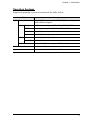
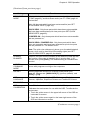
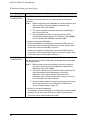
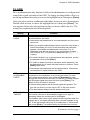
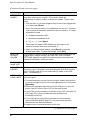
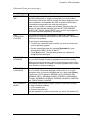
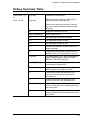
The LCD OSD adjustment settings are described in the table below:
Setting
Description
Brightness
Adjusts the background black level of the screen image.
Contrast
Adjusts the foreground white level of the screen image.
Phase
If pixel jitter or horizontal line noise is visible on the display, your
LCD may have the wrong phase setting. Adjust the phase setting
to eliminate these problems.
Clock
If vertical banding is visible on the display, your LCD may have
the wrong clock setting. Adjust the clock setting to eliminate
vertical banding.
H-Position
Positions the display area on the LCD panel horizontally (moves
the display area left or right).
V-Position
Positions the display area on the LCD panel vertically (moves
the display area up or down).
Color Temperature
Adjusts the color quality of the display. You can adjust the
“warmth” value, color balance, etc. The Adjust Color selection
has a further submenu that lets you fine tune the RGB values.
Language
Selects the language that the OSD displays its menus in.
OSD Duration
Lets you set the amount of time that the OSD displays on the
screen. If there is no input for the amount of time you choose, the
OSD display turns off.
Reset
Resets the adjustments on all menus and submenus to their
factory default settings.
LCD Power Button
Press the LCD Power button to turn the LCD monitor on and off. When the
LCD monitor is off, this button illuminates; when the LCD monitor is on, this
button does not illuminate. This function only affects the monitor, not the
KVM switch itself.
28