1
VERSION 1.5.44.38
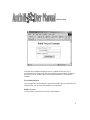
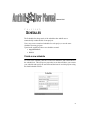
The first time you use Anthill, you will be prompted to enter the Anthill home
directory. Specify the absolute path to this directory. ( Example: "C:\programs\
anthill-" or "/usr/local/anthill-)"
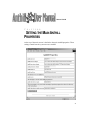
You're now ready to set the Main Antill Properties, and begin using Anthill.
The first time you have installed Anthill, you will be prompted to enter the
absolute path to the Anthill installation. This information is stored in the
anthill.properties file in the User directory.
Running the “Anthill Example” Project
Anthill ships with an example project called “Anthill-Example”. This project is
preconfigured and exists in a CVS repository hosted by Urbancode. This is
probably the easiest way to see what Anthill does and to start playing around
with it.
Configure Anthill for your Email Server
Before using “Anthill-Example” Project, you’ll need to configure one or two
things pertaining to your Email setup to allow full use of its features. For
example, you should configure the address of your email server so that Anthill
can send out build notification emails. And you may want to configure Anthill's
url if it is installed somewhere other than http://localhost:8080/anthill/.
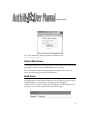
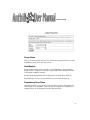
To configure both of these properties, follow the "Anthill Properties" link from
Anthill's main page. The email server address (either IP or machine name) goes
into the "anthill.mail.host" property. If you want to change the from address on
the emails that anthill sends out, then change the "anthill.mail.from" property
value. The anthill url, which is used to construct links included in notification
emails is configured via the "anthill.server" property. Once you have the
properties set, press the "Submit Query" button to save and go back to the main
screen.
Make sure you have CVS installed and in your path
The “Anthill-Example” Project uses CVS. Before you can build the Project, you
must make sure you have a CVS client installed on your machine and in your
-6