1
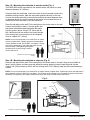
Step 4 - Using cable management (Fig. 6)
The EM-PLAB2 includes a cable management system
where cable can be routed along the length of the arm
assembly.
U-Cap cable management
Fig. 6
Cable
Route the panel cable along the entrance of the cable
management slot.
NOTE: For optimal performance, route the AC power cable
separately from the audio and video cables
With all cables in place, pull the panel in and out to be
certain that the arm assembly moves freely, without
stretching or damaging the cables.
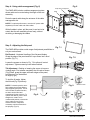
Step 5 - Adjusting the flat panel
The EM-PLAB2 provides a wide range of adjustment possibilities to
suit your environment.
Fig. 7.1
Roll Control - Horizontal levelling of the flat panel display.
Grasp the edge of the panel and roll it up or down into a level
position (Fig.7.1).
Fig. 7.2
Loosen the screws as shown in Fig. 7.2 to allow roll control
adjustment. Tighten screws by hand when finished.
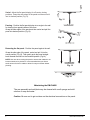
Tilt Adjustment - Raising or lowering the screen to improve
viewing angle. First release completely the tilt knob as shown
(Fig.9) Next, grasp the upper and lower edges of the panel,
and then turn it to the desired
tilt angle (Fig.8).
To lock the tilt angle, tighten
the tilt knob (Fig.10) securely.
NOTE: For heavier panels, never
fully release the tilt knob without
fully supporting the panel. The tilt
lever includes a ratchet function,
so that it can be lifted and
repositioned for the next turn. To
operate the ratchet, pull the lever
straight out, rotate it to an
unobstructed position, release the
lever, and then turn it in the
desired direction. Repeat as
necessary until the tilt tension is
set properly (Fig.10)
Release tilt knob
Fig. 8
a
Turn
4
Fig. 9
Tilt knob
c
b
Fig. 10
d
Tighten
EM-PLAB2.HB.092012.IM