1
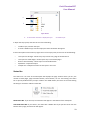
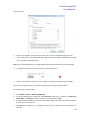
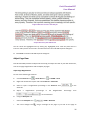
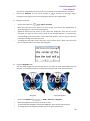
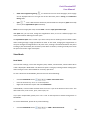
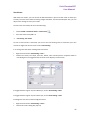
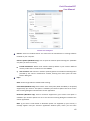
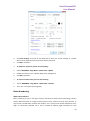
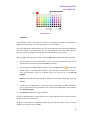
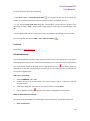
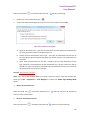
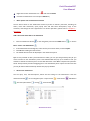
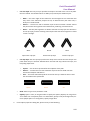
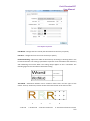
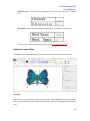
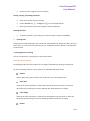
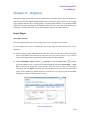
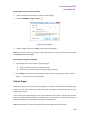
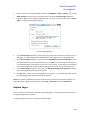
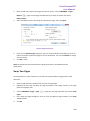
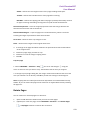
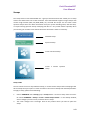
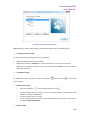
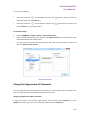
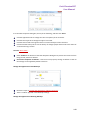
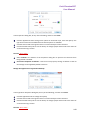
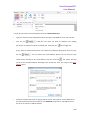
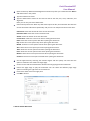
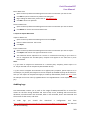
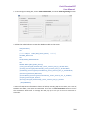
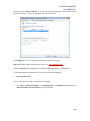
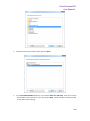
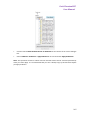
Foxit PhantomPDF User Manual Selecting Tools Selecting tools include Rectangular Marquee tool, Magic Wand tool, lasso tools (Lasso tool and Polygonal Lasso tool), etc. For how to use these tools, please follow the steps as below. Rectangular Marquee tool: Select the rectangle tool from the Tools tab. Drag over the area you want to select. Magic Wand tool: Select the magic wand tool . In the Image Editor Function Panel, drag the slider to specify the Tolerance, or enter a value ranging from 0 to 255. To select only adjacent areas using the same colors, select Contiguous. Otherwise, all pixels using the same colors will be selected. In the image, click the color you want to select. If Contiguous is selected, all adjacent pixels within the tolerance range are selected. Otherwise, all pixels in the tolerance range are selected. Tip: The magic wand tool lets you select a consistently colored area without having to trace its outline. You can specify the tolerance for the magic wand tool's selection. Lasso tools: Lasso tool: Select the lasso tool from the Tools tab. Drag to draw a freehand selection border. Polygonal Lasso tool: Select the lasso tool from the Tools tab. Click in the image to set the starting point. 113