1
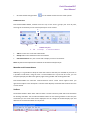
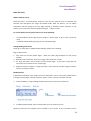
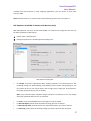
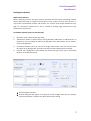
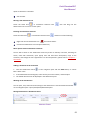
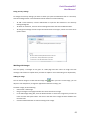
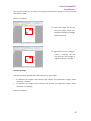
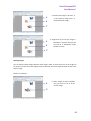
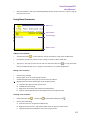
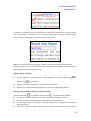
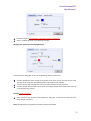
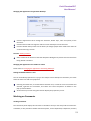
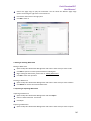
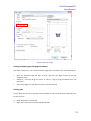
Foxit PhantomPDF User Manual Bookmark”. Click the plus (+) or minus (-) sign to expand or collapse the bookmark contents. Navigating with Page Thumbnails Page thumbnails are reduced-size versions of PDF pages. It provides miniature previews of document pages and makes it easier to view and recognize them. The red box in the page thumbnail indicates which area of the page appears. 1. To show or hide page thumbnails, do one of the following: Choose View > Navigation Panels > Pages. Click the Page Thumbnails button Click the button at the top right corner of the Navigation pane to minimize or maximize Pages panel. on the Navigation pane. 2. To navigate with page thumbnails, do one of the following: To jump to another page, click its thumbnail. To move to another location of the current page, drag and move the red box in its thumbnail. To resize page thumbnails, right-click on a thumbnail, and then choose “Enlarge Page Thumbnails” or “Reduce Page Thumbnails”. Navigating with Links Links take you to another location in the current document, or to locations in other documents or websites. Clicking a link on PDF documents is just the same as in other applications. You can follow a link by doing the following: Select the Hand tool Position the pointer over the link until the pointer changes to the hand with a pointing finger on Basic Toolbar. . Searching and Indexing in PDFs Finding Text Foxit PhantomPDF provides handy tools to find text. You can not only search text in a PDF, but also in certain files or disks. Also, you can limit your search by choosing the options offered on the Find Text dialog box to find specific items. 37