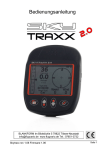
1
Manual Skytraxx GmbH Im Bildstöckle 5 79822 Titisee-Neustadt [email protected] www.skytraxx.eu _________________________________________________ Skytraxx rev 1.13 Firmware 1.50 Page 1 TABLE OF CONTENTS Introduction External features Input keys, turning the unit ON and OFF Navigating the MENU First steps Main screen Map view Manually setting the altitude DEVICE STATUS - Menu Viewing files TRAXX - Menu USB - Menu PARAMETER - Menu AIRSPACE - Menu WAYPOINT - Menu GOTO - Menu, Final Leg TASK - Menu SIMULATOR - Menu PILOT DATA - Menu USER FIELDS - Menu PLAY MUSIC - Menu, FIRMWARE UPDATE - Menu Displaying thermal and wind information Battery Technical data Water landings Disposal Safety information 3 4 5 6 7 8 9,10 11,12 13 14 15 16 17,18 19 20 21,2 23 24 24 25 26 27 28 29 30 31 32 _________________________________________________ Page 2 Introduction Thank you for purchasing the SKYTRAXX 2.0 and for placing your trust in us. The SKKYTRAXX 2.0 uses the most up-to-date componentry available and has been specifically designed for paragliding and hang gliding. The new technology has enabled us to produce a much more efficient unit and to offer many new features which we are certain you will appreciate. Skytraxx GmbH reserves all rights to the content of this manual and the right to alter product details without notice. SKYTRAXX 2.0 is the result of a major product upgrade which includes many new features and functions. The new high performance 32bit Risc processor has huge processing power and together with its 4GB of internal memory offers new features never before thought possible. The SKYTRAXX 2.0 has practically no flight recording limits. It is calpable of logging thousands of flights each with a track interval of one second and can handle 60 000 waypoints together with masses of airspace data. In addition, the capacity to calculate and analyse maximum values and profiles for all recordings in real-time is nothing short of amazing. Some SKYTRAXX 2.0 features include: •A preinstalled worldwide database of all launch sites and landing fields. •Preinstalled airspace information for 31 countries. •All tracklogs are stored as IGC files and are signed with a G-Record. •Compatible for use with Windows, MAC and Linux without additional software or driver requirements. •Airspace information can be copied in OpenAir format directly to the SKYTRAXX. •Waypoints are copied simply as text files. _________________________________________________ Page 3 External Features A Mini-USB port allows data exchange and battery charging. A reset button located near the USB port can be actuated by inserting a thin pencil or a paper clip, and gently pressing. Mini-USB M4 thread Reset button pad On the back cover there is an internal M4 thread. The maximum depth is 6 mm. If an accessory is attached, the included adhesive pad must also be used. For in-flight security, a safety line can be attached using the two holes at the base of the unit. _________________________________________________ Page 4 Input Keys Menü OK Minus Plus The Menu key toggles to and from the Main Menu. The Minus/Plus keys decrease and increase values respectively, as well as facilitating movement up and down within the Menu in the direction indicated by the arrows on the keys. Pressing OK facilitates paging through the various views, as well as confirming an input or making a selection. Turning the Unit ON and OFF Connect the Skytraxx to the charger supplied and fully charge the unit. To turn the unit ON press and hold the Menu key for 3 seconds and then press OK. To switch OFF press and hold the Menu key for 3 seconds and then press OK. In either case if confirmation by pressing OK is omitted, no changes will occur. Note that when the device is connected to a PC it will not switch off. The Main Screen is the default view when the unit is turned on. _________________________________________________ Page 5 Navigating the Menu After the turning on the device press the Menu key. DEVICE STATUS TRAXX USB PARAMETER AIRSPACE WAYPOINT GOTO TASK SIMULATOR PILOT DATA USER FIELDS PLAY MUSIC FIRMWARE UPDATE FACTORY DEFAULT Use the Minus/Plus keys to move the indicator up and down the list (2 pages). Press the Menu key anytime to return to the main screen. Press OK to open an indicated screen. Menu Options: •DEVICE STATUS Date&Time, GPS coord.&height, Satelites •TRAXX Stored flight info and analyses •USB To connect to PC •PARAMETER Device settings •AIRSPACE Airspace options •WAYPOINT Waypoint management •GOTO To select a waypoint to navigate to •TASK Competition task management •SIMULATOR Simulates GPSreception&hypothetical flight •PILOT DATA To enter pilot data for exporting to IGC files •USER FIELDS Set the 3 user-definable fields in main view •PLAY MUSIC To play music •FIRMWARE UPDATE Update device firmware. •FACORY DEFAULT Return all settings to facory default Press the Menu key from any screen to return to Menu list. _________________________________________________ Page 6 First steps 1. Setting up Pilot details: From the Main Menu select PILOT DATA. Press OK to begin editing and use the keys next to the symbols which appear on the screen to navigate. Example: Your name is Max Mustermann IGC-ID: MaMu (4 characters) Pilot: Max Mustermann (max. 22 characters) Glider: Advance alpha 3 (max. 22 characters) Class: Paraglider (sport) (max. 22 characters) To insert or delete characters, hold down the OK key in edit mode until the following symbols appear on the screen. Press the adjacent Minus/Plus key to effect the desired operation. Delete Insert Ins The following characters are available by using the Minus/Plus keys in the edit mode, holding down for rapid scanning: abcdefghijklmnopqrstuvwxyz.()0123456789ABCDEFGHIJKLMNOPQRSTUVWXYZ To insert a space, use the full-stop character. When finished in one field, press Menu. Move fields with the Minus/Plus keys, then press OK to edit the next field and so on. Save your entered details by pressing the MENU key, then OK to confirm. This information becomes the header of your IGC-File. 2. Select the country being flown from the AIRSPACE menu. Germany is the default setting. 3. Using the PARAMETERS menu it is possible to set personal parameter preferences. (See „Parameters“ for more detail.) _________________________________________________ Page 7 Main screen 13 12 24°C Höhe Meter 31 2 15 1 1078 1.5 2 W Vario m/s Gleitzahl --- 3 1 14 8 N 11 2 Dist to Airspace 3 Time 14.2 km 4 10:35:02 5 1 GPS Height AMSL 2 Digital vario 10 O 9 S GndSpd WindSpd 6 36 16 7 9 Wind direction 10 Position of last Thermal 11 Track 3 User-definable field 4 User-definable field 5 User-definable field 13 Battery level 6 Groundspeed 14 Analog vario 7 Windspeed 15 Vario over 30 Seconds 8 Temperature 12 GPS strength _________________________________________________ Page 8 Map screen 9 10 1740 SW 42 NW W 8 + Tafelbühl 19.8 km 7 2 1 + Kandel 14.2 km 12 3 11 NW/16 5 4 6 + Hintereck 7.9 km 480m 7.4 km 5 1 Airspace within warning distance 7 Waypoints 2 Airspace warning distance 8 Groundspeed 3 Wind 9 Track 4 Scale 10 GPS Height AMSL 5 Distance to next airspace 11 Current position 6 Track log 12 Thermal source A short press on the Minus/Plus keys changes the scale. Holding either one down displays Airspace information. Further pressing scrolls through the information. Press Menu to exit back to Map. See next page for more details. _________________________________________________ Page 9 Using the Map Screen In the Map view the scale can be changed by short-pressing the centre keys (Minus/Plus). Provided airspace maps have been loaded and there is GPS reception, holding down either of the centre keys will show airspace info. Whilst viewing the airspace info, the centre keys scroll through airspace data files. Additonally, if the thermal database is loaded, thermal points can be viewed from the second scale setting upwards. Adding thermal points After connecting the Skytraxx to a PC, use the following link to download the thermal database and then copy it into the WAYPOINTS folder: http://xc.dhv.de/xc/modules/leonardo/data/files/dhvxc-thermals.wpt Then in the Skytraxx, select WAYPOINTS from the menu list and then select Select waypoint file. Choose New File or Add File. New File Add File + _________________________________________________ Page 10 Manual Altitude Setting adjust height manually Altitude: QNH: 354m 1012.0 hPa To manually set the altitude, press one of the middle keys whilst viewing the Main Screen. Adjust the values using the middle keys. Confirm by pressing OK. For more details on height calibration see next page. _________________________________________________ Page 11 More about Height Calibration A false GPS height indication will blink on and off. Once a signal is established the value ceases to blink. The height is then calibrated. The GPS height values are correct to within +/- 30 metres. With poor GPS reception the inacuracy may be even greater. Where this is the case, the height may be manually adjusted as follows: In the main screen, pressing either one of the Minus/Plus keys will open a new screen (see previous page). Use these middle keys again to adjust the height in the direction indicated by the arrows on the buttons. Note that 3D GPS reception overrides any manually-entered height values which will automatically be corrected whenever 3D GPS reception is available. The GPS height is indicated on the DEVICE STATUS sreen. Note that if logging is switched on the height can no longer be manually adjusted. If a height is indicated in the ELEVATION list using an appropriate HGT file, Skytraxx then knows the height of the entire area and will also use this height information when no 3D GPS reception is available. The hgt File contains the topography data. Points to remember The Main Screen is the default screen-setting after start-up. After reciept of a 3D GPS signal, and whilst viewing the Main Screen, logging can be toggled on and off by holding down the OK key. Confirm each time by again pressing OK or exit by pressing Menu. Logging starts the flight time chronometer. _________________________________________________ Page 12 Device Status 1 Mittwoch, 13. Juli 2011 N 48° 05‘ 57‘‘ 3 GPS: 840 m 2 E 08° 11‘ 14‘‘ 8 1 Day and date 3 GPS Height 2 GPS Coordinates of current location 4 Satellites _________________________________________________ Page 13 TRAXX file selection A:/FLIGHTS/2011/Juli/ April May June Juli Use the middle keys to select a period and press OK to accept. To delete a period: •Select the period using the middle keys. •Press and hold the OK key until the delete symbol appears. •Press OK to delete or exit by pressing Menu. _________________________________________________ Page 14 Menu choice TRAXX All flight recordings are filed by year, month and day similar to a flight log. Selecting a day brings up a list of all flights logged on that day. To view the details of a particular flight: •Select the highlighted flight by pressing OK. •Pressing OK scrolls the lists of logged flight data, the last view being a graphic of the type shown below which includes the tracklog and height profile. Using the Minus and Plus keys, the track can be navigated. Tafelbühl 15:43:20 1420 m _________________________________________________ Page 15 Menu choice USB Turn on the unit and from the Menu list select the USB option. Connect Skytraxx to a PC using the USB cable. After few seconds a window opens on the PC displaying the contents of the Skytraxx. In Windows XP it looks like this: AIRSPACES ELEVATION FIRMWARE FLIGHTS SETUP SOUNDS TASKS WAYPOINTS Airspace data Height data Firmware versions All Tracks Settings Music files Competition data Waypoint data Important! Do not attempt to make any changes to either the file system or any data in the files. Corrupted data will lead to false readings and the system will lock-up. _________________________________________________ Page 16 Menu choice PARAMETER Parameter settings can changed by scrolling to the parameter to be changed using the middle keys, selecting that parameter by pressing OK and then altering its setting using the middle keys again. Sink threshold Sink-rate at which the vario begins sounding Climb threshold Climb-rate at which the vario begins sounding Time zone UTC offset Local time difference from UTC Track interval Track Log recording interval (1 - 60 sec.) Volume Vario sounding volume (0 - 8) Display contrast Display screen contrast setting (0 - 24) Units Choice between °C/metres and °F/feet Coordinates format Format for displaying GPS coordinates in the DEVICE STATUS view. Language German, English, French, Dutch, Polish, Spanish, Italian, Romain, Slovakian Expert settings: Integralvario: Integral value of the digital vario (1 - 60 sec.) _________________________________________________ Page 17 Menu choice PARAMETER (contd) Expert settings (contd): Tone pitch rise Tone gain Beep pitch Tone gap sink Max. audio frequency Vario sensibility Auto silent Thermal lane Rescue alert Temperature offset Voice output Airspace audio output Bluetooth Maximal G-force GoogleEarth Karte/Map Altitude limit Choice between Course up and North up _________________________________________________ Page 18 Menu choice AIRSPACE Show Airspace Press OK then choose from the options on the screen to display airspace in the vicinity. Press OK to toggle between activating and deactivating any airspace for displaying on the screen. Select File To load airspace data for use, files can be saved in one of two ways. First select a highlighted file by pressing OK and then following the on-screen prompts: Option1: Only the selected file will be loaded for use, over-riding any existing files. Option2: The selected file will be added to any existing files in use. Warning distance horizontal/Warning distance vertical Using the middle keys, the distances for the sounding of a proximity warning when approaching an airspace can be set. Press OK to confirm the new value. Horizontal and vertical proximity values can be independently set. _________________________________________________ Page 19 Menu choice WAYPOINTS New Waypoint A new waypoint at the current position can be created by pressing OK. A number is offered as the default name of the new waypoint. To label the waypoint differently, press the Minus key and enter the prefered label using the middle keys. When finished, press the Menu key twice and then select from Save, Cancel or Delete using the middle keys, confirming with OK. Edit Waypoint Select the waypoint to be edited from the list by pressing OK and go into edit mode by pressing OK. Edit using the middle keys. When finished with a field, press Menu to exit the edit mode. Use the middle keys to shift fields and edit by pressing OK, and so on. When finished, press Menu and select from the options using OK to confirm the choice. Select Waypoint File Select a file from the list offered by pressing OK. Two options are available for entering waypoint data to be accessed and shown on the map: Option1: By pressing the Plus key (next to the symbol without the '+'), only the selected waypoint file will be entered; all previously entered waypoint data will no longer be available. Option2: By pressing OK (next to the symbol with the '+' ), the selected waypoint file will be added to any existing data. _________________________________________________ Page 20 Menu choice GOTO Selecting GOTO presents a list of the waypoint data which has been loaded for viewing. (For how to load waypoint data see Menu choice WAYPOINTS on page 20.) When a waypoint is selected, a screen is created with all the information necessary to navigate to the chosen waypoint. The navigation details shown on the GOTO screen are described on the following page. To view the screen, scroll to it using OK. To select a new target, hold down OK whilst viewing the GOTO screen and select from the waypoint list shown. To exit from GOTO, simply go to the list (either via the menu or by holding down OK in the GOTO view) and press Menu. _________________________________________________ Page 21 Goto / Endflight 24°C 1 Kandel Süd 3 N 2 805 m 2 13 T +104 m 4 GZ +5.1 W O 5 GZT +7.2 1 6 1h 12 min. 2 7 14.2 km 3 8 10:35:02 Direction of target S GndSpd WindSpd 36 16 1 Waypoint name 5 Glide ratio needed to reach target 2 Current GPS Height 6 Time to target 3 Height relative to target 7 Distance to target 4 Current Glide ratio 8 Lapsed Time Whilst using route, Minus/Plus keys switch to adjacent waypoints. _________________________________________________ Page 22 Menu choice TASK New task Select New task with OK and give it a title using the middle keys. Create the task by pressing Menu. Once a task exists waypoints can be added to it. Edit task Any existing task can be edited. Press OK, select the task to be edited and OK again to begin the edit and select an operation from the options shown: ● Add waypoint to the bottom of the list. ● Edit waypoint to edit the highlighted waypoint. ● Insert waypoint above the highlighted waypoint. ● Delete waypoint which is highlighted. ● Set cylinder radius using the middle keys. Activate task Select task to be activated using OK. Deactivate using Menu. Cylinderradius + Kandel 14.2 km automatic switch to next waypoint + Hintereck 7.9 km Flightroute Example of a task. When a cylinder is reached, an additional track log point is automatically recorded. _________________________________________________ Page 23 Menu choice SIMULATOR To view the range of possible announcements and functions, select the simulator mode; GPS reception is simulated. In flight the simulator must be switched off! Menu choice PILOT DATA Setting up of IGC file information is carried out by selecting this from the menu. See First steps on page 7. _________________________________________________ Page 24 Menu choice USER FIELDS Three user-definable fields (see pg. 8) can be set to any of the parameters in the list below. To change the parameters in these fields, select USER FIELDS from the menu by pressing OK. Select the field to be changed and then select the desired parameter from the list. The following choices are available: Time - actual time Flight time - time since start of logging AGL - height above ground (only if the suitable HGT file exists in the ELEVATION folder) AGL (feet) - height above ground in feet (only if the suitable HGT file exists in the ELEVATION folder) Altitude – GPS height(AMSL) Altitude (feet) GPS height(AMSL) in feet Relative altitude - height relative to take-off Altitude gain – cumulative height gained during whole flight Flight level . Pressure – QNH (in hPA) Course over Ground – track being travelled Distance to Waypoint - distance to next selected waypoint Distance to Airspace - distance from nearest airspace Distance to Airspace vertical Distance to take off – distance from point of take-off Distance from track – distance from intended path Battery level Empty Field – leaves field blank Barogram – Cross-sectional picture of height vs time/track. Glide ratio Race start – time set on race-start timer Alt of arival G-force (if sensor is installed) _________________________________________________ Page 25 Menu choice PLAY MUSIC If desired, audio files can be loaded into the unit and played. The files must be entered using a special format. This function is to enable testing of the unit´s sound quality. For anyone interested in trying this out, the programme „Switch Sound File Converter“ can be used to convert files for use. The following settings must be used: •Output format: .raw •encoder Options: •Format: 8 bits signed •Sample rate: 22050 •Channels: Mono The converted files can then be copied to the SOUNDS folder using a PC. Menu choice FIRMWARE UPDATE Displays the current Firmware version and whether any updates have been downloaded and ready for installation. If new versions exist and are waiting to be installed, press OK to start the installation. A restart is necessary so when installed, the unit will shut down automatically. _________________________________________________ Page 26 Thermal and wind indication The unit indicates the position of the last encountered thermal, which is in effect, the last position with the highest rate of climb. The wind direction is indicated as soon as a change of course is flown. The best indication of wind direction is gained by flying a full circle. N Last thermal W Wind from SW E NE of present position S The position of the arrow in the compass ring indicates the direction to the last thermal. The distance the arrow is from the centre indicates how far the thermal is away; the further away the thermal, the further the arrow will be from the centre. An arrow in the centre indicates the thermal is very close. The length of the arrow gives an indication of the strength of the thermal; a longer arrow indicates a stronger thermal. The last thermal is approached by flying until the arrow is positioned at the top of the compass ring and then flying straight ahead. When the arrow is in the centre of the compass ring, the thermal has been reached. _________________________________________________ Page 27 Battery The SKYTRAXX II is powered by the latest in high-quality lithium ion batteries. The battery is not affected by the so-called memory effect common to some other types of batteries. Use only the battery charger provided or the PC connection. When the unit is charging an indicator shows on the main screen. Once fully charged, this indicator disappears. Should the unit not be used for an extended period, it is highly recommended that the battery be charged to at least 30% before use. WARNING: DO NOT DISPOSE OF THE BATTERY BY BURNING!! _________________________________________________ Page 28 Technical data Power supply: Lithium-Ion accumulator 3.7 V 2600 mAh Operating time on one charge: 30 – 40 hours Memory size: 2 gigabytes (extendable) Dimensions: 120 x 98 x 27 mm Weight: 185 grams Supplied with: Delivery includes 220 V battery charger and USB cable. 24 month guarantee from date of purchase. _________________________________________________ Page 29 Water landings In case water has penetrated the device: •Turn the device off •Dry the unit (e.g. with a hair dryer) •Send the device to us at Blankform for inspection . The guarantee is invalidated through improper use e.g. landing in water or by opening the device. Guarantee and disclaimer of liability In the rare case that the device is faulty, or if for any other reason the unit provides inaccurate or incorrect information, Blankform cannot be held liable for any losses thereby incurred. Responsibly for the proper execution of any flight must be born exclusively by the pilot. Our product is guaranteed for 24 months from the date of purchase against material and production faults. Mechanical damage, such as case breakage or a broken display screen, is not covered by the guarantee. _________________________________________________ Page 30 Disposal The end user has a legal obligation to dispose of the battery and the unit in an appropriate manner and in accordance with local bylaws. Disposal in domestic waste is prohibited! Pollutant-containing batteries and accumulators are marked with the symbol below, indicating prohibition of disposal in domestic waste. The chemical symbols for heavy-metals are as follows: Cd = cadmium Hg = mercury Pb = lead Products containing such substances can be disposed of free of charge at collection sites provided by municipalities or where such products are sold. Help fullfil your environmental and legal obligations by sending the device at the end of its life back to the manufacturer. Expert disposal is thereby guaranteed, and a credit of 25€ may be claimed. WEEE-Reg.-Nr. DE 76592335 _________________________________________________ Page 31 Safety information Skytraxx Varios are used exclusively at the owner´s risk. No liability will be accepted by the manufacturer for any damage or overwriting of files which may occur through the use of the provided PC software. The manufacturer expressly assumes no liability for any possible death or injury in relation to height, position or speed configurations arising from dangerous flying situations. Visual attention to the instrument during flight should only be undertaken if the situation allows. It is recommended that the audio information be used wherever possible. We wish you many nice flights with your new Vario. _________________________________________________ Page 32