1
UM0148
User Manual
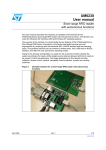
Vending machine demo kit for RFID contactless memories
Introduction
The vending machine demo kit is designed to show how STMicroelectronic’s short range RFID
contactless memories can be used as e-purse keys for vending machines. The short range products
suitable for e-purse applications are the SRIX512 and SRIX4K.
The SRIX512 and SRIX4K are contactless memories that are powered by a 13.56MHz transmitted carrier
radio wave. They contain a 512-bit (SRIX512) or 4096-bit (SRIX4K) EEPROM, with memory mapping
organized as blocks of 32 bits. They conform to the ISO 14443-B recommendation for the transfer of
power and signals via radio transmission. The CRX14 USB Reader circuitry amplitude modulates (10%
modulation) the data on the carrier using Amplitude Shift Keying (ASK). The SRIX512 / SRIX4K replies by
load modulating the data on the carrier using Bit Phase Shift Keying (BPSK), which uses the 847kHz subcarrier. The data transfer rate in each direction is 106 Kbits/second.
The Vending Machine Demo Kit consists of:
■
One DemokitCRX14
■
One CD-ROM
■
Some SRIX512 and SRIX4K Samples
■
Documentation
The software used to run the demo kit is available on the CD-ROM, but it can also be downloaded from
www.st.com (file name: VendingMachine_UM0148.zip).
The Vending Machine Demo Kit is used to:
■
Personalize tickets as a ticket issuer
■
Demonstrate the selling process at any Point of Sale (POS)
■
Reload the keys with new units
■
Simulate and recover errors
Application features:
■
RAM: 16 MB
■
HDD free space: 6 MB
■
USB version 1.1
■
Compatible with Windows98 SE, Windows2000 and Windows XP platforms
Reader USB CRX14 Demokit V4.0 hardware
USB Cable
I2C Cable
CRX14
Board and
Antenna
USB Tranceiver
AI08718b
July 2005
Rev 1
1/25
www.st.com
1
UM0148 User Manual
Contents
1
Ticket mapping . . . . . . . . . . . . . . . . . . . . . . . . . . . . . . . . . . . . . . . . . . . . . . . 5
1.1
Key personalization . . . . . . . . . . . . . . . . . . . . . . . . . . . . . . . . . . . . . . . . . . . . . 5
1.2
Using the e-purse key . . . . . . . . . . . . . . . . . . . . . . . . . . . . . . . . . . . . . . . . . . . 5
1.3
Reloading units . . . . . . . . . . . . . . . . . . . . . . . . . . . . . . . . . . . . . . . . . . . . . . . . 6
2
Installing the software . . . . . . . . . . . . . . . . . . . . . . . . . . . . . . . . . . . . . . . . . . 7
3
Configuring the demo . . . . . . . . . . . . . . . . . . . . . . . . . . . . . . . . . . . . . . . . . . 8
4
Launching the demo . . . . . . . . . . . . . . . . . . . . . . . . . . . . . . . . . . . . . . . . . . . 9
5
Key personalization . . . . . . . . . . . . . . . . . . . . . . . . . . . . . . . . . . . . . . . . . . . 10
6
Using the vending machine . . . . . . . . . . . . . . . . . . . . . . . . . . . . . . . . . . . . 11
7
Reload desk / memory recovery . . . . . . . . . . . . . . . . . . . . . . . . . . . . . . . . 13
8
Detailed mode . . . . . . . . . . . . . . . . . . . . . . . . . . . . . . . . . . . . . . . . . . . . . . . 14
Appendix A Certificates . . . . . . . . . . . . . . . . . . . . . . . . . . . . . . . . . . . . . . . . . . . . . 16
A.1
Application certificate Fct1. . . . . . . . . . . . . . . . . . . . . . . . . . . . . . . . . . . . . . . 16
A.2
Counter certificates Fct2, Fct3. . . . . . . . . . . . . . . . . . . . . . . . . . . . . . . . . . . . 17
A.3
Crypto backup . . . . . . . . . . . . . . . . . . . . . . . . . . . . . . . . . . . . . . . . . . . . . . . . 17
A.3.1
F-module . . . . . . . . . . . . . . . . . . . . . . . . . . . . . . . . . . . . . . . . . . . . . . . . . . . . 17
Appendix B Memory mapping . . . . . . . . . . . . . . . . . . . . . . . . . . . . . . . . . . . . . . . . 18
Appendix C Memory accesses . . . . . . . . . . . . . . . . . . . . . . . . . . . . . . . . . . . . . . . 19
Appendix D Emulated errors . . . . . . . . . . . . . . . . . . . . . . . . . . . . . . . . . . . . . . . . . 22
2/25
D.1
Application certificate error . . . . . . . . . . . . . . . . . . . . . . . . . . . . . . . . . . . . . . 22
D.2
Unit counter error . . . . . . . . . . . . . . . . . . . . . . . . . . . . . . . . . . . . . . . . . . . . . . 22
D.3
Unit counter certificate error . . . . . . . . . . . . . . . . . . . . . . . . . . . . . . . . . . . . . 22
D.4
Reload counter certificate error . . . . . . . . . . . . . . . . . . . . . . . . . . . . . . . . . . . 22
UM0148 User Manual
D.5
Unit counter crypto error . . . . . . . . . . . . . . . . . . . . . . . . . . . . . . . . . . . . . . . . 22
D.6
Reload counter crypto error . . . . . . . . . . . . . . . . . . . . . . . . . . . . . . . . . . . . . . 23
D.7
Wrong Type ID . . . . . . . . . . . . . . . . . . . . . . . . . . . . . . . . . . . . . . . . . . . . . . . . 23
D.8
Wrong Personal ID. . . . . . . . . . . . . . . . . . . . . . . . . . . . . . . . . . . . . . . . . . . . . 23
D.9
Want of Units . . . . . . . . . . . . . . . . . . . . . . . . . . . . . . . . . . . . . . . . . . . . . . . . . 23
Revision history . . . . . . . . . . . . . . . . . . . . . . . . . . . . . . . . . . . . . . . . . . . . . . 24
3/25
UM0148 User Manual
List of figures
Figure 1.
Figure 2.
Figure 3.
Figure 4.
Figure 5.
Figure 6.
Figure 7.
Figure 8.
Figure 9.
Figure 10.
Figure 11.
Figure 12.
Figure 13.
Figure 14.
Figure 15.
Figure 16.
4/25
Example of standard ticket manufacturing flow for SRIX4K . . . . . . . . . . . . . . . . . . . . . . . . . 6
Welcome screens . . . . . . . . . . . . . . . . . . . . . . . . . . . . . . . . . . . . . . . . . . . . . . . . . . . . . . . . . 7
Choose destination location screen . . . . . . . . . . . . . . . . . . . . . . . . . . . . . . . . . . . . . . . . . . . 7
First menu window . . . . . . . . . . . . . . . . . . . . . . . . . . . . . . . . . . . . . . . . . . . . . . . . . . . . . . . . 9
Issuer key personalization screen . . . . . . . . . . . . . . . . . . . . . . . . . . . . . . . . . . . . . . . . . . . 10
Vending machine demo main screen . . . . . . . . . . . . . . . . . . . . . . . . . . . . . . . . . . . . . . . . . 11
Detailed mode screen . . . . . . . . . . . . . . . . . . . . . . . . . . . . . . . . . . . . . . . . . . . . . . . . . . . . . 12
Reload desk / memory recovery screen . . . . . . . . . . . . . . . . . . . . . . . . . . . . . . . . . . . . . . . 13
Memory map standard screen . . . . . . . . . . . . . . . . . . . . . . . . . . . . . . . . . . . . . . . . . . . . . . 14
Memory map, recording memory accesses screen . . . . . . . . . . . . . . . . . . . . . . . . . . . . . . 15
Application certificate example . . . . . . . . . . . . . . . . . . . . . . . . . . . . . . . . . . . . . . . . . . . . . . 16
Unit and Reload counter certificate example . . . . . . . . . . . . . . . . . . . . . . . . . . . . . . . . . . . 17
Memory mapping example . . . . . . . . . . . . . . . . . . . . . . . . . . . . . . . . . . . . . . . . . . . . . . . . . 18
Issuer sequence flowchart . . . . . . . . . . . . . . . . . . . . . . . . . . . . . . . . . . . . . . . . . . . . . . . . . 19
Buying Items flowchart . . . . . . . . . . . . . . . . . . . . . . . . . . . . . . . . . . . . . . . . . . . . . . . . . . . . 20
Unit Reload sequence flowchart . . . . . . . . . . . . . . . . . . . . . . . . . . . . . . . . . . . . . . . . . . . . . 21
UM0148 User Manual
1
1 Ticket mapping
Ticket mapping
The demo kit software proposes a ticket mapping for the vending machine demo. See Appendix
B: Memory mapping for specific details. In e-purse applications, ticket mapping is where the
specific data is written to the contactless memory (tag), which acts as the e-purse key.
1.1
Key personalization
In real applications, the first thing that must be done by the key manufacturer is the Key
personalization (Figure 1: Example of standard ticket manufacturing flow for SRIX4K). During
this phase, the empty tag inside the key is loaded with data for future use.
The following data is loaded into the tag during the Key personalization phase:
●
Identification data, which is write protected after being written:
●
●
–
Serial number
–
–
Vending machine type identification number
Personal identification number
–
Date of issue and
–
Application certificate Fc1
Customer specific data:
–
Unit counter value
–
–
Reload counter value
Unit counter certificate Fct2
–
Reload counter certificate Fct3
Issuer information, which is stored in the OTP memory area
If the crypto backup (see Section A.3) feature is activated, the relevant security procedures are
executed in the Key Personalization phase.
1.2
Using the e-purse key
Once the Key personalization phase has been successfully completed, the ticket is active and
the user can buy goods. However before buying, several parameters of the key are checked:
●
Vending machine type identification number
●
Personal identification number (in line with particular vending machine)
●
Validity of all the accessible certificates and crypto backups
If the key contains enough units, then the user can buy goods and the units used are deducted
from the Unit counter. Finally the linked certificates and backups are recalculated and loaded
back into the key.
5/25
UM0148 User Manual
1 Ticket mapping
1.3
Reloading units
After use, the user may want to reload units into the key. If there are no errors detected in the
tag, then the Reload unit counter is appropriately decreased and all the linked certificates and
crypto backups (see Section A.3) are recalculated and loaded back into the tag’s memory. If an
error occurs, the errors must be corrected before any further reloading can take place.
Figure 1.
Example of standard ticket manufacturing flow for SRIX4K
Key
personnalisation
ST
manufacturing
plant
Inlay
Waffer
SRIX4K
memory
Virgin
Key
Programmed
and printed
Active
Key
Virgin key
Key
manufacturer
6/25
Vending
machine
UM0148 User Manual
2
2 Installing the software
Installing the software
●
Browse the CD and find the Vending Machine Demo folder
After opening the folder, run the setup.exe program
●
Read the text of the Welcome Screens, and then click on “Next” (Figure 2).
●
Choose your destination location. The default folder is C:\Program
Files\STM\VendingMachine (Figure 3)
●
Figure 2.
Welcome screens
Figure 3.
Choose destination location screen
7/25
3 Configuring the demo
3
UM0148 User Manual
Configuring the demo
Once installed, the demo software can be configured using the config.ini file, which is stored in
the Res subdirectory of the program main directory (set during installation).
The config.ini file contains the following parameters:
●
●
●
WriteProtection – the tag’s memory write protection flag, active when set to “one”
MasterKey – a demonstration parameter used internally for calculating certificates Fc2
and Fc3 (Appendix A: Certificates).
IssuerMachineReaderIndex, ReloadMachineReaderIndex, VendingMachineX/
ReaderIndex – these are order indexes of specific virtual machines (issuer machine,
reload/recover machine, specific vending machines). All indexes are set to zero by default,
which means that it is configured for 1 reader.
The indexes address the reader’s tables, which are found during the initialization process.
The initialization process searches incrementally for the CRX14 readers, via the I2C bus,
on all USB readers connected to the PC.
When there is only one USB reader with several CRX14 readers connected via the I2C
bus, the CRX14 readers with lower I2C address are the first to be added to the table and
are put in the lower index position.
In the case of multiple USB readers, the situation is more complex (it depends on how the
operating system manages the USB devices) and it is necessary to plug the readers into
the PC to find and set the correct indexes.
●
VendingMachineX/PersonalName – usually the name of the vending machine location
●
VendingMachineX/PersonalID – the ID number linked to the location
●
VendingMachineX/BackgroundJPEG – the link to the background JPEG image for a pair
of vending machines (left or right, recommended resolution of this image is 400 x 500
pixels.
VendingMachineX/OfferNameY – the list of item’s offered by the vending machine, it
indicates the name of the products offered.
VendingMachineX/OfferPriceY – the price list of the item’s offered by the vending
machine, it indicates the unit price of a particular product.
VendingMachineX/OfferBMPY – the list of images which correspond to the item’s offered
by the vending machine, it indicates the link to the bitmap image (45 x 45 pixels), which
represents the particular product.
●
●
●
8/25
UM0148 User Manual
4
4 Launching the demo
Launching the demo
After successful installation, the demo program is launched from the Windows Start menu
(Start – Programs – Vending machine demo). Immediately after execution the Splash screen
appears. After the program is fully loaded into the memory, the first menu window (see
Figure 4) appears, select the Key Issuer Personalization mode, the Reload Desk / Memory
Recovery mode or the Vending Machine Demo to start the demo.
Figure 4.
First menu window
9/25
UM0148 User Manual
5 Key personalization
5
Key personalization
The key personalization is normally done in the production phase by the key manufacturer, and
so final key users receive the contactless memories already personalized for their needs and
specification. However, as the Contactless memory samples included in the kit are general
samples used for a wide variety of applications, they must be personalized by the user before
use.
To personalize an empty tag:
●
choose a desired key type
specify additional options
●
put the tag into the reader’s antenna field
●
push the “Personalize!” button
●
Before personalization a “Write enable” statement is displayed. After successful personalization
the appropriate tag’s blocks could be write protected, depending on the program configuration.
If a tag’s block are write protected, then a “Write disabled” statement is displayed. It is not
possible to personalize a write protected tag, and attempting to do so gives an error message.
Figure 5.
10/25
Issuer key personalization screen
UM0148 User Manual
6
6 Using the vending machine
Using the vending machine
Figure 6 shows the main window of the program. All vending machines are offline at the
beginning. Click on a machine to select it. The selected vending machine is immediately
highlighted and its offer displayed on the virtual display. The user can choose a product by
pressing the corresponding button or by clicking on the virtual display. Once the requested
product is selected, the user places the memory key in the reader’s antenna field, to execute
the transaction and receive the product.
Several types of errors can occur during the transaction. These errors are listed in Appendix D.
If the user places the key in the reader’s antenna field when no product is selected, the status of
the ticket is shown on the virtual display.
In the detailed mode, which is shown on the screen in Figure 7 there are also buttons to
generate error states (Unit Counter Error, Unit Counter Cert Error, Reload Counter Cert Error).
Figure 6.
Vending machine demo main screen
11/25
6 Using the vending machine
Figure 7.
12/25
Detailed mode screen
UM0148 User Manual
UM0148 User Manual
7
7 Reload desk / memory recovery
Reload desk / memory recovery
The Reload desk/ memory recover is used when an error has occurred or there are no more
units available in the key.
When the key is placed in the reader’s antenna field, the status of the ticket is shown on the
virtual display. If no error is detected, select the number of units to reload and start the
procedure by clicking on Reload/Recover.
When errors are detected, the Reload function is disabled and the errors have to be corrected
before doing another Reload. The InfoBox provides short descriptions of the errors and the
proposed recovery actions. See Appendix D for a list of all the possible error states.
Figure 8.
Reload desk / memory recovery screen
13/25
UM0148 User Manual
8 Detailed mode
8
Detailed mode
Selecting the Detailed Demo Mode checkbox on the first demo screen shows the memory map
of the key (see Figure 9).
If the Record Memory Access checkbox is unselected, the content of the last detected tag is
shown. If the reader fails to read the memory content, the memory map provides information
about the fail and the block number of the last successfully read block.
If the Record Memory Access checkbox is selected, the screen is not updated when a new tag
is inserted into the reader’s antenna field. Instead all previous memory accesses, undertaken
during the Key issuer personalization procedure, item buying procedure and reload / recovery
actions, can be seen using the Prev and Next buttons (see Figure 10). The InfoBox provides a
short description.
Figure 9.
14/25
Memory map standard screen
UM0148 User Manual
8 Detailed mode
Figure 10. Memory map, recording memory accesses screen
15/25
8 Detailed mode
UM0148 User Manual
Appendix A Certificates
Several variables are used to calculate certificates:
●
UID - the Unique Identifier of the tag, its value is controlled by the manufacturer (ST) and
securely stored in the silicon (read only).
●
Serial Number – a unique number that is controlled by the application owner.
●
●
●
A.1
MK - the Master Key dedicated to the application, which is controlled by the application
owner and can be used to differentiate between the various applications of particular
customer.
Vending machine type identification number – this parameter stores the flags of the
type of vending machines that use the key
Personal identification number – a unique number used to help the provider differentiate
between the various locations of the vending machines.
Application certificate Fct1
The Fct1 certificate is used to authenticate the personalized data. Figure 11 shows and
example.
In this example, the key is personalized for a snack machine (Vending machine type
identification = 40 00 55 AA) in ST Rousset (personal identification number = AF FF 11 11).
The SRIX4K UID number is D0 02 18 00 11 22 33 44 with serial number 12 34 56 78.
The Fct1 certificate is always fully managed by the customer’s application and so provides a
high level of security.
Figure 11. Application certificate example
16/25
UM0148 User Manual
A.2
8 Detailed mode
Counter certificates Fct2, Fct3
Certificates Fct2 and Fct3 are used to authenticate the counter values. See Figure 12 for an
example.
As for the Fct1 certificate, the Fct2 and Fct3 certificates are always fully managed by the
customer’s application and so provide a high level of security.
Figure 12. Unit and Reload counter certificate example
A.3
Crypto backup
The Crypto Backup feature allows a user to encrypt and decrypt selected blocks using a
system similar to DES (Data Encryption Standard). The version of DES used in the Crypto
backup operates on 32-bit data blocks using a 24-bit key. It iterates over 8 keys and transforms
the data stream through 4 S-boxes. All permutations and transformations of the DES algorithm
are reproduced.
All the steps of the full DES are used, but with less iteration and smaller blocks.
A.3.1
●
a 24-bit key is used instead of a 56-bit key
●
●
the data is divided into 32-bit blocks instead of 64-bit blocks
there are only 8 iterations through the F-module instead of 16
●
there are only 4 S-boxes instead of 8
●
the steps to encrypt and decrypt are virtually the same, except that decrypting uses the
keys in reverse order, and the roles of the left and right hand sides of the data block are
reversed.
F-module
The F-module combines 16 bits of data with a 24-bit key and performs substitutions with the
DES S-boxes. The 16-bits of data are expanded to 24 bits with the E[] table, then XOR'ed with
the key. The result is divided into four 6-bit groups, which are fed through the S-boxes as
described in the DES standard (the outer two bits select the S-box row, and the inner four bits
select the S-box column).
17/25
8 Detailed mode
Appendix B Memory mapping
Figure 13. Memory mapping example
18/25
UM0148 User Manual
UM0148 User Manual
8 Detailed mode
Appendix C Memory accesses
Figure 14, Figure 15 and Figure 16 show the step by step procedures of selected memory
operations. The numbers in the brackets indicate the memory block numbers for a particular
memory operations.
Figure 14. Issuer sequence flowchart
Issuer sequence
19/25
UM0148 User Manual
8 Detailed mode
Figure 15. Buying Items flowchart
Buying Items
20/25
UM0148 User Manual
8 Detailed mode
Figure 16. Unit Reload sequence flowchart
Reload sequence
21/25
8 Detailed mode
UM0148 User Manual
Appendix D Emulated errors
D.1
Application certificate error
An Application certificate error occurs when the Application certificate value in the tag differs
from the values calculated in Fct1. The value of the Application certificate is located in block 11.
The application certificate error can be recovered by a new Application certificate recalculation
only if the write protection was not yet activated on the affected key. Visit the Reload/Recovery
desk.
D.2
Unit counter error
A Unit counter error occurs when the Unit Counter value is smaller then the Reload Counter
value. The value of the Unit counter is located in block 5.
The solution is to align the Reload Counter to the same value as the unit counter, which sets
the e-purse value to “0”, after which the key must be reloaded. All involved certificates are then
recalculated. Visit the Reload/Recovery desk.
D.3
Unit counter certificate error
A Unit counter certificate error occurs when the Unit counter certificate is corrupted. The value
of the Unit counter certificate is located in block 15.
The solution is to recalculate the Unit counter certificate. In this case the value of the E-purse is
lower, and the certificate is recalculated. Visit the Reload/Recovery desk.
D.4
Reload counter certificate error
A Reload counter certificate error occurs when the Reload counter certificate is corrupted. The
value of the Reload counter certificate is located in block 0. The solution is to recalculate all the
involved certificates.
A sophisticated recovery procedure, which takes into account all possible inputs (Reload
Counter value and Reload OTP counter value) and the Reload counter certificate and Reload
counter crypto backup outputs, can be build in to real applications. Visit the Reload/Recovery
desk.
D.5
Unit counter crypto error
A Unit counter crypto errors occurs when the Unit counter crypto backup is corrupted. The
value of the Unit counter crypto is located in block 14.
The solution is to recalculate the Unit counter crypto backup. In this case the value of the Epurse is lower, and the crypto backup is recalculated. Visit the Reload/Recovery desk.
22/25
UM0148 User Manual
D.6
8 Detailed mode
Reload counter crypto error
A Reload counter crypto error occurs when the Reload Counter Crypto Backup is corrupted.
The value of the Reload counter crypto is located in block 1.
The solution is to recalculate all the involved certificates.
A sophisticated recovery procedure, which takes into account all possible inputs (Reload
Counter value and Reload OTP counter value) and the Reload counter certificate and Reload
counter crypto backup outputs, can be build in to real applications. Visit the Reload/Recovery
desk.
D.7
Wrong Type ID
The Wrong Type ID warning message indicates that the user is trying to use the key with the
wrong type of vending machine. The value of the Type ID is located in block 8. Visit the Reload/
Recovery desk.
D.8
Wrong Personal ID
The Wrong personal ID warning message indicates that the user is trying to use the key at the
wrong location. The value of the personal ID is located in block 9. Visit the Reload/Recovery
desk.
D.9
Want of Units
A Want of Units warning message indicates that there are not enough units available on the key
to buy the requested item. The solution is to visit the Reload/Recovery desk and reload more
units onto the key.
23/25
UM0148 User Manual
8 Detailed mode
Revision history
24/25
Date
Revision
01-Jul-2005
1
Changes
Initial release.
UM0148 User Manual
Information furnished is believed to be accurate and reliable. However, STMicroelectronics assumes no responsibility for the consequences
of use of such information nor for any infringement of patents or other rights of third parties which may result from its use. No license is granted
by implication or otherwise under any patent or patent rights of STMicroelectronics. Specifications mentioned in this publication are subject
to change without notice. This publication supersedes and replaces all information previously supplied. STMicroelectronics products are not
authorized for use as critical components in life support devices or systems without express written approval of STMicroelectronics.
The ST logo is a registered trademark of STMicroelectronics.
All other names are the property of their respective owners
© 2005 STMicroelectronics - All rights reserved
STMicroelectronics group of companies
Australia - Belgium - Brazil - Canada - China - Czech Republic - Finland - France - Germany - Hong Kong - India - Israel - Italy - Japan Malaysia - Malta - Morocco - Singapore - Spain - Sweden - Switzerland - United Kingdom - United States of America
www.st.com
25/25