1
Recording
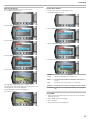
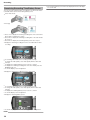
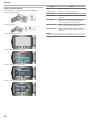
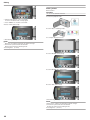
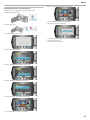
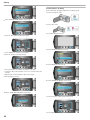
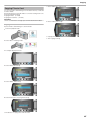
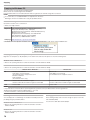
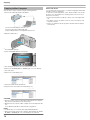
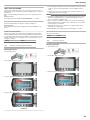
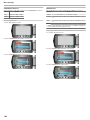
Registering Files to Events Before Recording
Videos can be found easily during playback by categorizing them when
recording.
1
Select video mode.
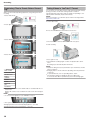
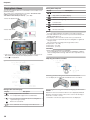
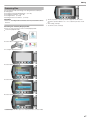
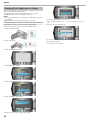
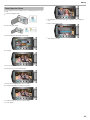
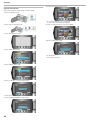
Taking Videos in YouTube™ Format
You can share your enjoyable memories with family and friends easily by
posting your videos on the video sharing website YouTube™.
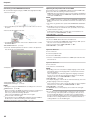
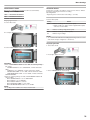
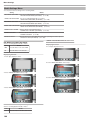
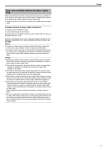
Through upload shooting, videos that are suitable for uploading to YouTube™ (within 10 minutes) may be taken directly.
NOTE:
For more information on YouTube™, please visit the following website.
http://www.youtube.com/
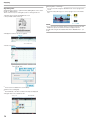
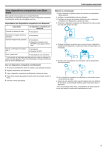
Select video mode.
2
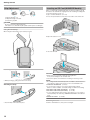
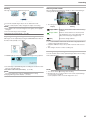
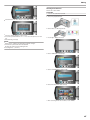
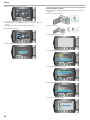
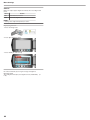
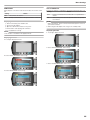
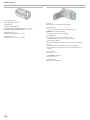
Press the UPLOAD button and switch on the function.
.
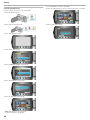
1
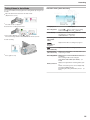
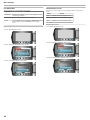
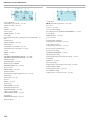
Touch D to display the menu.
.
.
2
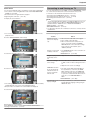
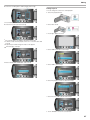
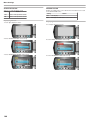
Select “REGISTER EVENT” and touch C.
.
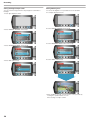
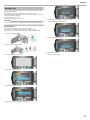
3
●
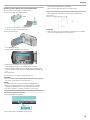
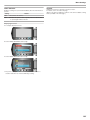
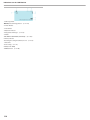
Start recording.
.
3
The mode switches between ON and OFF with every press.
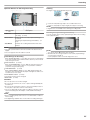
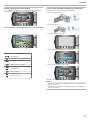
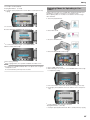
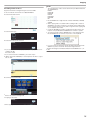
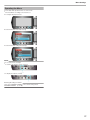
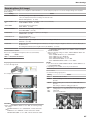
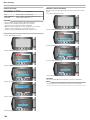
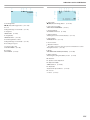
Select the event type and touch C.
.
4
●
●
Press again to stop.
The maximum recording length of a video in upload mode is 10 minutes.
Recording stops automatically after 10 minutes.
NOTE:
.
●
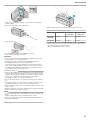
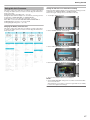
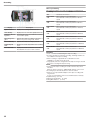
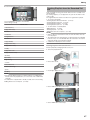
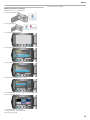
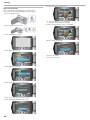
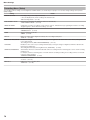
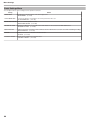
Event Type
BABY & KIDS
●
ATHLETIC EVENT
RECREATION
EVENT
SPORTS
TRAVEL
PARTY
WEDDING
PET
BUSINESS
●
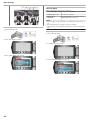
An icon appears on the screen and the video is recorded under the selected event.
(Videos will continue to be recorded to the same event until a change is
made.)
NOTE:
To cancel event registration, touch “CANCEL” in step 4.
.
●
The registered event can be changed again later.
"Changing the Event of the Currently Displayed File" (A P.50)
"Changing the Event of the Selected Files" (A P.51)
●
30
●
Upload recording can only be performed for up to 10 minutes, the time
limit of YouTube™.
Changing videos to the file format for uploading cannot be performed
on this unit.
To upload video files, refer to "Uploading Videos" below.
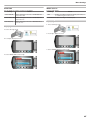
The upload recording icon disappears when recording stops.
To record another video in upload mode, perform the settings again.