1
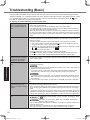
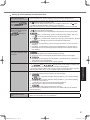
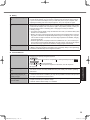
n Starting Up and Sleep/Standby and Hibernation Mode [Executing Battery Recalibration] screen appears. l The Battery Recalibration was canceled before Windows was shut down last time. To start up Windows, turn off the computer by the power switch, and then turn on. The computer will not auto- l If you connect to a network using wireless LAN function, perform access point settings. (è Reference Manual “Wireless LAN”) matically enter If you do not use wireless LAN function, turn off wireless LAN function. (è Referl sleep / standence Manual “Disabling/Enabling Wireless Communication”) by or hibernation. l Make sure that you are not using any software that regularly accesses the hard disk. l Select [Enabled] in [Password On Resume] in the [Security] menu of the Setup Utility [Enter Password] does not (è Reference Manual “Setup Utility”). appear when resuming from l The Windows password can be used instead of the password set in the Setup Utility. sleep / standby or (Start) - [Control Panel] - [User Accounts and Family Safety] - [Add or reA Click hibernation. move user accounts] and select the account, and set the password. (Start) - [Control Panel] - [System and Security] - [Power Options] - [Require B Click a password on wakeup] and a check mark for [Require a password]. A Click [start] - [Control Panel] - [User Accounts] and select the account, ant set the password. B Click [start] - [Control Panel] - [Performance and Maintenance] - [Power Option] [Advanced] and a check mark for [Prompt for password when computer resumes from standby]. l Perform the following steps to change the audio settings to prevent audio output. When logging on (e.g., resuming the computer), audio A Right-click the desktop and click [Personalize] - [Sounds]. is distorted. B Remove the check mark from [Play Windows Startup sound], and click [OK]. Cannot resume. l One of the following operations may have been carried out. sleep/ standby mode, the AC adaptor or battery pack In was disconnected, or a peripheral was connected or disconnected. The power switch was slid for four seconds or longer to forcibly turn off the computer. Slide the power switch to turn on the computer. Data not saved will be lost. Other startup problems. l Check to see if there was a disk error. A Remove all peripheral devices including an external display. B Click (Start) - [Computer] and right-click [Local Disk (C:)], and click [Properties]. Troubleshooting A Click [start] - [Control Panel] - [Sounds, Speech, and Audio Devices] - [Sounds and Audio Devices], and click [Sounds]. B Set [Windows Logon] and [Windows Logoff] to [(None)]. Click [start] - [My Computer] and right-click [Local Disk (C:)], and click [Properties]. C Click [Tools] - [Check Now…]. A standard user needs to enter an administrator password. D Select the option in [Check disk options] and click [Start]. E Click [Schedule disk check] and restart the computer. l Start the computer in Safe Mode and check the error details. (è page 26 “Windows does not start up”.) n Shutting Down Windows does not shut down. l Remove all peripheral devices. l Wait one or two minutes. It is not a malfunction. 27 DFQW5510ZACF-C1mk2_XP7_OI_P.indb 27 2011/05/24 14:56:41