1
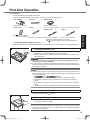
First-time Operation Getting Started l To conserve power, the following power saving methods are set at the time of purchase. (When AC adaptor is connected) 10 minutes/ 15 minutes of inactivity. The screen automatically turns off after sleep*2/ standby*2 after 20 minutes of inactivity. The computer automatically enters *2 Refer to Reference Manual “Sleep/Standby or Hibernation Functions” about resuming from sleep/standby. l Even when the AC adaptor is not connected to the computer, power is consumed (Max. 0.2 W) simply by having the AC adaptor plugged into an AC outlet. (When using with 115 V AC) n Precaution against Starting Up/Shutting Down l Do not do the following Connecting or disconnecting the AC adaptor Sliding the power switch Touching the keyboard, touch pad, screen, external mouse, or tablet buttons Closing the display Turn on/off the wireless switch n About the battery for this computer The computer has 2 battery pack compartments; one for the included battery pack, and the other for an optional battery pack. If one of the two battery packs has remaining power, you can replace the other battery pack without turning off the computer (è Reference Manual “Battery Power”). Power is consumed only on either battery pack. Charging is made for the two battery packs at the same time. With the battery charger (optional: CF-VCBC11U), you can remove the empty battery pack from the computer and charge it while using the computer. n To change the partition structure You can shrink a part of an existing partition to create unallocated disk space, from which you can create a new partition. This computer has a single partition as default setting. (Start) and right-click [Computer], then click [Manage]. A Click l A standard user needs to enter an administrator password. B Click [Disk Management]. C Right-click the partition for Windows (“c” drive in the default setting), and click [Shrink Volume]. l The partition size depends on the computer specifications. D Input the size in [Enter the amount of space to shrink in MB] and click [Shrink]. l You cannot input a larger number than the displayed size. l To select [Reinstall to the first 2 partitions.] in reinstalling Windows 7 ( page 24), 30000 MB or more is necessary for [Total size after shrink in MB]. E Right-click [Unallocated] (the shrunk space in the step D) and click [New Simple Volume]. F Follow the on-screen instructions to make the settings, and click [Finish]. Wait until formatting is completed. NOTE l You can create an additional partition using remaining unallocated space or newly creating unallocated space. l To delete a partition, right-click the partition and click [Delete Volume] in step C. 18 DFQW5510ZACF-C1mk2_XP7_OI_P.indb 18 2011/05/24 14:56:38