1
XML Direct for Oracle
Quick Setup Guide
Thermal Series Printers
XML Direct for Oracle
Quick Setup Guide
Thermal Series Printers
Trademark Acknowledgments
Oracle is a registered trademark of Oracle Corporation.
Printronix and PSA are registered trademarks, and SL4M and T4M are
trademarks, of Printronix, Inc.
Unibar and BARCODE 2000 XML DIRECT are registered trademarks of
Unibar, Inc.
Portions of this manual used by permission of Unibar, Inc. Copyright 19962005 Unibar Inc.
Portions of this manual used by permission of Oracle Corporation. Copyright
2003-2005 Oracle Corporation.
COPYRIGHT 2005, 2012 PRINTRONIX, INC.
All rights reserved.
Table of Contents
1 Introduction ........................................................... 7
About This Manual................................................................................. 7
XML Direct ............................................................................................. 7
2 Oracle Solution ..................................................... 9
3 Troubleshooting .................................................. 15
4 Printing with XML Direct...................................... 17
Using BarCode 2000 XML Direct......................................................... 17
Installation ..................................................................................... 17
A Brief Overview ........................................................................... 18
Getting Started .............................................................................. 19
BARCODE 2000 XML DIRECT Components ............................... 20
Introduction to Label Data Dictionary ............................................ 21
Introduction to Label Design System (LDS) .................................. 29
Download Template Utility............................................................. 43
Print Config ................................................................................... 45
BARCODE 2000 XML DIRECT File Types ................................... 49
Configuration File & Print Destination Table ................................. 50
Unibar Base Directory ................................................................... 53
Setting the Environment String ............................................... 53
UNIX / Linux............................................................................ 53
Windows Systems .................................................................. 54
A Label Compliance Formats ................................. 55
Label Formats...................................................................................... 55
B Contact Information............................................. 65
Printronix Customer Support Center.................................................... 65
Printronix Supplies Department ........................................................... 66
Corporate Offices................................................................................. 66
Table of Contents
1
Introduction
About This Manual
This manual explains the use of the XML language with the Printronix®
SL5000r/T5000r and SL4M/T4M XML Direct printers. Use this manual with
your SL5000r/T5000r or SL4M/T4M User’s Manual for complete printerprotocol operation.
XML Direct
Printronix XML Direct enabled printers come equipped with an internal XML
Forms Module. This interface software has been certified for use with Oracle
WMS and MSCA applications. This solution allows users to quickly leverage
RFID technology by connecting tagged objects with the business view of an
ERP system.
Here is a high level overview of how XML Direct works in 4 easy steps:
•
The user creates the PGL formatted label template. Use XML Direct label
design software provided by Printronix or follow the examples in chapter
2.
•
•
•
The template is downloaded to the printer's permanent memory.
The host application sends XML formatted run time data to the printer.
The run time data is merged with the stored template, the RFID tag is
encoded and the label is printed.
Details of each of these steps are as follows:
1. Create the label format. This may be done by any of the following
methods:
(a) Use the XML Direct label design software provided by Printronix.
(b) Use commercially available XML enabled label design software.
(c) Follow the programming example in chapter 2 of this manual to create
an XML enabled PGL template. Chapter 2 also provides directions to
sample template files.
7
Chapter
1
XML Direct
2. Download the format to the printer. This may be done via the following
methods:
(a) Use the Format Download Utility supplied with XML Direct label
design utility. (see Chapter 4, Download Template Utility)
(b) Send the XML enabled template to the printer directly from the
operating system the same way you would any other file. For example,
from a DOS command line prompt on a parallel interface you could type
"copy/b <filename> lpt1:".
3. Host application sends XML formatted run time data to the printer. See
chapter 2 for an overview of configuring Oracle to send XML.
4. Merging run time data with the stored template - this step is performed
automatically by the XML Forms Module that is resident on the printer. If
the above steps are followed, the Printronix XML enabled printer will
encode and print RFID smart labels directly from your SAP system.
8
2
Oracle Solution
This section discusses the full implementation of the XML printing solution for
Oracle, including an Oracle specific overview, along with instructions for
installation and configuration on the Oracle system.
Introduction
Oracle Warehouse Management (WMS), Oracle Mobile Supply Chain
Applications (MSCA), and Oracle Inventory are applications in Oracle’s
Logistics products. The Oracle WMS and MSCA applications have integrated
label-printing capabilities using XML. Oracle has created 10 XML label
formats that correspond to common transaction created by WMS and MSCA.
When printing a label, the Oracle application determines the correct label
printer and label format to use based on the data included in the request and
rule configuration. Using the format definition, the label data are extracted and
combined into a standardized XML document that is sent to the label printer.
When Oracle receives a label print request, it searches for a printer
assignment in the following sequence: User, Subinventory, Responsibility,
Application and Site level. If no printers are assigned to Label Types, no
labels can be printed.
The 10 label types available with Oracle WMS and MSCA are defined below:
LABEL TYPE
DESCRIPTION
LPN
License plate information
LPN Content
LPN plus content information
LPN Summary
Nested contents summarized
Material
Item, quantity, lot, etc.
Serial
Material information plus serial number
Location
Subinventory & locator information
Shipping
Customer & address information
Shipping Content
Shipping plus material info
WIP Contents
LPN plus discrete job information
Flow Contents
LPN plus flow schedule
Oracle supports three modes of label printing integration: Asynchronous
mode, Synchronous PL/SQL mode, and Synchronous TCP/IP mode. Of these
three printing integration mode, the Synchronous TCP/IP mode is the easiest
and most powerful method. In this mode, print requests are sent directly to
9
Chapter
2
printers over a TCP/IP connection opened by Oracle. This mode does not
require any 3rd party software to be loaded in the Oracle database.
In addition to the information provided in this chapter, selected Oracle
documentation has been provided for your reference in the Manuals sub
folder:
Seeded Label Formats - Oracle WMS & MSCA
Labeling in WMS & MSCA
Oracle® Warehouse Management Implementation Guide
Installation
To use the Synchronous TCP/IP mode, the printer must be setup within
Oracle. Printers are setup in the same way they are normally setup within
Oracle except you do not need printer drivers for the label printers. Setting up
printers within Oracle requires the following steps:
1. Create a Label Type (performed only once)
2. Define label print mode (performed only once)
3. Register a printer in Oracle
4. Define printer IP Address
5. Assign printer to Label Types
6. Define label formats
Create a Label Type
To use Oracle’s XML enabled label-printing capabilities, a printer type, named
Label, needs to be defined. This printer type does not have to be associated
to any styles or drivers. Only one printer type, named Label, should be
created. To create a Label Type, do the following:
1. Using the System Administrator Responsibility Role, navigate to Install >
Printer > Types.
2. Create a type called Label and enter a description.
Define Label Print Mode
To ensure that Synchronous TCP/IP mode is used for label printing, we need
to set the WMS label print mode. To specify the label print mode, do the
following:
1. Using the System Administrator Responsibility Role, navigate to Profile >
System.
2. Select the profile option named: WMS: Label Print Mode
3. In the WMS: Label Print Mode option dialog, select Synchronous –
TCP/IP.
4. Save your settings.
10
Register a Printer
To use Oracle’s XML enabled label-printing capabilities, a printer type, named
Label, needs to be defined. This printer type does not have to be associated
to any styles or drivers. Only one printer type, named Label, should be
created. To create a Label Type, do the following:
1. Using the System Administrator Responsibility Role, navigate to Install >
Printer > Register.
2. In the Printer field, enter a unique name for the printer. Note: Oracle will
use this name to reference this printer within the application.
3. In the Printer Type field, select Label by using the Type list box.
4. In the Description field, enter a description of the printer.
Define Printer IP Address
After defining a printer, the IP address and port number of the printer must be
defined before Oracle can connect to the printer. To define the IP address and
port number of the printer, do the following:
1. From the Warehouse Manager role, navigate to Setup > Warehouse
Configuration > Printers and Devices > Define.
2. In the Printer Name field, select the printer name from the list box.
3. In the IP Address field, enter the IP address of the printer. Please see
your network administrator if you don’t know the IP address of the printer.
4. In the Port field, enter the port number 9100.
5. Click the Test button to test the connection settings. You should receive a
message stating that your connection settings are correct. If you don’t
receive the success message, check your entries and make sure that the
database is connected to the printer.
Assigning Printers to Label Types
When a label print request is made, Oracle looks for printer assigned to the
label type. Oracle will use the printer assigned to the label type at the
specified level. To assign printers to label types, do the following:
1. From the Warehouse Manager role, navigate to Setup > Warehouse
Configuration > Printing > Assign Printers to Documents.
2. From the tree view in the left panel, select the label type you which to
assign to a printer (for example LPN).
Note: If a label type is not on the document tree, right-click on the
Document node and select New from the context-sensitive menu.
From the List of Values, select the appropriate label type. This will
add the new label type to the document tree. Once the new label
type is added, select the label type and continue with next step.
3. In the Printer field, on the right panel, select a printer name to be
associated with this label type from the list box.
4. In the Level field, on the right panel, select a level to be assigned to this
label type from the list box.
11
Chapter
2
5. In the Value field, on the right panel, enter a value for that level.
6. In the Additional Information fields, on the right panel, enter any
additional information if desired.
Note: Once a printer or label type has been assigned, it cannot be deleted
from this form. You can only disable the item.
Defining Label Formats
Label formats must be defined so that Oracle can properly populate the
variable fields in the label. Besides defining the variable field names, the label
format also specifies the data elements to include. To define label formats, do
the following:
1. From the Warehouse Manager role, navigate to Setup > Warehouse
Configuration > Printers and Devices > Define Label Formats.
2. In the Label Type field, enter in the name of an existing label format and
click on the Find button.
3. In the Name field, enter a label format name and make sure it matches
the name given to the label format specified in UniBar.
4. In the Description field, enter a description for the label format.
5. After defining the format name and description, click on the Label Fields
and Variables button to view the label content.
XML Format
In order for Oracle to send out label print request using XML, Oracle and the
label printers must have an agreed upon XML format so that XML contents
are understood. An XML Document Type Definition (DTD) is used to define
the XML tags used in the XML file. Oracle generates XML files according to
this DTD and the printer parse and print the label based on this DTD.
The following is the XML DTD Oracle uses to create the XML. It defines the
elements used in the XML file. This lists the attributes and the next level
elements:
<!ELEMENT labels (label)*>
<!ATTLIST labels _FORMAT CDATA #IMPLIED>
<!ATTLIST labels _JOBNAME CDATA #IMPLIED>
<!ATTLIST labels _QUANTITY CDATA #IMPLIED>
<!ATTLIST labels _DUPLICATES CDATA #IMPLIED>
<!ATTLIST labels _PAGES CDATA #IMPLIED>
<!ATTLIST labels _PRINTERNUMBER CDATA #IMPLIED>
<!ATTLIST labels _PRINTERNAME CDATA #IMPLIED>
<!ELEMENT label (variable)*>
<!ATTLIST label _FORMAT CDATA #IMPLIED>
<!ATTLIST label _JOBNAME CDATA #IMPLIED>
<!ATTLIST label _QUANTITY CDATA #IMPLIED>
<!ATTLIST label _DUPLICATES CDATA #IMPLIED>
<!ATTLIST label _PAGES CDATA #IMPLIED>
<!ATTLIST label _PRINTERNUMBER CDATA #IMPLIED>
<!ATTLIST label _PRINTERNAME CDATA #IMPLIED>
12
<!ELEMENT variable (#PCDATA)>
<!ATTLIST variable name CDATA #IMPLIED>
Sample XML
The following is an example of XML file that is generated according to the
above DTD. The content of the XML files lies between <labels> and
</labels> tags. The content of each label is defined between the <label> and
</label> tags. The printer name and label format are defined in the <labels>
tag. Unless new values are given the <label> tags, the attributes (such as
printer name, label format, and quantity) defined in the <labels> tags will be
used.
<?xml version="1.0" encoding="UTF-8" standalone="no"?>
<!DOCTYPE labels SYSTEM "label.dtd">
<labels _FORMAT ="Seeded Label Default for Material" _QUANTITY="1"
_PRINTERNAME="P1" _JOBNAME="J1">
<label>
<variable name= "Item">4'6" pipe <steel> & end
caps</variable>
<variable name= "Quantity">3</variable>
<variable name= "lot_number">L1000</variable>
<variable name= "Uom">DZ</variable>
<variable name= "Organization">W1</variable>
</label>
<label>
<variable name= "Item">Non-standard pipe</variable>
<variable name= "Quantity">2</variable>
<variable name= "lot_number"></variable>
<variable name= "Uom">Ea</variable>
<variable name= "Organization">W1</variable>
</label>
</labels>
13
Chapter
14
2
3
Troubleshooting
In order to aid in the initial setup, configuration, and troubleshooting several
pre-tested files have been provided. On the Printronix XML Direct Software
Starter Kit CD, browse to the ORACLE/files folder. The PGL and XML folders
contain sample template file to assist in verifying XML printing capability. The
intent is for the user to download the desired PGL template file to the printer
and then send the corresponding file from the XML folder. Successful
printing/encoding using these files in stand-alone mode should assist in the
integration of XML generated from ORACLE.
Label printing is a complex operation and may be subject to problems. There
may be problems in installing or configuring Oracle or the printer supplied
software. Network and hardware problem may also affect label creation. The
following outline common problems and potential solutions.
1. No XML Data is Generated
Potential Cause: No label type assigned to a business flow. If no label type
were assigned to a business flow you would receive an
error message in the log file.
Potential Cause: No default format for label type. If no default label format
were assigned to a label type you would receive an error
message in the log file:
Solution:
Ensure that a default label format exists in the Define Label
Formats window.
2. No Label Is Printed
Potential Cause: No printer assigned to business flow or printer does not
have default or enabled checked. If no printer were
assigned to a business flow, you would receive an error
message in the log file.
Solution:
Ensure that the label type that you are trying to print has a
valid printer assigned to it. Ensure that the “Enabled” and
“Default” flags are both checked.
Potential Cause: Printer name in Oracle does not match the printer name
defined in the label software
Solution:
Ensure that the printer being used has the same name
(identifier) as the label software.
Potential Cause: XML variable names used in Oracle does not match those
used by the label software.
Solution:
Ensure that the variable names for the label format are
defined with the same variable names used by the label
software.
15
Chapter
3
3. Label Missing Data
Potential Cause: Information not available to print.
Solution:
Verify the appropriate information is available. For
example, if an item is not serial controlled, the serial label is
not available.
Potential Cause: Field not included in XML
Solution
If a variable field, on the label, is not replaced by any data,
check the Define Label Format setup window and verify all
the variables on the label were added to the label format
and the variable names match. If a variable is printed on
the label but not listed in the label format, the XML content
does not have information for that variable.
Potential Cause: Variable names defined in Oracle does not match the
variable names defined in the label software
Solution
The variable names included in the Oracle XML message
must match, character for character and in the same case,
the variable names defined on the label format.
4. Synchronous Mode - TCP/IP Socket is not Opened
Potential Cause: Incorrect IP address or port number
Solution:
Verify the printer’s IP address and port number entered on
the Define Printer IP setup form. Refer to printer user
documentation for details on how to check the IP address
and port. Use the Test button on the Define Printer IP setup
form to verify that the IP address and port are correct.
Potential Cause: Incorrect print mode
Solution:
Verify that the print mode is set to Synchronous - TCP/IP
for the user.
• WMS: Label Print Mode = Synchronous - TCP/IP
• WMS: Label file prefix” not relevant
• WMS: Label output directory not relevant
Potential Cause: Network topology or firewall prevents messages from
getting from database to print server
Solution:
16
The printer may not be accessible from the database,
which is the place from which the TCP/IP socket is actually
being opened. Make sure that the firewall settings to allow
messages to the specific port or with the specific label
content to pass through.
4
Printing with XML Direct
Using BarCode 2000 XML Direct
This section details the installation of BarCode 2000 XML Direct software and
describes how to use it to create XML-enabled label formats.
Unibar’s BARCODE 2000 XML DIRECT is a complete bar code label printing
system for multiplatforms, including Windows, Linux, and Unix. BARCODE
2000 XML DIRECT includes a Label Designer (LDS), Download Template
Utility (DTU), Label Data Definition (LDD) editor, and a Label Formatter (print
module). They provide the base functions that most users need to print on
demand or batch labels.
The Label Designer is for creating the label templates. The Format
Downloading Utility is for downloading the label template to your XMLenabled printer. The Label Data Definition editor is an easy way to setup and
define variables used in a label template. The Label Formatter provides data
mapping and printing services.
Installation
On a Windows system, you can simply run the setup program.
On a unix or linux system, the delivery file will usually end in “.tar.Z”. You can
use the following commands to uncompress and un-tar the file:
uncompress <file>.tar.Z
tar xvf <file>.tar
If the file ends in “.tar.gz”, use the command “gunzip <file>.tar.gz” in place of
uncompress.
The extract command (tar xvf) will extract the contents of the file into the
present directory or a subdirectory of it. This directory is called the install
directory, or the base directory. BARCODE 2000 XML DIRECT uses the base
directory for storing label templates, image files, configuration files, programs,
etc.
If you perform a typical install, you will have no need to think about the base
directory. If you perform an atypical install and you see a message like
“Error - can’t open <base directory>/BC2000.cfg.”
then you may need to set up an environmental string pointing to the base
directory, so that Barcode 2000 components can find it. If you think you need
to do this, please refer to the Unibar Base Directory section.
17
Chapter
4
Using BarCode 2000 XML Direct
License Key File
BARCODE 2000 XML DIRECT reads a license key file to determine the
features it should enable. The file is named “unibar.key”. The program looks
for the key file in the directory that is specified for the Unibar base directory.
A Brief Overview
Unibar’s BARCODE 2000 XML DIRECT is a complete bar code label printing
system for multi-platforms, including Windows, Linux, and Unix. BARCODE
2000 XML DIRECT includes a Label Designer (LDS), Format Downloading
Utility (FDU), Label Data Definition (LDD) editor, and a Label Formatter (print
module). They provide the base functions that most users need to print ondemand or batch labels.
The Label Designer is for creating the label templates. The Format
Downloading Utility is for downloading the label template to your XMLenabled printer. The Label Data Definition editor is an easy way to setup and
define variables used in a label template. The Label Formatter provides data
mapping and printing services.
Quick Start
Quick Start assumes you have successfully installed BARCODE 2000 XML
DIRECT. If you follow these instructions, you should have a label designed
and printed in a few minutes.
18
•
Start BARCODE 2000 XML DIRECT. Click on Design Label Format
and select File, New Label.
•
In the Label Properties Dialog Box, type FirstLabel (or some other
name) and click or tab through the LDD Name entry (this will create a
new LDD with the name FirstLabel). LDDs are very important but you
can learn about them later.
•
The default printer type is a SL5204r. If you want a different type, go
to the Printer Designation portion of the Label Properties Dialog and
select printer model.
•
Click on a Insert Object Barcode from dropdown or Tool Bar.
•
Click label canvas where you want barcode to appear. You have a
barcode.
•
Add a couple text/data fields and a line and box. To modify field, just
double click to bring up field properties box and change attributes.
Add a graphic if you like.
•
To print the label, go to Print Destination if your printer port is lpt1,
lpt2, com1, or for Linux/Unix is the default printer, (lp) you are ready to
print your label! Note: If you have a networked printer or some other
port address, you will need to go to the Configuration (Create Printer
Destination on Main Menu.)
•
Select Print and your label should print!
Getting Started
Moving on:
To add complicated fields such as concatenations or counters and to print
production labels from your application you will need to learn Label Data
Dictionary and Label Formatter features as well as additional Label Designer
functions. Please take some time to practice designing and printing labels that
are more complicated. For an example see the SampleLabel and
SampleDictionary that should be included with your install.
Getting Started
To Begin
Determine which items on your label will be constant (e.g. your company’s
return address) and which are variable (perhaps a product #, P.O. #, or
customer/vendor information). “Text” is a fixed part of the label template and
is not considered data. Data and bar code fields are constant or variable (or
other LDD supported versions) data defined in the dictionary. Once assigned,
the field types can’t be changed, the field must be deleted and a new one
created.
Specify the source of the data to use. If you are selecting certain fields from a
database, get a list of the fields and their maximum sizes. Also be sure that
you know the format of the source file (ASCII: delimited or fixed length).
Know which printer type(s) will be used for the job. Changing the printer after
the fact could cause you to have to rethink the whole label because not all
printers have the same capabilities.
Know the size of the label you will be using.
Know any industry standards for that label regarding placement of certain
information. (Some standard labels have been included for your reference.
You also have the option of changing these to include your own information,
but maintaining the same basic structure for compliance.)
Create Label Templates:
Normally this data is in a data file or is in the program that will “print” the data
for the label. The data strings (records) that BARCODE 2000 XML DIRECT
processes, which create the labels, must be ASCII fixed or delimited.
Use the Label Designer (LDS) to design your label templates.
Using the information collected as referred to above; you can now create your
label templates. Although this is a separate process from printing production
labels, the data source definitions are critical for printing correct labels.
For each field you add to a label, you select the attributes such as symbology,
density, font, height, rotation, etc. For fields that take variable data, you define
the data in the LDD.
NOTE: The Label Designer has default values to test print barcodes.
Constant label text is text data, is defined in the label, and has no other
source.
19
Chapter
4
Using BarCode 2000 XML Direct
BARCODE 2000 XML DIRECT Components
This section will introduce you to each of the BARCODE 2000 XML DIRECT
components:
•
•
•
•
Introduction to Label Data Dictionary (LDD)
Introduction to Label Design System (LDS)
Introduction to Download Template Utility (DTU)
Introduction to Configuration Tool
Easily define your data format using the Label Data Dictionary (LDD)
component
Point, Click, Drag and Drop all the fields on the label
20
Introduction to Label Data Dictionary
Download label formats to an XML enabled printer using the Download
Template Utility (DTU)
Set up printer destinations easily in the Configuration Tool
Introduction to Label Data Dictionary
Purpose
The LDD stores all your data variables, concatenations and other special
fields. The field type determines the operations to be performed by the
Formatter when printing. In order for you to use a variable in a label template,
it must be defined in the LDD you have created for the label template.
21
Chapter
4
Using BarCode 2000 XML Direct
NOTE: You can create one LDD for each label template or create a global
LDD that can be used with all your label templates.
Menu Bar
The menu bar is located at the top of the LDD main window. This menu bar is
similar to other menu bars found in most Windows and Java applications.
LDD Menu Bar
22
File
To create, open and save LDD files; print contents of the LDD; quit
the application
Edit
Copy and append LDD contents to another LDD file; delete a field
Logging
Display errors that may occur when loading/saving LDD files
Help
To find help regarding LDD operations; current LDD version number
(About)
Introduction to Label Data Dictionary
Toolbar
The toolbar provides quick and easy access to commonly used menu
commands. The toolbar is located below the menu bar.
LDD Toolbar
New
Opens a new blank LDD file
Open
Opens an existing LDD file
Save
Saves the current LDD to a file
Save As
Saves the current LDD file to a different file name
Append
Appends selected rows into another file or a new file
Delete
Deletes the selected row from the LDD
Print
Prints the current LDD
Quit
Exit LDD
Quick Help
Displays short detailed information about the LDD application
Current LDD
Displays the full path of the current LDD
Field Types
Constant
The constant field is a static field. The data in the ‘Constant
Value’ field will be printed on the label at print time.
NOTE: Constants can also be defined in the LDD rather than using TEXT
fields in the label template. This makes the constant field consistent in
all label templates. It can be changed in the LDD and will immediately
be reflected in all labels templates using the field.
Data Name
A unique name for the field
Constant Value
An alphanumeric value or binary
Comment
A comment about the data in the field
23
Chapter
4
Using BarCode 2000 XML Direct
Variable
This field defines data that changes at print time. An example of a variable
field would be the weight on a shipping label that changes for each box.
Data Name
A unique name for the field
Length
Maximum length of the field If the data is exceeds the
maximum length set, the remainder of the field will be
truncated.
Character Set
Sets the character set of the variable.
Alphanumeric – Characters and digits
Binary – Binary digits only
Hexadecimal – Hexadecimal characters only
Numeric – Digits only
Default Value
Sets a default value that is used only when test printing
a label template in the LDS and when printing from
the FDU.
Comment
A comment about the data in the field
Concatenated
This field is used to combine one or more fields into one single field. An
example of using the concatenated fields would be adding 420 to a zip code
on a label.
Data Name
A unique name for the field
Data List
A list of fields you can use to create the concatenated
string
Concatenated String
Displays the concatenated string.
Note: You can directly edit the fields and constant data in this area.
Using quotes around the data is assumed to be constant.
Example: “12345”+MyField1+”ABCDE”+MyField2
MyField1 and MyField2 are variable fields setup in the LDD.
Example:
A part number with an identifier of ‘P’ added to the ‘PartNumber’
variable field would look like “P”+PartNumber.
24
Default Value
Sets a default value that is used only when test printing
a label template in the LDS and when printing from
the FDU.
Comment
A comment about the data in the field
Introduction to Label Data Dictionary
Counter
This field is used to automatically increment/decrement a value of a barcode
or text field on the label template. For example, suppose an order consists of
a set of three cartons, which are numbered 200, 201, and 202. To generate a
set of labels, you set the starting variable to 200 and increment the value by
one and print three copies of the same label. Everything on the label is the
same for each label except the counter field.
Data Name
A unique name for the field
Start Values
Variable List
Choose the field that will have the starting value for
the counter.
Enter Number
Enter the starting number of the counter. The counter
will start at this number each time you print the
label(s).
Length
Specifies the maximum length for the counter. The
full length is used, counters that do not fill the entire
length are left padded with 0’s.
Increment Values
Positive/Negative
Increment or decrement the counter field
Amount
Sets the amount to increment/decrement the value
specified in the Start Values section.
Comments, Etc.
Comment
A comment about the data in the field
New Record
Increments/decrements on a new record
Copies
Increments/decrements on a copy of a record
Reset
Resets the counter field
Examples: (each line is a record)
Checking Copies and Reset and printing 3 copies of each record would produce the
following results:
”Box 1 of 3”, “Box 2 of 3”, “Box 3 of 3”
”Box 1 of 3”, “Box 2 of 3”, “Box 3 of 3”
”Box 1 of 3”, “Box 2 of 3”, “Box 3 of 3”
Checking only Copies would increment/decrement on each label printed.
Checking only New Record would increment/decrement on each record
SN00123, SN00123, SN00123
SN00124, SN00124, SN00124
SN00125, SN00125, SN00125
25
Chapter
4
Using BarCode 2000 XML Direct
Time
The time field defines a string that you can use in the label template. The
string can be a date, time or both depending on how you format it. The
Formatter, at print time, will retrieve the current system time and date and
format that information into the time string you defined.
Data Name
A unique name for the field
Time Format
A list of time and date formats that can be used to
build the Time String
Time String
Displays the current format of the date and time for
the field
Comment
A comment about the data in the field
Alias
An alias is just another way to represent a field already defined in the LDD.
This can be useful for mapping a field in a database to a field in the LDD
without changing the original LDD field name.
Data Name
A unique name for the field
Select Data Field to Alias
A list of fields you can use to create an alias to map to.
Comment
A comment about the data in the field
TXDATA
This field is where you define a map of your data that will be sent to the
Formatter. Since, there are many ways to format your data; Unibar has
created this TXDATA field to meet most of our customers file formats. A Data
Record Format (DRF) can be defined in the Label Data Dictionary. The field
type is “TxData” (for Transaction Data Record Format). In the LDD program,
you specify a TxData name (DR01, if you’re not too creative). This name is
used in the data stream to refer to the DRF. You can add existing variable
names to the TxData and specify their offset and length if you choose a fixedlength field type of input.
Following is a method that provides ubfmt the capability of finding your
TxData without specifying it in your data file. This was originally provided for
Version 3 users who do not make application changes to upgrade to Version
6.
1) LDD must be named “<label_name>.ldd”; TxData is named
“TxData.<label_name>”
2) Use one TxData per label or use a master TxData, named
DEFAULT_TXDATA.
3) UBFMT: if no '/DR' is provided (i.e. No TxData), use DEFAULT_TXDATA if
present, else look for a TXDATA named “<label_name>”
26
Introduction to Label Data Dictionary
Data Name
A unique name for the field
File Format
Delimited/Fixed
Choose either use a delimited or fixed data. Delimited
files have some sort of field separator
(field1~field2~field3). In a fixed data file, the data is
in a fixed position and never changes from record to
record (field1field2field3).
Offset – (Fixed)
Sets the position of the start of the field in a fixed data
file.
Example: data=100120023003
An offset of 5 and a length of 4 would equal ‘2002’
Length – (Fixed)
Sets the length of the field starting from the offset.
(see example in ‘Offset’)
Other
Data List
A list of fields you can use to create the concatenated
string of the TXDATA field
Concat String
Displays the format of the fields used in the TXDATA
Example:
Delimited Format – Field1+Field2+Field3
Fixed Format – Field1:0:5+Field2:6:7+Field3:14:5
Comment
A comment about the data in the field
File
This field is to define a graphic file that can be used on a label template.
BARCODE 2000 XML DIRECT allows for variable graphics or constant
graphics to be used on the label templates.
Data Name
A unique name for the field
Variable/Constant
Sets the type of file you are using for this field.
File Name – (Constant)
Sets the path of the file.
Use the absolute path.
Example: C:\mygraphics\pic.pcx or /usr/mygraphics/pic.pcx
Default – (Variable)
Sets a default value that is used only when test
printing a label template in the LDS and when
printing from the FDU.
Length – (Variable)
Maximum length of the field. If the data exceeds the
maximum length set, the remainder of the field will be
truncated
For this field type we recommend making the length
50 or greater, because of the variances in file names
that might be used..
Comment
A comment about the data in the field
27
Chapter
4
Using BarCode 2000 XML Direct
Substring
This field is used to extract a portion of data from an existing LDD field. An
example of a use of the substring would be to extract the day of the month
from a known format of ‘mm/dd/yyyy’. In which case, you would have a LDD
field defined and the field would contain ‘mm/dd/yyyy’. To extract the day of
the month you would set the Starting Position to 4, Number of Characters to 2
and Horizontal Alignment to Left.
Data Name
A unique name for the field
Select Variable Name
A list of fields you can use to create the substring field
Starting Position:
The starting point of where the substring is to start
Number of Characters
The number of characters to use in the substring field
from the Starting Position
Horizontal Alignment
Determines where the Starting Position is to start
from.
Example:
If Horizontal Alignment is set to Right then the starting point of the
substring would be the value in the Starting Position counting from
the right.
Default Substring
Sets a default value that is used only when test
printing a label template in the LDS and when printing
from the FDU
Comment
A comment about the data in the field
Alternate
This field provides a function of replacing the primary source with the
secondary source only if the primary source is empty. For example, suppose
you have fields defined as RetailPrice (primary) and SalePrice (secondary). If
the RetailPrice were empty (blank), then the SalePrice would used.
28
Data Name
A unique name for the field
Select Primary Source
A list of fields you can use for the Primary Source
Select Secondary Source
A list of fields you can use for the Secondary Source
when the Primary Source is empty
Default
Sets a default value that is used only when test
printing a label template in the LDS and when printing
from the FDU
Comment
A comment about the data in the field
Introduction to Label Design System (LDS)
Introduction to Label Design System (LDS)
Purpose
This is where you would define the specifics of the label, such as printer
model, speed, print orientation, etc. This is also the component that you
define your label template by placing fields (barcodes, text, lines, variables
and graphics) on the screen.
Menu Bar
The menu bar is located at the top of the LDS main window. This menu bar is
similar to other menu bars found in most Windows and Java applications.
LDS Menu Bar
File
To create, open and close Label files; print a sample label; set printer
printer parameters; print preview current label template; quit the appli
Edit
To cut, copy and paste label objects; Delete Label objects; Deselect L
Insert
To insert the basic Label objects; Text, Barcode, Line, Rectangle, and
Print
To print a sample label; set page parameters; set printer destination; se
parameters; print preview current label template.
View
To customize the toolbar; toggle the header panel (toolbar) and the foo
bar); see label properties; set label data defaults.
Data
To add variables to the Label Data Dictionary (LDD) attributed to the
(Label Design Document).
Help
To see the version (About) information and to access this online help
Toolbar
LDS Toolbar
The toolbar provides quick and easy access to commonly used menu
commands. There are currently four (4) toggling toolbars – File, Edit, Print,
and Insert – they toggle (visibly) ‘on’ & ‘off’.
29
Chapter
4
Using BarCode 2000 XML Direct
The Create toolbar is detachable from the main bar for easy label making and
designing. This toolbar corresponds to the Insert menu as indicated below.
T he File menu and toolbar share four basic functions: New, O pen
Save, and Save As.
FIL E
30
N ew Label
O pens a new blank label template
O pen Label
O pens an existing label template
C lose
Closes label in window
Save
Saves the current label template to a file
Save A s
Saves the current label template to a different file name
Page Setup
B rings up the Page Setup D ialog
Print
Preview
B rings up the Print Preview box
Print
Prints the current label
Exit
Exits the ID S
Introduction to Label Design System (LDS)
The Edit Menu and toolbar share three basic functions: Cut, Copy,
and Paste; additional functions include Delete, and Deselect. Note
both the EDIT Menu and the INSERT menu are available as a right
click Menu-Items in the Designer.
EDIT
EDIT
FIELD
User instructions for editing an existing label object
Cut Field
Acts like every other kind of Cut operation – it is the sublime
combination of copy and delete If a Paste operation does not
follow a Cut, the Item is lost.
Copy Field
Acts like any other kind of Copy – if a Paste operation does
not follow a Copy the item is lost by the next action involving
a Cut or Copy.
Paste Field
Single action paste; must follow a cut or copy; multiple-pasting
is not supported. The object pasted will be set to the last visual
coordinates of the cursor, immediately prior to the call to the
Paste function.
Select Field
User instructions for selecting a label object
Deselect
Field
User instructions for releasing a previously selected label object
Delete Field
Deletes any label object from the template
PERMANENTLY, after confirmation.
PRINT
Page Setup
Displays the page setup dialog box
Print
Preview
Displays the label template and sets the rotation for the
entire label template; the current template can be printed
to the current Print Destination from here.
Print
Selects to which printer the current label template will be
sent for printing. Sends sample label to the currently
selected printer
Print
mapping
Allows user to map existing label template from one
printer to another
31
Chapter
4
Using BarCode 2000 XML Direct
VIEW
Set Label
Data View
Set the visible label objects either of three ways:
1) Field Names, 2) LDD Data default values, or
3) LDD maximum lengths
Toolbars
File
Toolbar
Check box to click if you want it to display
Edit
Toolbar
Check box to click if you want it to display
Print
Toolbar
Check box to click if you want it to display
Insert
Toolbar
Check box to click if you want it to display
Properties
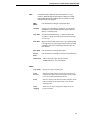
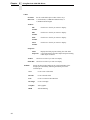
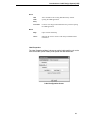
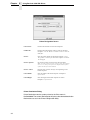
Label
Properties
Toolbar
Check box to click if you want it to display
Status Bar
Check box to click if you want it to display
INSERT
32
Displays the label properties dialog box if the label
is selected; Displays the Label Object Properties Dialog
if that object is selected.
Inserts the chosen Label Object at the visual coordinates of the
design-space immediately following the button-press of the
selected object
Text
Create a text or data field
Barcode
Create a barcode field
Line
Create a vertical or horizontal line
Rectangle
Create a rectangle
Graphics
Add a graphic
RFID
Add an RFID tag
Introduction to Label Design System (LDS)
DATA
Add
LDD
Entry
Add a Variable to the existing Data Dictionary without
opening the LDD application
New LDD
Creates a new empty Label Data Dictionary, without opening
the LDD application
Help
Opens context based help
About
Indicates the current version of the utility and OEM contact
information
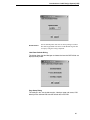
HELP
Label Properties
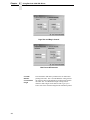
The Label Properties window is where you set the label specifics such as the
name of the label, printer model, printer speed and label dimensions.
Label Configuration Screen
33
Chapter
4
Using BarCode 2000 XML Direct
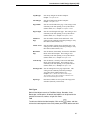
Printer Designation Screen
Label Name
Defines the filename for the label template
LDD Name
Defines the LDD file that will be used for the label
template. Use the ‘Browse’ button to select a current
LDD file.
Printer
Sets the printer model for the label template. Once
the printer is chosen for that label template it cannot
be changed.
Printer O ptions
Set certain printer options for the label template.
Note: As of the version 7.0 release, only the printer speed options
can be set. As more printer options are implemented the printer
options list will reflect those additions
Printer Values
Label W idth
Displays and sets the value(s) corresponding to the
Printer Options
Sets the width of the label template. Example: 4.0
equals 4 inches
Label H eight
Sets the height of the label template in inches.
Example: 6.0 equals 6 inches
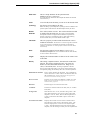
Printer Destination Dialog
Printer Destination sets the system printer for the Print events in
BarCode2000. The current label template will print to the selected destination.
Destinations are set in the Printer Configuration Utility.
34
Introduction to Label Design System (LDS)
Default Printer
Sets the default printer LDS will use when printing a test label.
This field is populated from entries in the BC2000.cfg file that
is setup by using the Config component.
Label Data Defaults Dialog
This dialog allows the label designer to choose the form that DATA fields are
displayed and printed.
Page Setup Dialog
The settings in this area include margins, labels per page and across, LDS
default printer and how LDS uses the default data in the LDD.
35
Chapter
4
Using BarCode 2000 XML Direct
Page Size and Margin Control
Label Count & Placement
Use LDD
Defaults/
Use Maximum
Length
36
This determines what data is printed for the test label when
printing from LDS. The ‘Use LDD Defaults’ setting will use
the value specified in the Default box of that specific field in
the LDD. The ‘Use Maximum Length’ setting will use
characters and/or digits for the data in order to give you a
better sense of the maximum length of the field when printed.
Introduction to Label Design System (LDS)
Top Margin
Sets the top margin for the label template.
Example: 1.25 equals 1¼ inch.
Left Margin
Sets the left margin for the label template.
Example: 1.50 equals 1½ inch.
Page Width
Sets the overall width of the page. This setting is most
commonly used when printing to Avery label sheets
(address labels, etc.). Example: 11.00 equals 11 inches.
Page Length
Sets the overall length of the page. This setting is most
commonly used when printing to Avery label sheets
(address labels, etc.). Example: 8.50 equals 8½ inches.
Labels Per
Page
Sets the number of labels on the label stock. This
setting is most commonly used when printing to Avery
label sheets (address labels, etc.).
Labels Across
Sets the number of labels across the label stock. This
setting is most commonly used when printing to Avery
label sheets (address labels, etc.).
Horizontal
Gap
Sets the distance, horizontally, between the individual
labels on the label template. This setting is most
commonly used when printing to Avery label sheets
(address labels, etc.). Example: 0.25 equals ¼ inch.
Vertical Gap
Sets the distance, vertically, between the individual
labels on the label template. This setting is most
commonly used when printing to Avery label sheets
(address labels, etc.). Example: 0.25 equals ¼ inch.
Starting Label
Sets the starting label on a page at print time. This
setting is most commonly used when printing to
Avery label sheets (address labels, etc.).
Example: If set to 5, then the first 4 labels would not print.
This is useful if you have left over labels on a sheet that can be
used, instead of discarding the used sheet.
Eject Page
Determines whether or not to print a black page after
each label (basically a Form Feed).
Field Types
Default Label objects consist of Text/Data Strings, Barcodes, Lines,
Rectangles, and Graphics. All default label objects can be placed on the
template via menu bar, toolbar, or right-click menu.
Text
To add a text field to the label template, Click on the
button, and then
click on the label template in the vicinity where you want to add the text field.
37
Chapter
4
Using BarCode 2000 XML Direct
Field Name
This is a unique identifier for this particular field.
Example: TEXT1 or TEXT2
Every time the field is added to the label template the number after
the field name increases by 1.
Font Types
Set the font for the particular field. The fonts listed are
all the fonts available to the particular printer model for
which you are designing. Note: As of this current release,
BARCODE 2000 XML DIRECT only supports native fonts.
Scalable Fonts – Represented by True Type Fonts in the
designer if available – are pure scalable via Height and
Width designations; typically both height and width are
represented in points.
Limited Fonts – Represented by a San Serif Family Font
in the Designer. The Limited fonts are old and typically
inaccurate. The printer manufacturers would prefer you
use the newer Scalable Fonts; So do we at Unibar, Inc.
Point – Limited
Fonts
Sets the size of the font
Height – Scalable
Fonts
Sets the Height of each character in points.
Width – Scalable
Fonts
Sets the Width of each character in points.
CPI – Limited Fonts
Sets the characters per inch for the font. The larger the
number the denser the font will look when printed and
vise versa. Note: When selecting the ‘Point’ size the CPI that is
(Character Per Inch)
recommended by Unibar is automatically chosen. Fonts that do not
support CPI will be set to ‘N/A’.
Barcode
To add a barcode field to the label template: Click on the
button, and
then click on the label template in the vicinity where you want to add the
barcode field.
38
Introduction to Label Design System (LDS)
Field Name
This is a unique identifier for this particular field.
Example: BARCODE1 or BARCODE2
Every time the field is added to the label template the number after the field
name increases by 1.
Name
A list of fields, from the LDD, you can use for the barcode field.
Symbology
Sets the type of encoding for the field.
Note: This setting is printer dependent. Symbologies that are available for the
particular printer model chosen for the label template will only be shown.
Human
Readable
Set to Above, Below or None. This sets how the data encoded
is displayed for this field. Note: This setting is printer dependent.
Some printer models do not support human readable as an option for the
barcode. In this case we recommend you place a ‘Data’ field containing
the data encoded where you want the human readable to print.
Checksum
This sets a property to either include the checksum or not to
include the checksum. The checksum is a character/digit that is included
as part of the barcode by a mathematical calculation provided from the
symbology specifications. It is used to perform a check to ensure the data is
read correctly.
Ratio
Sets the wide-to narrow bar ratio. Range (2.0 to 3.0, in .1
increments) Example: Ratio set to 2.0 means the wide bars of the barcode,
are twice as wide as the narrow bars.
Length
Displays the maximum number of data set for the ‘Name’ field
in the LDD.
Density
This setting, conjunction ‘Ratio’, determines the width of the
barcode. The setting is displayed in mils. The lower the
number (5.0 mils) the smaller the barcode. Range (5.0 to
120.0, .5 increments). Note: The setting is dependent on the DPI
(dots per inch) of the printer model. If you choose a density that the printer
is incapable of printing, then the density will be set to the nearest printer dot.
a certain
attribute
field. A ny combination
B old/Italics/U nderline
Sets theSets
degree
of rotation
for for
the the
field.
Rotation
X Position/Y
Position
R everse V ideo
can be turned on or off to achieve the desired effect for
the text field. Note: Printer m odels that do not support one or
Displays
theofcurrent
locationwill
of be
thegrayed
Barcode
m ore
the text attributes
out. field using the
lower-left corner as the starting point. The units are displayed
th
video
text1attribute
to either
on orhas
off.
in 1/100Sets
ofthe
an reverse
inch (100
equals
inch). After
the field
Note: Printer models that do not support one or m ore of the text
been placed
on
the
label
template,
use
this
setting
to
make
your fine
attributes will be grayed out.
adjustments.
Sets the degree of rotation for the field.
R otation
Height
Text/D ata
Sets the height of the barcode. The units are displayed in
text
field
to either
static data (text) or variable
of anthe
inch
(50
equals
½ inch).
1/100th Sets
data (data).
String V alue
If the field is set to ‘T ext’, then the string value is the
static digits/characters you want to print on the label
template. If set to ‘D ata’, then use the dropdown box
to select a field from the LD D to place on the label
template.
X Position/Y Position
D isplays the current location of the T ext/D ata field
using the lower-left corner as the starting point. The
units are displayed in 1/100 th of an inch (100 equals
1 inch). A fter the field has been placed on the label
template, use this setting to m ake your fine adjustments.
39
Chapter
4
Using BarCode 2000 XML Direct
Vertical/Horizontal Line
To add a line to the label template: Click on the
button and then clickand-drag your cursor up and down either for a vertical line or left to right for a
horizontal line.
Field Name
This is a unique identifier for this particular field.
Example: HLINE1 or VLINE2. Every time the field is added to the
label template the number after the field name increases by 1.
Start X/Start Y
Displays the starting coordinates of the line field. The
units are displayed in 1/100th of an inch (100 equals 1
inch). After the field has been placed on the label
template, use this setting to make your fine adjustments.
End X/End Y
Displays the ending coordinates of the line field. The
units are displayed in 1/100th of an inch (100 equals 1
inch). After the field has been placed on the label
template, use this setting to make your fine adjustments.
Note: Horizontal lines only allow you to change the ‘End X’
coordinate and the Vertical lines only allow you to change the
‘End Y’ coordinate.
Line Width
Sets the thickness of the line. Example: 0.75 inches will create
a line that is ¾ of an inch thick.
Height
Sets the height of the barcode. The units are displayed in
1/100th of an inch (50 equals ½ inch).
Rectangle
To add a rectangle to the label template: Click on the
button and then
click-and-drag your cursor either to the approximate size of the rectangle you
want to create.
Field Name
This is a unique identifier for this particular field.
Example: RECTANGLE1 or RECTANGLE2
Every time the field is added to the label template the number
after the field name increases by 1.
Start X/Start Y
Displays the starting coordinates of the rectangle field.
The units are displayed in 1/100th of an inch (100 equals
1 inch). After the field has been placed on the label
template, use this setting to make your fine adjustments.
End X/End Y
Displays the ending coordinates of the rectangle field.
The units are displayed in 1/100th of an inch (100 equals
1 inch). After the field has been placed on the label
template, use this setting to make your fine adjustments.
Line Width
Sets the line thickness of the rectangle.
Example: 0.75 inches will create a rectangle that has a line thickness
of ¾ of an inch.
40
Introduction to Label Design System (LDS)
Graphic
To add a graphic to the label template: Click on the
button, and then
click on the label template where you want to add the graphic.
Field Name
This is a unique identifier for this particular field
Example: GRAPHIC1 or GRAPHIC2. Every time the field is added
to the label template the number after the field name increases by 1.
File Name
Sets the file to use for this field. The dropdown box will
only show the fields in the LDD that have been set up as
a ‘FILE’ field.
File Type
Displays the type of file. (PCX, JPG, etc.)
X Position/Y Position
Displays the current location of the Graphic field using
the lower-left corner as the starting point. The units are
displayed in 1/100th of an inch (100 equals 1 inch).
After the field has been placed on the label template, use
this setting to make your fine adjustments.
RFID Tag
To add an RFID tag to the label template: Click on the
button, and then
click on the label template where you want to add the RFID tag.
Field Name
This is a unique identifier for this particular field
Example: RFID_TAG1
Tag Type
This beta release supports only a user-defined String,
such as ORACLE MFC provides, which is ready to be
sent to the tag without user changes
Field Data Source
This is the name (from the current Label Data Dictionary,
LDD) of the STRING being passed (see above) to the tag
Tag Operation
This release supports only the WRITE operation for the
5r platform.
Tag Length
5r Platform Printers currently support 64-bit ant 96-bit
RFID tags.
Lock Value
Optional parameter: Used for protecting data from
becoming over written. By default the data are not
protected (value=0). This is an integer, with values
from 0 to 255.
Tag Position:
Displays the current location of the RFID Antenna
field using the lower-left corner as the starting point.
The units are displayed in 1/100th of an inch (100
equals 1 inch). After the field has been placed on
the label template, use this setting to make your fine
adjustments. For design purposes only, to help user
avoid placing other objects over the actual RFID
antenna on the tag.
X Position/Y Position
41
Chapter
4
Using BarCode 2000 XML Direct
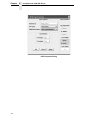
RFID Properties Dialog
42
Download Template Utility
Download Template Utility
Introduction to Downloading Templates
Purpose
The Download Template Utility (DTU) is primarily for sending label formats to
store on your printer. The user selects both a label format and a destination
printer and directs a download of that format to the chosen printer. The stored
format will accept XML – based label data for printing.
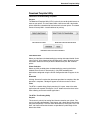
DTU Select Format
DTU Select Printer Destination
DTU Dow nload and Close buttons
Format Selection
Select any label format for downloading by pressing the button labeled “Select
Label Format”. A file chooser dialog will open to the “labels” directory of your
installation. Select the format you wish to download to your XML-enabled
printer.
Printer Selection
Select any XML-enabled printer for downloading by pressing the list box
labeled “Select Printer for Downloading”. Only XML-enabled printer
destinations configured using the Printer Configuration tool will appear in the
list.
Download
Clicking “Download” requires the above two operations be complete. After the
operation is complete, a dialog will appear to indicate success or failure.
Close
The DTU is a modal dialog. Simply meaning if it is open, none of the other
applications will respond. Clicking the “Close” button returns the focus to the
menu allowing access to the other applications
The DTU’s Test Printing Utility
Purpose
This feature is primarily for testing label formats stored on your printer. The
user has already selected both a label format and a destination printer during
the previous operation. The user views default data by clicking the “View Test
Data” tab. Next and Previous buttons are provided to cycle through all the
default data fields.
43
Chapter
4
Using BarCode 2000 XML Direct
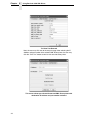
The View Test Data tab
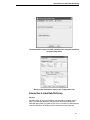
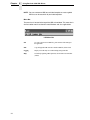
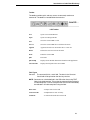
Next, the user may click over to the test print page. After selecting the IP
Address and port number of the selected XML Direct printer, the user may
click the “Print Test” button to send an xml test shot to the printer.
This screen shows pre-selected format and XML Direct printer with
destination IP Address and port number indicated
44
Print Config
Print Config
Introduction to Configuration Tool
Purpose
This operation allows you set the printers, error options, delimiter, and other
options used when printing. This tool modifies the BC2000.cfg file, which is
located in the Unibar base directory.
Menu Bar
The menu bar is located at the top of the Configurations main window. This
menu bar is similar to other menu bars found in most Windows and Java
applications.
Configuration Menu Bar
File
Save the current settings to the BC2000.cfg file; Exit the
Configuration application.
Drivers
A dialog opens which displays a list of printer drivers both
available and installed.
Open Driver
Selection
To add a printer driver to the ‘Installed’
section, double-click on the driver name.
To remove the printer driver from the
‘Installed’ section, double-click on the
driver name.
About
Displays the current Configuration version number
Print Destination Table
This section allows you to define the printers that the Formatter is going to
use at print time. Each printer definition consists of a logical name, physical
name, the type of output expected and licensing (See the Configuration File &
Print Destination Table section for more information on the Print Destination
Table).
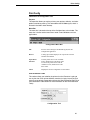
Configuration Tool
45
Chapter
4
Using BarCode 2000 XML Direct
Logical
Sets the name assigned by the user to the printer by
which the user refers. It can be any useful name,
such as ACCOUNTING or DOCK_10. It is a text
string of up to 40 characters.
Note: The ‘Logical’ parameter cannot contain any command
line delimiters (space, comma, equal sign, and slashes.)
because it may be used on the command line.
Physical
The meaning of the ‘Physical’ name depends on
the destination ‘Type’. For DEVICE, it is the
device name. For FILE, it is the file name. For
PIPE destinations, ‘Physical’ name is the shell
command line passed to the system when opening
the pipe stream.
Example:
Type = FILE
Type = DEVICE
Type = PIPE
Type
Physical = /usr/MyOutput.fil
Physical = LPT1
Physical = lp –d Myprinter
Describes how the output is handled. The output
from the Formatter can be handled one of three
ways:
DEVICE - is used for writing directly to I/O devices such as
/dev/lp0, /dev/tty1a, etc.
FILE - is used to write to files
PIPE - is used to specify a pipe command string (commonl
used in Unix systems to pipe the output to the lp print command).
Licensed
Sets the printer definition to ‘Yes’ or ‘No’. If
the ‘Licensed’ is set to ‘Yes’ then it will be moved
to the top of list in alphabetical order.
Note: You are able to have as many printer destinations as you
wish, but you can only use the number of license printer
destinations that you purchased. The license key determines the
number of usable printer destinations. LocalFile is always an
active printer destination.
Default Destination
This specifies the default printer by its ‘Logical’ name.
Formatter Options
This section is for setting options that are available at print time. They can be
edited by double-clicking the option row which is to be changed.
46
Print Config
Formatter options, from the Configuration Tool
47
Chapter
4
Using BarCode 2000 XML Direct
TYPE
Sets the classification of data that will be sent to the
Formatter. There are only 2 possibilities, delimited
or fixed. Delimited data has some sort of field
separator (field1~field2~field3). In fixed data, the
data is in a fixed position and never changes from
record to record (field1field2field3).
DELIMITER
If the ‘TYPE’ is set to delimited, sets the delimiter
used in the data. The delimiter should be a unique
character/symbol. Unibar recommends using a ‘~’
(tilde) for a delimiter. Other possible delimiters
could be a tab, !, @, etc.
TRIM_SPACES
This setting is either ‘Y’ or ‘N’. If set to ‘Y’, then
the Formatter will remove the leading and trailing
spaces that are in a field.
Example:
Data = {space}{space}001234
Print = 001234 (notice no spaces in the front of the data)
TRIM_QUOTES
This setting is either ‘Y’ or ‘N’. If set to ‘Y’, then
the Formatter will remove the leading and trailing
quotes (“) for that field.
Example:
Data = “Field 1”,”Field 2”,”Field 3”
Converted to: Field 1,Field 2,Field 3
LOG_FILE
This determines how the Formatter reports errors
encountered. For example if the ‘LOG_FILE’ is
set to STD_OUT, the all errors will be reported to
standard out. This setting could be a filename
where errors are written to.
LOG_LEVEL
Sets the error log level when the Formatter is
running. Note: Should be set to ‘ERRORS_ONLY’ unless
instructed by Unibar’s technical support staff.
MAX_LABELS
Sets the number of different label templates that
will be loaded in a printer memory at one time.
For example, if set to 5, then on the 6th distinct
label type encountered during a single print job,
the constant part of the labels and graphics will
be deleted from the printer memory. Note: If the
printer does not support storing labels in the printer memory
then this setting will be ignored.
MAX_RECORD
48
Sets the maximum length of a data record being
sent to the Label Formatter. Records longer than
this will have truncated data. If the truncated data
needed data incomplete labels may be printed.
BARCODE 2000 XML DIRECT File Types
BARCODE 2000 XML DIRECT File Types
Included with this software is a complete list of all files shipped with this
program. If you should incur certain error messages, you may wish to verify
against that list to ensure that critical files have not been inadvertently deleted
from your system.
The following identifies the role of each file type in the operation of this
program.
Executable files (no extension)
Executable files are the heart of the program. They provide the command
information to the computer. Any damage to these files may require
reinstallation of the entire program.
.lbl
Files with the .lbl extension are label template files.
.ldd
Files with the .ldd extension are Data dictionary files. The LDD creates these
files, where you can set the parameters and save them. There is a “Master”
LDD set up in BC2000 as an example.
.cfg
Files with the extension .cfg are config files. A BC2000.cfg file is delivered
with the install of your software. The BC2000.cfg file updates every time
changes occur in the Configuration.
.pcx
PCX files are used for graphic information, such as logos. We have included
several versions of the Unibar logo for your practice use.
printers.typ, printers.lst and printcap.dat
These critical files allow the program to identify the specific features available
with your printer type.
49
Chapter
4
Using BarCode 2000 XML Direct
Configuration File & Print Destination Table
You can use an editor to edit the configuration file manually. This section will
explain how to setup the configuration file. The BARCODE 2000 XML
DIRECT Configuration File, BC2000.cfg, contains configuration data for the
site. It is stored in the “unibar base directory”. Normally, the Java BARCODE
2000 XML DIRECT Configuration Module updates it. However, if the Label
Formatter is running on a system without a Java runtime the user can change
the file with any text editor.
The file is delivered with examples of all possible settings, many of which are
commented out. The user will often be able to make changes simply by
commenting out lines or un-commenting lines. *.cfg files should always be
saved in text (ASCII) format.
General Format
The pound sign ‘#’ is used as a comment delimiter. When placed on a line in
BC2000.cfg, the remainder of the line is ignored.
The file is divided into sections. For example, the Printer Destination Table
section, shown below describes the printer destinations configured for the
site.
Each section begins with a header in square brackets. The section continues
until either a new section header is encountered or the end of the file is
reached.
Each section consists of a set of elements. A simple element sets one value,
for example “DEFAULT=Shipping”. A complex element consists of a set of
simple elements. For example, the complex element PRT_DEST consists of
three simple elements, as shown below in the Printer Destination Table
section.
Printer Destination Table
The output of the BARCODE 2000 XML DIRECT programs (Designer,
Formatter …) is a print stream that can be sent to one of three types of
destinations:
1. Sent directly to a device, (e.g., “/dev/lp0”)
2. Piped to a program, (e.g., “lp -d LabelPrinter”)
3. Written to a file
The user can define a number of printer destinations in BC2000.cfg. Each
entry consists of a logical name, a physical name and a destination type. This
provides a way to use a simple logical name to refer to a sometimes-complex
physical destination (such as “lp -d LabelPrinter -m -q 3 -s “).
This also provides a way to change physical printer destinations without
changing the application program. Simply update the BC2000.cfg file and the
applications and operators continue to use the logical names they used
before.
To print to a particular printer destination, the user specifies the logical name
of that printer. If no logical printer is specified, the program uses the default as
specified in the BC2000.cfg file.
50
Configuration File & Print Destination Table
The format of the Printer Destination Table section is as follows:
[Print Destination Table]
PRT_DEST =
{
Logical = Shipping
Physical = lp -d LabelPrinter
Type = PIPE
#
Type = DEVICE
}
PRT_DEST =
{
Logical = Printer3
Physical = \\Network\PTX_SLPA5204r
Type = DEVICE
#
Type = PIPE
}
PRT_DEST =
{
Logical = Receiving
Physical = lp -d LabelPrinter
Type = PIPE
}
DEFAULT = Shipping
[Capacity]
MAX_LABELS=16
MAX_RECORD=2048
The string “[Printer Destination Table]” is the section header. The PRT_DEST
element defines a printer destination.
Logical - is a name assigned by the user and is the name by which users
refer to the printer. It can be any useful name, such as ACCOUNTING or
DOCK_10. It is a text string of up to 40 characters. It cannot contain any
command line delimiters (space, comma, equal sign, slash, etc.) because it
may be used on the command line.
51
Chapter
4
Using BarCode 2000 XML Direct
Type - is one of two keywords {DEVICE, PIPE}.
DEVICE - used for writing directly to I/O devices such as /dev/lp0,
/dev/tty1a, etc.
PIPE - used to specify a pipe command string
Physical -The meaning of the physical name depends on the destination
type. DEVICE is the device name; FILE is the file name. For PIPE
destinations, ‘physical name’ is the shell command line that is passed to the
system when opening the pipe stream. The command is executed and a pipe
is opened from the Formatter to the program started with the command line.
BARCODE 2000 XML DIRECT does not limit the number of print destinations,
and the number of Logical names. Several Logical names can refer to the
same physical name. This can be quite useful in shielding applications and
operators from the details of printer management. Logical names should not
be duplicated. If they are, the first definition will be used and any subsequent
definitions will be ignored.
The number of physical devices is limited. The program will write to only the
number of physical devices for which the user is licensed. This is
implemented by counting from the top of the Printer Destination Table section;
so, if a user is licensed for five printers, the program will write to the first five
physical print destinations listed in the configuration file.
The DEFAULT element specifies the default printer by its logical name. If no
default is specified, the first entry is taken as the default.
Defining a Delimiter
The Label Formatter can take a logical printer name as a parameter; the
default printer will be used if no parameter is provided.
The Label Designer reads the list of logical names from the BC2000.cfg file
and allows the user to select a printer from that list.
File Type
This section of BC2000.cfg defines a default file type and delimiter for input to
the Formatter. The default built into the Formatter is Delimited file type with a
delimiter character of ‘~’. The defaults can be overridden on the command line
or in a job file.
[File Type]
Type = DELIMITED
#Type=FIXED
DELIMITER =~
#DELIMITER =,
#DELIMITER =.
The file BC2000.cfg must be in the UNIBAR base directory and must have at
least one valid PRTDEST element. If not, the program will not print.
52
Unibar Base Directory
Capacity
This section, in general, the larger the settings the more memory consumed.
Memory for many of these items is allocated up front, for the sake of
simplicity; so it is allocated even if it is not used. Thus, if memory usage is a
concern, you may want to keep these settings on the lean side.
Max Labels
The number of different label templates that will be loaded in a printer memory
at one time. If this number is 5, on the 6th distinct label type encountered
during a single printing, the constant part of the labels and graphics will be
deleted from the printer memory. New labels and graphics will be loaded until
the max number is reached again.
Max Record (Length)
The maximum length of a data record being sent to the Label Formatter.
Records longer than this will have truncated data. If the truncated data
needed data incomplete labels may be printed.
Unibar Base Directory
BARCODE 2000 XML DIRECT uses the install directory as a base directory
for storing label templates, image files, configuration files, programs, etc.
The default base directory is “/unibar”. The user can change to any desired
directory, but if the directory is changed, the BARCODE 2000 XML DIRECT
programs must be informed. Setting the environment string will identify the
desired directory.
The environment string should be set before the BARCODE 2000 XML
DIRECT programs are run. The commands above can be inserted in a login
script so they are automatically executed whenever the user logs on. If the
BARCODE 2000 XML DIRECT programs cannot properly locate the base
directory, the following error message will be displayed:
“Error - can’t open <base directory>/BC2000.cfg.”
Refer to the “BARCODE 2000 XML DIRECT Configuration File” section for
details on setting up your Printer Destination Table.
Setting the Environment String
UNIX / Linux
$ UNIBAR=/usr/unibar
$ export UNIBAR
** NOTE - 'C:\UNIBAR' is the default directory that BARCODE 2000 XML
DIRECT installs in on Windows systems. If you changed the directory, you
must reflect that change in the UNIBAR system variable. **
53
Chapter
4
Using BarCode 2000 XML Direct
Windows Systems
1) Go to Control Panel>System
2) Select the 'Environment' tab. (Under ‘Advanced’ tab for XP)
3) Select 'System Variable' by hitting ALT-V
4) Select the 'Variable' text box
5) Type: UNIBAR
6) Select the 'Value' text box
7) Type: C:\UNIBAR (or the path where BARCODE 2000 XML DIRECT was
installed)
8) Select the Set button
9) Select the OK button
54
A
Label Compliance Formats
Label Formats
Each of the ten label types includes a picture of the sample label format, the
name of the Unibar .lbl file, and a listing of the fields that are included in the.lbl
file that can be assumed to be populated by Oracle in the XML file.
Although industry-standard label formats were preferred, they include a large
number of fields that would be populated by Oracle only if the label was
printed from certain business flows and, even then, only when certain fields in
the application are populated and specific features used. Thus, the desire to
show out-of-the-box compliance to various industry standards is countered by
the desire to show robust label formats where data is almost always fully
populated. Therefore, the label formats documented below do not map to any
industry-standard formats.
As necessary, the fonts can be modified to match native printer fonts, and the
field positioning can be modified accordingly.
55
Appendix A
Label Formats
Flow Contents
Flowcont.lbl
56
Location
Location.lbl
LPN
Lpn.lbl
57
Appendix A
Label Formats
LPN Content
Lpncont.lbl
58
LPN Summary
Lpnsumm.lbl
Note that this label type requires that the fields for the 2nd and 3rd items and
quantities be added to the label format in Oracle, as the seeded label format
includes the item and quantity fields only once.
59
Appendix A
Label Formats
Material
Material.lbl
Serial
Serial.lbl
60
Shipping
Shipping.lbl
61
Appendix A
Label Formats
Shipping Contents
Shipcont.lbl
62
WIP Contents
Wipcont.lbl
Note that the six “ship from” fields are not seeded in the default format, so if
desired in the label output, they must be added to the Oracle format with the
variable names as indicated here. Also, all the other fields use a dot as a
naming convention in the variable name; these must be changed to
underscores in Oracle, to match the variable names indicated here.
63
Appendix A
64
Label Formats
B
Contact Information
Printronix Customer Support Center
IMPORTANT
Please have the following information available prior to calling the
Printronix Customer Support Center:
•
Model number
•
Serial number (located on the back of the printer)
•
Installed options (i.e., interface and host type if applicable to the problem)
•
Configuration printout:
Thermal Printer
See “Printing A Configuration” in the Quick Setup Guide.
Line Matrix Printer
Press PRT CONFIG on the control panel, then press Enter.
•
Is the problem with a new install or an existing printer?
•
Description of the problem (be specific)
•
Good and bad samples that clearly show the problem (faxing or emailing
of these samples may be required)
Americas
(714) 368-2686
Europe, Middle East, and Africa
(31) 24 6489 410
Asia Pacific
(65) 6548 4114
China
(86) 800-999-6836
http://www.printronix.com/support.aspx
65
Appendix B
Printronix Supplies Department
Printronix Supplies Department
Contact the Printronix Supplies Department for genuine Printronix supplies.
Americas
(800) 733-1900
Europe, Middle East, and Africa
33 (0) 1 46 25 19 07
Asia Pacific
(65) 6548 4116
or (65) 6548 4182
China
(86) 400-886-5598
India
(800) 102-7869
http://www.printronix.com/supplies-parts.aspx
Corporate Offices
Printronix, Inc.
15345 Barranca Parkway
Irvine, CA 92618
U.S.A.
Phone: (714) 368-2300
Fax: (714) 368-2600
Printronix Inc.
c/o Printronix Nederland BV
Bijsterhuizen 11-38
6546 AS Nijmegen
The Netherlands
Phone: (31) 24 6489489
Fax: (31) 24 6489499
Printronix Schweiz GmbH
42 Changi South Street 1
Changi South Industrial Estate
Singapore 486763
Phone: (65) 6542 0110
Fax: (65) 6546 1588
Printronix Commercial (Shanghai) Co. Ltd
22F, Eton Building East,
No.555, Pudong Av.,
Shanghai City, 200120, P R China
Phone: (86) 400 886 5598
Fax: (86-21) 5138 0564
Visit the Printronix web site at www.printronix.com
66
*179943-001*
179943-001D