1
Chapter
4
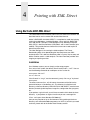
Using BarCode 2000 XML Direct
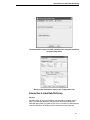
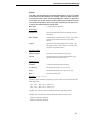
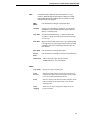
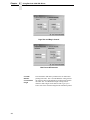
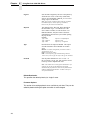
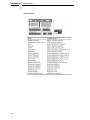
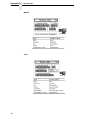
Field Name
This is a unique identifier for this particular field.
Example: TEXT1 or TEXT2
Every time the field is added to the label template the number after
the field name increases by 1.
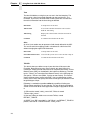
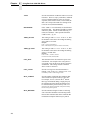
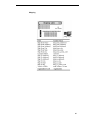
Font Types
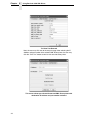
Set the font for the particular field. The fonts listed are
all the fonts available to the particular printer model for
which you are designing. Note: As of this current release,
BARCODE 2000 XML DIRECT only supports native fonts.
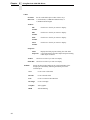
Scalable Fonts – Represented by True Type Fonts in the
designer if available – are pure scalable via Height and
Width designations; typically both height and width are
represented in points.
Limited Fonts – Represented by a San Serif Family Font
in the Designer. The Limited fonts are old and typically
inaccurate. The printer manufacturers would prefer you
use the newer Scalable Fonts; So do we at Unibar, Inc.
Point – Limited
Fonts
Sets the size of the font
Height – Scalable
Fonts
Sets the Height of each character in points.
Width – Scalable
Fonts
Sets the Width of each character in points.
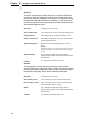
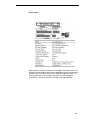
CPI – Limited Fonts
Sets the characters per inch for the font. The larger the
number the denser the font will look when printed and
vise versa. Note: When selecting the ‘Point’ size the CPI that is
(Character Per Inch)
recommended by Unibar is automatically chosen. Fonts that do not
support CPI will be set to ‘N/A’.
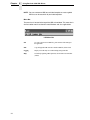
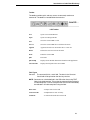
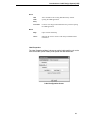
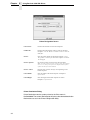
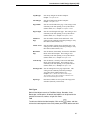
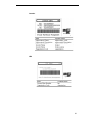
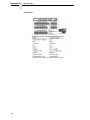
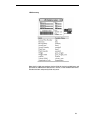
Barcode
To add a barcode field to the label template: Click on the
button, and
then click on the label template in the vicinity where you want to add the
barcode field.
38