1
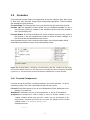
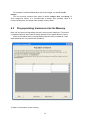
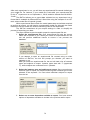
1. Click the Add Instance button.
2. Double click the first cell on the new row, and start entering the value.
3. Press enter to save a value, or esc to cancel adding the value. When you
press enter, the next cell—if any—will be automatically editable. This allows
you to quickly add instances without having to use the mouse.
To delete an instance from the memory:
1. Click on any cell on the row which you would like to delete.
2. Click the Delete Instance button.
To edit an existing instance:
1. Click on the cell of the instance you would like to edit.
2. Enter the new value.
3. Press enter to save, or esc to cancel the edit.
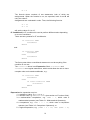
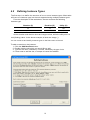
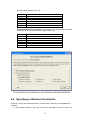
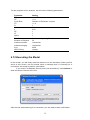
For the purposes of our example, we have added the following pre-populated
instances into memory, one instance for every button that can be chosen in the
task:
4.4
Situation (S)
Decision (D)
Utility (U)
B
D
Uti
1
1
30
2
2
30
3
3
30
4
4
30
Defining Similarity Formulas
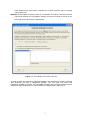
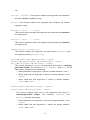
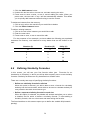
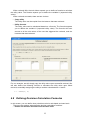
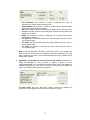
In this screen, you will see your first formula editor (see Formulas for an
introduction to formulas), in which you will be able to specify one or more similarity
formulas. Similarity formulas can only be defined on situation slots.
There are currently two ways of specifying similarity functions:
• Define one similarity formula for all slots
When this option is selected, you will be able to enter a formula for calculating
similarity into the formula editor, which will then be used to calculate similarity for
every situation slot within that instance type.
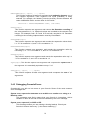
• Define a separate similarity formula for each slot
When this option is selected, the sidebar will activate and allow you to select
a situation slot for which to define a similarity formula. To start adding a
similarity formula, click on a slot name and start writing the formula.
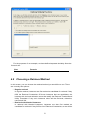
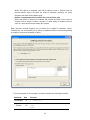
The formula editors on this screen expect you to define the variable M (mismatch
penalty).
20