1
CHAPTER 3
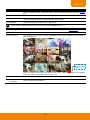
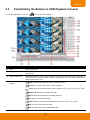
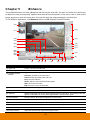
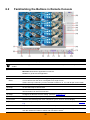
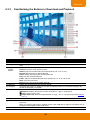
Name
Function
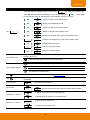
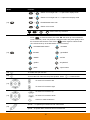
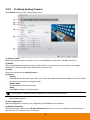
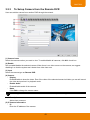
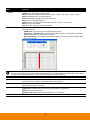
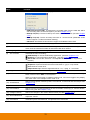
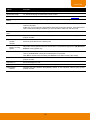
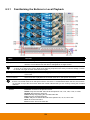
(12) Full screen
View in full screen mode. To return, press the right button of the mouse or ESC on the
keyboard or click the arrow icon.
Click to exit from
full screen mode
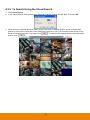
(13) Visual Search
(14) Find Next
(15) Event Search
(16) Intelligent
Search
(17) Audio
(18) De-interlace
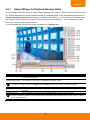
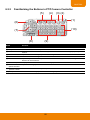
3.6.2
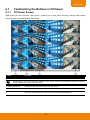
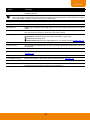
When you switch to full screen in multiple-screen mode, Left click to toggle to only display one
of the video in the multiple-screen mode or all.
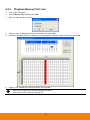
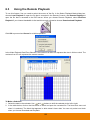
Search from a specific camera by Date, Hour, Minute, 10 Seconds and Second(see also
Chapter 3.6.3)
Search for the next event or changes in the motion detector frame. You can use this when you
are using Intelligent Search or Event Search function.
Search from the recorded activities that were recorded in event log (i.e., Sensor, Motion, Video
Loss). (See also Chapter 3.6.4)
Search the changes in the motion detector frame (See also Chapter 3.6.5).
Enable/disable volume
To enhance the video quality. Set the de-interlace mode to #1, if you are capturing motionless
picture and select #2, if it captures lots of movement.
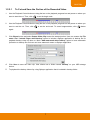
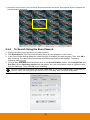
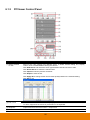
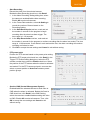
To Cut and Save the Portion of the Recorded Video
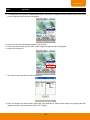
1.
Use the Playback Control buttons or drag the bar on the playback progress bar and pause on where you
want to start the cut. Then, click Segment to set the begin mark.
2.
Use the Playback Control buttons or drag the bar on the playback progress bar and pause on where you
want to end the cut. Then, click Segment to set the end mark. To cancel segmentation, click Segment
button again.
3.
Click Export > Output Video Clip button to save the wanted portion.
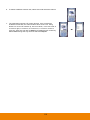
In the Save As dialog box, locate on where user wants to save the file, type the filename, and select the
video format.
4.
55