1
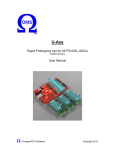
Display firmware version Enter/Exit Programming Mode Scan this barcode to enter the set-up and exit after set-up is finished. The LED would remain red when in programming mode. Show the current firmware version on the host screen. Folding Line Return to RS-232 default Return to PC/AT default This barcode allows setting as keyboard wedge interface for IBM PC AT/PS/2 and compatibles. The RS-232C interface scanner is often used when connecting to the serial port of a PC or terminal. Folding Line Return to USB default Reset (Return to Factory Default) Reading of “Return to USB default” sets the device into USB interface support. Reading of “Reset” barcode label turns all parameters back to default values, and the scanner remains in the last interface set when it is reset. Folding Line * Since the scanner has a large scan volume and multiple scan lines, it is suggested to fold this page according to the dotted line so you can easily present the desired barcode to the scanner. * The scanner must be properly powered before programming. It would acknowledge a good and valid reading with a short beep. * For more set-up selections, please refer to Programming Guide in the CD-ROM in the package. Important Notice No warranty of any kind is made in regard to this material, including, but not limited to, implied warranties of merchantability or fitness for a particular purpose. We are not liable for any errors contained herein or incidental or consequential damages in connection with furnishing, performance or use of this material. Copyright © 2011. All rights reserved. Laser Safety The laser scanner complies with safety standard IEC 60825-1 for a Class I laser produce. It also complies with CDRH as applicable to a Class IIa laser product. Avoid long term staring into direct laser light. Ver. 1.1 P/N: 593-66182E-201 CAUTION: Use of controls or adjustments or performance of procedures other than those specified herein may result in hazardous radiation exposure. Verifying Scanner Operation Introduction This Quick Guide applies to the Advanced Compact Dual-Laser Omnidirectional Vertical Scanner. Detailed information about installation, troubleshooting and configuration can be found in the User’s Manual and Programming Guide in the CD-ROM. We reserve the right to make changes to improve reliability, function or design. For the latest revision of the manual please contact your distributor. Unpacking The scanner package may be altered upon customer request but it usually contains - 1 ea. scanner - 1 ea. Interface cable - 1 ea. 9V power adaptor, and - 1 ea. manual in CD-ROM or hard copy Installation The scanner is to be connected to a host (e.g. POS). This figure gives you an overview of the cable installation. Before mounting your scanner, please follow the procedure below to verify scanning operation. 1. Take a stick to poke in the hole on the back of the scanner to remove the mounting plate. 2. Insert the interface cable into the “Host” connector at the back of the scanner until a firm click is heard. 3. Put the mounting plate back (optional). 4. Plug the other end of the cable to the host. 5. Plug the power adapter into the jack on the interface cable. 6. Plug the AC end of the power adapter into an AC outlet. The scanner powers up, the speaker sounds four beeps and the LED indicator glows blue. 7. Present a known-good test barcode to the scanner. The scanner should issue a short beep and the LED should flash red once. The scanner should read one barcode, beep, and the LED remain red if it is connected to a keyboard wedge but not connected to a live host terminal. The LED would flash red and read no barcode if the scanner is programmed in USB interface but not connected to a host device. Power The scanner requires a minimum of 450mA at 9V DC power and the use of external power is usually recommended. It turns on when power is supplied and turns off when power is removed. There is no on/off switch on the scanner itself. Cable Replacement Mounting Plate Installation When installing the host cable to the mounting plate, The interface cable comes with please insert the flat side of the cable bracket in the different host-end connectors and the cable is attached to the scanner with a cable release hole first as shown in illustration. 10-pin modular connector. When properly seated, the scanner is secured in the scanner bottom by a flexible retention tab. The cable is designed to be field replaceable. Replacement cables can be obtained from your authorized distributor. LED Indications LED Status LED off Steady blue light One red flash Tone and Volume Adjustment The tone and volume can be changed by using the touch control sensors in the front. There are three tones/levels of volumes to choose from. Gently touch the sensor and the scanner would change to its next tone/volume level. Repeat touching till the desired sound is heard. However, the volume setting is saved in volatile memory. That means the change will lost when the scanner powers down. On next power-up the scanner would reset to the configured setting. If you wish to keep the changed volume setting, use the Programming Guide to set and save the changes. Sound Indications There are red and blue dual color LED The device uses a speaker to give audio indications on the head of the device indicating feedback on scanner operation. The following the operational status of the scanner. are the sound indications. Steady red light Flashing blue light Steady red/blue light Flashing red light Indication No power supplied to the scanner. The scanner is powered on and ready to scan. A barcode has been successfully decoded. Beeps Indication A barcode has been successfully decoded. The scanner has entered Two beeps: low-high programming mode. Scanner has returned Two beeps of the from programming to same tone normal mode. One beep The scanner is in programming mode. The scanner is in sleep mode. The scanner has a motor or laser failure. Return the unit for repair. This indicates the Four beeps in series scanner passed self-test continuous tone when powered on and is operating properly. The scanner is programmed in USB interface but not connected to a host device. Continuous tone This is a failure indication. Return the unit for repair.