1
Reverting to Prior EFCM Version
Following are instructions for reverting back from EFCM 8.0 to an
earlier EFCM version, such as EFCM 6.x or 7.x.
1. Make sure that you have backed up your EFCM 6.x or 7.x
c:\EfcData directory to a safe location, such as your Zip or
CD-RW drive before migrating to EFCM 8.0.
2. Remove EFCM 8.0 using steps under Uninstalling the Application
in Chapter 1 of the EFCM 8.0 Software User Manual.
If you do not want to remove EFCM 8.0 at this time, you must
reconfigure EFCM 8.0 Services to start manually instead of
automatically. You cannot run EFCM 8.0 and earlier EFCM
Services at the same time when the server is rebooted. To do this:
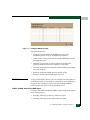
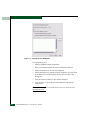
a. Make sure that EFCM 8 is running.
b. From the Start menu, select Settings>Control Panel.
c. Select Administrative Tools.
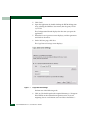
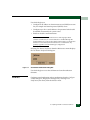
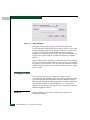
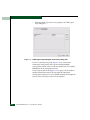
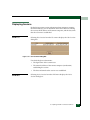
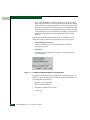
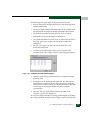
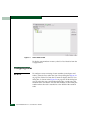
d. Select the Services. The Services dialog box displays.
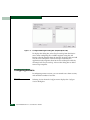
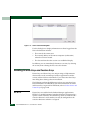
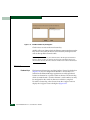
e. Double click each of the following services, one at a time, to
display a Properties dialog box. Change the Startup type to
Manual using the drop-down list and click OK.
• Backup Manager
• Call Home Service
• EFC Service
3. Copy the EFCM 6.x or 7.x \EfcData directory from the CD-RW or
Zip drive to c:\ on the management server hard drive (refer to
step 1).
4. Install EFCM 6.x or 7.x.
5. Start the EFCM Services.
6. Launch the EFCM client and log on to the Management Server.
ATTENTION! Once the management server is upgraded to release EFCM 8.0,
any downgrade of EFCM to a previous release will result in the loss of saved
firmware files.
Upgrading to EFCM 8.0
1-19