1
3.2.6. AVG default configuration
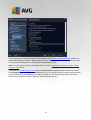
The default configuration (i.e. how the application is set up right after installation) of AVG Internet Security
2015 is set by the software vendor so that all components and functions are tuned up to achieve optimum
performance. Unless you have a real reason to do so, do not change the AVG configuration! Changes to
settings should only be performed by an experienced user. If you want to change the AVG configuration to
better suit your needs, go to AVG Advanced Settings: select the main menu item Options/Advanced settings,
and edit the AVG configuration in the newly opened AVG Advanced Settings dialog.
3.3. AVG User Interface
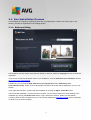
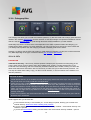
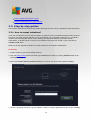
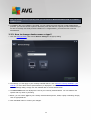
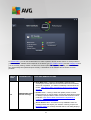
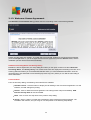
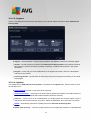
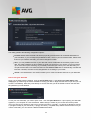
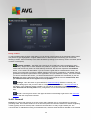
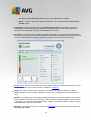
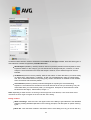
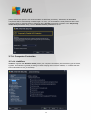
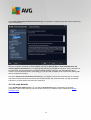
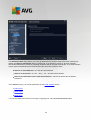
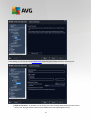
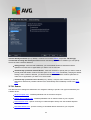
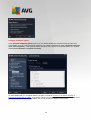
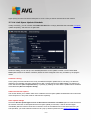
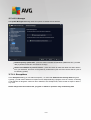
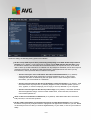
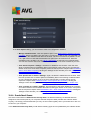
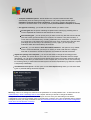
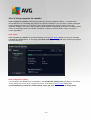
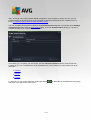
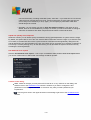
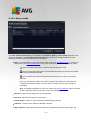
AVG Internet Security 2015 opens with the main window:
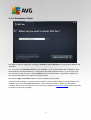
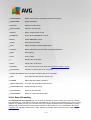
The main window is divided into several sections:
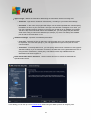
Upper line navigation consists of four active links lined up in the upper section of the main window
(Lik e AVG, Reports, Support, Options). Details >>
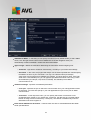
Security Status Info provides basic information on the current status of your AVG Internet Security
2015. Details >>
Go to Zen button opens the main user interface of the ZEN application where you can centrally
manage protection, performance and privacy on all electronic devices you use.
Installed components overview can be found in a horizontal strip of blocks in the central section of
the main window. The components are displayed as light green blocks labeled by the respective
component icon, and provided with the information on the component status. Details >>
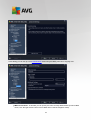
Scan / Update quick links are placed in the lower line of blocks in the main window. These buttons
allow an immediate access to the most important and most frequently used AVG functions. Details
>>
Outside the main window of AVG Internet Security 2015, there is one more control element that you might
42