1
E.
Setting-up VocALign Project
It is highly advisable that you use the following instructions to set-up
VocALign on your system before using it to process audio:
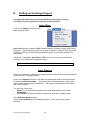
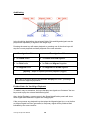
Auto Filter:
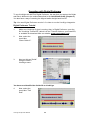
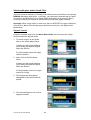
Click on the Options selection in the
Main VocALign Menu.
Auto Filter should be switched ON by default already, showing a check mark next to
the option. This means that anytime you select or change a Guide or Dub region and
switch to VocALign, VocALign will automatically Filter (i.e. spectrally analyse) the
new signal.
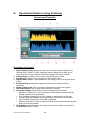
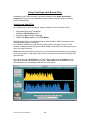
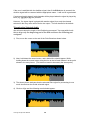
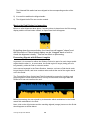
If there is no checkmark, Auto Filter is OFF, and you will see a waveform when
VocALign runs instead of the spectral energy.
TIP: It is recommended that you leave Auto Filter ON.
Auto Naming:
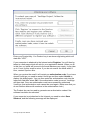
Ensure a) VocALign is running in the foreground and b) the main VocALign window is
present (not the TimeMod window).
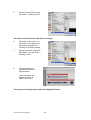
Click on the Options selection in the Main VocALign Menu and from the drop down
list select the Edit Auto Name... Using this feature will automatically create a new
name of each new VocALigned audio file. This saves considerable time and effort
and avoids mistakes.
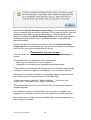
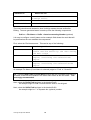
The user has control over:•
Where (i.e. in which disk and folder) the VocALigned audio is placed (the
Destination)
•
What Name VocALign automatically generates each time it Edits a signal.
In the Edit Auto Name window:
Select the Destination for the VocALigned audio. This can be the any of the
following:-
VocALign Project User Manual
13