1
PC Pandora User Manual
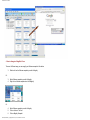
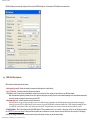
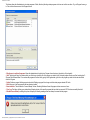
How to Copy, Save, Print or Delete Snapshots:
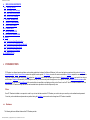
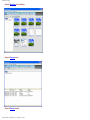
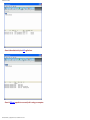
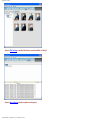
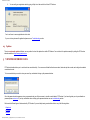
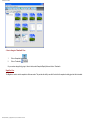
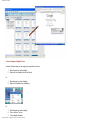
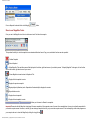
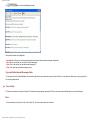
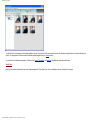
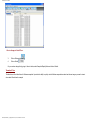
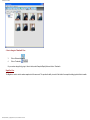
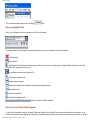
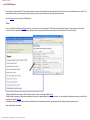
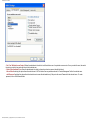
You can Copy, Save, and delete by using the Thumbnails or Details view, then right-click on a Snapshot. These functions are also available in the toolbar menu. You can
also Copy, Save, and delete using the Magnifier tools. Note that Copy from this screen simply copies the actual screenshot, not the data you see in the viewer. You may also
Print snapshots by selecting snapshot and right clicking or by going to File in tool bar menu.
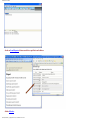
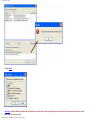
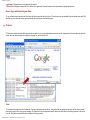
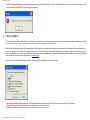
If you are have issues viewing your Snapshot please see our Troubleshooting section.
3.2 Programs
PC Pandora can capture all data related to programs run on the computer so you can see exactly what applications have been used. Captured data includes the date and
time of the activity, how long the program was active, how long the program was focused upon, which user ran the program, the application title, and the window text.
View:
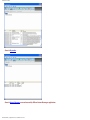
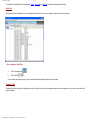
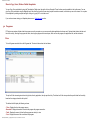
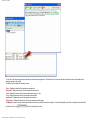
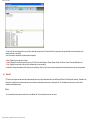
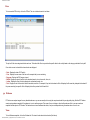
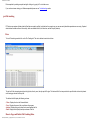
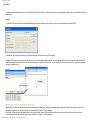
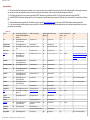
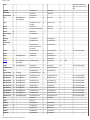
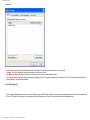
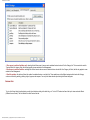
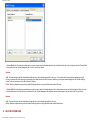
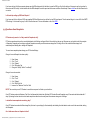
To view Programs recorded click on the Programs tab. The view is broken down into two halves.
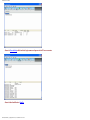
The top half of the view categorizes the activity by date, then by application, then by specific activity. The bottom half of the view provides the specific detail on the activity
based on the category selected in the top half.
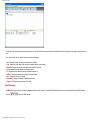
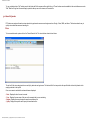
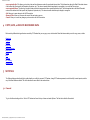
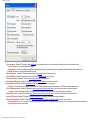
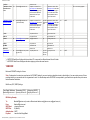
The bottom half will display the following columns.
• Time - Displays the time the program was run.
•Recorded - Displays the amount of time that the program the program was active.
•Total - Displays the amount of time that the program was actively in view.
•User - Displays the name of the user that ran the program.
file:///H|/PCPandora_5x_HelpSystem.htm (21 of 71)6/6/2008 7:58:31 AM