1
1.1.
System requirements
Microsoft Windows 2000, XP, 7, 8
200 MB available hard disk space
256 MB RAM
Microsoft Internet Explorer 6 or newer
1.2.
Installation
The Handy Proxy package is available from the Handyserv website (http://www.handyserv.com). You can download and
install it very easily as any other software package.
We guarantee that our programs and modules are adware, malware and virus free as long as they are downloaded from
within our web site. To help you check this, our web site provides an MD5 checksum allowing to check whether the
module to download is ours and was not modified. Moreover, the different programs (.exe) provided in our package are
also protected by an MD5 checksum which, in case it is not verified at the launching of one of our programs, will block it
and display an error message.
Icons will be created at the installation. We invite you to add the Handy Proxy icon to the Windows startup folder, which
will launch the Proxy automatically.
1.3.
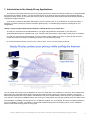
Quick start & Overview of Handy Proxy powerful functionalities
Here is how to launch Handy Proxy and its other functions for the first time.
1.3.1. How to start as a user
-
Download the package from within our web site and follow the usual steps to install it. Launch Handy Proxy.
-
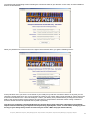
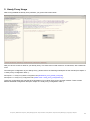
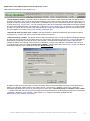
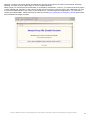
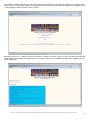
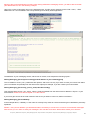
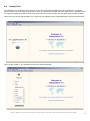
When Handy Proxy runs for the first time, it will ask you to introduce the name of your configuration. If the name you
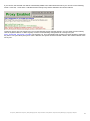
choose is free, it will be accepted. Handy Proxy will then be in « Proxy disabled » mode. Click on the button in the
upper left corner (« Proxy disabled ») to change this mode into « Proxy enabled ». If your Internet connection is not
active, Handy Proxy will inform you of this. Otherwise it will wait for traffic to flow.
-
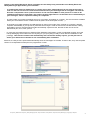
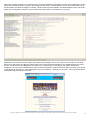
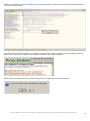
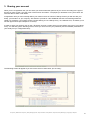
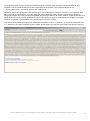
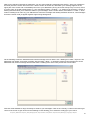
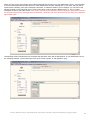
When Handy Proxy is in « Proxy enabled » mode for the first time, it will realize that Windows does not route the
Internet traffic through it. Handy Proxy will warn you of this via a message providing you the right parameters to give
to Windows, and afterwards it will open the « Internet properties » Windows menu allowing you, via the « Network
parameters » item, to flow your Internet traffic via your Handy Proxy. For more information, please refer to the
following link :
Change proxy server settings in Internet Explorer :
http://windows.microsoft.com/en-us/windows/change-internet-explorer-proxy-server-settings
Some browsers do not automatically follow Windows proxy settings, as for example Firefox. You will then have to
indicate manually to these browsers that they have to use Windows default proxy settings.
-
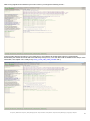
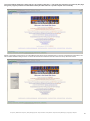
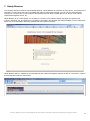
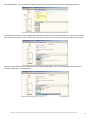
From now on, your Handy Proxy is ready to work and is configured by default. If you want to use Handy Email and
Handy Messenger, you now have to configure the messaging server(s) you will connect to as well as your
addressees list. The Handy Proxy screen will indicate that you can define your configuration as a messaging server,
but before using this function, we invite you to carefully read the next chapter.
1.3.2. How to start if you want your Handy Proxy to be an Internet traffic router and/or a messaging
server for other users
After having set up the basic configuration explained above, here are the steps to follow if you want to share your
configuration as a secure Internet traffic router and/or as a messaging server (Handy Email and Handy Messenger) :
-
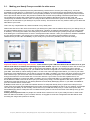
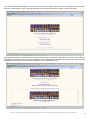
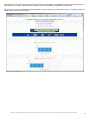
First and foremost, you have to define a static IP address inside your network to give a stable address to the
configuration. Otherwise this address will change dynamically, preventing your addressees to retrieve your
configuration. You will have to use the Windows functions allowing to make your PC’s IP address static.
Handy Proxy, Multichannel Handy Proxy, Handy Messaging Server, Handy Web Server, Handy Browser, Handy Email, Handy Messenger (c) Copyright by Handyserv
8