1
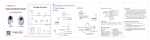
Package Contents
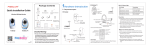
1 Hardware Introduction
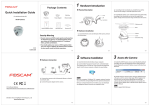
Physical Description
Quick Installation Guide
2. Install the base of the camera on the ceiling or wall
with expansion screws.
3. Assemble the sphere, cover, and decorative in order,
set the angle of the camera viewing area.
4. Finally, manually turn the camera counter-clockwise to
Power
HD Wireless IP Camera with P2P
IP Camera
Power Adapter
Ethernet Cable
Hardware Connection
Method 1: Wired Connection
You can use wired connection to add the camera via the
app or browser. Connect the camera to the wireless router
via ethernet cable.
lock the camera in place.
LAN
Reset Button
Ceiling or wall
WPS
Quick Installation Guide
(For Windows & Mac OS)
HD Wireless IP Camera with P2P
Base
Method 2: Wireless Connection
LENS
Infrared LED
Quick Installation Guide
Warranty Card
Resource CD
Sphere
Cover
Security Warning
Foscam cameras and NVRs require good security
practices to safeguard your privacy. You should
regularly change your camera or NVR password
which is 8-10 numbers, letters, symbols combination.
"Foscam" App download
V1.6
EQ985104
You should update your camera or NVR regularly.
Make sure your camera or NVR has the latest
firmware installed for your specific model and better
experience.
Hardware Installation
You can also use wireless connection to add the camera
via the app. But ensure that the camera has not been
plugged ethernet cable.
Decorative ring
1. Manually turn the base clockwise to loosen the snap.
WPS
Before you continue, please note:
Ensure your wireless router is on and functioning.
Ensure your smartphone and camera are both
connected to the same wireless router.
2 Add the IP Camera
3 Access the IP Camera
You can add the Foscam IP Camera using a Smartphone
like an iPhone or Android device.
You can also access your Foscam camera via our P2P
web portal: https://www.myfoscam.com on your
Windows PC using Internet Explorer.
1. Download the App
If you have a QR code scanner app on your phone,
use it to scan the code below:
Foscam
Note:
If you do not have a QR code app on your phone, you
can simply go to the App Store or Google Play Store
and search for the term "Foscam". Find the app that
appears with the same icon as shown above, and then
download it to your device.
2. Add the IP Camera
Run the APP, and then register for a Foscam account.
Once logged in, you can tap the "+" button on the
App and follow the setup wizard to add your camera.
Only with the “Foscam” APP, you can experience new
features including EZLink, Online-Update, Message
Push,etc. While with any third-party APP (other than
"Foscam") , you do not experience these features.
If you have registered and added the IP Camera on the
Foscam App, you don't have to register again. Instead,
directly using the credentials you registered with on the
Foscam app, and you will be able to access the camera
directly in the web portal.
As an alternative to accessing the camera via the P2P
web portal, you can also access the camera directly
through the local network and remotely via port
forwarding. Please download the "Equipment Search
Tool" from http://www.foscam.com.
4 FAQ
5 Technical Support
Forget Username / Password
If you have problems with your Foscam IP Camera, please
contact the Foscam reseller you purchased from, or you
can e-mail the Foscam headquarter technical support
team: [email protected].
Restore camera back to factory settings:
1. Press and hold the "Reset" button on the camera for
about 10 seconds with the camera powered on, and
then release.
2. Once the button is released, wait about 30 seconds, and
the camera will automatically reboot and restore
factory settings. The username and password will be set
to the default username(admin) and password(blank).
Your valuable comments and suggestions on improving
Foscam products are welcomed!
Please Note:
After restoring to factory default settings, you need
to re-configure the Wi-Fi connection. You can follow
the Setup Wizard of the App to configure your Wi-Fi
connection again.
If your device fails to connect to the Wi-Fi using the
Setup Wizard, you may setup Wi-Fi manually on the
browser after connecting the camera via a wired
connection.
Please refer to the User Manual on the Foscam
website at http://www.foscam.com.
CE Certificate Website:
http://www.foscam.com/company/ce-certificate.html
ShenZhen Foscam Intelligent Technology Co., Ltd
www.foscam.com