1
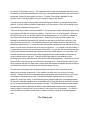
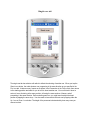
the lower right corner of the screen. If the Bluetooth radio is not present, you must do a “hard
reset”, as described next.
3. Doing a hard reset
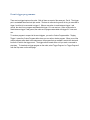
To do a “hard reset”, press the stylus into the little hole in the back or bottom of the PDA while
holding down the Power button. A hard reset erases all installed software but also reinstalls a
missing Bluetooth radio. You should not normally need to do a hard reset unless the Bluetooth
radio is missing.
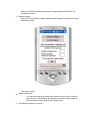
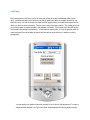
4. Setting the COM port
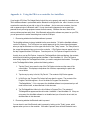
You only need to set the COM port if there is no BTCOMPort file in the TheGadgetWorks folder
or if it was set incorrectly at some time. The outgoing Bluetooth COM port for the Axim X30 is
port 7. On the Sprint PPC-6601, it is port 6. If you have a different PDA, you need to discover
what the correct COM port is for outgoing Bluetooth. This is hard-wired into the PDA and does
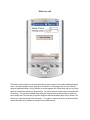
not ever change. The first time you run AutoMate, it asks you to set the COM port if the
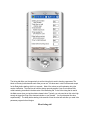
BTCOMPort file does not exist. Choose the appropriate number from the drop-down list. This
process saves a file named BTCOMPort which contains the number you chose. For AutoMate
1.0, the file is saved in TheGadgetWorks folder. In AutoMate 2.0, the file is saved in the root
folder. You will never be asked to set the COM port again as long as that file is present. If you
ever enter the wrong number, the easiest thing to do is delete the BTCOMPort file and restart
the AutoMate program and set it correctly.
5. Connecting to the robot
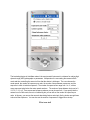
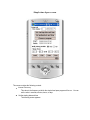
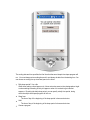
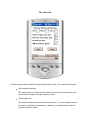
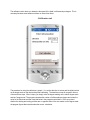
Whenever you launch AutoMate it first opens a Bluetooth Browser window. This is where you
tell it to connect to the robot. Assuming that the robot is turned on, the robot Bluetooth icon
appears in the list of devices that the PDA sees. The icon for the robot has the label, AutoMate.
To connect to the robot, tap the AutoMate label. Do NOT check the box that says “Always use
this connection”. If you do, future attempts to connect to the robot will usually fail. This is one
of the main causes of problems that people experience and unfortunately, it is a Microsoft
system screen and we cannot eliminate that option. If you did check this box at some time in
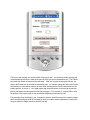
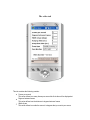
the past, go to Settings>Connections>Bluetooth>Services>Serial Port>Advanced and click the
checkbox that appears. If it is already checked, uncheck it and then click Save, then go back to
the Advanced screen and check it again. This should correct the problem.
6. Solving problems
o
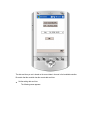
What to do if the PDA disconnects frequently from the robot.
If the PDA does not maintain the connection with the robot for more than a couple
minutes, the probable reason is that you created a connection between the PDA and
the robot outside the AutoMate program. If that is the case, go to the Bluetooth
manager and delete the robot from the list of devices.