1
Units: Sets the unit of measure used for distances.
Position Format: Sets the coordinate format and datum used
for geographical coordinates.
Never use a hard or sharp object to operate the touchscreen, or
damage may result.
Do not expose the device to water.
Setting the Time
1 From the main menu, select the time.
2 Select an option:
Cleaning the Outer Casing
• To set the time automatically using GPS information,
select Automatic.
• To set the time manually, drag the numbers up or down.
NOTICE
Avoid chemical cleaners and solvents that can damage plastic
components.
1 Clean the outer casing of the device (not the touchscreen)
using a cloth dampened with a mild detergent solution.
Language and Keyboard Settings
2 Wipe the device dry.
To open the Language and Keyboard settings, from the main
menu, select Settings > Language & Keyboard.
Voice Language: Sets the language for voice prompts.
Text Language: Sets all on-screen text to the selected
language.
NOTE: Changing the text language does not change the
language of user-entered data or map data, such as street
names.
Keyboard Language: Enables keyboard languages.
Cleaning the Touchscreen
1 Use a soft, clean, lint-free cloth.
2 If necessary, lightly dampen the cloth with water.
3 If using a dampened cloth, turn off the device and disconnect
Proximity Alerts Settings
NOTE: You must have custom points of interest (POIs) loaded
for proximity points alerts to display.
Select Settings > Proximity Alerts.
Audio: Sets the style of alert that plays when you approach
proximity points.
Alerts: Sets the type of proximity points for which alerts are
played.
Device and Privacy Settings
To open the device settings, select Settings > Device.
About: Displays the software version number, the unit ID
number, and information on several other software features.
EULAs: Displays the end-user license agreements.
NOTE: You need this information when you update the
system software or purchase additional map data.
Position Reporting: Shares your position information with
Garmin to improve content.
Travel History: Allows the device to record information for the
myTrends, Where I’ve Been, and Trip Log features.
Clear Travel History: Clears your travel history for the
myTrends, Where I’ve Been, and Trip Log features.
Restoring Settings
You can restore a category of settings or all settings to the
factory default values.
1 Select Settings.
2 If necessary, select a settings category.
3 Select > Restore.
Device Information
Device Care
NOTICE
Avoid dropping your device.
Do not store the device where prolonged exposure to extreme
temperatures can occur, because it can cause permanent
damage.
the device from power.
4 Gently wipe the screen with the cloth.
Avoiding Theft
•
•
•
•
Remove the device and mount from sight when not in use.
Remove the residue left on the windshield by the suction cup.
Do not keep your unit in the glove compartment.
Register your device at http://my.garmin.com.
Resetting the Device
You can reset your device if it stops functioning.
Hold the power key for 12 seconds.
Specifications
Operating
temperature range
From -20° to 55°C (from -4° to 131°F)
Charging
temperature range
From 0° to 45°C (from 32° to 113°F)
Power input
Vehicle power using the included vehicle power
cable. AC power using an optional accessory
(for home and office use only).
Battery type
Rechargeable lithium-ion
Appendix
Support and Updates
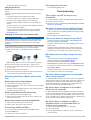
Garmin Express™ provides easy access to these services for
Garmin devices. Some services may not be available for your
device.
• Product registration
• Product manuals
• Software updates
• Map, chart, or course updates
• Vehicles, voices, and other extras
Setting Up Garmin Express
1 Connect the device to your computer using a USB cable.
2 Go to www.garmin.com/express.
3 Follow the on-screen instructions.
Updating Maps and Software with Garmin Express
You can use Garmin Express software to download and install
the latest map and software updates for your device. Map
updates provide the latest available mapping data to ensure
your device continues to calculate accurate and efficient routes
to your destinations. Garmin Express is available for Windows
and Mac computers.
®
®
Device Information
17