Download pdf documentation

Transcript
3 PRO d.o.o. za informacijske tehnologije • Lanište 24 • HR-10020 Zagreb
IBAN: HR20 2390 0011 1008 4484 8 • SWIFT: HPBZHR2X • PDV/VAT ID: HR60378406301
Web: www.3pro.eu • E-mail: [email protected] • Tel.: +385 1 3333 850
3 PRO SharePoint Backuper
User Manual
3PRODOC-25-6v2
13.11.2014.
3 PRO SharePoint Backuper
User Manual
© 2014 3 PRO d.o.o. All rights reserved.
3 PRO d.o.o.
Lanište 24
HR-10020 Zagreb
Croatia
No part of this document may be reproduced or transmitted in any form or by any means, electronic or
mechanical, for any purpose, without the express written permission of 3 PRO d.o.o. Under the law,
reproducing includes translating into another language or format.
Every effort has been made to ensure that the information in this manual is accurate. 3 PRO d.o.o. is not
responsible for printing or clerical errors. Information in this document is subject to change without notice.
3PRODOC-25-6 v2
2 / 18
3 PRO SharePoint Backuper
User Manual
About This Guide
This 3 PRO SharePoint Backuper Application Guide for the 3 PRO SharePoint Backuper is for
administrators and users of 3 PRO SharePoint Backuper.
3PRODOC-25-6 v2
3 / 18
3 PRO SharePoint Backuper
User Manual
Table of Contents
About This Guide ..................................................................................................................................... 3
1. Overview.......................................................................................................................................... 5
2. Using the 3 PRO SharePoint Backuper ............................................................................................ 6
2.1. Installation and requirements ..................................................................................................... 6
2.2. Registering a SharePoint Backuper Service ................................................................................. 6
2.3. Setting a backup Job .................................................................................................................... 7
2.4. Backup Job Options ................................................................................................................... 14
2.5. Managing the jobs ..................................................................................................................... 15
2.6. Restoring a backup .................................................................................................................... 16
2.7. Other ......................................................................................................................................... 17
2.7.1.
Starting a service ................................................................................................................... 17
2.7.2.
Partially completed jobs ........................................................................................................ 18
2.7.3.
User not found ...................................................................................................................... 18
3PRODOC-25-6 v2
4 / 18
3 PRO SharePoint Backuper
User Manual
1.
Overview
This software enables you to easily setup backup for SharePoint documents in your document libraries.
SharePoint OnPremise and Online are both supported (2010 and 2013). Destination is file system and
the result can be the exact same copy of defined backup job or its zipped version.
Software is made as a tool for administrators but is designed to be simple enough so semi-experienced
SharePoint users can use it without problems.
3PRODOC-25-6 v2
5 / 18
3 PRO SharePoint Backuper
User Manual
2.
Using the 3 PRO SharePoint Backuper
2.1.
Installation and requirements

At the moment, it is enough to extract the zip file somewhere on your PC, register SharePoint Backuper
service and run the “SharePointBackuper.exe” from the extracted application package and the
Application will run.
2.2.
Registering a SharePoint Backuper Service
It is easy to register the Service. After you extracted the zip, move the exctracted folder to the path
where it should reside because it will have to stay there once when you register your service.
After you have chosen a permanent path for SharePoint Backuper (for example: “C:\Program Files\3
PRO\SharePoint Backuper”), open cmd window as administrator and position yourself to that folder.
From that cmd window run the command: “SharePointBackuperService.exe /i”. Your service should be
now registered.
Parameters for SharePointBackuperService.exe through cmd:
1.
2.
3.
4.
/i (or /install)– installs (registers) a service
/ir (or /installrun) – installs and runs a service
/u (or /uninstall) – uninstalls a service
/r (or /restart) – restarts a service if it is installed
3PRODOC-25-6 v2
6 / 18
3 PRO SharePoint Backuper
User Manual
2.3.
Setting a backup Job
First thing you have to do after registering your SharePoint Backuper Service is setting a job. It should
be done through SharePointBackuper.exe so run it.
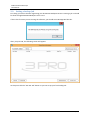
If this is the first time you are running the software, you should see a Message Box like this:
After you press OK, the following screen will appear:
At this point click the “Set new Job” button so you can set up your first backup job:
3PRODOC-25-6 v2
7 / 18
3 PRO SharePoint Backuper
User Manual
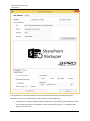
The shown form is the wizard which will create xml files which will be processed later by the
Backuper service. So to explain the form we will start from the beginning:

Job Name is the Unique identifier which will describe to you what the job backups (it is later
used in destination path as last folder in which backup will be saved – it is added to path
which you will choose)
3PRODOC-25-6 v2
8 / 18
3 PRO SharePoint Backuper
User Manual


Source represents the type of SharePoint from which you are backing up your files
(sometimes the Backuper will know to correct this setting on the fly if it is set up wrong,
depending on a situation, so please set it up properly)
Source Information: here you define your sharepoint site Url, domain, username, and
password (this whole section is stored encrypted in xml so it won’t be human readable)
Once you have set those parameters you should click on “Load SharePoint Libraries” button and
your form should look similar to this:
3PRODOC-25-6 v2
9 / 18
3 PRO SharePoint Backuper
User Manual
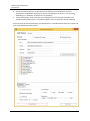
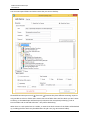
After the site is loaded, wizard will show you a list of document libraries available on site. You should
select one to load its content.
3PRODOC-25-6 v2
10 / 18
3 PRO SharePoint Backuper
User Manual
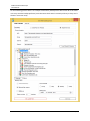
You can now expand folders and select items that you want to backup.
Please differentiate square mark ( ) from tick ( ) because they have different meaning. Square is
only possible to select on folder and it means that in that folder there are files which you don’t want
to backup, so the SPBackuper will back up only sub-items that are explicitly ticked (e.g. look at
Finance folder and its selected sub-items – they will be backed up).
When there is a tick symbol next to a Folder, it means that whole content of the folder will be backed
up, including the files which may be added after the job is set (e.g. Recruitment folder).
3PRODOC-25-6 v2
11 / 18
3 PRO SharePoint Backuper
User Manual
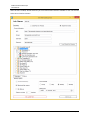
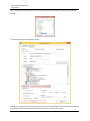
On the following picture there is an example of full library backup which will include all of the items
in it every time the backup performs (even the items which aren’t currently in library so they aren’t
shown in tree-view now).
3PRODOC-25-6 v2
12 / 18
3 PRO SharePoint Backuper
User Manual
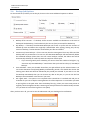
After making source files selection you should set the destination folder by clicking on Destination
button.
This example will give the following result:
Now you can easily notice that the Job name value has been appended to the path you have selected.
That folder will be created automatically when you press “Set the Job” button.
3PRODOC-25-6 v2
13 / 18
3 PRO SharePoint Backuper
User Manual
2.4.
Backup Job Options
On the wizard form, before you set the job, there are also some additional options to define:





Backup all file versions – if checked, all file versions available on SharePoint at the time of
backup will be backed up, if unchecked only the current (last) version will be backed up
Zip Backup – if checked, the SharePoint Backuper will create a zip file with the content of
backed up items and delete the originally created folder after zipping, leaving only the zip
version of backup, if unchecked the result will be pure files and folders
Preserve only last X backups – If this is set to 0, then this setting won’t have any effect and the
backups will only accumulate. If it is set to 2, the SharePoint Backuper will automatically delete
the outdated backups (when there are two newer backups created, the oldest one will be
automatically deleted) so it will help with consumption of disk space
o If you are using Hourly Time schedule, you want to have this number a bit higher, e.g.
“Preserve only last 168 backups.” would mean that you have last 7 days (7*24=168) of
backups.
Time Schedule – Here you schedule how often your job will back up the selected items. You
can choose between Hourly/Daily/Weekly and Monthly periods. You should also choose the
starting point which will later be followed by the period you selected. If you want to run the
first Backup immediately then you can choose any date in the past, or you can set the first
Backup to be somewhere in the future if you want.
Set LogFile Path – this option is not required to be entered but it’s marked with red just as
reminder for you not to skip this setting because it’s often important. It’s used when you want
to put log files to the path other than the backup files (e.g. when you want some person to
regularly check the log files but don’t want to give him a permission to read the backup content
or if you want to have all the log files at one place)
After you have set it all, you can hit Set the Job Button and you should get this notification.
3PRODOC-25-6 v2
14 / 18
3 PRO SharePoint Backuper
User Manual
2.5.
Managing the jobs
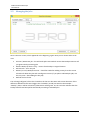
Here is the main screen, which appeared at the beginning, again. Now you can choose what to do
next:





Activate / Deactivate job – this will make job inactive which means that Backuper Service will
just ignore while processing jobs
Restore Backup (if there is any) – restore from backup to original location
Set New Job – set a new job
Restart (or start) Backuper Service – should be used after adding a new job so the service
reloads info about the jobs and reconfigures its timer (if you plan to add multiple jobs, use
this only once - after adding the last job)
Refresh the list of Jobs
The coloring (red/green) of this list is based on the last run date time and current date time. If the
difference between those two is bigger than “Schedule” period (one week in the example –
“Weekly”) then it will be colored red, otherwise it will be green. So, the red color indicates that the
backup should have been performed already according to schedule plan.
3PRODOC-25-6 v2
15 / 18
3 PRO SharePoint Backuper
User Manual
2.6.
Restoring a backup
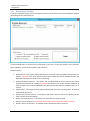
To restore a backup, simply click on Job Name to select a job and then click “Restore Backup” button.
Something like this should pop up:
In this example there is currently only one backup for this Job, so only this backup can be selected.
Select a Backup, set the restore options and click next.
Restore options:







Overwrite all – This option will set the library state to the closest possible from the time of a
backup. CAUTION: The items which haven't been backed up will be deleted because the
Backuper will empty the library prior to restoring.
Overwrite Backed Up Files - This option will set the backed up items state to the closest
possible from the time of a backup. CAUTION: You will lose your newer versions of backed up
items if there are any because Backuper will delete every item which is backed up prior to its
restore.
Append Only - This option will only append the backed up items to existing items. All existing
items will be left intact.
Restore only last file versions – If checked, it will restore only last file version ignoring all the
other versions from the backup.
Restore Item permissions – If checked, item permissions will be restored
Restore Library Properties – If checked, some of the Library properties will be restored
Restore Library Permissions - If checked, library permissions will be restored
3PRODOC-25-6 v2
16 / 18
3 PRO SharePoint Backuper
User Manual
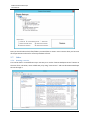
Now you should select which files/folders you would like to restore. Press restore when you have set
all the parameters and wait for restore procedure to finish.
2.7.
Other
2.7.1. Starting a service
This can be done in a two different ways. One way is to use the “Restart Backuper Service” button on
the main form. The other, more reliable way is by using “services.msc” and start SharePoint Backuper
Service through it.
3PRODOC-25-6 v2
17 / 18
3 PRO SharePoint Backuper
User Manual
2.7.2. Partially completed jobs
There is always a possibility that you will accidently stop a service (by restarting a pc, while there is
ongoing backup procedure in a service so there is a status mark which will tell you if the backup was
completed fully or partially. You can also easily read the approximate number of items which were
backed up and if the backup is in zip format or not.
2.7.3. User not found
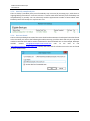
There is also a possibility that some of the users which has been written in backup xml cannot be found.
In this situation you will see the following box while restoring your files which will ask you to provide
another username which will be used as substitute for the unmatched one. In this example, backuper
couldn’t restore [email protected]
user so we told to use
[email protected] instead, and to do that for all other users who are not found
(if there will be some).
3PRODOC-25-6 v2
18 / 18