1
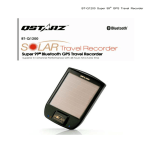
BT-Q1200 Super 99® GPS Travel Recorder
BT-Q1200 Quick Installation Guide
A. Standard Package
GPS Unit BT-Q1200 (1) + Lithium-ION Rechargeable Battery (2) + Cigarette Adapter
(3) + mini USB Cable (4) + Optional Travel Charger (5) + Driver CD (6) + Warranty
Card + User’s manual. (* Travel Charger plug type might be adjusted according to
corresponding countries.)
1.
2.
3.
4.
5.
6.
B. Appearance
1. Power jack (mini USB type)
2. Power Button (ON/OFF/Enable LOG mode/Disable LOG mode)
3. Battery status LED (Red/Green)
4. Bluetooth status LED (Blue)
5. GPS status LED (Orange)
6. Log status LED (Blue)
7. Internal antenna
8. Solar panel (Auxiliary power source)
1
BT-Q1200 Super 99® GPS Travel Recorder
C. Hardware Function
Hardware Function
Power Button (On)
Description
Take the power cable and connect it to the power jack (mini
USB type) for charging only
Press power button and hold for 3 sec to power BT-Q1200 on.
Power Button (Off)
Press power button and hold for 3 sec to power BT-Q1200 off
Power Button
(Enable Log mode)
After power BT-Q1200 on, press power button once to enable
log mode. Then BT-Q1200 would start logging with the
blinking LOG status LED (blue).
Power Button
(Disable Log
mode)
Press power button again to disable log mode. The LOG
status LED (blue) would be off, and stop logging.
Power Jack
D. Battery Installation
D-1 Put Battery in place: Press the PUSH button on the bottom side of the unit and
pull out the battery cover. Insert battery in the unit and put battery cover on to the
cabinet, then push down and force it forward to fit firmly.
D-2 Take Battery out: Press the PUSH button on the bottom side of the unit and pull
out the battery cover. Then take out the battery from the unit.
E. Charging your battery
For the first time using the BT-Q1200, please charge
battery until it is fully charged. Take the power cable
and connect it to the power jack (mini USB type) and
recharge through USB cable, travel charger or car
cigarette adaptor. This will begin to charge the
battery. Charging time is 3 hours typically.
- When the Power LED is Red, battery power is low status. Please recharge.
- When the Power LED is Green, the battery is under charging mode.
- When the Power LED is blinking, the battery is fully charged.
F. Setup BT-Q1200
F-1 Install the USB Driver (Only support Microsoft Windows XP / Vista)
Insert the Driver CD, and find the folder “USBDriver\Windows_2K_XP_S2K3_Vista”.
Double click “CP210xVPInstaller.exe” to install the USB driver.
2
BT-Q1200 Super 99® GPS Travel Recorder
F-2 Install the software utility for BT-Q1200
Please insert the Driver CD, and find the folder “Utility”. Then double click “setup.exe”
to install the software utility.
F-3 Install Google Earth
BT-Q1200 supports showing your travel path directly on Google Earth. Please go to
http://earth.google.com for the free download of Google Earth, and then install it to
your computer.
G. Start to use
G-1 Fully charge the battery when using at the first time
A fully charged battery with solar power can last up to 48 hours continuously operation
(under optimum conditions and sufficient sunlight).
G-2 Connect BT-Q1200 with your PC
1. Please connect BT-Q1200 with your PC by mini USB cable, and then power on
BT-Q1200 and switch it to start logging.
2. Check the COM port no. your PC is assigned for BT-Q1200.
NOTE: Before checking the COM port, please make sure the USB driver has
been installed properly.
2.1 Go to <Start> \ <Settings> \ <Panel Control> \ <Performance and
Maintenance> / <System>
2.2 Select <Hardware> tab and then click <Device Manager>.
2.3 Expand the <Ports (COM & LPT)> and check “CP210x USB to UART Bridge
Controller” to see which COM port is for BT-Q1200.
G-3
Start the software utility
NOTE: Before starting the software utility, please make sure that the driver and
the software utility has been installed properly. And also, make sure that
BT-Q1200 already connect with your PC by mini USB cable, power it on,
and switch it to start logging or BT-Q1200 would enter sleep mode after
few minutes.
1. Click from <Start> / <All Programs> / <Qstarz Travel Recorder V3> / Travel
Recorder PC Utility V3
2. < CONFIGURATION > \ <Connect>, Establish the communication between
BT-Q1200 and your PC.
3. < CONFIGURATION > \ <User Mode>, Setup the user mode for your personal
setting before logging your travel path.
3
BT-Q1200 Super 99® GPS Travel Recorder
3.1 Basic Mode provides simple setting for you. Select the transportation gear
(Vehicle / Bicycle / Jog) you will use, and then click <Set> to set specific value
to BT-Q1200.
3.2 Advanced Mode let you setup two parameters of recording. Select the
transportation gear (Vehicle / Bicycle / Jog) you will use and you can modify
the default value per your requirement, and then click < Set > to set the
updating and specific value to BT-Q1200.
3.3 Professional Mode can be defined detail settings for all parameters manually.
After complete all settings, click < Set > to set the values to BT-Q1200.
4. < CONFIGURATION > \ <Other Setting>, Setup the recording method for the flash
memory of BT-Q1200 under <Other Setting>.
5. <SATELLITE INFORMATION>, Display the current satellite viewer of your
BT-Q1200 at < SATELLITE INFORMATION > tab.
6. <DATA LOG LIST>, Access the log data which download from BT-Q1200.
NOTE 1: Before accessing your log data of BT-Q1200, please establish the
communication between BT-Q1200 and PC via mini USB cable.
NOTE 2: Please install Google Earth before trying to download and draw map on
Google Earth.
6.1 Click <Download> button to download the log data from BT-Q1200. System
will pop up a dialog box for asking to save the log file. After selecting a location
to save, a message box pops up to show the progress status. It will take a few
minutes depending on the data volume. After completing the log data
downloading, those data will be shown on data grid.
6.2 Click <Draw Map> button to display your log data on Google Earth. System
will pop up a dialog box for setting the data period and drawing type. After
click <OK> button, system will export the log data into Google Earth to
display your travel path. You can check the detail information for each log
point.
7. <Photo Manager>, Allow you to manage the log files downloaded from BT-Q1200,
combine GPS data with photos by Geotagging, and create KMZ file supported by
Google Earth.
7.1 Click <GPS Log Manager> \ <View Log> to show the log data on data grid. On
the “GPS Log Files” column is the log files from default location on the hard-disc
(C:\Program Files\Qstarz\Travel Recorder PC Utility V3). You can add, delete,
and delete all by clicking right button of mouse to show the function menu and
executing each function and adjust the shown time by selecting time zone
according to the local time.
4
BT-Q1200 Super 99® GPS Travel Recorder
Note: All the date/time data is recorded as Greenwich time
7.2 Click <Photo Manger> tab / <Photo Viewer> button and select path of image file
on the left side. The file names would appear below and preview of the file
would appear on center.
7.3 Click <Photo Manager> / <Geotag Photo> button to start Geotagging the photos.
System will automatically geotag photos with GPS position data if one has the
same time as the other.
Note: Before Geotagging, please make sure to select the log file and
corresponding photos
H. Navigate as a Bluetooth GPS Receiver with handheld device
H-1 Activate the Bluetooth function in your PDA/Smart phone or PC
Before activating the Bluetooth function in your PDA/PC, please power on BT-Q1200
to pair and check if your device is equipped with Bluetooth function. If not, you may
need to acquire an optional CF/SD Bluetooth card or Bluetooth dongle. (The pass
code is “0000”)
H-2 Automatically create a shortcut in Bluetooth Manager window
After the pairing complete, the system will then find a quick connect device “iBT-GPS”
in Bluetooth Manager. In further use, you just need to click it to connect to this
Bluetooth GPS Receiver.
H-3 Check the Serial Port in Bluetooth Setting
After complete pairing with BT-Q1200, please click “Serial Port” to confirm the
assigned COM port. If you use PDA/PC to pair the GPS Receiver, please check
“Outbound COM port”.
H-4 Set correct Serial Port in your map software
Activate your navigation software and make sure to select the correct “Serial Port”.
NOTE 1: In the map software such as TomTom, you might need to change
preference and set “Other Bluetooth GPS” according to PDA/phone
model. In some case please consult map software company to vary the
setting if you have issue on positioning.
NOTE 2: There might be specific setting requirement per navigation software.
Such as Tomtom, please delete other GPS settings under Tomtom
software, and keep one only.
H-5 Switch off the Bluetooth function
Switch off GPS function in your PDA/Smart phone/PC, and the Bluetooth connection
will be disconnected automatically. Then power off BT-Q1200.
5
BT-Q1200 Super 99® GPS Travel Recorder
I. Function of Auto On-Off (Power saving mode)
Note: Power saving mode would not function when log is enabled.
BT-Q1200 supports Auto On-Off (Power saving mode). It can automatically enter
sleeping mode after the Bluetooth connectivity is turned off, so the Blue LED will turn
to flash every 5 seconds. Thus you can always power it on with very low power
consumption.
Under power saving mode, when detecting Bluetooth is being connected, BT-Q1200
will auto wake up itself and the blue LED will turn to flash every 2 seconds and GPS
Orange LED will be also On.
J. OTHERS
J-1 LED Indicators
LED Status
1
Power (Red/Green)
2
Bluetooth (Blue)
3
GPS (Orange/Blue)
4
Log (Blue)
Flash
Low Power (Red)
Fully charged
(Green)
Flash per 2 sec.:
Bluetooth connected
Flash per 5 sec.:
Power saving mode
Flash per 1
sec.(Orange): GPS
position is fixed,
Navigation
Flash 3 times (Blue):
POI(Point of
Interest) is recorded
Travel Logging is on
ON
OFF
Recharging
(Green)
Not
connected /
Pairing
GPS not
powered
Detecting
Satellite,
GPS
position not
fix
GPS not
powered
Travel
Logging
is off
J-2 GPS Features
1. Baud Rate: 115,200 bps / Datum: WGS-84; Hot/Warm/Cold Start: 1/33/36 sec.
(averaged)
2. 51-channel Bluetooth GPS Receiver with super high sensitivity at -158dBm
3. Bluetooth Version: V1.2 / SPP profile / Class 2 with 15 meters in open space
4. Low power consumption, built-in rechargeable Lithium battery (up to 48 hrs after
fully charged with sufficient)
6
BT-Q1200 Super 99® GPS Travel Recorder
5. Size: 88.5 (L) X 56 (W) X 13.5 (H) mm / Weight: 64g (battery included)
K. Trouble Shooting
Question
Can BT-Q1200 be
used to navigate when
travel log is on?
I lost my travel charger
and battery. Where
can I find
replacements for
both?
How can I know if my
memory is full?
Can the logged data
be downloaded
through Bluetooth?
Answer
Yes, you can use BT-Q1200 to navigate when travel log is
on simultaneously.
DC Input range of BT-Q1200 is 4.5~5.5V. You can use a
travel charger which support DC output range from
4.5~5.5V. You can also use a common mini USB cable to
charge your unit via the laptop. Besides, The battery for
BT-Q1200 is compatible with Nokia N73. The battery model
is BP-6M.
If you see the orange GPS light turns from orange to solid
blue, then that means the memory is full.
So far Bluetooth function is not a standard component on
laptop. So we didn’t perform the download via Bluetooth
interface. BT-Q1200 is designed to download data via USB
interface.
7