1
Picture similar
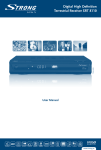
Digital High Definition Satellite and
Terrestrial Receiver SRT 8345 CI
User Manual
PART 1 • English
1.0 INTRODUCTION
1.1 Safety Instructions
1.2 Storage
1.3 Equipment Set-up
1.4 Features & Accessories
2
2
3
3
4
2.0 YOUR RECEIVER
2.1 Front Panel
2.2 Rear Panel
2.3 Remote Control Unit
5
5
6
7
3.0 CONNECTIONS
3.1 Connecting to a Satellite Dish
3.2 Connecting to Terrestrial antenna
3.3 Connecting to TV & VCR
3.4 Download new software
3.5 Connecting to external USB Hard disk
9
9
10
10
11
11
4.0 STARTING UP FOR THE FIRST TIME
4.1 Language Selection
4.2 Select Satellite
4.3 Dish adjustment
4.4 Channel set-up
4.5 Digital Terrestrial TV installation
11
12
12
12
12
12
5.0 MAIN MENU
5.1 Channel Organizer
5.2 Satellite Search
5.3 Terrestrial Search
5.4 Installation
5.5 Timer
5.6 Application
5.7 Common Interface
13
13
15
19
19
22
22
23
6.0 OTHER OPERATIONS
6.1 Program Guide (EPG)
6.2 Zapping and information banners
6.3 Channel list and view mode
6.4 PDR functions
24
24
24
24
25
A.1 TROUBLESHOOTING
27
A.2 SPECIFICATIONS
27
English
TABLE OF CONTENTS
1
PART 1 • English
1.0 INTRODUCTION
1.1 Safety Instructions
The lightning flash with arrowhead symbol within an equilateral triangle is intended to alert the user to
the presence of not isolated dangerous voltage with the inside of the product that may be of sufficient
magnitude to constitute a risk of electric shock to persons. The exclamation point within an equilateral
triangle is intended to alert the user to the presence of important operating and servicing instructions in
the literature accompanying the appliance.
Read All Instructions - Before you use the product, read all operation instructions, For more information
on accessories such as the lithium ion battery, refer to the manuals provided with those products.
Save These Instructions- Save all safety and operating instructions for future reference.
Heat Warnings - Read carefully and follow all warning labels on the product and those described in
the instructions.
Follow Instructions- Follow all instructions provided with this product.
Cleaning - Always unplug this product from the wall outlet before cleaning. Use only a damp cloth for cleaning.
Never use any type of liquid or aerosol cleaner, or any type of organic solvent to clean this product.
Attachments - For your safety, and to avoid damaging the product, use only accessories recommended
by STRONG.
Water and Moisture - Never use this product around water (near a bathtub, kitchen sink, laundry tub, wet
basement. swimming pool or in the rain)
Location -To avoid damage to the product and prevent personal injury, never place this product on an
unstable stand, tripod, bracket, Follow the instructions that describe how to safely mount the product,
and use only the mounting devices recommended by the manufacturer.
Power Sources - Connect this product only to the power source described on the product label. If you are
not sure about the type of power supply in your home, consult your local power company.
Refer to instruction pages for information on using the product with a battery.
Grounding, Polarization - If this product is used with a specified AC adapter, the adapter may be
equipped with a polarized alternating current line plug (a plug with one blade wider than the other). This
safety feature allows the plug to fit into the power outlet only one way, If you cannot insert the plug into
the wall outlet, pull it out, reverse it, and have the receptacle replaced.
Protecting the Power Cord - The power supply cord should be placed so it will not be walked on. Never
put a heavy object on the power cord or wrap it around the leg of a table or chair. Keep the area around
the power cord connection points, at the power outlet, and at the product connection, free of all AC
adapter or accessory power cords.
GENERAL PRECAUTIONS - SAFETY PRECAUTIONS
Lightning- If a lightning storm occurs while using a specified AC adapter, remove it from the wall outlet
immediately. To avoid damage from unexpected power surges, always unplug the AC adapter from the
power outlet and disconnect it from the receiver when the receiver is not in use.
Overloading- Never overload wall outlets, extension cords, power strips, or other power connection
points with too many plugs.
2
Foreign Objects, Liquid Spillage - To avoid personal injury caused by fire or electrical shock from contact
with internal high voltage points, never insert a metal object into the product. Avoid using the product
where there is a danger of spillage.
Heat - Never use or store this product near any heat source such as a radiator heat register, stove, or any
type of equipment or appliance that generates heat, including stereo amplifiers.
Servicing - Refer all servicing to qualified personnel. Attempting to remove the covers or disassemble the
product, could expose you to dangerous high voltage points.
Damage Requiring Service - If you notice any of the conditions described below while using a specified
AC adapter. unplug it from the wall outlet and refer servicing to qualified service personnel:
1. Liquid has been spilled onto the product or some other object has fallen into the product.
2. The product has been exposed to water.
3. The product does not operate normally despite following operating instructions. Adjust only the
controls described in the operating instructions ad improper adjustment of other controls could
damage the product and require extensive repair word by a qualified technician.
4. The product has been dropped or damaged in any way.
5. The product exhibits distinct change in performance.
Replacement Parts - When replacement parts are required, mare sure that the authorized service centre
uses only parts with the same characteristics as the originals, as recommended by the manufacturer.
Unauthorized substitution of parts could result in fire, electrical shock, or create other hazards.
Safety Check - Upon completion of servicing or repairs, ask the service technician to perform safety
checks to determine that the product is in good working order.
Apparatus shall not be exposed to dripping or splashing and no objects filled with liquids, such as
vases, shall be placed on the apparatus. Where the mains plug or all-pole mains switch is used as the
disconnect device, the disconnect device shall remain readily operable.
1.2 Storage
Your receiver and its accessories are stored and delivered in a packaging designed to protect against
electric shocks and moisture. When unpacking it, make sure that all the parts are included and keep the
packaging away from children. When transporting the receiver from one place to another or if you are
returning it under warranty make sure to repack the receiver in its original packaging with its accessories.
Failing to comply with such packaging procedures could void your warranty.
1.3 Equipment Set-up
We recommend you consult a professional installer to set up your equipment. Otherwise, please follow
the instructions below:
Refer to the user manual of your TV and your antenna.
3
English
PART 1 • English
PART 1 • English
Make sure that Audio/Video cables and outdoor components are in a good condition and the SCART
connections are well shielded. This manual provides complete instructions for installing and using this
receiver. The following symbols will serve as follow.
WARNING:
Indicates warning information.
TIPS
MENU
Move to
Indicates any other additional important or helpful information.
Represents a button on the remote control or the receiver (Bold Character)
Represents a menu item within a window. (Italic Character)
1.4 Features & Accessories
n
n
n
n
n
n
n
n
n
n
n
n
n
n
n
n
n
n
n
n
n
n
HDTV receiver for all digital Free-To-Air TV and Radio programmes via satellite and terrestrial antenna
2 Common Interface slots compatible to most popular Conditional Access Modules* (e.g.
CryptoWorks, Conax, Viaccess, Irdeto, Mediaguard, etc)
Exceptional bright and clear TV pictures and excellent sound in DVD quality
High speed storage, copy and loading function for channel list(s) and software from USB
storage devices
5 000 channels memory capacity
Austrian, German, Italian channels pre-programmed
Display showing channel number or time
4 Favourite lists for TV and Radio
Zoom functions for TV pictures
Electronic TV Programme Guide for present/following event information
7 Timers with 3 modes (daily, weekly, once)
Teletext via receiver, multi-lingual subtitling and audio track support
Parental lock function with rating control
Quick and easy installation & user-friendly menu
Multi-lingual support on screen menu (OSD)
USB 2.0 for USB storage devices
Selectable output for 1080i, 720P and 576P format
Aspect ratio adjustment 4:3, 16:9, Pan & Scan, Letterbox
Software Update via USB 2.0 port and RS-232
Digital sound through optical and coaxial output (S/PDIF)
Fully DVB compliant, supports MPEG-2, MPEG-4 and H.264.
Multiple Video Outputs: HDMI, Component(Y, pb, pr), SCART (RGB, CVBS), Video RCA.
Accessories:
n 1 x User Manual
n 1 x Remote control unit
n 2 x Batteries (AAA type)
Note:
4
The batteries should not be recharged, disassembled, electrically short-circuited or be
mixed or used with other types of batteries.
PART 1 • English
2.0 YOUR RECEIVER
English
2.1 Front Panel
Fig. 1
1. POWER
Switches the receiver power On and Standby.
2. MENU
Gets into Main Page screen.
3. OK
Executes the selected item.
4. CH Up/Down
Channel up/down or selects the item of Menu.
5. VOL Up/Down
Volume up/down or selects the item of Menu.
6. Stand-by LED
Light up RED when receiver is in stand-by mode. Off when receiver is in awake mode.
7. USB LED
Light up GREEN when USB device is connected to USB connector at the back of the receiver.
8. 4 digits indicator
In awake mode displays channel number. In stand-by mode displays current time/
9. Front panel flap
9a. 2 Common Interface slots
9b. Smart card reader for Conax smart card
5
PART 1 • English
2.2 Rear Panel
Fig. 2
1. ANT IN
To connect the antenna cable to this connector.
2. TO TV
Gives you the possibility to connect an extra terrestrial receiver.
3. SAT IN
To connect the coaxial cable from your LNB on the satellite dish to this connector.
4. SAT OUT
Gives you the possibility to connect an extra satellite receiver (analogue or digital).
5. TV SCART Connector
Use this connector to connect your receiver with your TV set using a SCART cable.
6. DVD/ VCR SCART
Use this connector to connect your receiver to your video recorder using a SCART cable.
When receiver in stand-by mode a video/audio signals from your VCR will be looped through
receiver to your TV set.
7. Y, Pb, Pr
Connects to Component jack of TV.
8. VIDEO
This connector has a constant video signal for additional VCR-connections.
9. Audio L/R
Outputs for Audio Left (White) and Right (Red)
10. SPDIF Coax and Optical
Output for connecting to a digital audio amplifier.
11. HDMI
Connects to HDMI jack of TV.
12. RS-232 Serial Port
This serial port can be used to connect your PC to your receiver to download new software
versions to your receiver.
13. USB
Connects to USB device
14. Power ON/OFF Switch. Powers on/off
6
PART 1 • English
2.3 Remote Control Unit
1.
2.
3.
4.
5.
6.
7.
8.
9.
10.
11.
12.
13.
14.
15.
16.
17.
MUTE
Enables or disables the audio.
POWER
Switches the receiver between operation and standby mode.
RCL
Selects the previously viewed channel.
HDMI
Changes the resolutions of video (Switch HD type)
TV/RADIO
Switches between TV and Radio.
AV/TV
Selects the TV, VCR, STB (receiver output) or AUTO
(Automatic) mode for the TV SCART output.
Numeric buttons
Select the TV or Radio service channels and individual menu.
FAV
Toggles the selected favorite mode.
SAT
Displays the Channel list of Terrestrial.
EPG
Displays the TV or Radio program guide. (Electronic
Program Guide)
Teletext
Enables teletext mode.
Audio
Changes the audio languages.
Subtitle
Enables subtitle mode.
CH tu
Changes channels or moves to the item in the menu.
VOL pq
Adjust the volume or moves to left or move item in the menu.
MENU
Displays the main menu on screen.
EXIT
Returns to the previous menu or normal viewing mode
from a menu.
7
English
15. Power Cord
Your receiver requires a current of 90 ~ 240 V AC (Auto-selectable), 50 ~ 60 Hz ±- 5%. Make
sure to check the power specification before connecting your receiver to the wall outlet.
PART 1 • English
18. INFO
Displays the program information box on the screen.
19. V+/VTurns volume up or down.
20. CH+/CHChanges channels up or down on normal mode.
21.
Moves up a page in the channel list.(Selects zoom In/out)
22. .
Moves down a page in the channel list.
23. STOP
Stops recording, timeshift or playback.
24. PAUSE
Timeshift deactivated: Pauses the playing picture or go again to normal mode. Timeshift
activated: Starts the function. Further it is used to pause the playback.
25. RECORD
Records the program.
26. PLAY
Starts the playback assumed that recording/s were already done. Then you can select a file
from the Recording File List.
27. REWIND
Starts reverse playback and changes the speed of reverse playback.
28. F/F
Starts fast forward or fast motion playback and changes the speed of forward playback.
8
PART 1 • English
3.0 CONNECTIONS
English
3.1 Connecting to a Satellite Dish
Fig. 3
Connecting a fixed satellite dish to your receiver
Make your choice of which satellite you want to receive your signals from, and have your dealer aim your
dish at the requested satellite. Connect a coax cable to your LNB and the other end directly to the SAT IN
connector of your receiver.
Connecting multiple fixed dishes to your receiver using a DiSEqC 1.0 switch
If you want to watch programs from more than one satellite (For example from Astra and from HOT
BIRD) it is advisable to use fixed dishes and a DiSEqC 1.0 switch.
Have your Dealer aim the dishes at the requested satellites and connect the LNB? with coax cables to the
IN connectors of the DiSEqC 1.0 switch. Connect the OUT connector of the DiSEqC 1.0 switch to the SAT
IN connector at the back of your receiver. Connecting a dish on a motorized positioner to your receiver.
Another possibility for watching programs from multiple satellites is by mounting a dish to a motorized
DiSEqC 1.2 positioner.
Have your dealer mount the dish to the positioner, set the correct angle of the elevation and let him set the
center point for your positioner. Connect the LNB with a coax cable to the LNB IN connector of the positioner,
and connect the OUT connector of the positioner to the SAT IN connector at the back of your receiver.
9
PART 1 • English
3.2 Connecting to Terrestrial antenna
To receive the broadcast signal, the terrestrial antenna cable should be connected to the ANT IN
connector at the back of the receiver
3.3 Connecting to TV & VCR
Fig. 3
Connecting by HDMI cable
To fully enjoy your HD TV channels it is advisable to use HDMI or Component video outputs of your receiver.
Connect one end of HDMI cable to the HDMI output of your receiver and another end of cable to HDMI
IN connector on your TV.
Connecting to component output
1. Make sure to use proper cable (3 RCA on each side of cable, usually coloured as Green, Blue, Red).
2. Connect chinches at one side of the cable to YPbPr (Green, Blue, Red) outputs on your
receiver and another side of the cable to corresponded inputs on your TV. Very important to
follow colour mark.
Connecting by SCART cables
1. Connect the TV SCART connector at the back of the receiver to the SCART IN connector on
your TV set or connect Video RCA and Audio L/R RCA connectors at the back of the receiver
to corresponded inputs on your TV set.
2. Connect the VCR SCART connector of the receiver to the SCART-IN connector on your VCR set.
Fig. 4
10
Note:
Please, make sure that your receiver is connected by SCART or 3 RCA cable (Video,
Audio L/R) to your TV set when you connect your VCR (or DVD) to receiver. You will not
get video signal from your VCR (DVD) through the receiver if your receiver is connected
only by HDMI or YPbPr connector to your TV set.
3.4 Download new software
This receiver can download new system software by OTA update from satellite and is also able to load new
software via USB from external storage device or PC. Therefore software updates via RS-232 port is only a
“stopgap”. To upload new software, connect the receiver with an USB cable to an external storage device.
Instructions how to download software can be found on our website www.strong.tv (support > download).
3.5 Connecting to external USB Hard disk
Switch on your external HDD (connect the power adapter if applicable) before you connect the USB
connector at the back of your receiver. After finishing the First Installation (Cap. 4.0) proceed with
following steps:
1. Unless the USB-Hard disk is already formatted in FAT32 and recognised successfully for the first
time you will get a message to format your device to FAT32 in “Application” > ”USB” menu.
2. In this menu press the YELLOW (Format) button on your remote control to confirm.
After ~10 to 20 sec. (depends on HDD size) formatting will be finished and you can leave the
menu with the MENU or EXIT button.
3. Go to “Application” >”PDR” menu to adjust the preferred recording duration and set
Timeshift to OFF or ON as desired.
IMPORTANT: During formatting all data on the hard disk will be deleted and get permanently
lost. STRONG cannot be granted for any loss or damage of data, if you format the
hard disk.
4.0 STARTING UP FOR THE FIRST TIME
Ensure that your receiver is correctly connected to your television, satellite and terrestrial antennas. Make sure
that satellite and terrestrial signals are of good quality. Ask your local Strong dealer to check your installation or
satellite signal if you are not sure how to do this.
Confirm that the power plug of receiver is plugged into the wall outlet. Turn on the receiver by power switch on
rear panel.
The language section menu will be showing on your TV Screen.
It is recommended that you do first time installation following Installation Wizard step by step.
It will help you easily achieve system configuration and channel installation. If you are advanced user then you
can skip wizard by pressing EXIT button and set-up channels using Installation menu.
11
English
PART 1 • English
PART 1 • English
4.1 Language Selection
Press OK to choose the language.
4.2 Select Satellite
The Installation Wizard preconfigured for easy installation of Astra 1C, 1E (19E) or HOT BIRD (13E).
For these satellites LNB configuration is predefined as Universal LNB connected to the receiver via
DiSEqC 1.0 switch input 1. If your dish is aimed to Astra 1C, 1E (19E) or HOT BIRD (13E) then select
corresponded satellite from the list (future steps of installation are described in 4.3). If your dish is aimed
to another satellite or you have multiple dish installation then select other (future steps of installation are
described in 4.4).
4.3 Dish adjustment
After selection of Astra1C,1E(19E) or HOT BIRD (13E) menu WIZARD-DISH ADJUSTMENT will appear.
Adjust your dish position in small steps until the signal strength and quality bars turn green or yellow.
Try to reach the maximum possible strength and quality level. Once you are sure the signal cannot be
improved, fix the dish on this position and press OK on your remote control to start the channel search.
After finished search, the first programmed channel will be displayed on screen.
TIP:
Depending from OSD language and satellite selected you may be prompted to select
preinstalled channel list. These channel lists include most popular channels ordered
according to the preference of most of the customers
4.4 Channel set-up
If you select Other satellite then menu Channel set-up will be displayed on screen. Using pq buttons
select the Satellite item and press OK to display list of satellites. Use pq buttons to select satellite of
your choice and press OK. Using pq buttons select Dish number item and using tu buttons select
dish number and transponder, network search and channels which you want among All channels, FTA and
Scrambled in search for menu. Press OK in Dish number mode to set up Dish menu.
In Dish setup menu configure settings of the LNB, DiSEqC switch and Antenna mode. Please refer to
chapter 5.2.2 Dish set-up for detailed information. If you use fixed dish, then press RED (Auto scan)
button on remote control to start channel search. If you use dish mounted on DiSEqC 1.2 or GOTO X
positioner then select Dish position item and press OK. If you use GOTO X positioner then GOTO X
setup menu will be displayed. Please refer to GOTO X setup description in chapter 5.2.4. After setting up
dish position, press RED (Auto scan) button on remote control to start channel search.
4.5 Digital Terrestrial TV installation
After Satellite scan is completed you will be asked to continue installation with Digital Terrestrial TV. If
you do not want to install Digital Terrestrial TV at this time – select No and press OK. You can setup
Digital Terrestrial TV later through “Terrestrial search” menu. If you wish to install Digital Terrestrial TV
– select Yes and press OK.
12
Select your “Country”, “Antenna Power mode” and “Channel Numbering”. Use pq buttons to select an item
and tu buttons to change the value of the item. To continue installation press BLUE (Save&Exit) button.
On the next step of installation wizard you can adjust your terrestrial antenna for best reception
condition. Please, use tu buttons select channel number where digital terrestrial signal is available
and adjust your antenna direction and position (If necessary) to get maximum levels on the signal level
and quality indicators. You can check with your dealer on which channels digital terrestrial broadcast is
available at your location.
Press BLUE (Next) button to continue to Digital Terrestrial TV scan once you are sure that signal level
and quality are the best from possible.
At the end of installation process the receiver will exits from installation menu and tune to the first
channel in the list. Enjoy your TV and Radio channels!
TIP: If your home country/broadcaster supports LCN (Logical Channel Numbering), then please
adjust channel numbering mode to “Operator defined” if you are not sure about this ask
your local STRONG dealer. If the LCN is not supported then please select “Appearing order”.
5.0 MAIN MENU
All the important settings and features of your receiver can be operated in Main Menu. The Main Menu
consists of seven sub-menus: “Channel Organiser”, “Satellite Search”, “Terrestrial Search” “Installation”,
“Timer”, “Application” and “Common Interface” Press the MENU button when the menu is off, the MAIN
MENU screen will appear.
5.1 Channel Organizer
In MAIN MENU screen, use pq buttons to select Channel Organiser, then press OK or u to enter the
Channel Organiser menu, which consists of the sub-menus Sort Channels, Add to Favourites and Edit Channels.
5.1.1 Sort Channels
In this menu, you can sort channels by order or move channels to specified position.
Note:
Channels are sorted in the selected channel list only. Sorting of the channels in one list
do not change order of the channels in another list. I.e. sorting of the channels in
1 Favourite list do not change order of the channels in list of all channels and vice versa.
Note:
Please note, that channel sort function is not available if the setting for “Channel
numbering” (Menu: Terrestrial Search - Terrestrial Settings) is set to “Operator defined”.
Sort (RED button)
Press RED button to select one of available sort options.
n Original Order
the order of the channels will be restored to last stored order.
n Alphabet A-Z or Z-A channels will be sorted in alphabet order.
13
English
PART 1 • English
PART 1 • English
n
Frequency Low
n
First FTA
n
First scrambled
High channels will be sorted in frequency order: first channels with low
frequency, then with higher frequency.
Free-To-Air channels will be placed at the beginning of the list, Scrambled
channels at the end.
Scrambled channels will be placed at the beginning of the list, Free-To-Air
channels at the end.
If you want to store new order of channels press YELLOW (Save) or BLUE (Save & Exit) button. If you
do not want to store result of sorting press EXIT button. Message “Do you want to save?” will appear on
screen. Select "NO" to cancel or press OK to save result of channel sort.
Move (GREEN button)
Press GREEN (Move) button to manual sort channels. Use pq buttons to select channel that you want
to move. Press OK button to confirm channel selection. You can select several channels to move them
simultaneously. Now, you can select new position of the channel using pq buttons. Press GREEN
(Move) button to confirm new position of the channel. Repeat these steps for all channels that you want
to move. To save new order of the channels press YELLOW (Save) or BLUE (Save & Exit) button.
5.1.2 Add to Favourites
Enter to this menu in order to prepare lists of your favourite channels.
Use pq buttons to select channels of your choice.
Use tu buttons to select favourite group where to add selected channel.
Press OK button to mark/unmark channel to selected favourite group.
To rename Favourite group press RED button, select group that you wish to rename and press OK.
On screen will appear keyboard. To delete current name of the group select Backspace (GREEN) and
press OK. Select CAPS (RED) to toggle between Capital and small letters. To enter new name use
navigation and OK buttons.
To save new name press YELLOW (Save) or BLUE (Save & Exit) button. To cancel your modifications
press EXIT.
5.1.3 Edit Channels
In this menu you can edit channel name, lock and delete channels.
Edit
Press RED button to edit name of the channel. On screen will appear keyboard. To delete current name
select Backspace (GREEN Button) and press OK. To enter new name use navigation and OK buttons. To
save new name press YELLOW (Save) or BLUE (Save & Exit) button. Channel name will be changed in all
channel lists. To cancel your modifications press EXIT..
Lock
Lock function can be used in order to block access to some channels. Press GREEN button to lock/
unlock channel of your choice. Locked channel will be marked by Lock symbol. In order to watch locked
channel you will need to enter PIN code. Channel will be locked in all channel lists.
14
Delete
Pressing YELLOW button will mark selected channel to delete. To unmark channel select it and press YELLOW
button again. Channel(s) will be deleted after you press BLUE button. Be aware: after pressing BLUE button
channel(s) will be deleted from all channel lists. To cancel delete operation you can press EXIT button.
Message “Do you want to save?” will appear on screen. Press EXIT to cancel or OK to confirm.
5.2 Satellite Search
The Satellite Search menu contains following sub-menus:
n Channel set-up
allows you to setup channels from selected satellites.
n Dish Set-up
allows you to setup configuration of your dishes.
n Edit satellites
allows you to edit predefined satellites and their transponders as well as add
new satellites.
n GOTO X setup
allows you to setup your location in order to use GOTO X type of positioner.
5.2.1 Channel set-up
From this menu you can setup channels from satellite(s) in several modes, access to Dish setup menu,
Positioner setup (if used).
n Satellite:
Move focus of the menu to this item. Press OK to display list of available
satellites. Select satellite of your choice and press OK. If satellite doesn’t exist
in the list you should add it first using Edit satellites menu.
n Dish number:
move focus of the menu to this item. Use tu buttons to select dish number
to which above selected satellite belongs to. Press OK button to enter to Dish
setup menu. Dish number “----“ means that selected satellite do not belongs to
any dish.
n Dish position:
This item value depends on the mode of the Dish.
If mode of selected dish is Fixed then this item is not selectable.
If mode of selected dish is DiSEqC 1.2 then value cannot be stored (in case dish
position for selected satellite was not stored) or in range from 1 to 64 if position
has been stored. Select item and press OK to setup positioner.
See chapter 5.2.1.1 for more details about Positioner setup.
If mode of selected dish is GOTO X then value is GOTO X. Select item and press OK
to setup GOTO X function.
n Transponder:
Move focus of the menu to this item and press OK. List of transponders
of selected satellite will appear at right side of the screen. You can select
transponder in order to check signal strength and quality of reception.
Transponder list contains predefined transponders. If you need to modify
transponder list please use menu Edit satellites as described in chapter 5.2.3.
If you need to scan specific transponder then use Manual scan as described in
this chapter below.
15
English
PART 1 • English
PART 1 • English
n
n
Network search: if this item is set to “No” then receiver will search for the channels that are
available from preset transponder list of selected satellite. If this item is set to
“Yes” then receiver in addition will search for the channels from transponders
information about that can be found from broadcast. Use this option to get
new channels that appeared on satellite.
Search for:
you can select type of the channels that will be installed to your receiver.
If selected All channels then receiver will install Free-To-Air and Scrambled channels
If selected Scrambled then receiver will install only Scrambled channels
If selected FTA then receiver will install only Free-To-Air channels
Once you complete all settings you can start channel search process.
Press RED button to install channels from all transponders of the satellite;
Press GREEN button to install channels from transponder selected in
Transponder item;
Press YELLOW button to enter to Manual setup channels from specific
transponder or to setup single channel with known Video and Audio PID.
Manual setup of channels
In Manual channel search menu you can setup all channels from specific transponder or single channel.
To setup all channels from specific transponder:
n Satellite:
indicate name of the satellite where channels will be searched
n Frequency:
Use Numeric buttons to enter frequency of transponder
n Polarisation control: Use tu buttons to select polarisation of transponder
n Symbol rate:
Use Numeric buttons to enter symbol rate value
n Network search:
Use tu buttons to select ON or OFF
n Search for:
Use tu buttons to select type of channels to be installed Press RED (Search)
To setup single channel from specific transponder:
To use this function you need to know special values that identify single channel. For this reason you may
need to consult to special magazines or internet.
n It is necessary to setup all parameters of transponder as described in above.
n Press GREEN (PID add) button.
n Satellite:
indicate name of the satellite where channels will be searched
n Frequency:
indicate frequency of transponder where you install channel
n Service ID:
Use Numeric buttons to enter value in decimal
n Video PID:
Use Numeric buttons to enter value in decimal
n Audio PID:
Use Numeric buttons to enter value in decimal
n CAS:
Use tu buttons to select ON or OFF. Set to ON if channel is encrypted,
otherwise keep OFF
n HD Video:
Use tu buttons to select ON or OFF. Set to ON if channel is HD, otherwise
keep OFF
n AC3 Audio:
Use tu buttons to select ON or OFF. Set to ON if channel has AC3 audio and
you are going to use AC3 audio, otherwise keep OFF
16
PART 1 • English
5.2.1.1 Positioner setup
If in Dish setup menu you have configured Dish mode as “DiSEqC 1.2” then you have to setup position
of the dish to each satellite that you want to install.
In Channel setup menu move menu focus to Dish position item and press OK button on remote control.
Menu Positioner setup will appear on screen.
n Satellite:
Displays the name of satellite position of antenna for which you setup
n Transponder:
Use tu buttons to select reference transponder, receivable in your location, to
measure signal strength and quality
n Movement speed: Use tu buttons to select between Slow and Fast. Slow speed allows you to
fine adjust position of the dish (each press to direction button will turn dish
to short angle). Fast speed can be used to adjust dish position roughly. If
Movement speed set to Fast press to direction button will couse continuous
movement of the dish to appropriated direction, to stop dish you will have to
press OK button.
n Move:
Use tu buttons to move dish to the East/West direction
n Centre position:
If you press OK button while menu focus is on this item then dish will be
turned to centre position, which corresponds to true South direction.
n Limits:
Use tu buttons to Enable or Disable software limits of your positioner.
n Set limit:
Use tu buttons to select East or West limit of dish movement range.
Step by step recommendations of position setup.
n Select reference transponder in order to check signal strength and quality during position setup.
n If you do not know current direction of your dish then move menu focus to Centre position
item and press OK. Dish will be turned to true South. Knowing your location longitude you
may understand direction where necessary to move dish in order to reach position of selected
satellite. For example: your longitude is 5° East and you want to setup dish position for Astra 1C,
1E (19° East). Then, from centre position, you need to move dish to East direction by pressing to
t button. If your longitude is 25° East then, in order to setup dish position for Astra 1C, 1E (19°
East), you need to move dish in West direction (from centre position) by pressing to u button.
n To setup roughly position of the dish set Movement speed to Fast. Then move menu focus
to Move item of the menu and by short presses to t or u buttons move dish to necessary
direction. Check signal strength and quality indicators. Once levels start increasing – press OK
button to stop the dish. Set Movement speed to Slow and keep adjusting dish position until get
best possible values.
n Once you are sure that dish is fine adjusted press YELLOW (Store) or BLUE (Store & Exit) button.
Dish position for selected satellite will be stored.
NOTE:
in order to avoid mechanical damage of your dish please, make sure those mechanical
limits in your motor are set correctly and dish would not hit any objects on its movement.
17
English
To add channel press YELLOW (Save) or BLUE (Save&Exit) button. The new channel will be added to the
list with name “Video CH XXXX”, where XXXX is equal to PCR PID (Video) you have entered.
PART 1 • English
5.2.2 Dish set-up
In this menu you can setup parameters of your dish(es).
n Dish number:
Use tu buttons to select number of the dish. This number used in
Channel setup menu to create a link between satellite and corresponded
dish configuration.
n LNB type:
Use tu buttons to select type of LNB. If you set type to Universal then you
should enter values of Local Oscillator Frequencies in LO frequencies menu
item
n LO frequencies:
this menu item selectable only in case LNB type is Universal. Press OK
button and using Numeric buttons enter values in appeared dialog box.
n Band control:
Use tu buttons to select value. Set to Auto in order receiver automatically
select Band by sending 22 kHz control signal. Set to ON in order receiver
generate 22 kHz control signal continuously, or set to OFF in order to
disable 22 kHz control signal.
n Polarisation control: Use tu buttons to select value. Set to Auto in order receiver automatically
control polarisation. Set to 13 V or 18 V in order receiver supply LNB with
selected power, or set to OFF in order to disable LNB power.
n Switch type:
if you use DiSEqC switch the select appropriated type.
n Switch input:
select input number to which LNB is connected.
n Dish mode:
Use tu buttons to select between Fixed, DiSEqC 1.2 and GOTO X.
5.2.3 Edit satellites
In this menu you can edit satellite’s name, angle, location and transponder, as well as add new satellite.
Press RED button to edit a satellite’s properties.
Press GREEN to add new satellite.
Edit existing satellite and add new satellite functions are identical.
n Name:
press OK button to edit name of the satellite. On screen will appear
keyboard. To delete current name select Backspace (GREEN Buttons) and
press OK. To enter new name, use tu and OK buttons. Press YELLOW
button to save new name or press BLUE button to EXIT
n Angle:
Use Numeric buttons to enter value of orbital position of the satellite.
n Location:
Use tu buttons to select East or West location of the satellite.
n Transponder table:
press OK button to enter to edit transponder table menu. In this menu use RED
button to edit parameters of selected transponder, GREEN button to add new
transponder or YELLOW to delete selected transponder. To save changes you
have made press YELLOW (Save) or BLUE (Save&Exit) button.
5.2.4 GOTO X set-up
In this menu you should set your geographical location, if you use positioner and it supports GOTO X.
Use pq buttons to navigate in the menu.
Use Numeric buttons to enter values.
Use tu buttons to select an option.
To save changes you have made press YELLOW (Save) or BLUE (Save&Exit) button.
18
PART 1 • English
5.3 Terrestrial Search
5.3.1 Channel set-up
There are 2 possible ways of terrestrial channels search: Manual Search (GREEN button) and Automatic
Search (RED button).
Manual Search
Select one or several frequencies by OK button then Manual (GREEN) to search channels on selected frequencies.
AutoScan
Press Autoscan (RED) to scan all frequencies in the list.
On completing the search, the receiver will save automatically the services information.
5.3.2 Terrestrial settings
Use pqtu buttons to select your Country, Antenna Supply and Channel numbering.
Antenna supply:
select this option to ON in case you use active antenna powered through
coaxial cable. The receiver supply DC power +5 V into 50 mA load maximum.
Channel numbering:
select this option to “Operator defined” in case your operator provide logical
channel numbering feature. Otherwise select “Appearing order”.
5.4 Installation
5.4.1 Preference
In this menu, you can set up your personal preferences.
n OSD language, Audio language, Subtitle language
Use pqtu buttons select the item and OK button to display the list.
n Banner Timeout
To set banner duration (how long information banner will be displayed on screen).
Use pqtu buttons select the item and OK button to display the list.
n Transparency
Use pqtu buttons to select the transparency level and OK button to display the list.
n CAM messages
To enable or disable displaying of messages from Conditional Access Module. Disabling of CAM
messages could be necessary in order to not disturb you while zapping through channels which
can’t be descrambled by your smart card.
n Power On Channel
Use pqtu buttons to select the item. If your choice is Fixed channel: press OK button to display a
channel list, select a channel and confirm selection with OK button. Your receiver will always start with
defined channel. If your choice is Last Viewed then receiver will awake with the last watched channel.
19
English
The Terrestrial Search menu contains following sub-menus: ”Channel set-up” and “Terrestrial settings”
In first order make sure that Terrestrial settings are correct and corresponds to the country where you leave.
PART 1 • English
n
S/PDIF
Use pqtu buttons to select the Digital audio mode.
PCM – the receiver will downmix AC3 audio to PCM stereo.
Dolby – the receiver will by-pass AC3 audio for future decoding by Digital Audio Amplifier.
5.4.2 TV Setting
In this menu, you can configure the TV setting such as HD type, TV type, Aspect Ratio, Screen Control,
RGB/YUV, Brightness, Contrast, Saturation.
n HD type
Use pqtu buttons to select the item and press OK button to display the list of options, use
pq buttons to select a video output resolution and press OK button to confirm selection.
Tip:
n
TV Type
Use pqtu buttons to select the item and press OK button to display the list of options, use
pq buttons to select TV Type and press OK button to confirm selection.
Tip:
n
n
n
HD type is not selectable if output mode (YUV/RGB) set to RGB.
If you have changed TV type and Video on screen not appears in 15 seconds – press
EXIT button 2 times. Such a problem can appear if your TV do not supports video in
NTSC format.
Aspect Ratio
Set accordingly to aspect ratio of your TV.
Use pqtu buttons to select the item and press OK button to display the list of options, use
pq buttons to select Aspect Ratio then press OK button to confirm selection.
Screen Control
Use pqtu buttons to select the item and press OK button to display the list of options, use
pq buttons to select Aspect Conversion then press OK button to confirm selection.
RGB/YUV
Selects a mode of video output signal.
If you have connected your TV to receiver only by SCART cable then it is recommended to set
RGB mode. If you have connected your TV to receiver by HDMI or Component cable then this
value must be set to YUV.
Use pqtu buttons to select the item and press OK button to display the list of options, use
pq buttons to select YUV or RGB mode then press OK button to confirm selection.
WARNING: If you have selected RGB mode then HDMI (digital) and YPbPr (component) outputs
on the receiver would be disabled!
20
PART 1 • English
Brightness / Contrast / Saturation
Use pqtu buttons to select the item and press OK button to display the list of options,
use pq buttons to select level of Brightness / Contrast / Saturation then press OK button to
confirm selection.
5.4.3 Time Setting
To synchronise time in your receiver with broadcaster: set GMT usage to ON, select your time zone and
set Summer time accordingly to season.
In some cases it is recommended to set GMT usage to OFF and setup date/time manually.
5.4.4 Parental Control
In this menu, you can set menu lock status (Disabled or Enabled) and change the PIN code. Parental
rate menu allows you to block watching content which is rated for age equal or higher then you have
set in this menu. Function of this feature depends from broadcast and STRONG would not take any
responsibility if it doesn’t work. The default PIN code is 0000.
5.4.5 Software update
Select this option in order to update your receiver with the latest software version.
Software update services are available from Astra at 19.2E and Hotbird at 13E satellites.
If your antenna is primed to Astra 19.2 E then enter following parameters:
Frequency: 12604; Polarity: H (Horizontal); Symbol rate: 22000
If your antenna is primed to Hotbird 13E then enter following parameters:
Frequency: 12476; Polarity: H (Horizontal); Symbol rate: 27500
Press RED (Search). The receiver will check availability of software update and propose to update
software if new version is available. Follow future instructions displayed on screen. After software update
process receiver will switch on a last watched channel automatically.
Note:
During software download process Progress of software download will be displayed on screen.
Note:
Availability of the software update is subject of local broadcast condition and may not
work in all countries. Contact your vendor to find out more about this function.
Warning:
Do not switch power off and do not disconnect the receiver from the dish during
update process.
5.4.6 System Information
Displays the information about software version installed in the receiver.
5.4.7 Factory Reset
Use Factory Reset only when you want to return the receiver to the condition of factory default. This will
delete all user settings and installed channels.
21
English
n
PART 1 • English
5.5 Timer
You can set the timer to make the receiver perform designated actions including timer based wake up or
sleep instructions to the receiver.
n Timer Index
Use the tu buttons to select.
n Active
Use tu buttons to select among Power on, Power off, Duration, Recording and OFF
(disable timer)
n Mode
You can set the cycle of the action designated in the timer mode (Once, Daily or Weekly)
n Channel Type
Press OK button to display current channel list and using navigation buttons select channel to
be shown when the receiver will power on by timer event. You can use TV/R button to select
between TV and Radio channels.
n Starting Time
You can set the starting date or days of the week for the timer action. Use Numeric buttons to
enter the starting time of the timer action.
n Duration
Use Numeric buttons to enter the duration of channel view when the Timer mode is set to Time Interval.
5.6 Application
This menu will help you to use USB, Calendar, Tetris (Game) and CAS- only use for Conax Smart card.
5.6.1 USB
The Receiver is equipped with host controller. Insert your USB memory device to USB connector. Make
sure, that power consumption of your USB device is not higher then 500 mA. In case your USB memory
device power consumption is higher – make sure to connect an external power supply to your memory
device before connecting it to your receiver. Usage of memory device with high power consumption may
damage your receiver.
Select USB menu in application with pq and press OK
If you would like to backup channels or software to USB memory:
1. Press GREEN button and select type of data to store (“Channel data (UDB)” will store only
channels while “All SW dates (UAD)” will store software and channels).
2. Select one item and press OK to proceed.
3. Name of created file will be “STB_ALL_MMDDhhmm.UAD” or “STB_DB_MMDDhhmm.
UDB”, where: MM – month when file is created; DD – date; hh – hours; mm - minutes
To restore backed up data:
1. Select file (UAD or UDB) and press OK.
2. List of possible actions will be displayed. Make your choice and press OK to proceed.
3. After updating data from selected file your receiver will reboot automatically in 3 seconds.
22
PART 1 • English
To format USB memory device
Please press YELLOW Button (Format). A warning window will appear to get your confirmation of operation.
Tip:
English
To delete file
Press BLUE Button (Delete). A warning window will appear to get your confirmation of operation.
When USB memory device is not inserted to the USB port, OSD would not show any files.
5.6.2 Calendar
Use pq buttons to move to Calendar OK button. The calendar will appear on screen. Use pqtu
buttons to move between days in a month or / buttons to go previous or next Month. Press EXIT
buttons to return.
5.6.3 Tetris
Use pq buttons to move to Tetris and press OK button. Before starting a game, you will be prompt to
select level. Press numeric button to select a level which you want (1~15) and press OK.
tu:
Move block to left or right.
pq: Drop block.
OK:
Rotate block.
Press EXIT buttons to exit from game.
5.6.4 CAS
The receiver is equipped with one slot for Conax smartcard which has access to the scrambled pay per
view services.
1. Select CAS menu in application with pq and press OK
2. The Screen will show you the version and CAS ID
Tip:
When smartcard is not inserted in CAS slot, OSD would not show anything.
5.6.5 PDR
Here you can adjust your preferred Record Size (max. duration of record) and set Timeshift to ON or OFF.
5.7 Common Interface
The receiver is equipped with two slots of Common Interface which have access to the scrambled the pay
per view services with various conditional access modules and a valid smart card.
The programs that can be descrambled are determined by the conditional access module and smart card
you use.
1. Select Common Interface with pq and press OK.
2. Common Interface displays on the screen. (The phrase "Not inserted" is indicated when the
conditional access module is not installed)
3. Insert the conditional access module into Slot 1 or Slot 2.
4. The name of the Slot differs according to each inserted conditional access module.
5. Press EXIT to return to the previous menu or press MENU to go to current live channel.
23
PART 1 • English
6.0 OTHER OPERATIONS
6.1 Program Guide (EPG)
EPG shows the program schedule for the current channel. Availability of EPG depends from broadcast
and may not be available for all channels.
In no-menu state, press EPG button, the EPG Menu will appear. Screen is divided to 3 main parts: at the
left channel list, at the right program schedule list and bottom part provide short program description
with program start-end time.
In channel list:
Use pq buttons to choose the channel. Use tu to switch between channel list and program schedule.
In program schedule list:
Use pq buttons to choose program. Use RED/GREEN buttons to select previous/next day of schedule.
Use tu to switch between channel list and program schedule.
Use YELLOW button to display detailed program information.
Use BLUE button to programme timer for selected program.
In program details:
Use pq to scroll information in the window.
Use EXIT to return to the list of programs.
6.2 Zapping and information banners
Zapping banner displayed automatically every time when you change channel in normal view mode. It
provides information about current channel list type, carrier name, time and date information, channel
number and name as well as current program name.
Information banner can be displayed by pressing to INFO button.
In addition to zapping banner it provides information about next program, availability of subtitles and
teletext on current channel.
Information banner can be toggled to Extended and Signal modes by pressing RED (Extended) and
GREEN (Signal) buttons accordingly. In Extended mode can be displayed short description of current
program (if available). In Signal mode displayed technical information such as transponder parameters,
audio and video PIDs of current channel, signal strength and quality.
6.3 Channel list and view mode
To call up on screen the current channel list press OK button from view mode.
Use pqtu buttons to select channel and press OK to switch to full screen view mode.
Use button SAT to call up the list of terrestrial channels.
6.3.1 Fast alphabet filtering
Press RED (Filter) button to filter channels in alphabetical order. The alphabet will be displayed at the
right side. Select first letter of the channel name that you need to find in the list and press OK.
24
6.3.2 Selection of the list
From view mode or channel list mode press SAT button to display the selection of available channel lists.
FAV button to display the list of favourite groups. Use pq buttons to select an item in the list and press
OK to confirm selection.
To toggle between TV and Radio channels use TV/RAD button.
Tip:
FAV will only be displayed if you have already added channels to a FAV list.
6.3.3 Favorite list selection
From view mode or channel list mode press FAV button and use pq buttons to select favourite group
of your choice. Press OK to confirm selection.
Tip:
If you want to exit from FAV mode press TV/RAD button.
6.3.4 Selection of Audio Language
From view mode press the AUDIO button on your remote control. Use tu buttons to select an audio
language from the list of available. Use tu buttons to select audio channel between Left, Right and
Stereo. Press OK to confirm your selection. Additionally you can select volume level for this channel.
6.3.5 TELETEXT function
In channel view mode press TEXT button. If Teletext is available in several languages, then select
language from the list.
6.3.6 Subtitles function
In channel view mode press SUB button. List of available subtitles languages will be displayed on the
screen. Use tu buttons to select language and OK to confirm. To disable subtitles select OFF from the
list of the languages.
6.4 PDR functions
The software supports full range of PDR functionality! The usage is based on your own risk! Recording
of HD signals requires very high record speed. Therefore the accurate function is depending on the
used external USB device. STRONG cannot guarantee for USB devices used. Especially when Timeshift
is activated at channels with high data rate, STRONG cannot guarantee an accurate Playback of the
Timeshift file. Any risk of the PDR function usage shall not be passed to STRONG!
6.4.1 Record
1. Select the desired TV channel you want to record.
Press the l (Record) button on the remote control to start recording.
2. Recording Info banner appears and shows the file name, recording time and duration (which
can be adjusted in Application > PDR menu). It will disappear within OSD-timeout interval.
To recall this banner during recording press the INFO button.
3. During recording you can call up the Record Channel List by pressing the OK button to watch
another Free-To-Air channel within the same transponder.
25
English
PART 1 • English
PART 1 • English
4. To stop recording at any time press n (Stop) button.
5. If you want to delete recorded file(s) from the Recording File List press the RED (delete) or
GREEN (All delete) button.
6.4.2 Play
1. Press Ñ (Play) button in TV mode and the Recording File List will appear on screen.
2. Select with the pq buttons the file you want to watch and start playback by pressing OK.
3. You can activate Fast Forward or Fast Rewind during playback by pressing the 7 or 8
button. Another pressing of these buttons will change the speed (FF: x2, x4, x8; FR: x1, x2,
x4, x8). Press Ñ (Play) button to continue playback at desired position.
4. To choose a specific position or scene in the playback press INFO and select the desired
position with the tu buttons.
5. To stop the playback press n (Stop) button.
6.4.3 Timeshift
1. Make sure that in PDR menu the Timeshift function is set to ON. This can be adjusted in
“Application” > “PDR” menu.
2. Press;(Pause) button in TV mode to start Timeshift. The Recording Info banner appears
and shows the recorded time.
3. To continue watching the programme press Ñ (Play) button.
4. If you start Timeshift during recording the receiver keeps recording.
5. You can activate Fast Forward or Fast Rewind during Timeshift by pressing the 7 or 8
buttons. Another pressing of these buttons will change the speed (FF: x2, x4, x8; FR: x1, x2,
x4, x8).
6. To choose a specific position or scene in Timeshift mode press INFO and choose the desired
position with the tu buttons.
7. To leave Timeshift press <(Stop) button.
26
PART 1 • English
There may be various reasons for the abnormal operation of the receiver. Check the receiver according to
the procedures shown below. If the receiver does not work properly after checking it, please contact the
dealer. Don’t open the receiver cover. This may cause a dangerous situation and will void the warranty.
Symptom
Cause
Remedy
The 4 digits display on
front panel does not
light up.
The power cord is not plugged
in.
Check that the power cord is plugged
in to the wall outlet. Make sure power
switch on rear panel is in ON position.
No picture or sound
Wrong connection of the Audio/
Video output of the receiver
to TV.
Connect the Audio/Video output of the
receiver to TV correctly.
Audio muting.
Press the MUTE button
TV power off.
Turn TV on.
The receiver can’t receive
the signal
Check the Terr./Sat-antenna cable,
replace the cable, or connect the cable
to the receiver tightly.
Incorrect values of channel
parameters.
Set the values of TP or terr. channel
parameters correctly in installation menu.
Wrong direction of the dish or
possible damage after storm.
Press TV/Radio to get back to TV
channels.
Message “Antenna
Power Overload”
Receiver detects shortcut in
cable system.
Disconnect receiver from the main,
check LNB/antenna and appropriate
cable, then connect receiver again.
The remote control does
not work
The batteries of the remote
control are not inserted or
exhausted
Check whether the batteries are inserted
correctly in your remote control. Check
the batteries, and if exhausted replace
the batteries in the remote control.
No picture
A.2 SPECIFICATIONS
Demodulator DVB-S
Demodulation:
Input Symbol Rate:
FEC Decoder:
QPSK, 8PSK
DVB-S QPSK:
2 ~ 45 Ms/s
DVB-S2 8PSK/QPSK:
10 ~ 30 Ms/s
1/2, 2/3, 3/4, 5/6, 7/8 in DVB-S2 mode
1/2, 2/3, 3/4, 3/5, 4/5, 5/6, 8/9, 9/10 in DVB-S2 mode
27
English
A.1 TROUBLESHOOTING
PART 1 • English
Demodulator DVB-T
Modulation:
Demodulation:
IF bandwidth:
Guard Interval:
Code rate:
COFDM
QSPK, 16/64QAM
6, 7 or 8 Mhz
1/4, 1/8 1/16, 1/32
1/2, 2/3, 3/4, 5/6, 7/8
Video Decoder
Profile Level:
Input Rate:
Aspect Ratio:
Frame Rate:
Video Resolution:
MPEG-2 MP@ML, MP@HL, MPEG-4 H.264/AVC
Max. 90 Mbit/s
4:3, 16:9, Pan & Scan, Letterbox
25 Hz for PAL, 30 Hz for NTSC
576p, 720p, 1080i
Audio Decoder
Audio Decoding:
Audio Mode:
Frequency Response:
Sampling Rate:
Tuner DVB-S
Connector type:
Input Frequency Rage:
RF Impedance:
Signal Level:
LNB Power:
DiSEqC Versions:
Tuner DVB-T
Connector type:
Frequency Rage:
MPEG-1 Layer 1 & 2, Dolby Downmix
Mono L/R, Stereo, Dolby Digital (dd)
20 ~ 20 kHz, <±2 dB
60 Hz ~ 18 kHz <± 0.5dB
32, 44.1, 48 kHz
F Type, IEC169-24, Female
950 – 2150 MHz
75 Ohm unbalanced
-65 to -25 dBm
13.5/18.5 V DC (± 5%), Max. 0.5 A max, overload protected
1.0, 1.2, GOTO X
COFDM Spectrum:
Antenna supply:
Female, IEC60169-2, 75 nominal
VHF: 174 to 230 MHz
UHF: 470 to 862 MHz
-78.5 ~ -25 dBm
(64-QAM, Code Rate 2/3, Guard Interval 1/8, Gaussian Channel)
COFDM 2K/8K-Carrier
5 Volt DC, Max. 50mA overload protected
System & Memory
CPU:
Flash Memory:
System Memory:
A/V Memory:
STi7100
8 MBytes
64 MBytes
64 MBytes
Signal Level:
28
PART 1 • English
General Data
Input Voltage Range:
Power Consumption:
Operating Temperature:
Storage Temperature:
Operating Humidity Range:
Size (W x D x H) in mm:
Weight:
English
Connectors
ANT IN; TO TV
SAT IN; SAT OUT
TV SCART (RGB, CVBS, Audio L/R Output with Volume control)
VCR Scart (Input - RGB, CVBS, Audio L/R; Output - CVBS, Audio L/R)
HDMI (V/A -Output) Type A -Version:1.0
RCA Output - Audio L/R & Video Output
Component Video Out (Y, Pb, Pr)
S/PDIF Dolby Digital Out (Coaxial, Optical)
Data Interface – serial port:
RS-232, 9-Pin D-Sub Male type
USB 2.0, Type A Connector
90 – 250 V AC, 50/60 Hz
max 40 W
0 ~ +40 °C
-10 ~ 50 °C
10 ~ 85 % RH, Non-condensing
300 x 215 x 65
1.6 kg
Subject to alterations. In consequence of continuous research and development technical specifications, design and appearance of
products may change. CryptoWorks and Irdeto are trademarks of Irdeto Access B.V., Conax is a trademark of Telenor Conax AS, Viaccess is a
trademark of France Telecom, all other product names are trademarks or registered trademarks of their respective owners.
© STRONG 2008. All rights reserved. 12/2008
29
PART 1 • English
30