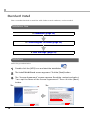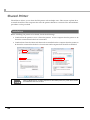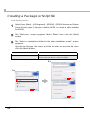
1
10
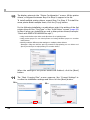
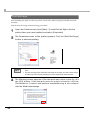
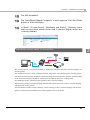
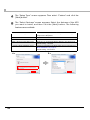
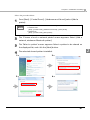
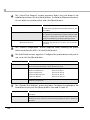
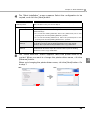
The display returns to the “Printer Configuration” screen. All the printer
drivers, configured between Step 6 to Step 9, appear in the list.
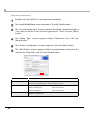
To install multiple printer drivers, repeat Step 5 to Step 9. To install the
same printer driver multiple times, click the [Copy] button.
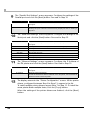
For the following installation combinations, select the setting of the first
printer driver for the “Port Type” of the “Add Printer” screen (page 20)
at Step 6 when you install the second or later printer drivers (example:
“Share with EPSON TM-H6000III Receipt”).
•Using both the Receipt driver and Slip driver for a hybrid printer
•Using peeler paper on one label printer and using full-label paper on another
label printer
•Making multiple different print settings on multiple printer drivers
(Example: using two drivers, specify portrait receipt printing on one driver and
specify landscape receipt printing on another driver)
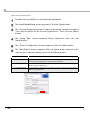
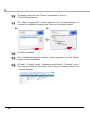
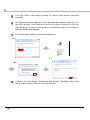
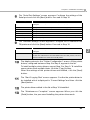
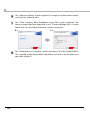
When the settings of the printer drivers are finished, click the [Next]
button.
11
10 >
22
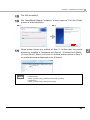
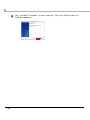
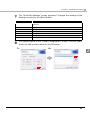
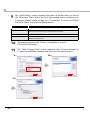
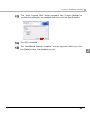
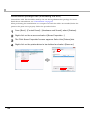
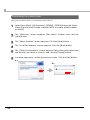
The “Start Copying Files” screen appears. See "Current Settings" to
confirm the installation settings and then click the [Next] button.
11 >