1
USE OF PVR MANAGER WITH UFS 910
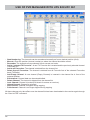
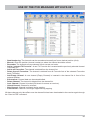
- Move to: Enter the position (channel number) to where the channel should be moved.
- Renumber: The channels are renumbered in their current sort order.
- Add to “selected Favourite”: A new TV Favourite list is created and the previously selected channel is
included in it.
- Add to all Favourites: Channel is added to all Favourites lists in the selected Favourites bank (TV/Radio)
- Delete from all Favourites: The channel is deleted from all Favourite lists of the selected Favourites
bank (TV/Radio).
- Add Empty Channel: A new channel (Empty Channel) is inserted in the channel list in front of the
selected position.
- Edit channel: Channel data can be entered/edited
- Delete Channel: The channel is deleted from the channel list.
- Lock Channel: Channel is locked (PIN check for access on receiver).
- Unlock Channel: Channel is unlocked.
- Skip Channel: Channel is skipped during zapping
- Free channel: Channel is no longer skipped during zapping.
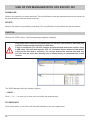
All these changes only take effect once the channel list has been downloaded to the receiver again through
the “Send to PVR” command.
SEND TO PVR
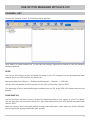
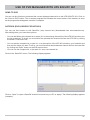
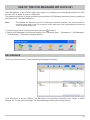
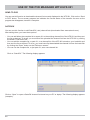
You can use this function to download the currently displayed channel list to the UFS 910. Click on the “Send
to PVR” button. The on-screen progress bar indicates the current status of the transfer. As soon as the progress bar disappears, transfer is complete (“Upload done” appears in the receiver display).
SAT/TP EDIT (SATELLITE & TRANSPONDER)
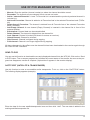
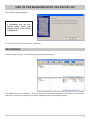
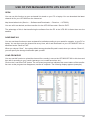
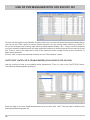
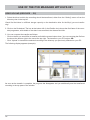
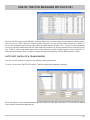
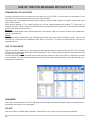
Use this function to enter a new satellite and/or transponder. To do so, click on the “Sat/TP Edit” button.
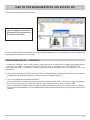
The following display appears (example):
Enter the data for the new satellite/transponder here and then click “Add”. The new data is added to the
existing satellite/transponder list.
9