1
V4.01
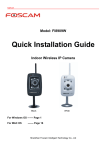
Model: FI9820W
Quick Installation Guide
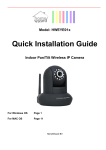
Indoor HD Pan/Tilt Wireless IP Camera
Black
White
ShenZhen Foscam Intelligent Technology Co., Ltd
FI9820W Quick Installation Guide
Quick Installation Guide - For Windows OS
Package Contents
z HD Network Camera FI9820W
x1
z DC Power Adapter (5V-2.0A)
.x 1
z Network Cable
x1
z Wi-Fi Antenna
.x 1
z Mounting Bracket
.x 1
z Quick Installation Guide
x1
z CD-ROM with Setup Software
.x 1
z Warranty Card
x1
Quick Installation Diagram
Quick Installation Guide Flow Chart
Hardware
Installation
Software
Installation
Login
the
Camera
Wireless Connection Setup
Remote
Access
Setup
Other Settings
www.foscam.com
P.12
-1-
FI9820W Quick Installation Guide
Start Installation
1. Hardware Installation
1) Open the package. Take out the camera out of the box carefully.
2) Mount the antenna. Then take the Wi-Fi antenna, mount it on the SMA connector on the back
of the camera, screw the antenna to the bottom, and make the antenna stand vertically.
Figure 1.1 Mount the antenna
Figure 1.2 Plug the network cable
3) Get the camera connected to the router, and get it powered.
Use the network cable to connect the camera to the router or the switch in the LAN network at your
home or your office. Plug in the power. The red power light will turn on. And the camera will
automatically pan/tilt. If you have plugged in the SD Card, the green light at the rear of the camera
will also turn on.
2. Software Installation
Insert the CD into the CD drive of your computer and find the folder “For Windows OS”. Select the IP
Camera Tool folder. Double click IPCamSetup.exe to install, it pops up a window as below (Fig.1.3).
Just click button “Next” to finish the installation.
Figure 1.3 Click Next, next to continue the installation
www.foscam.com
-2-
FI9820W Quick Installation Guide
Figure 1.4 Click Close to finish installation, and get computer restarted
A shortcut icon will appear on your desktop after the IP Camera Tool software installation is
successfully completed.
Figure 1.5 Shortcut icon
3. Login the Camera
Double click the IP Camera Tool icon and the following screen should appear.
Figure 1.6 IP Camera Tool Windows
The IP camera tool should find the camera’s IP automatically after you plug in the network cable. If
not, please make sure that DHCP is enabled on your router and that MAC address filtering, firewalls
and anti-virus are disabled temporarily until the camera is set up.
Double click the LAN IP address of the camera, it pops up a password dialog box.
www.foscam.com
-3-
FI9820W Quick Installation Guide
Figure 1.7 Enter the username and password
Camera supports three-level users management: admin, user and guest. The default “admin” user
name and password are all “admin”, the default “user” user name and password are all “user”, and
the default “guest” user name and password are all “guest”. Different usernames have different
permissions. Admin user has the highest authority. He can do any settings. Guest has the lowest
authority.
If you use PC, select this login
If you use mobile, select this login
Note
Figure 1.8 The user interface
There are two login methods. One is Video View for PC user, the other is Mobile
View for Mobile user. Please choose Video View if you are using PC now.
www.foscam.com
-4-
FI9820W Quick Installation Guide
Figure 1.9 Surveillance Windows
Congratulations! You have succeeded in accessing in the camera by wired connection. Just leave
all the menus alone before you finish the quick installation.
Note
The default administrator user name and password are all admin.
For the first time using you have to download the ActiveX and install it. For IE browser you can
download the ActiveX from the login UI, for Firefox,Google Chrome and Safari, you should download
QuickTime Player as the ActiveX from other website. (For more details: see user manual)
If you are still unable to see a live video, try shutting down any firewall or anti-virus software on your
computer.
4. Wireless Connection Settings
Please choose “For Administrator” and click “Wireless Settings”. Enable wireless.
There are two modes below Wireless Settings: Infrastructure and Point_to_Point.
Infrastructure: Connect the IPCAM to the WLAN via an a wireless router.
Point _to_Point: Connect the IPCAM directly to a host in a peer_to_peer environment.
4.1 Infrastructure Mode
Step 01) Enable wireless and choose Infrastructure mode.
www.foscam.com
-5-
FI9820W Quick Installation Guide
Figure 2.0 Wireless Settings
Click the Search button and the camera will detect all WIFI devices around the area.
It will pop up a dialog box and display all available routers: (Figure 2.1)
Figure 2.1 All available WIFI routers
Step 02) Click OK in the first column and the corresponding information (SSID, Security mode, WPA
Algorithm & WEP key index) will be filled automatically as the following picture.
You will only need to fill in the key. Make sure that SSID, Security Mode, WPA Algorithm and the key
you filled in for the camera are exactly the same for your router.
www.foscam.com
-6-
FI9820W Quick Installation Guide
Figure 2.2 Wireless LAN Settings
Step 03) Click Check after all settings have been entered. You can see whether WIFI settings are
correct. Such as the following screen:
Figure 2.3 WIFI Settings are correct
If failed, you will see a dialog box as the following picture. Close the dialog box and reset wireless
again.
www.foscam.com
-7-
FI9820W Quick Installation Guide
Figure 2.4 WIFI Settings are incorrect
When wireless settings are correctly, click Apply.
Plug out the network cable. Re-plug the power and the camera should work through your wireless
router.
The LAN IP address will disappear on the window of IP Camera Tool when the camera gets restarted.
Just wait for around 1 minute, the camera will get wireless connection, and the LAN IP of the camera
will be showed again on the window of the IP Cam Tool. You have done wireless connection of the
camera successfully. If the camera obtains an IP from DHCP server, the wired IP and the wireless IP
may be different, because its wired and wireless MAC address are different.
4.2 Point_to_Point Mode
Under this mode, the IPCAM will directly connect to a host in a peer_to_peer environment.
Make sure the PC has plugged in the wireless network card.
Step 01) Enable wireless and choose Point_to_Point mode.
Fill in a SSID to identify the IPCAM and then set the security mode, you can choose none or others.
Click Apply.
Figure 2.5 Point_to_Point mode
Step 02) Plug out the network cable of the camera and re-plug the power. After the camera restarts,
you can search the camera LAN IP again in the IP Camera Tool.
Open the wireless network card of PC and search the wireless network around the area. You can
find the SSID you filled for the camera (Figure 2.5).
www.foscam.com
-8-
FI9820W Quick Installation Guide
Figure 2.6 Wireless Network
Step 03) Disabled the wired connection of the PC. Select the SSID you filled at Figure2.5 for your
PC and enter the same key with your camera. PC and camera will work on point_to_point mode.
Note
If fail to make WiFi connection, please refer to seller or us for help.
5. Remote Access Settings
We have been able to access the camera within the LAN network, but how to access the camera via
WAN or via internet? We have to do Remote Access Settings before we want to access the
camera outside the LAN network.
5.1 Static IP user
Static IP users do not need to set DDNS service settings for remote access. When you have finished
connecting the camera using LAN and port forwarding, you can access the camera directly from the
Internet by the WAN IP and port number.
z Obtain the WAN IP from IPCAM
Please choose “For Administrator” and click “Remote Access”.
www.foscam.com
-9-
FI9820W Quick Installation Guide
Figure 2.7 Obtain the WAN IP from IPCAM
Click show, you will see the WAN IP as below.
Figure 2.8 WAN IP
z How to Obtain the WAN IP from a public website
To obtain your WAN IP address, enter the following URL in your browser:
http://www.whatismyip.com.The webpage at this address will show you the current WAN IP.
www.foscam.com
- 10 -
FI9820W Quick Installation Guide
Figure 2.9 Get to know the WAN IP address of the router
Access the IP Camera from the Internet
You can access the IP Camera from the Internet (remote access). Enter the WAN IP address and
port number in IE browser or other browsers you use. For example, Http:// 218.17.160.187:85
Note
Make sure port mapping (or also known as port forwarding) is successful. You can do port
mapping in two ways.
1) Enter the setting page of the router to enable UPNP function. Then login the camera as
administrator, choose UPnP Settings to enable UPNP and make sure the state is “UPnP success”.
2) Do port forwarding manually. (details: Fig.3.3)
If your router has a Virtual Server, it will do port mapping. Please add the camera’s LAN IP and port
which you set in basic network settings to the Virtual map list.
Note: If you plug the camera in a router, it will have dynamic IP address and you need to set DDNS
service settings to view it remotely.
5.2 How to configure Remote Access Settings (For dynamic IP user)
① Step 1 Go to the website www.no-ip.com to create a free hostname
Firstly: Login on www.no-ip.com and click No-IP Free to register.
Click here to register
Figure 3.0 Register a user name on www.no-ip.com
www.foscam.com
- 11 -
FI9820W Quick Installation Guide
Please register the account step by step according to instructions on www.no-ip.com
After registration, please login your email which used to register. You will receive an email from
website as below, please click the link to activate your ACCOUNT as indicated in email.
Secondly: Login the link with the registered username and password to create your domain
name.
Figure 3.1 Login the link to create a domain name
Figure 3.2 Create a domain name
www.foscam.com
- 12 -
FI9820W Quick Installation Guide
Please create the domain name step by step according to instructions on www.no-ip.com
② Step 2, DO DDNS Service Settings within the Camera
Please set DDNS Service Settings within the camera by hostname, a user name and password
you’ve got from www.no-ip.com
Take hostname ycxgwp.no-ip.info, user name foscam, password foscam2012 for example.
Firstly, goes to option of Remote Access on the administrator panel and enable DDNS.
Secondly, select No-ip.com as a server.
Thirdly, fill foscam as DDNS user, fill password foscam2012 as DDNS password, fill
ycxgwp.no-ip.info as DDNS domain and server URL, Then click save to make effect.
Note
If failed, please double check if you have input the correct hostname, user name,
and password, and try to redo the settings.
③ Step 3,Make Port Forwarding of the HTTP Port of the camera
What is port forwarding?
If you have no concept of Port Forwarding, please open the webpage
http://portforward.com/help/portforwarding.htm to learn some knowledge of Port Forwarding.
Or Use Google to check out what is port forwarding.
How to do port forwarding within the router
Example: The camera’s LAN IP address is http://192.168.1.35:88 ,
Firstly, login the router, goes to the menu of Port Forwarding or Port Trigger (or named Virtue
Server on some brands of router). Take Linksys brand router as an example, Login the router,
and goes to Applications & Gaming->Single Port Forwarding.
Secondly, Create a new column by LAN IP address & HTTP Port No. of the camera within the router
showed as below.
www.foscam.com
- 13 -
FI9820W Quick Installation Guide
Figure3.3 Port forwarding
④Step 4, Use domain name to access the camera via internet
After the port forwarding is finished, you can use the domain name+ http no. to access the camera
via internet. Take hostname ycxgwp.no-ip.info for example, the accessing link of the camera via
internet would be http:// ycxgwp.no-ip.info:88
How to test if the accessing link is working
1) Just enter http:// Domain name + HTTP Port on the IE bar, to see if the camera is accessible.
2) Send the link http:// Domain name + HTTP Port to your friend to have a test, to check if the
camera is accessible
6. Other Settings
Congratulations!
You have finished the quick installation of the camera. You can take time to play the camera.
Please refer to the electronic user manual burned in the CD-ROM for other settings.
Other advanced software settings, such as Alarm, Email Settings, User Settings.
If you have problem with FOSCAM IP camera, please first contact FOSCAM reseller for
solving the problems. If our reseller cannot provide service, pls contact our service
department: [email protected] .
ShenZhen Foscam Intelligent Technology Co., Ltd
www.foscam.com
- 14 -