1
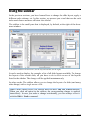
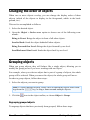
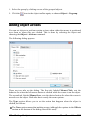
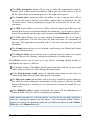
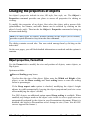
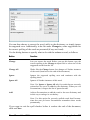
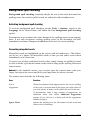
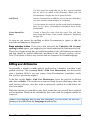
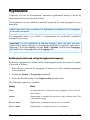
Document windows Every document that you create or open is displayed in its own document window. This feature allows you to work on multiple documents at the same time and copy data between them as needed. In this chapter you will learn how to use document windows. See the next pages for detailed information. Creating a document window To create a new empty document window, invoke the File > New command. If you would like to create a new window and at the same time open a file in it, use the File > Open command. Both commands are described in the section “File operations” beginning on page 36. Note: A new document window is opened only when the New Window option in the File > New or File > Open dialog is enabled. Otherwise, Presentations replaces the content of the currently active window. Activating a document window Keyboard entries and menu commands always affect only the currently active document window. To activate a specific window, you can do one of the following: Mouse: Click anywhere within the window you want to activate (provided it is visible). Keyboard: Open the Window menu. It contains a list of all open document windows, along with the corresponding document filenames. Here you can choose the window you want to activate. Android: In the Android version, you can switch between document windows by tapping on the document name displayed in the top right corner. This will open a list of all document windows currently open. Manual Presentations 2016 Document windows 275