1
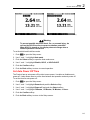
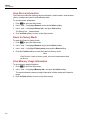
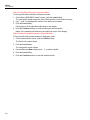
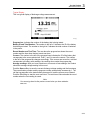
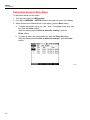
BT520 Users Manual Create a Profile The Product provides these options to create a profile: • Create by default: Uses system default data to create each profile. • Copy from template: Copies data from an existing template. • String+1: Copies data from the previous profile and increases 1 to the value of Battery string. Note The “Copy from template” option is available only after templates are downloaded the from PC software. To create a profile in Sequence mode: 1. On the measurement screen of Sequence mode, push the Profile softkey. The Profile info menu shows on the display. 2. Push the New softkey. The Select the Way to Create menu shows on the display. hsn004.jpg hsn012.jpg 3. Use and L to select Create by default, Copy from template, or String+1. 4. Push the Create softkey. The New Profile menu shows on the display. 5. When necessary, push the Edit softkey, and then use the arrow keys and softkeys to edit the field values. 6. Push the Done softkey to exit the edit status. 7. Push the Start softkey to enter the measurement screen. • • 3-4 Note When the same battery string is tested periodically, it is recommended that the same profile name is used. In this way, test data can be archived and the data trend can be viewed easier. After test of one battery string is completed in a system, the String+1 function lets you easily switch to the next battery string without the need of repeated data input.